


Salesforce Security Guide
 j
jEnable MFA with Session Security Levels
| Available in: both Salesforce Classic (not available in all orgs) and Lightning Experience |
| Available in: Enterprise, Performance, Unlimited, and Developer Editions |
| User Permissions Needed | |
|---|---|
| To edit profiles and permission sets: | Manage Profiles and Permission Sets |
| To generate a temporary verification code: | Manage Multi-Factor Authentication in User Interface |
To require MFA for users assigned to a particular profile, edit the session security level required at login profile setting. Then set your session security levels to apply the policy for particular login methods.
By default, the session security requirement at login profile setting is None. You can edit a profile’s session settings to change the requirement to high assurance. When profile users with the high assurance requirement use a login method that grants standard-level security instead of high assurance, they’re prompted to verify their identity with MFA. After users authenticate successfully, they’re logged in to Salesforce.
Users with mobile devices can use the Salesforce Authenticator mobile app or a third-party authenticator app as a verification method for MFA. Users can connect the app to their account in the Advanced User Details page of their personal settings. If you set the high assurance requirement on a profile, profile users without the Salesforce Authenticator or another authenticator app are prompted to connect the app to their account. After they connect the app, they’re prompted to use the app to verify their identity.
Users can also use registered U2F security keys as a verification method for MFA.
If users are logging in using an OAuth authorization flow, users can be prompted to verify their identity with MFA twice. The first challenge is on the UI session. The second challenge happens when the access token is bridged into the UI. The high assurance session security level can’t be transferred to the access token.
- From Setup, in the Quick Find box, enter Profiles, then select Profiles.
- Select a profile.
- Scroll to Session Settings, and find the Session security level required at login setting.
- Click Edit, and select High Assurance.
- Save your changes.
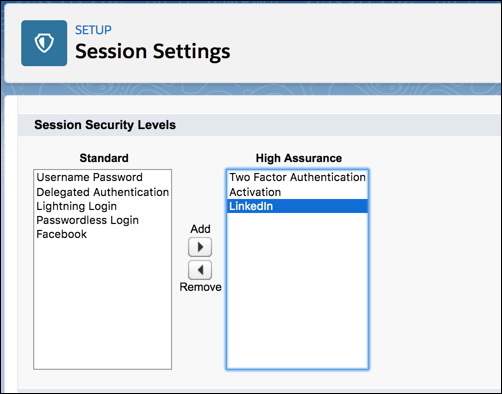
- From Setup, in the Quick Find box, enter Session Settings, then select Session Settings.
-
In Session Security Levels, make sure that Multi-Factor
Authentication is in the High Assurance column.
If Multi-Factor Authentication is in the Standard column, users get an error when they log in with a method that grants standard-level security.
- Save your changes.
Example
- In the Customer Community User profile, set the session security level required at login to High Assurance.
- In your session settings, edit the session security levels.
- Because you’re requiring MFA with Facebook accounts, make sure that Facebook is in the Standard column.
- Add Multi-Factor Authentication to the High Assurance column. When users log in with their Facebook account, they’re required to provide a verification method in addition to their username and password.
- Add LinkedIn to the High Assurance column. When users log in with their LinkedIn account, they’re granted High Assurance access without needing to provide a verification method.
If users lose or forget the device they usually use for MFA, you can generate a temporary verification code for them. You set when the code expires, from 1 to 24 hours after you generate it. Your user can use the code multiple times until it expires. A user can have only one temporary code at a time. If a user needs a new code while the old code is still valid, you can expire the old code, then generate a new one. Users can expire their own valid codes in their personal settings.