


Salesforce DX Developer Guide
 j
jNewer Version Available
Multiple Package Directories
In your sfdx-project.json file, list the package directories separately in the packageDirectories section. Each local package directory adheres to the standard Salesforce DX project structure. When you push the source to the org, the metadata is deployed in the order that you list the package directories in sfdx-project.json.
The multiple package directory structure is client-side (local) only. When you push the source to the org with force:source:push and the metadata is deployed, there’s no association between its local package directory location and the package in the org. You specify that metadata belongs to a specific 2GP package in an org by explicitly installing the 2GP package.
These commands support multiple package directories:
- force:source:push
- force:source:pull
- force:source:deploy
- force:source:retrieve
- force:source:delete
For simplicity, the examples use force:source:push and force:source:pull, although you can also use force:source:deploy and force:source:retrieve.
Considerations
Before setting up multiple package directories, read these considerations.
- As mentioned, force:source:push and force:source:deploydeploy multiple package directories in the order they’re listed in sfdx-project.json. Make sure to maintain any implicit code dependencies, or the push fails. For example, let’s say you move metadata files for a custom field to a new directory. But you forget to appropriately update the permission set or layout metadata files in the old directory that reference this custom field. A subsequent force:source:push fails.
- If you reorganize your local project by creating package directories or moving metadata files between directories, the force:source:status command doesn’t list these changes. This command lists only changes to the metadata files themselves or if the local metadata types differ from what’s deployed in the org. Use your version control system (VCS) to track file moves.
How Do I Set It Up?
Setting up multiple package directories is easy. How you organize your local source code among these directories takes more thought and planning, and depends on your development environment. Plan how to organize your code before you get started. Keep your source code well organized as your project grows to make it easier and more efficient for your developers to work.
Let’s look at a simple example. Say you put the decomposed metadata files for a custom object MyObject in the default package directory. You can then put files for a new field MyField on MyObject in a different “extension” package directory without having to also include the MyObject files. There are many ways to organize your code, and describing all the ways is out of scope of this topic. These blog posts provide some ideas.
Here’s how you set up multiple package directories. Let’s first look at a sample sfdx-project.json snippet:
1"packageDirectories": [
2    {
3      "path": "es-base-custom",
4      "default": true
5    },
6    {
7      "path": "es-base-ext"
8    },
9    {
10      "path": "es-base-styles"
11    }
12  ],
This sfdx-project.json snippet defines three package directories: es-base-custom (the default), es-base-ext, and es-base-styles. Let’s say your top-level local project directory is called easy-spaces-lwc. The directory hierarchy underneath it would look something like this:
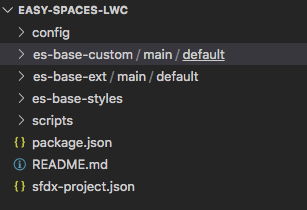
Each es-base-* directory adheres to the standard Salesforce DX project structure. For example, es-base-ext would look something like:

Now add the decomposed metadata source to these multiple package directories in the way that best suits your development environment.
How Does It Work?
When you run force:source:push, the CLI deploys the metadata in your multiple package directories in the order that they’re listed in the packageDirectories section of your sfdx-project.json file. Let’s look at our example again:
1"packageDirectories": [
2    {
3      "path": "es-base-custom",
4      "default": true
5    },
6    {
7      "path": "es-base-ext"
8    },
9    {
10      "path": "es-base-styles"
11    }
12  ],
When you push this source, the org deploys the metadata from es-base-custom first, then es-base-ext, and then es-base-styles. If each package directory includes independent self-contained metadata files, then force:source:push works on each package directory as if it was the single one in the project.
But say you have the following setup:
- es-base-custom Contains source for a custom object MyObject.
- es-base-ext: Contains source for a custom field MyField on MyObject. It doesn’t contain the source for MyObject.
If es-base-custom is listed before es-base-ext in sfdx-project.json (as in the example), then the MyObject is first created in the org and then MyField is created. The force:source:push command succeeds.
And say you switch the order and list es-base-ext first, like this:
1"packageDirectories": [
2    {
3      "path": "es-base-ext"
4    },
5    {
6      "path": "es-base-custom",
7      "default": true
8    },
9    {
10      "path": "es-base-styles"
11    }
12  ],
In this case, the org tries to create MyField on MyObject before the MyObject exists, and so the source push fails.
When you run force:source:pull, any local metadata that you previously pushed is pulled back into its correct directory. If you create metadata in your org, the force:source:pull command pulls the new files into the default directory, es-base-custom, in our example. You can then move these pulled files into the directory that makes sense for your project. After you push the moved files to the org with force:source:push, Salesforce CLI tracks their new location