


Salesforce DX Developer Guide
 j
jNewer Version Available
Connect CircleCI to Your DevHub
Authorize CircleCI to push content to your Dev Hub via a connected app.
- Make sure that you have Salesforce CLI installed. Check by running sfdx force --help and confirm that you see the command output. If you don't have it installed, see Install Salesforce CLI.
-
Confirm you can perform a JWT-based authorization from the directory containing your
server.key file. Run the following command from the directory containing
your server.key (replace <your_consumer_key> and
<your_username> values where indicated).
1sfdx auth:jwt:grant --clientid <your_consumer_key> --jwtkeyfile server.key --username <your_username> --setdefaultdevhubusername - Fork the sfdx-circleci repo into your GitHub account using the Fork link at the top of the page.
-
Create a local directory for this project and clone your forked repo locally into the new
directory. Replace <git_username> with your own GitHub username.
1git clone https://github.com/<git_username>/sfdx-circleci.git - Retrieve the generated consumer key from your JWT-Based Authorization connected app. From Setup, in the Quick Find box, enter App, and then select App Manager. Select View in the row-menu next to the connected app.
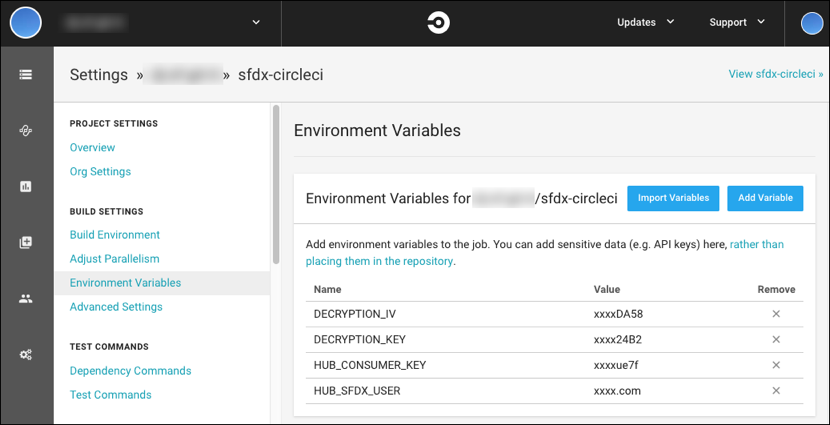
- In the CircleCI UI, you see a project named sfdx-circleci. In the project settings, store the consumer key in a CircleCI environment variable named HUB_CONSUMER_KEY. For more information, see the CircleCI documentation Setting an Environment Variable in a Project.
- Store the username that you use to access your Dev Hub in a CircleCI environment variable named HUB_SFDX_USER using the CircleCI UI.
-
Store the key and iv values from Encrypt Your Server Key in CircleCI environment variables
named DECRYPTION_KEYand DECRYPTION_IV, respectively. When you finish setting the environment variables, your
project screen looks like the following image.
You’re ready to go! Now when you commit and push a change, your change kicks off a
CircleCI build.
Contributing to the Repository
If you find any issues or opportunities for improving this repository, fix them! Feel free to contribute to this project, fork this repository, and then change the content. After you make your changes, share them with the community by sending a pull request. See How to send pull requests for more information about contributing to GitHub projects.
Reporting Issues
If you find any issues with this demo that you can't fix, feel free to report them in the issues section of this repository.