


LWR Sites for Experience Cloud
 j
jNewer Version Available
Add a Language to Your LWR Site
- In the Settings panel in Experience Builder, select
Languages.

- In the Languages panel, click Edit Languages (1).
- In the Edit site languages window, select the language from the Available Languages list, move it to the Site Languages list, and save your changes. You can add more than one language at a time.
- To make the language available to your site visitors, select Activate and show in the language selector (2) in the Languages panel.
- Optionally, set the fallback language for each language that you add
(3).
On your published multilingual site, if any text isn’t translated into a visitor’s selected site language, the text appears in the fallback language. For example, if you add translations for French and French (Canadian) to your site, you can designate French as the fallback language for French (Canadian). If you don’t designate a fallback language, the fallback is your default site language.
Experience Builder prevents you from creating fallback language loops. For example, if French is the fallback language for French (Canadian), then French (Canadian) isn’t available to select as the fallback language for French. Similarly, if the fallback language for French (Morocco) is French (Canadian), then French (Morocco) also is unavailable to select as the fallback language for French.
- Optionally, to determine how the language is listed in the language selector on your site, customize the label for the site language (4).
To rearrange the Site Languages list in the order that you want, use the grabber icon for a language (5). These changes also affect the order of languages in the language selectors in Experience Builder and on your site.
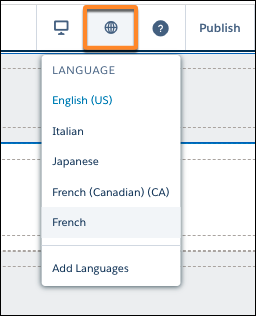
In Experience Builder, to view your site in another site language, use the language selector.
Delete a Site Language
- In the Site Languages list on the Languages panel, select Delete site language from the actions menu for the language that you want to delete. You also can delete a site language in the Edit site languages window.
- Move the language from the Site Languages list to the Available Languages list.
- Save your change.
When you delete a site language, you also delete its translated content and listing in the language selectors in Experience Builder and on your site. To preserve the translated content, export the content before you delete the language.
When you delete a site language that’s designated as the fallback language for another translation on your site, the fallback for that translation switches to your default site language. You can change the fallback to a different site language.