


Big Objects Implementation Guide
 j
jNewer Version Available
View Big Object Data in Reports and Dashboards
When working with big data and billions of records, it’s not practical to build reports
or dashboards directly from that data. Instead, use Async SOQL to write a query that extracts a
smaller, representative subset of the data that you’re interested in. You can store this working
dataset in a custom object and use it in reports, dashboards, or any other Lightning Platform
feature.
- Identify the big object that contains the data for which you need a report. In this example, the Ride__b big object contains the full dataset.
-
Create a custom object. This object holds the working dataset for the big object data that
you want to report on. In this example, we use the Bike_Rental__c custom
object.
- Under Optional Features for the custom object, click Allow Reports.
- Add custom fields to the object that match the fields that you want to report on from the big object.
-
Create an Async SOQL query that builds your working dataset by pulling the data from your
big object into your custom object.
-
Log in to Workbench.
To access Workbench, log in to your org, then open a new browser tab and navigate to https://developer.salesforce.com/page/Workbench.
- Select Queries, then Async SOQL.
-
For the Source object, choose the big object from step 1. In this example,
Ride__b is the source big object that holds the full dataset.
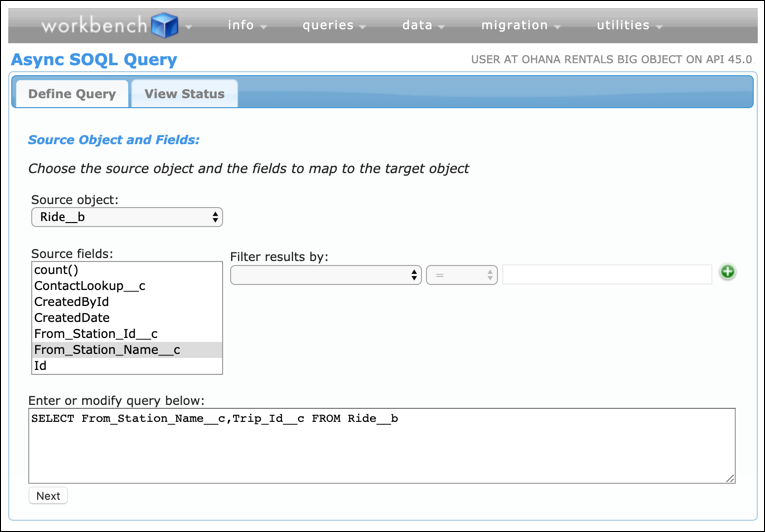
- Select the source fields and filter criteria.
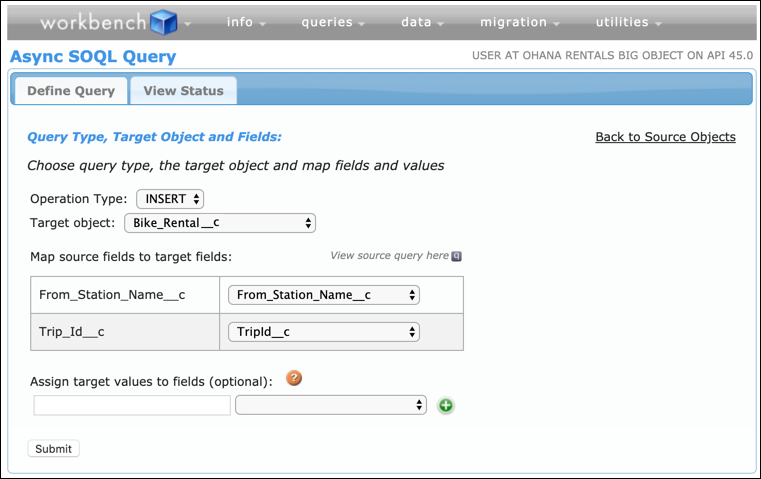
- Set the operation type to INSERT.
- For the Target object, choose the custom object from step 2, Bike_Rental__c.
-
Map the source fields from the big object to the target fields in the custom object. In
this example, we are mapping the From_Station_Name__c and
Trip_Id__c fields from the Ride__b source big
object to the corresponding fields on the Bike_Rental__c target custom
object.
- Run the query and wait until it completes. Run time depends on how much data you have.
-
Log in to Workbench.
- After the query runs, query the custom object in Workbench to see that the data is there.
-
Build a report using the working dataset you created.
- From Setup, enter Report Types in the Quick Find box, then select Report Types.
- Create a custom report type.
- For the Primary Object, select the custom object from step 2, Bike_Rental__c.
- Set the report to Deployed.
- Run the report.
You can now use the information from your working dataset not only in your reports, but
also in dashboards or any other Lightning Platform feature.