


Visualforce Developer Guide
 j
jNewer Version Available
Example of Building Map Data in Apex
Apex code gives you complete control over the results that are returned and used for the map and markers. You can also use Apex to return results that are from outside Salesforce.
1<apex:page controller="FindNearbyController" docType="html-5.0" >
2
3    <!-- JavaScript to get the user's current location, and pre-fill
4         the currentPosition form field. -->
5    <script type="text/javascript">
6        // Get location, fill in search field
7    	function setUserLocation() {
8            if (navigator.geolocation) {
9                navigator.geolocation.getCurrentPosition(function(loc){
10                    var latlon = loc.coords.latitude + "," + loc.coords.longitude;
11                    var el = document.querySelector("input.currentPosition");
12                    el.value = latlon;
13                });
14            }
15        }
16        // Only set the user location once the page is ready
17    	var readyStateCheckInterval = setInterval(function() {
18    		if (document.readyState === "interactive") {
19        		clearInterval(readyStateCheckInterval);
20        		setUserLocation();
21    		}
22		}, 10);
23    </script>
24
25    <apex:pageBlock >
26        <!-- Form field to send currentPosition in request. You can make it
27             an <apex:inputHidden> field to hide it. -->
28        <apex:pageBlockSection >
29            <apex:form >
30                <apex:outputLabel for="currentPosition">Find Nearby</apex:outputLabel>
31                <apex:input size="30"
32                     html-placeholder="Attempting to obtain your position..."
33                     id="currentPosition" styleClass="currentPosition"
34                     value="{!currentPosition}" />
35                <apex:commandButton action="{!findNearby}" value="Go!"/>
36            </apex:form>
37        </apex:pageBlockSection>
38
39        <!-- Map of the results -->
40        <apex:pageBlockSection rendered="{!resultsAvailable}" title="Locations">
41            <apex:map width="600px" height="400px">
42                <apex:repeat value="{!locations}" var="pos">
43                    <apex:mapMarker position="{!pos}"/>
44                </apex:repeat>
45            </apex:map>
46        </apex:pageBlockSection>
47
48    </apex:pageBlock>
49
50</apex:page>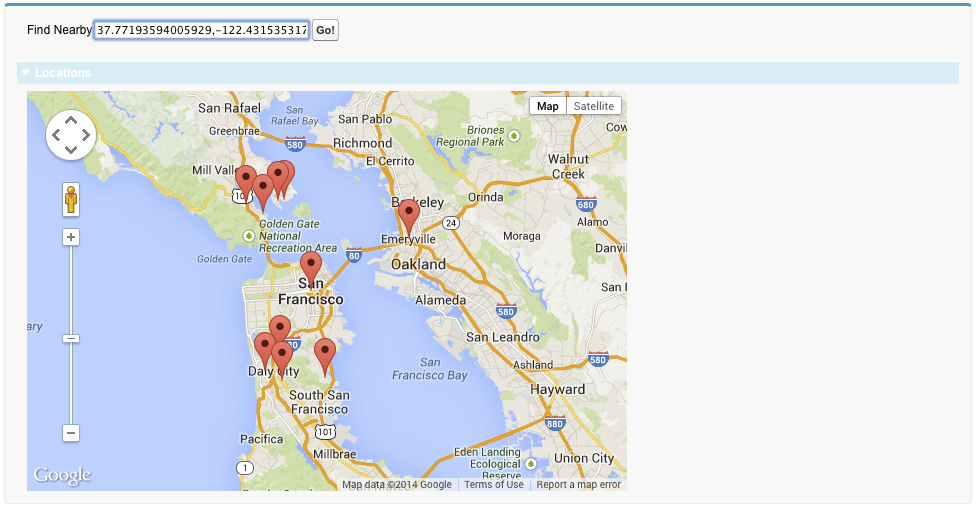
- The JavaScript block at the beginning illustrates how you can access the browser’s built-in ability to ask for the user’s current location. This code updates a visible form field. However, you can easily use a hidden form field instead to avoid showing the raw latitude and longitude with its unlikely level of precision.
- The first <apex:pageBlockSection> contains a short form for submitting the user’s location in the POSTBACK request. For illustration purposes it’s visible and requires a click, but that’s not required.
- In the second <apex:pageBlockSection>, the map itself is simple, requiring only
five lines of code. All the complexity is in the {!locations} expression, which accesses a property in the Apex
controller.
Note the use of the rendered attribute, which takes the value of the {!resultsAvailable} expression. This expression is another Apex property, and using it with the rendered attribute hides the map section when locations aren’t available to place on the map.
1public with sharing class FindNearbyController {
2
3    public List<Map<String,Double>> locations { get; private set; }
4
5    public String currentPosition {
6        get {
7            if (String.isBlank(currentPosition)) {
8                currentPosition = '37.77493,-122.419416'; // San Francisco
9            }
10            return currentPosition;
11        }
12        set;
13    }
14
15    public Boolean resultsAvailable {
16        get {
17            if(locations == Null) {
18                return false;
19            }
20            return true;
21        }
22    }
23
24    public PageReference findNearby() {
25        String lat, lon;
26
27        // FRAGILE: You'll want a better lat/long parsing routine
28        // Format: "<latitude>,<longitude>" (must have comma, but only one comma)
29        List<String> latlon = currentPosition.split(',');
30        lat = latlon[0].trim();
31        lon = latlon[1].trim();
32
33        // SOQL query to get the nearest warehouses
34        String queryString =
35           'SELECT Id, Name, Location__longitude__s, Location__latitude__s ' +
36           'FROM Warehouse__c ' +
37           'WHERE DISTANCE(Location__c, GEOLOCATION('+lat+','+lon+'), \'mi\') < 20 ' +
38           'ORDER BY DISTANCE(Location__c, GEOLOCATION('+lat+','+lon+'), \'mi\') ' +
39           'LIMIT 10';
40
41        // Run the query
42        List <Warehouse__c> warehouses = database.Query(queryString);
43
44        if(0 < warehouses.size()) {
45            // Convert to locations that can be mapped
46            locations = new List<Map<String,Double>>();
47            for (Warehouse__c wh : warehouses) {
48                locations.add(
49                    new Map<String,Double>{
50                        'latitude' => wh.Location__latitude__s,
51                        'longitude' => wh.Location__longitude__s
52                    }
53                );
54            }
55        }
56        else {
57            System.debug('No results. Query: ' + queryString);
58        }
59
60        return null;
61    }
62}- The locations property is a list of Map<String,Double> elements. This list holds the location data in a format that’s directly usable by the <apex:mapMarker> component.
- The currentPosition property captures the position information that’s submitted from the page’s form. This property also ensures that if the form submission is empty, a valid default value is provided. (A more robust implementation would do more error checking on the form input.)
- The resultsAvailable property, noted in the earlier description of the Visualforce markup.
- The findNearby action method is called when the Go! <apex:commandButton> is pressed. This method does all the work, executing a custom SOQL query and massaging the results into the locations property format.
If you want to use the title attribute of <apex:mapMarker> to provide additional information (for example, the name of the warehouse), you have several options. If your method is returning sObjects, you can reference the appropriate fields in your Visualforce markup. If you’re creating new objects directly, as we are here, you can create an inner class that combines the location map object with the title string. You then return a collection of the inner class objects to the page.