


Analytics Extended Metadata (XMD) Developer Guide
 j
jNewer Version Available
Dimensions and Derived Dimensions in XMD
This XMD snippet shows the parameters used with dimensions.
1"conditionalFormatting":{
2            "chartColor":{
3               "parameters":{
4                  "values":[
5                     {
6                        "formatValue":"#E8963B",
7                        "value":"false"
8                     },
9                     {
10                        "formatValue":"#3AE867",
11                        "value":"true"
12                     }
13                  ]
14               },
15               "referenceField":"Stage_IsAdvanced",
16               "type":"categories"
17 }| Parameter | Description |
|---|---|
| description |
Description of the dataset field, no more than 1,000 characters. Example: "description": "Region tracks where the sale was made." |
| field | Identifier for the dataset field, which is the API name. |
| label |
Display name for the dataset field, up to 40 characters. Example: "label": "Sales Manager" |
| linkTemplateEnabled | (Boolean) Indicates whether to display the link to open a Salesforce record or URL. If false or not set, the menu doesn’t display the Open Record link |
| linkTemplate |
The URL to open when the user clicks the link in the actions menu, up to 255 characters. This setting overrides the default URL link, which is "/{{row.recordIdField}}". The default locates the Salesforce record with the record ID specified in the recordIdField XMD parameter. To open a Salesforce record in a multi-org environment, enter {{instanceUrl}} to populate the org URL specified in the XMD organizations section. Example: "linkTemplate": "/{{row.dimensionNameId}}" |
| linkTooltip |
The tooltip that a dashboard viewer sees when hovering over the link in a CRM Analytics lens or dashboard. Example: "linkTooltip": "Click to open the record" |
| members |
Array of display customizations for specific values of a dataset field. For
example, for the Country field, change the label from USA to United States. And
change the color for this value in a chart to blue.
Example:
|
| recordIdField | The dataset field that contains the record ID of the Salesforce object that you want to perform the action on. |
| recordOrganizationField | The dataset field that contains the Salesforce org ID used to apply record-level actions on a record from a multi-org environment. Analytics uses the org ID to look up the org URL in the XMD organizations section of the XMD. |
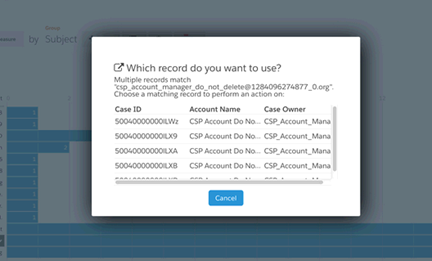
| recordDisplayFields |
Array of dataset fields to help a dashboard viewer identify a Salesforce record when multiple records match the action. For each field, specify its API name. The fields appear in the order in which they are listed in the array. In some instances, a dimension value is associated with multiple IDs and isn’t unique. For example, an opportunity with the name “acme” has multiple opportunity IDs and records. But the action or link can only be directed to one record. In this scenario, the user is given a choice of associated records in a modal. This example specifies the record fields to display.
|
| salesforceActionsEnabled |
(Boolean) Indicates whether the Salesforce actions menu appears on the field. If false or not set, the menu doesn’t display any actions. Example: "salesforceActionsEnabled": true |
| salesforceActions |
Array of actions that appear in the action menu. You can only add actions that are defined in the page layouts for the corresponding Salesforce object. If left blank, Analytics shows all actions. Example:
|
| showInExplorer |
(Boolean) Indicates whether the dataset field can be selected from the dashboard designer or explorer when creating dashboards and lenses. Even if showInExplorer is false, you can still use the field for SAQL queries, manually adding it in JSON, and accessing it using the Analytics REST API. Example: "showInExplorer": true |
For more information, see Perform Actions on a Salesforce Record from Analytics.