


LWR Sites for Experience Cloud
 j
jNewer Version Available
Set the Default Language on Your LWR Site
When you create an LWR site, the default site language is English (US). If you want to
change it to a different default language, update the default language as soon as possible after
you create the site to avoid losing content.
When you change the default site language, you remove all content in your original default language. If there’s translated content on your site in the new default language, you remove that, too. So it’s best to minimize the amount of content that you add to your site in either language until after you update the default language.
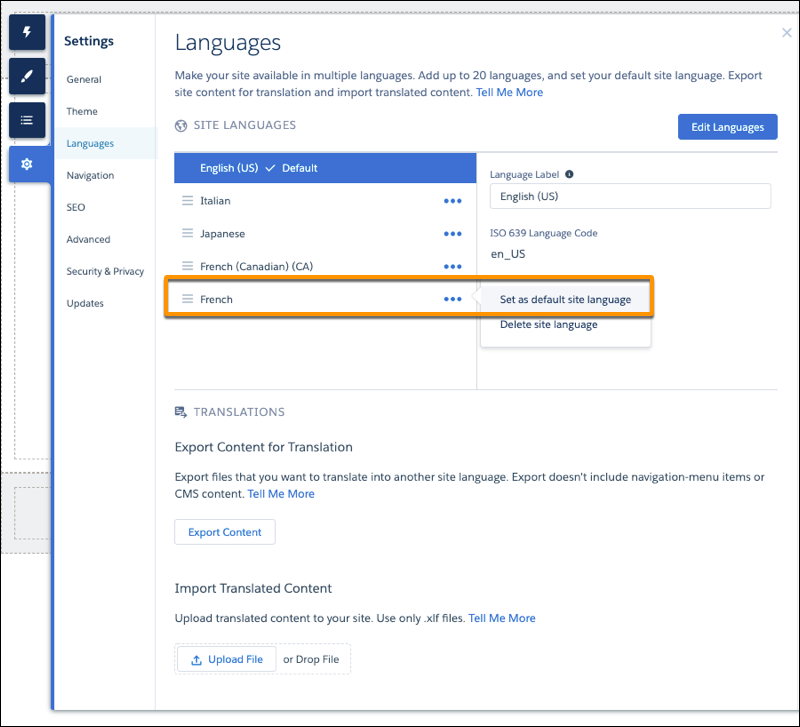
- In the Settings panel in Experience Builder, select Languages.
- If you haven’t added your intended new default language to the site, add it now.
- From the actions menu for your intended new default site language, select Set as
default site language. On enhanced LWR sites, if a site language is disabled in
your Salesforce org, you can’t select that language as your default site language.
- In the confirmation window, click Change.