


Mobile Offline Developer Guide
 j
jNewer Version Available
Troubleshoot Installation Problems
The Komaci Static Analyzer is implemented as a plugin for ESLint, a well-known
JavaScript validation tool. ESLint plugins can be finicky in their installation and configuration,
requiring that all pieces are perfectly aligned for success.
Unfortunately, there’s often not much feedback—if any—if something went wrong in the process. The most likely clue that there’s a problem is when known errors in your code produce no feedback.
If you’re not sure if the static analyzer or ESLint has been successfully configured, open an LWC JavaScript file where you would expect linting feedback. Then, check the ESLint section of the Output panel in VS Code for feedback messages. To open the Output panel, click View → Output. Then, to open the ESLint logs, select ESLint from the dropdown in the upper right corner of the Output panel.
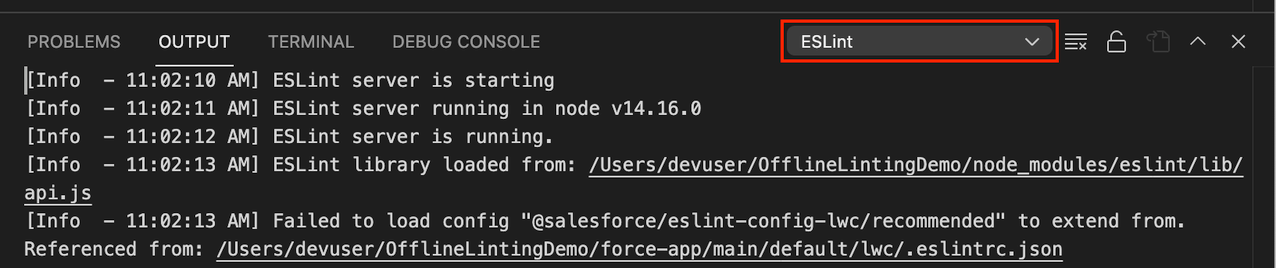
- Install into your project — For the validation package to function properly, you must install all dependent packages using the commands in the installation instructions from the root directory of your project. For example, the error in the preceding Output panel screenshot indicates a missing package. This is due to not installing a package required for the project.
- Check your .eslintrc.json file — If you misconfigure your .eslintrc.json, the ESLint Output panel might show an error related to that file. Ensure that the lines you add to your .eslintrc.json look exactly like the example in the installation instructions and fix any syntax errors.
-
ESLint must be authorized — If you don’t see any feedback in the ESLint
output view, the ESLint server itself is likely not getting initialized for your project. Make
sure that you have:
- Installed theESLint extension for Visual Studio Code.
- Installed project dependencies into your project with npm install (or yarn install) from your project’s root directory. The command installs the ESLint package and other dependencies locally to your project.
- Authorized ESLint to run in your project. If it’s not, you might see an “error” squiggly line in the first line of your JavaScript file, indicating that ESLint isn’t authorized. Hovering over that error gives you the option to authorize it for your project.