


Field Service Developer Guide
 j
jNewer Version Available
Deep Linking Schema for the Field Service Mobile App
URI Schema Format
The available URI schema formats.
- <com.salesforce.fieldservice>://v1/sObject/<id>/<action>?<params>
- <com.salesforce.fieldservice>://v1/globalaction/<api_name>?<params>
- com.salesforce.fieldservice—The supported Salesforce schema name.
- v1—The current version of deep linking. The version is a static value.
- sObject—Indicates a single instance of a Salesforce object. The schema supports all object types that are supported in the Field Service app, such as work order, service appointment, and assets.
- id—The unique single instance of a Salesforce object. id lengths of 15 and 18 characters are supported.
- action—A supported URI schema operation. Valid actions are listed in the Supported URI Schemes section. If no action is specified, URIs direct the work orders, service appointments, and other object types to the Overview or Details tab.
- globalaction—The name of the global quick action.
- api_name—Some deep links require an API name in order to perform their function. For instance, the quick action URI requires a quick action API name, and the flow URI requires a flow API name.
- params—The field and value pairs used in the global quick action.
Supported URI Schemes
- com.salesforce.fieldservice://v1/sObject/<id>
- Links to the Overview or Details tab.
- Work order and work order line item IDs are directed to the Overview tab.
- Service appointment IDs are directed to the Details tab,
with these exceptions.
- If the service appointment parent is a work order, the deep link is directed to the work order Overview tab for iOS and the service appointment Details tab for Android.
- If the service appointment parent is a work order line item, the deep link is directed to the work order line item Overview tab for iOS and the service appointment Details tab for Android.
- All other object types are directed to the object’s Details tab.
- Example: com.salesforce.fieldservice://v1/sObject/0WO5500000001UZGAA
- This example links to the Overview tab for a work order.
- com.salesforce.fieldservice://v1/sObject/<id>/details
- Links to the Details tab for all object types.
- Example: com.salesforce.fieldservice://v1/sObject/0WO5500000001UZGAA/details
- This example links to the Details tab for a work order.
- com.salesforce.fieldservice://v1/sObject/<id>/related
- Links to the Related tab for all object types.
- Example: com.salesforce.fieldservice://v1/sObject/0WO5500000001UZGAA/related
- This example links to the Related tab for a work order.
- com.salesforce.fieldservice://v1/sObject/<id>/products
- Links to the Products tab for all applicable object types. If an object doesn’t have a Products tab, it links to the Details tab instead.
- Example: com.salesforce.fieldservice://v1/sObject/0WO5500000001UZGAA/products
- This example links to the Products tab for a work order.
- com.salesforce.fieldservice://v1/sObject/<id>/feed
- Links to the Feed tab for all applicable object types. If an object doesn’t have a Feed tab, it links to the Details tab instead.
- Example: com.salesforce.fieldservice://v1/sObject/0WO5500000001UZGAA/feed
- This example links to the Feed tab for a work order.
- com.salesforce.fieldservice://v1/sObject/<id>/location
- Links to the Location tab for all applicable object types. If an object doesn’t have a Location tab, it links to the Details tab instead.
- Example: com.salesforce.fieldservice://v1/sObject/0WO5500000001UZGAA/location
- This example links to the Location tab for a work order.
- com.salesforce.fieldservice://v1/sObject/<id>/edit
- Links to the edit page for the specified Salesforce record.
- Example: com.salesforce.fieldservice://v1/sObject/0WO5500000001UZGAA/edit?Subject=Example%20Subject
- This example links to the edit page for this record and fills the “Subject” field with the “Example Subject” value.
- com.salesforce.fieldservice://v1/sObject/<id>/createservicereport
- Creates a service report for a particular work order or service appointment. The <id> value must specify a work order or service appointment record.
- Example: com.salesforce.fieldservice://v1/sObject/0WO5500000001UZGAA/createservicereport
- This example creates a service report for the work order or service appointment.
- com.salesforce.fieldservice://v1/sObject/<id>/flow/<api_name>
- Launches a Field Service Mobile Flow from within the mobile app. For example, you can use this URL to launch a custom service closure flow. To use this feature, the app extension must reference this flow. You can find the extension in Setup under Field Service Mobile Settings. Verify that an extension in the App Extensions section includes this flow. To learn more, see Connect a Flow to the Field Service Mobile App. Use the URL-encoded name of the extension in the URI.
- Example: com.salesforce.fieldservice://v1/sObject/0WO5500000001UZGAA/flow/service_response_flow?Subject=Example%20Subject
- This example launches the “service_response_flow” flow passing in “Example Subject” as the value for the “Subject” input variable.
- com.salesforce.fieldservice://v1/sObject/<id>/quickaction/<api_name>
- Launches a quick action from within the mobile app. The following quick action types are supported: Create a Record, Update a Record, and Field Service Mobile Extension. You can pass inputs into the quick action using parameters on this URL.
- Example: com.salesforce.fieldservice://v1/sObject/0WO5500000001UZGAA/quickaction/close_order
- This example launches the “close_order” quick action.
- com.salesforce.fieldservice://v1/globalaction/<api_name>?<params>
- Launches a global quick action from within the mobile app. The following global quick action types are supported: Create a Record, Update a Record, and Field Service Mobile Extension. You can pass inputs into the global quick action using parameters on this URL.
- Example: com.salesforce.fieldservice://v1/globalaction/Create_Work_Order?Subject=Example%20Subject
- This example launches a global quick action to create a work order.
- com.salesforce.fieldservice://v1/login/<server_name>/<server_url>
-
Adds a connection to a server using the supplied URL. To access the server, users click the deep link and enter their existing login credentials. The server is saved to the Change Server list, which gives users quick access because it eliminates the need for repeated log-in attempts.
Parameters:- <server_name> is a user-friendly name used to identify the server. Avoid spaces, punctuation, and other “illegal” characters, especially if workers need to log in to multiple sites.
- <server_url> is the URL used by the Salesforce Field Service Mobile app to log in. Don’t include "http" or "https" when specifying the URL.
- Example: com.salesforce.fieldservice://v1/login/employee/my.site.com/contractor/login
- This example sets the log-in URI, sends users directly to https://my.site.come/contractor/login, and saves it in the Change Server list as employee.
-
Security Considerations:
- Ensure that you trust the source of a link before clicking it, especially when adding user names and passwords. For this reason, we recommend that your workers are trained on best practices and that the login link isn’t sent directly via email.
- Many email clients and other apps don’t allow the creation of links to mobile apps in an email body. While opening the app when a link is launched is supported, opening the link depends on your technology and distribution choices. For example, include a clickable Login here link on your website that you can distribute to workers.
Parameter Passing for Deep Linking
To pass parameters in a deep linking schema such as a quick action or flow URL, the following parameter types are valid.
- URL-encoded text parameters; for example, Short%20text%20input
- Numbers or currency; for example, 1 or 1.45
- Boolean values; for example, true or false. These values aren’t case-sensitive. If no parameter is passed, the default is false.
- URL-encoded date and dateTime parameters; for example, 2019-12-11T17%3A01%3A00.000%2B0000. Include a URL-encoded timezone, such as +0000 for GMT or -0400 for AST.
Other parameters aren’t supported in deep linking URI schema.
To pass more than one parameter, use an ampersand (&) between them; for example, firstname=John&lastname=Doe.
We don’t limit the number of parameters, and each parameter value can contain up to 100,000 characters. While deep links can encode up to 1 MB, it’s best practice to encode smaller amounts of data.
Hide Deep Linking Security Dialog
Each time a user opens a deep link to an action from the Field Service mobile app, a “Launch action” security dialog prompts the user to confirm the action. You can hide this dialog by configuring the deep link URL with a security key.

Complete the following steps to configure the security key.
Step 1: Create a private and public key
- For Linux/Mac, run these commands in the terminal to create a private and public key.
The .pem key files are created in the folder where you execute the commands.
1openssl ecparam -genkey -name prime256v1 -noout -out private.pem 2openssl ec -in private.pem -pubout -out public.pem - Keep a copy of the private.pem and public.pem files so that you can sign URLs in the future without generating new key pairs. The private.pem file contains the security key.
- Open the public.pem file and copy the public key excluding the header and footer and
without spaces or a new line. Here is a sample public
key.
1MFkwEwYHKoZIzj0CAQYIKoZIzj0DAQcDQgAEkvkDcFieJenYABN8wOLlE2VomNt2 29/tcTyj+B06ZndRkTjs7+XwrjHe/wOZvjkdYvewhIByLI6uDTYZixDhO1A== - Copy the public key into the Advanced Permissions section of the Field Service Settings
UI. This step is required to turn on this feature.
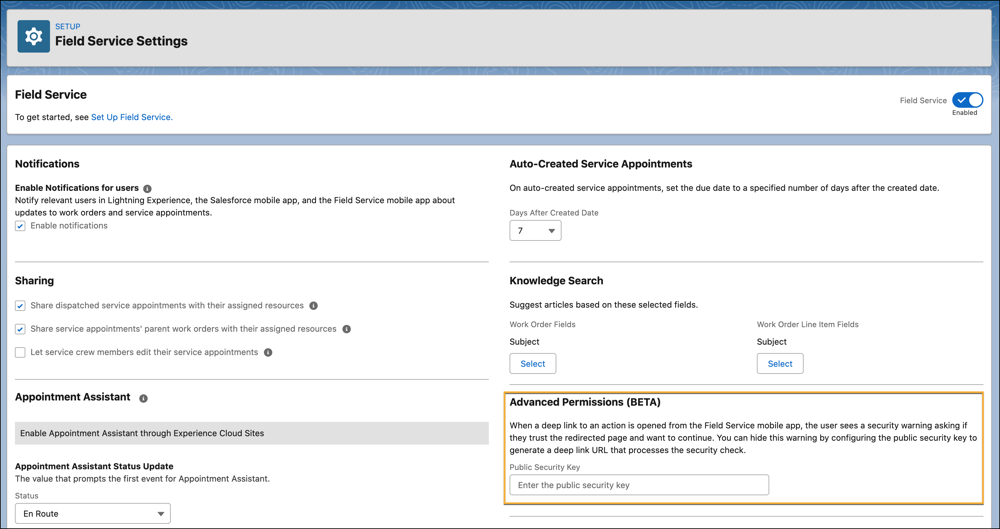
Step 2: Sign the deep link URL
- In the terminal, change directories to the folder containing the private.pem file.
- Generate the deep link URL, and copy it to your
clipboard.
1// Base URL. 2com.salesforce.fieldservice://v1/sObject/<id>/<action> 3 4// URL with additional query parameters. 5com.salesforce.fieldservice://v1/sobject/<id>/<action>?param1=value1¶m1=value2 -
To create a signature using the private key, run this command. The command creates a signature using OpenSSL and Base64 encoding. Here are the command parts explained.
- The pbpaste command pastes from the pasteboard.
- The openssl dgst command creates a hash with the sha256 algorithm signed by the private key,
- The openssl command makes that the output base64 encoded.
- The tr command replaces "/+" characters with "_-" respectively, then deletes all "=" characters and new line characters “\n”.
- The pbcopy command copies the output back to the pasteboard.
If you’re using a dynamic deep link URL, generate a new signature for each unique set of URL parameter values. The signature is unique for a URL string. For example, if the <id> parameter is dynamic, generate a new signature when the <id> value changes.
1pbpaste | openssl dgst -sha256 -sign private.pem | openssl base64 | tr '/+' '_-' | tr -d '=' | tr -d '\n' | pbcopy - Sign the deep link URL by adding the query parameter __signature=<sig> to the end of the URL. Replace <sig> with the signature, which you can paste from your
clipboard. If you have additional query parameters, place the signature parameter after
them.
1// Signed URL. 2com.salesforce.fieldservice://v1/sObject/<id>/<action>?__signature=<sig> 3 4// Signed URL with additional query parameters. 5com.salesforce.fieldservice://v1/sobject/<id>/<action>?param1=value1¶m1=value2&__signature=<sig>
Now you can send the deep link URL with the signature as before. When the technician clicks the URL, the deep link opens in the Field Service app. The app verifies the signature using the public key. If the public key hash matches, the URL is loaded without the “Launch action” dialog. If the public key hash doesn’t match, the user must confirm the action.