


Salesforce CLI Setup Guide
 j
jNewer Version Available
Autocomplete Salesforce CLI Commands and Flags
You must set up the autocomplete feature before you can use it. How you set it up depends on the shell you use to execute Salesforce CLI commands. Autocomplete supports these shells:
- Bash: macOS and Linux
- Z shell (zsh): macOS and Linux
- PowerShell: Typically used on Microsoft Windows, although you can also install PowerShell on macOS and Linux.
Determine Which Shell You’re Using
Are you unsure if you’re running Bash, zsh, or Powershell? Here are some tips.
- From your terminal or command window, run this command:
1echo $0If you’re using either Bash or zsh, the command output includes the terms bash or zsh, respectively. This example shows possible output on the Bash shell.
1echo $0 2-bash - If you’re on PowerShell, this command returns version information.
1$PSVersionTableHere’s some sample output.
1Name                           Value
2----                           -----
3PSVersion                      7.3.9
4PSEdition                      Core
5GitCommitId                    7.3.9
6OS                             Microsoft Windows 10.0.22621
7Platform                       Win32NT
8PSCompatibleVersions           {1.0, 2.0, 3.0, 4.0…}
9PSRemotingProtocolVersion      2.3
10SerializationVersion           1.1.0.1
11WSManStackVersion              3.0
Configure Autocomplete for Bash and Z Shell
- Open a terminal window.
-
Run this command, which builds the autocomplete cache on your computer:
1sf autocomplete - Follow the displayed instructions, which reflect the shell you’re currently using.
After you update Salesforce CLI to a new version, run sf autocomplete --refresh-cache to ensure that autocomplete works correctly on any new commands.
Configure Autocomplete for PowerShell
- Open a PowerShell command window.
-
Run this command, which builds the autocomplete cache on your computer:
1sf autocomplete powershell - Follow the displayed instructions.
After you update Salesforce CLI to a new version, run sf autocomplete --refresh-cache to ensure that autocomplete works correctly on any new commands.
Use Autocomplete
Let’s look at some examples using Z shell (zsh). In a terminal or command window, type sf, a space, and then <TAB> until you see the full list of top-level topics and commands with their summaries.
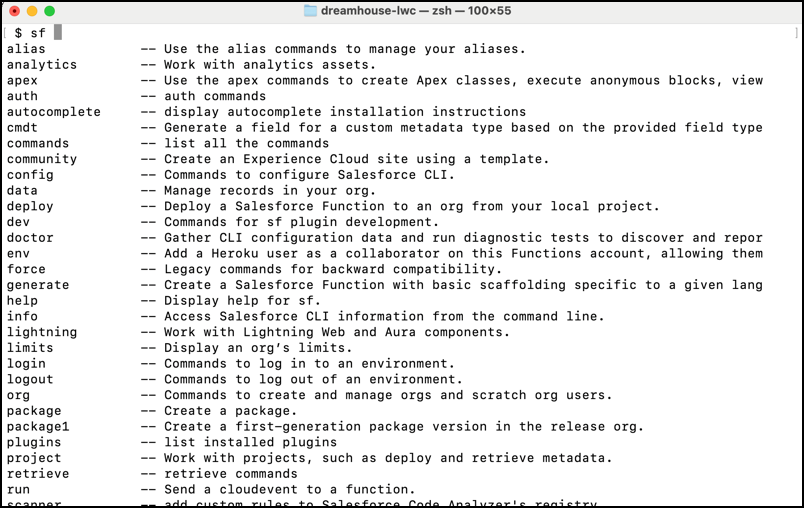
Let’s say you want to deploy metadata from your Salesforce DX project; the project topic looks promising! To see the list of sub-topics under project, type the letters pr and then <TAB>.
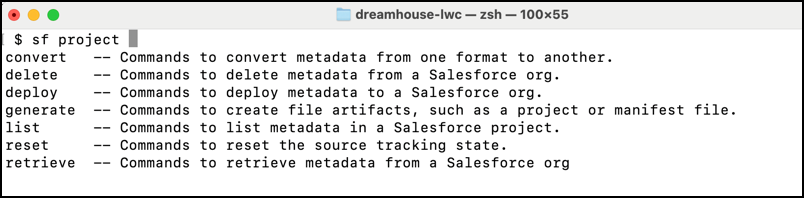
The output includes a deploy sub-topic; we’re getting there! To drill down, type the letters dep and <TAB>, and the commands in the deploy sub-topic are displayed. Keep typing and tabbing this way until you get to the full command to deploy metadata, which is project deploy start.
Now that you found the correct command, you probably now want to see the available flags. Simply type - (hyphen) and <TAB> to see the full list of flags, with their short and long names and summaries:
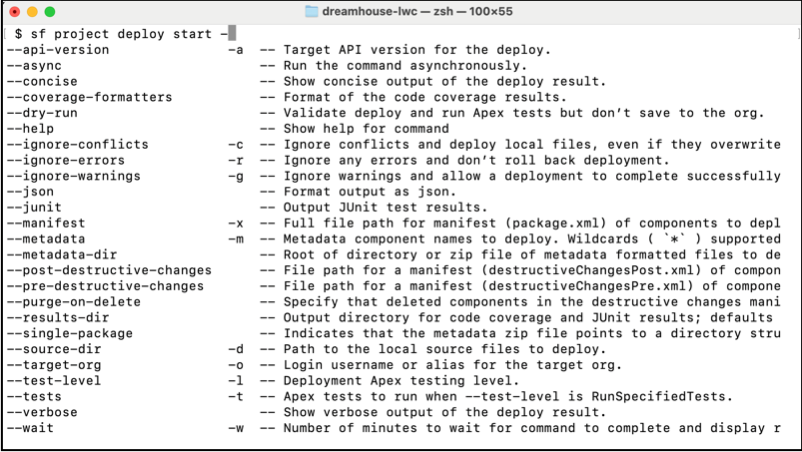
Type the first letter of a flag, then <TAB> until you’ve autocompleted the flag name.
You can also use autocomplete to specify a value for some flags. For example, if your current directory is a Salesforce DX project and you want to specify a manifest file for the --manifest flag, press <TAB> after the flag to see a list of files. Then enter the first letter and <TAB> until you complete the name of the file, such as package.xml.
