


Metadata API Developer Guide
 j
jNewer Version Available
deploy()
Syntax
1AsyncResult = metadatabinding.deploy(base64 zipFile, DeployOptions deployOptions)Usage
Use this call to take file representations of components and deploy them into an org by creating, updating, or deleting the components they represent.
Here are the deploy limits. Limits can change without notice.
| Feature | Limit |
|---|---|
| Maximum compressed .zip folder size1 | Approximately 39 MB |
| Maximum uncompressed folder size2 | Approximately 600 MB |
| Maximum number of files in AppExchange packages | 35,000 |
| Maximum number of files in packages | 10,000 |
1 Metadata API base-64 encodes components after they’re compressed. The resulting .zip file can't exceed 50 MB. Base-64 encoding increases the size of the payload by approximately 22%, so your compressed payload can't exceed approximately 39 MB before encoding.
2 When using the Ant Migration Tool to deploy an unzipped project, all files in the project are compressed first. The maximum size of uncompressed components in an uncompressed project is 600 MB or less, depending on the files’ compression ratio. If the files have a high compression ratio, you can migrate a total of approximately 600 MB because the compressed size would be under 39 MB. However, if the components can't be compressed much, like binary static resources, you can migrate less than 600 MB.
In API version 29.0, Salesforce improved the deployment status properties and removed the requirement to use checkStatus() after a deploy() call to get information about deployments. Salesforce continues to support the use of checkStatus() when using deploy() with API version 28.0 or earlier.
Deploy Components to an Org
The package.xml file is a project manifest that lists all the components that you want to retrieve or deploy. You can use package.xml to add components. To delete components, add another manifest file. See Deleting Components from an Organization.
For API version 29.0 or later, here’s how to deploy (create or update) packaged or unpackaged components.
- Issue a deploy() call to start the asynchronous deployment. An AsyncResult object is returned. Note the value in the id field, and use it for the next step.
- Issue a checkDeployStatus() call in a loop until the done field of the returned DeployResult contains true, which means that the call is completed. The DeployResult object contains information about an in-progress or completed deployment started using the deploy() call. When calling checkDeployStatus(), pass in the id value from the AsyncResult object from the first step.
For API version 28.0 or earlier, here’s how to deploy (create or update) packaged or unpackaged components.
- Issue a deploy() call to start the asynchronous deployment. An AsyncResult object is returned. If the call is completed, the done field contains true. Most often, the call isn’t completed quickly enough to be noted in the first result. If it’s completed, note the value in the id field returned, and skip the next step.
- If the call isn’t complete, issue a checkStatus() call in a loop. In the loop, use the value in the id field of the AsyncResult object returned by the deploy() call in the previous step. Check the AsyncResult object, which is returned until the done field contains true. The time taken to complete a deploy() call depends on the size of the zip file being deployed. Therefore, use a longer wait time between iterations as the size of the zip file increases.
- Issue a checkDeployStatus() call to obtain the results of the deploy() call, using the id value returned in the first step.
Check the Status of a Deployment
Check the status of a deployment using Metadata API or from Setup. You can check the status of deployments that are in progress or completed in the last 30 days.
To check the status of a deployment using Metadata API, see checkDeployStatus().
To check the status of a deployment from Setup, enter Deployment Status in the Quick Find box, then select Deployment Status.
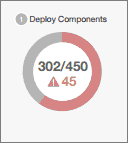
When running a deployment, the Deployment Status page shows you the real-time progress of your current deployment. This page contains charts that provide a visual representation of the overall deployment progress. The first chart shows how many components have already been deployed out of the total and includes the number of components with errors. For example, the following chart indicates that 302 components were processed successfully out of 450 and there were 45 components with errors.
After all components have been deployed without errors, Apex tests start executing, if necessary or enabled. A second chart shows how many Apex tests have run out of the total number of tests and the number of errors returned. In addition, the chart shows the name of the currently running test. For example, in the following chart, 77 tests have completed execution out of a total of 120, and 1 test failed.

You can initiate multiple deployments, but only one deployment can run at a time. The other deployments remain in the queue waiting to be executed after the current deployment finishes. Queued deployments are listed under Pending Deployments and are not necessarily executed in the order in which they were submitted. To execute deployments in a particular order, submit them one at a time after the previous deployment has completed successfully.
Cancel a Deployment
Cancel a deployment using the Metadata API or from Setup. You can cancel a deployment while it’s in progress or in the queue.
To cancel a deployment using Metadata API, see cancelDeploy().
To cancel a deployment from Setup, enter Deployment Status in the quick find box, then select Deployment Status. Click Cancel next to the deployment you want to cancel. The deployment has the status of Cancel Requested until the cancellation completes. A canceled deployment is listed in the Failed section.
Permissions
Your client application must be logged in with the Modify Metadata Through Metadata API Functions or Modify All Data permission.
Arguments
| Name | Type | Description |
|---|---|---|
| zipFile | base64 | Base 64-encoded binary data. Client applications must encode the binary data as base64. |
| deployOptions | DeployOptions | Encapsulates options for determining which packages or files are deployed. |
DeployOptions
The following deployment options can be selected for this call:
| Name | Type | Description |
|---|---|---|
| allowMissingFiles | boolean | If files that are specified in package.xml aren’t in the .zip file, specifies whether a deployment can still succeed. |
| autoUpdatePackage | boolean | If a file is in the .zip
file but not specified in package.xml,
specifies whether the file is automatically added to the package. A
retrieve() is issued with
the updated package.xml that includes the
.zip file. Don’t set this argument for deployment to production orgs. |
| checkOnly | boolean | Defaults to false. Set to
true to perform a test
deployment (validation) of components without saving the components
in the target org. A validation enables you to verify the results of
tests that would be generated in a deployment, but doesn’t commit
any changes. After a validation finishes with passing tests,
sometimes it can qualify for deployment without rerunning tests. See
deployRecentValidation().
If you change a field type from Master-Detail to Lookup or vice versa, the change isn’t supported when using the checkOnly option to test a deployment. This change isn’t supported for test deployments to avoid permanently altering your data. If a change that isn’t supported for test deployments is included in a deployment package, the test deployment fails and issues an error. If your deployment package changes a field type from Master-Detail to Lookup or vice versa, you can still validate the changes before you deploy to production. Perform a full deployment to another test sandbox. A full deployment includes a validation of the changes as part of the deployment process. A Metadata API deployment that includes Master-Detail relationships deletes all detail records in the Recycle Bin in the following cases.
|
| ignoreWarnings | boolean |
Indicates whether deployments
with warnings complete successfully (true) or not (false). Defaults to false. The DeployMessage object for a warning contains the following values:
If a warning occurs and ignoreWarnings is set to true, the success field in DeployMessage is true. If ignoreWarnings is set to false, success is set to false and the warning is treated like an error. This field is available in API version 18.0 and later. Before version 18.0, there was no distinction between warnings and errors. All problems were treated as errors and prevented a successful deployment. |
| performRetrieve | boolean | Indicates whether a retrieve() call is performed immediately after the deployment (true) or not (false). Set to true to retrieve whatever was deployed. |
| purgeOnDelete | boolean |
If true, the deleted components in the
destructiveChanges.xml manifest file
aren't stored in the Recycle Bin. Instead, they become
immediately eligible for deletion. This field is available in API version 22.0 and later. This option only works in Developer Edition or sandbox orgs. It doesn’t work in production orgs. When you delete a roll-up summary field using Metadata API, the field isn't saved in the Recycle Bin. The field is purged even if you don’t set the purgeOnDelete deployment option to true. |
| rollbackOnError | boolean | Indicates whether any failure causes a complete rollback (true) or not (false). If false, whatever actions can be performed without errors are performed, and errors are returned for the remaining actions. This parameter must be set to true if you’re deploying to a production org. The default is false. |
| runAllTests | boolean | (Deprecated and only available in API version 33.0 and earlier.)
This field defaults to false. Set
to true to run all Apex tests
after deployment, including tests that originate from installed
managed packages.
Apex tests that run as part of a deployment always run synchronously and serially. |
| runTests | string[] | A list of Apex tests to run during deployment. Specify the class
name, one name per instance. The class name can also specify a
namespace with a dot notation. For more information, see Running a Subset of Tests in a Deployment. To use this option, set testLevel to RunSpecifiedTests. |
| singlePackage | boolean | Indicates whether the specified .zip file points to a directory structure with a single package (true) or a set of packages (false). |
| testLevel | TestLevel (enumeration of type string) | Optional. Specifies which tests are run as part of a
deployment. The test level is enforced regardless of the types
of components that are present in the deployment package. Valid
values are:
If you don’t specify a test level, the default test execution behavior is used. See Running Tests in a Deployment. Apex tests that run as part of a deployment always run synchronously and serially. This field is available in API version 34.0 and later. |
Response
Sample Code—Java
This sample shows how to deploy components in a zip file. See the retrieve() sample code for details on how to retrieve a zip file.
1package com.doc.samples;
2
3import java.io.*;
4
5import java.rmi.RemoteException;
6
7import com.sforce.soap.metadata.AsyncResult;
8import com.sforce.soap.metadata.DeployDetails;
9import com.sforce.soap.metadata.MetadataConnection;
10import com.sforce.soap.metadata.DeployOptions;
11import com.sforce.soap.metadata.DeployResult;
12import com.sforce.soap.metadata.DeployMessage;
13import com.sforce.soap.metadata.RunTestsResult;
14import com.sforce.soap.metadata.RunTestFailure;
15import com.sforce.soap.metadata.CodeCoverageWarning;
16import com.sforce.soap.enterprise.LoginResult;
17import com.sforce.soap.enterprise.EnterpriseConnection;
18import com.sforce.ws.ConnectionException;
19import com.sforce.ws.ConnectorConfig;
20
21/**
22 * Deploy a zip file of metadata components.
23 * Prerequisite: Have a deploy.zip file that includes a package.xml manifest file that
24 * details the contents of the zip file.
25 */
26public class DeploySample {
27    // binding for the metadata WSDL used for making metadata API calls
28    private MetadataConnection metadataConnection;
29
30    static BufferedReader rdr = new BufferedReader(new InputStreamReader(System.in));
31
32    private static final String ZIP_FILE = "deploy.zip";
33
34    // one second in milliseconds
35    private static final long ONE_SECOND = 1000;
36    // maximum number of attempts to deploy the zip file
37    private static final int MAX_NUM_POLL_REQUESTS = 50;
38
39    public static void main(String[] args) throws Exception {
40        final String USERNAME = "user@company.com";
41        // This is only a sample. Hard coding passwords in source files is a bad practice.
42        final String PASSWORD = "password";
43        final String URL = "https://login.salesforce.com/services/Soap/c/29.0";
44
45        DeploySample sample = new DeploySample(USERNAME, PASSWORD, URL);
46        sample.deployZip();
47    }
48
49    public DeploySample(String username, String password, String loginUrl)
50            throws ConnectionException {
51        createMetadataConnection(username, password, loginUrl);
52    }
53
54    public void deployZip()
55        throws RemoteException, Exception
56    {
57        byte zipBytes[] = readZipFile();
58        DeployOptions deployOptions = new DeployOptions();
59        deployOptions.setPerformRetrieve(false);
60        deployOptions.setRollbackOnError(true);
61        AsyncResult asyncResult = metadataConnection.deploy(zipBytes, deployOptions);
62        String asyncResultId = asyncResult.getId();
63
64        // Wait for the deploy to complete
65        int poll = 0;
66        long waitTimeMilliSecs = ONE_SECOND;
67        DeployResult deployResult = null;
68        boolean fetchDetails;
69        do {
70            Thread.sleep(waitTimeMilliSecs);
71            // double the wait time for the next iteration
72            waitTimeMilliSecs *= 2;
73            if (poll++ > MAX_NUM_POLL_REQUESTS) {
74                throw new Exception("Request timed out. If this is a large set " +
75                        "of metadata components, check that the time allowed by " +
76                        "MAX_NUM_POLL_REQUESTS is sufficient.");
77            }
78
79            // Fetch in-progress details once for every 3 polls
80            fetchDetails = (poll % 3 == 0);
81            deployResult = metadataConnection.checkDeployStatus(asyncResultId, fetchDetails);
82            System.out.println("Status is: " + deployResult.getStatus());
83            if (!deployResult.isDone() && fetchDetails) {
84                printErrors(deployResult, "Failures for deployment in progress:\n");
85            }
86        }
87        while (!deployResult.isDone());
88
89        if (!deployResult.isSuccess() && deployResult.getErrorStatusCode() != null) {
90            throw new Exception(deployResult.getErrorStatusCode() + " msg: " +
91                    deployResult.getErrorMessage());
92        }
93
94        if (!fetchDetails) {
95            // Get the final result with details if we didn't do it in the last attempt.
96            deployResult = metadataConnection.checkDeployStatus(asyncResultId, true);
97        }
98
99        if (!deployResult.isSuccess()) {
100            printErrors(deployResult, "Final list of failures:\n");
101            throw new Exception("The files were not successfully deployed");
102        }
103
104        System.out.println("The file " + ZIP_FILE + " was successfully deployed");
105    }
106
107    /**
108     * Read the zip file contents into a byte array.
109     * @return byte[]
110     * @throws Exception - if cannot find the zip file to deploy
111     */
112    private byte[] readZipFile()
113        throws Exception
114    {
115        // We assume here that you have a deploy.zip file.
116        // See the retrieve sample for how to retrieve a zip file.
117        File deployZip = new File(ZIP_FILE);
118        if (!deployZip.exists() || !deployZip.isFile())
119            throw new Exception("Cannot find the zip file to deploy. Looking for " +
120                    deployZip.getAbsolutePath());
121
122        FileInputStream fos = new FileInputStream(deployZip);
123        ByteArrayOutputStream bos = new ByteArrayOutputStream();
124        int readbyte = -1;
125        while ((readbyte = fos.read()) != -1)  {
126            bos.write(readbyte);
127        }
128        fos.close();
129        bos.close();
130        return bos.toByteArray();
131    }
132
133
134    /**
135     * Print out any errors, if any, related to the deploy.
136     * @param result - DeployResult
137     */
138    private void printErrors(DeployResult result, String messageHeader)
139    {
140        DeployDetails deployDetails = result.getDetails();
141
142        StringBuilder errorMessageBuilder = new StringBuilder();
143        if (deployDetails != null) {
144            DeployMessage[] componentFailures = deployDetails.getComponentFailures();
145            for (DeployMessage message : componentFailures) {
146                String loc = (message.getLineNumber() == 0 ? "" :
147                    ("(" + message.getLineNumber() + "," +
148                            message.getColumnNumber() + ")"));
149                if (loc.length() == 0
150                        && !message.getFileName().equals(message.getFullName())) {
151                    loc = "(" + message.getFullName() + ")";
152                }
153                errorMessageBuilder.append(message.getFileName() + loc + ":" +
154                        message.getProblem()).append('\n');
155            }
156            RunTestsResult rtr = deployDetails.getRunTestResult();
157            if (rtr.getFailures() != null) {
158                for (RunTestFailure failure : rtr.getFailures()) {
159                    String n = (failure.getNamespace() == null ? "" :
160                        (failure.getNamespace() + ".")) + failure.getName();
161                    errorMessageBuilder.append("Test failure, method: " + n + "." +
162                            failure.getMethodName() + " -- " +
163                            failure.getMessage() + " stack " +
164                            failure.getStackTrace() + "\n\n");
165                }
166            }
167            if (rtr.getCodeCoverageWarnings() != null) {
168                for (CodeCoverageWarning ccw : rtr.getCodeCoverageWarnings()) {
169                    errorMessageBuilder.append("Code coverage issue");
170                    if (ccw.getName() != null) {
171                        String n = (ccw.getNamespace() == null ? "" :
172                            (ccw.getNamespace() + ".")) + ccw.getName();
173                        errorMessageBuilder.append(", class: " + n);
174                    }
175                    errorMessageBuilder.append(" -- " + ccw.getMessage() + "\n");
176                }
177            }
178        }
179
180        if (errorMessageBuilder.length() > 0) {
181            errorMessageBuilder.insert(0, messageHeader);
182            System.out.println(errorMessageBuilder.toString());
183        }
184    }
185
186    private void createMetadataConnection(
187        final String username,
188        final String password,
189        final String loginUrl) throws ConnectionException {
190
191        final ConnectorConfig loginConfig = new ConnectorConfig();
192        loginConfig.setAuthEndpoint(loginUrl);
193        loginConfig.setServiceEndpoint(loginUrl);
194        loginConfig.setManualLogin(true);
195        LoginResult loginResult = (new EnterpriseConnection(loginConfig)).login(
196                username, password);
197
198        final ConnectorConfig metadataConfig = new ConnectorConfig();
199        metadataConfig.setServiceEndpoint(loginResult.getMetadataServerUrl());
200        metadataConfig.setSessionId(loginResult.getSessionId());
201        this.metadataConnection = new MetadataConnection(metadataConfig);
202    }
203
204}