


Lightning Aura Components Developer Guide
 j
jNewer Version Available
Customize the Flow Footer with an Aura Component
By default, the flow footer displays the available actions as standard buttons. Next and Finish use the brand variant style, and Previous and Pause use the neutral variant. Also, Pause floats left, while the rest of the buttons float right.
Example
This component (c:flowFooter) customizes the default flow footer in two ways.
- It swaps the Pause and Previous buttons, so that Previous floats to the left and Pause floats to the right with Next or Finish.
- It changes the label for the Finish button to Done.
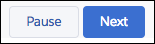
c:flowFooter Component
Since the component implements lightning:availableForFlowScreens, it has access to the availableActions attribute, which contains the valid actions for the screen. The declared attributes, like canPause and canBack, determine which buttons to display. Those attributes are set by the JavaScript controller when the component initializes.
1<aura:component access="global" implements="lightning:availableForFlowScreens">
2
3   <!-- Determine which actions are available -->
4   <aura:attribute name="canPause" type="Boolean" />
5   <aura:attribute name="canBack" type="Boolean" />
6   <aura:attribute name="canNext" type="Boolean" />
7   <aura:attribute name="canFinish" type="Boolean" />
8   <aura:handler name="init" value="{!this}" action="{!c.init}" />
9
10   <div aura:id="actionButtonBar" class="slds-clearfix slds-p-top_medium">
11      <!-- If Previous is available, display to the left -->
12      <div class="slds-float_left">
13         <aura:if isTrue="{!v.canBack}">
14            <lightning:button aura:id="BACK" label="Previous"
15               variant="neutral" onclick="{!c.onButtonPressed}" />
16         </aura:if>
17      </div>
18      <div class="slds-float_right">
19         <!-- If Pause, Next, or Finish are available, display to the right -->
20         <aura:if isTrue="{!v.canPause}">
21            <lightning:button aura:id="PAUSE" label="Pause"
22               variant="neutral" onclick="{!c.onButtonPressed}" />
23         </aura:if>
24         <aura:if isTrue="{!v.canNext}">
25            <lightning:button aura:id="NEXT" label="Next"
26               variant="brand" onclick="{!c.onButtonPressed}" />
27         </aura:if>
28         <aura:if isTrue="{!v.canFinish}">
29            <lightning:button aura:id="FINISH" label="Done"
30               variant="brand" onclick="{!c.onButtonPressed}" />
31         </aura:if>
32      </div>
33   </div>
34</aura:component>
c:flowFooter Controller
The init function loops through the screen's available actions and determines which buttons the component should show. When the user clicks one of the buttons in the footer, the onButtonPressed function calls the navigateFlow action to perform that action.
1({
2   init : function(cmp, event, helper) {
3      // Figure out which buttons to display
4      var availableActions = cmp.get('v.availableActions');
5      for (var i = 0; i < availableActions.length; i++) {
6         if (availableActions[i] == "PAUSE") {
7            cmp.set("v.canPause", true);
8         } else if (availableActions[i] == "BACK") {
9            cmp.set("v.canBack", true);
10         } else if (availableActions[i] == "NEXT") {
11            cmp.set("v.canNext", true);
12         } else if (availableActions[i] == "FINISH") {
13            cmp.set("v.canFinish", true);
14         }
15      }
16   },
17
18   onButtonPressed: function(cmp, event, helper) {
19      // Figure out which action was called
20      var actionClicked = event.getSource().getLocalId();
21      // Fire that action
22      var navigate = cmp.get('v.navigateFlow');
23      navigate(actionClicked);
24   }
25})
Control Screen Navigation from a Child Component
If you're using a child component to handle the screen's navigation, pass the availableActions attribute down from the parent component – the one that implements lightning:availableForFlowScreens. You can pass the available actions by setting the child component's attributes, but you can’t pass the action. Instead, use a custom event to send the selected action up to the parent component.
Example
c:navigateFlow Event
Create an event with an action attribute, so that you can pass the selected action into the event.
1<aura:event type="APPLICATION" >
2   <aura:attribute name="action" type="String"/>
3</aura:event>
c:flowFooter Component
- Define an attribute to pass the screen's available actions from the parent component
- Register an event to pass the navigateFlow action to the parent component
1<aura:attribute name="availableActions" type="String[]" />
2<aura:registerEvent name="navigateFlowEvent" type="c:navigateFlow"/>
c:flowFooter Controller
Since navigateFlow is only available in the parent component, the onButtonPressed function fails. Update the onButtonPressed function so that it fires navigateFlowEvent instead.
1onButtonPressed: function(cmp, event, helper) {
2   // Figure out which action was called
3   var actionClicked = event.getSource().getLocalId();
4
5   // Call that action
6   var navigate = cmp.getEvent("navigateFlowEvent");
7   navigate.setParam("action", actionClicked);
8   navigate.fire();
9}
c:flowParent Component
In the parent component's markup, pass availableActions into the child component's availableActions attribute and the handleNavigate function into the child component's navigateFlowEvent event.
1<c:flowFooter availableActions="{!v.availableActions}"
2    navigateFlowEvent="{!c.handleNavigate}"/>
c:flowParent Controller
When navigateFlowEvent fires in the child component, the handleNavigate function calls the parent component’s navigateFlow action, using the action selected in the child component.
1handleNavigate: function(cmp, event) {
2   var navigate = cmp.get("v.navigateFlow");
3   navigate(event.getParam("action"));
4}