


Experience Cloud Developer Guide
 j
jNewer Version Available
Avoid Deployment Issues When Moving to Enhanced LWR Sites
In this case, instead of creating the site on the target org prior to deployment, we recommend using the deployment process to create the site. Otherwise, if you first create the site on the target org, the new site is an enhanced LWR site—meaning it uses the DigitalExperienceBundle and the DigitalExperienceConfig types. And because the non-enhanced LWR site on the source org uses ExperienceBundle, if you then try to deploy it to the target org, the deployment fails due to the metadata type mismatch.
However, let’s say that you created the site in the target org prior to deployment. What can you do to resolve deployment errors?
Because you can’t delete Experience Cloud sites, we instead recommend renaming the site and updating the site URL in the target org so that they no longer match the values in the source org. This approach frees up the deployment process to recreate the site in the target org using the source org’s values.
-
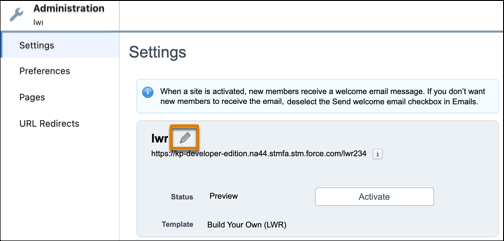
In the target org, on the Settings page of the site’s Administration workspace, rename the
site so that it differs from the site in the source org.
- From Setup, in the Quick Find box, enter Custom URLs.
-
In Custom URLs, locate the two URLs for the site. Each site includes:
- A Site.com Community URL that maps to the ExperienceBundle or DigitalExperienceBundle and DigitalExperienceConfig metadata types, as appropriate
- A Community URL that maps to CustomSite
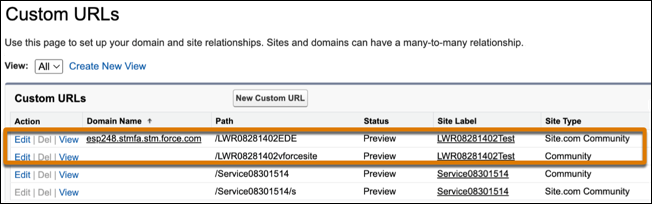
- Change both site URLs to ensure that they’re no longer the same as the site URLs in the source org.
- After you update the site name and URL, deploy the site again either with change sets or with Metadata API using your preferred deployment tools.
- If you’re using Metadata API, remember to retrieve the site and include the Network and CustomSite types to allow the system to automatically create the new non-enhanced LWR site in the target org. If you’re using change sets, remember to recreate the change set before deploying.