


Data Loader Guide
 j
jNewer Version Available
Download and Install Data Loader
| User Permissions Needed | |
|---|---|
| To use Data Loader: | API Enabled AND The appropriate user permission for the operation you’re doing, for example, Create on accounts to insert new accounts AND Bulk API Hard Delete (only if you configure Data Loader to use Bulk API to hard-delete records) |
Data Loader is updated in every Salesforce Release. The major version number corresponds to the currently available API version.
- Install Java Runtime Environment (JRE) version 17 or later for your operating system.
Tips for downloading JRE:
- Download the JRE java package, or a JDK package that contains a JRE.
- If unsure of the version to choose, select the latest.
- Make sure to select a download that matches your operating system and CPU architecture.
- Some examples of sites that make JRE available include Azul Zulu (documentation), or Adoptium Eclipse Temurin (documentation).
- Download the most recent version of Data Loader at https://developer.salesforce.com/tools/data-loader.
- Optionally, verify that the downloaded Data Loader zip file is signed by Salesforce. On
macOS or Windows, run the command jarsigner -verify
dataloader_v<version>.zip. Replace <version> with the version string in the download's filename. For
example,
1jarsigner -verify dataloader_v58.0.3.zip - After the download completes, open the .zip file and select Extract All.
- In the Data Loader folder, find and open the installation file. On macOS, look for the
installer.command file. On Windows, look for the
install.bat file.
- On MacOS 15, if there's an error that installer.command can't be opened, open the macOS Privacy & Security panel. Scroll to the Security section, then click Open Anyway next to "install.command" was blocked to protect your Mac". Click Open Anyway on the Open "install.command"? window.
- On MacOS earlier than version 15, an error is shown when you first double-click
install.command after extracting zip file content. Ignore the error and click OK.
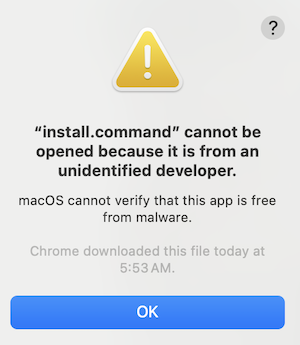
- On macOS earlier than version 15, ignore any error regarding an unidentified developer message. Press the
Control key while clicking the installer.command file, and
select Open from the menu. An error is shown:Ignore the error and click Open.

- Specify a directory for the Data Loader installation. Overwrite the contents if there’s an existing Data Loader directory.
- Answer the prompts and decide your preferences to complete the installation.
To open Data Loader, use the Data Loader desktop icon, or find it from the Start menu (Windows) or in your Applications folder (macOS). You can also run dataloader.app (macOS) or dataloader.bat (Windows) from the installation folder.
If you have Data Loader version 44 or earlier installed and want to upgrade to the current version while retaining your current settings, move config.properties from /configs subdirectory of previous version of your Data Loader installation to the /configs subdirectory of your current version.