ISVforce Guide
 j
jNewer Version Available
Get Your AppExchange Listing Approved
After you complete your solution’s Fill in the Basics and Price Your Solution steps in the Partner Console, you can submit your listing for approval.
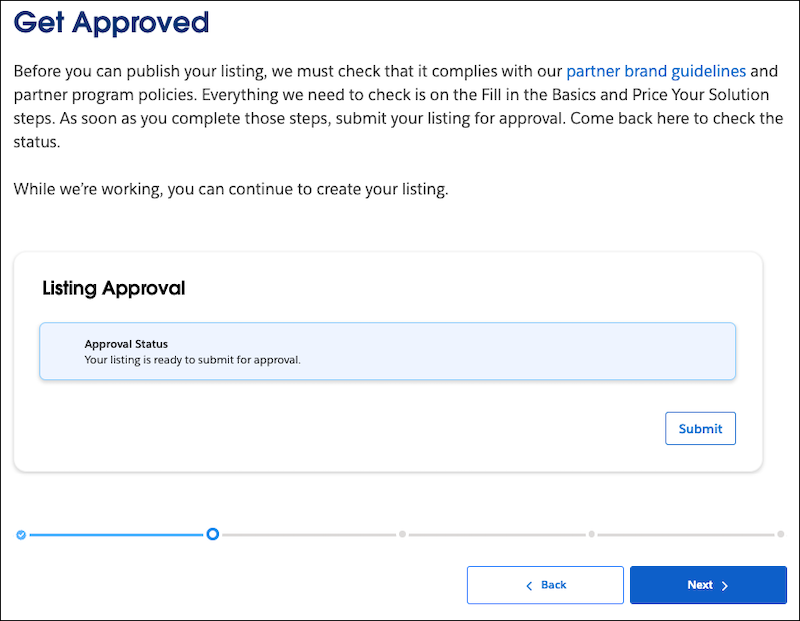
We review the info that you submit. After we approve your listing, its approval status is updated automatically.
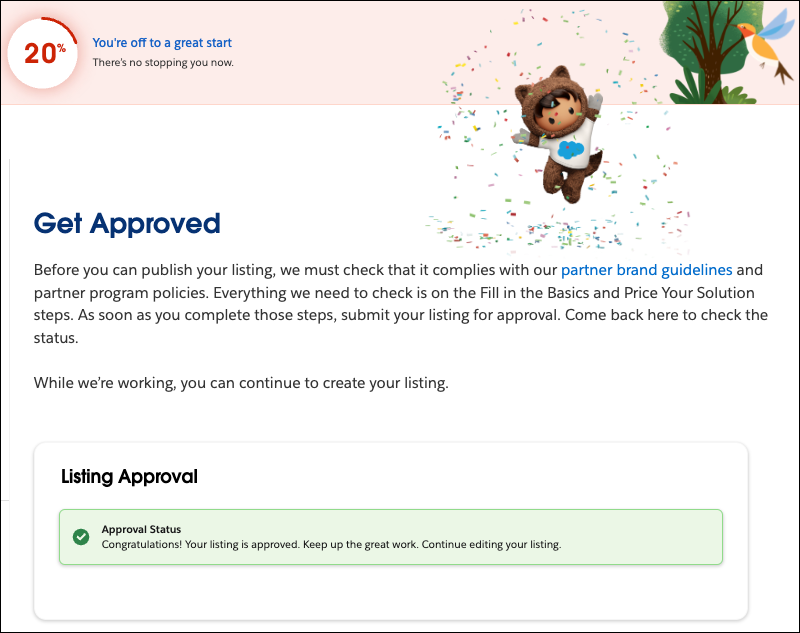
Sign the Required Partner Application Distribution Agreement
After your listing is approved, you must sign a Partner Application Distribution Agreement (PADA) before it can be published.
- If your listing uses AppExchange Checkout, you must sign a clickthrough PADA. See Sign the Partner Application Distribution Agreement.
- If your listing is a Paid solution that doesn't use Checkout, or if you’re listing a Freemium or Paid Add-On Required solution, you must sign a PADA offline, outside of the Partner Console. Check with your account manager for details.
Resubmit for Approval After Editing Your Listing
What happens if you want to edit your listing after you’ve submitted it for approval? It depends on what you edited and on your listing’s specifications. If you change your solution’s listing in one of these ways, save your edits and then resubmit your listing for approval.
- Pricing model from Free to another pricing model
- Pricing model from another pricing model to Free
- Payment management from Checkout to non-Checkout
- Payment management from non-Checkout to Checkout
- Pricing plan units
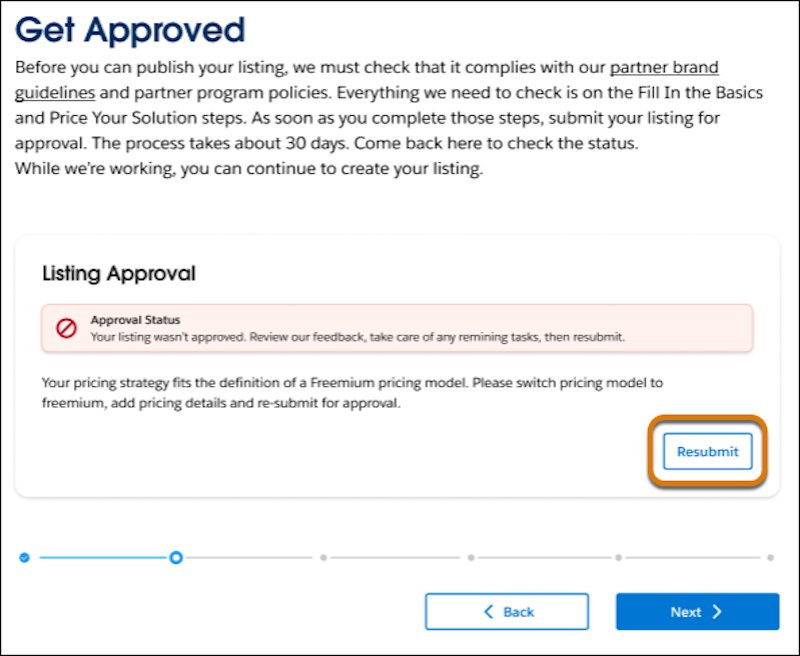
Resubmit for Approval After Initial Non-Approval
Sometimes your listing isn’t approved on the first try. Edit your listing and go to the ‘Get Approved’ step to see specific feedback that you must fix. After you update your listing, return to ‘Get Approved’ and click Resubmit.