


Mobile and Offline Developer Guide
 j
jNewer Version Available
Understand File Uploads in Salesforce
For the purposes of thinking about uploading files from an LWC, we can simplify the representation to four related objects.
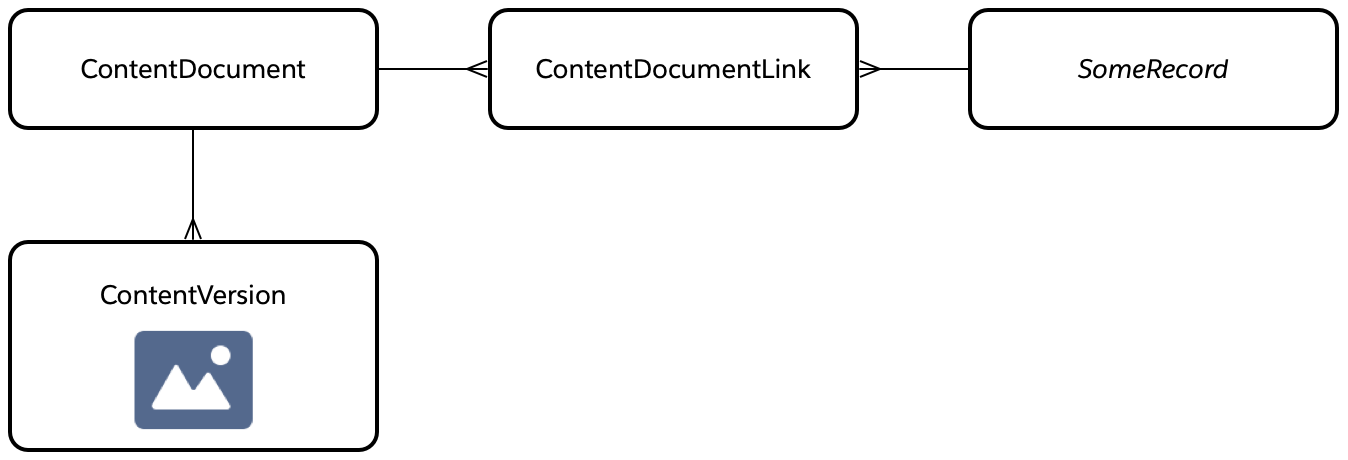
An uploaded, attached, or generated file is represented primarily by the ContentDocument object. However, this object holds no file data. Instead, versions of an uploaded file are stored as ContentVersion objects. With this structure, you can update a file by uploading a new version. Each upload creates another ContentVersion record, and this record is where the binary file data for the upload is stored.
That record represents the file. To associate an uploaded file to another record—for example, to attach photos of a vehicle to a car rental agreement record—the ContentDocumentLink object is used to link the two records together. A ContentDocumentLink object represents the relationship between a ContentDocument and any other record. Associate an uploaded file with any number of other records by creating the appropriate ContentDocumentLink records that join them.
When online, the LWC code for creating a file upload, while non-trivial, is straightforward, using standard Lightning Data Service (LDS) adapters like createRecord.
Supporting offline uploads from mobile clients is more challenging. Not only is it hard to manage the various relationships between records, but there’s also the challenge of holding binary file data in an offline store for later upload. To manage these technical issues, use the dedicated, mobile-specific file upload adapter: createContentDocumentAndVersion.
Supported file sizes for uploads are dependent on device memory, and large file sizes can cause compatibility issues. Keeping file upload sizes (especially images) under 100 MB maximizes compatibility.
Any supported file type can be uploaded, however only draft images can be viewed in the context of an LWC.
LWC Image and File Caching
Generally, mobile LWCs try to respect HTTP Cache-Control headers regarding how long an image or file is considered fresh or not stale. When an image or file is considered fresh, it’s served immediately from the cache and no attempts are made to fetch a new copy.
After the cache expires, images or files remain available to be served. However, we do attempt to fetch a fresh copy in the background.
If there's a zero or no cache control setting, we enforce a minimum of one minute cache time. This helps prevent excessively fetching images as the user navigates quickly in and out of LWCs. Excessively fetching images or files can lead to heavy network usage and LWC performance issues.
We suggest using design patterns like how Content Documents are handled. This means each version of the image or file has its own unique URL. Likewise, we caution against designing with static URLs that point to some dynamically changed images or files. Avoid requiring any explicit cache-busting mechanism.