


Mobile and Offline Developer Guide
 j
jNewer Version Available
Validate Your Base Component References
What Are Mobile-Ready Components?
A component is considered mobile-ready if it meets the following conditions:
- The component renders correctly when displayed on a mobile device:
- The component responds to fit within the reduced screen size.
- The layout of component elements and controls remains sensible.
- The component doesn’t require interactions that are awkward when performed using touch-based input. For example, side-to-side scrolling is awkward or not supported on a narrow phone screen.
- The component doesn’t require constant connections to a server-side controller as you interact with it. For example, auto-suggest look-ups can require a new server request with every search term change you type.
- There are no known issues when the component is used in a non-desktop browser.
SLDS Linter and SLDS Validator use the same list of mobile-ready components used by the Component Reference. You can find documentation, examples, and specifications for all base components in the Component Reference of the Lightning Component Library. Select a component, then click Example, Documentation, or Specifications.
Work with SLDS Linter
SLDS Linter is the latest code analysis tool that helps to prepare your components for use in SLDS 2.
For more information, see the SLDS Linter developer guide.
Install SLDS Validator for VS Code
Base component validation requires SLDS Validator version 1.4.4 or later.
To install SLDS Validator, go to the extension page on Visual Studio Marketplace. For more information, see the SLDS Validator developer guide.
Enable or Disable SLDS Validator
You can globally enable or disable SLDS Validator. In VS Code Preferences, go to .
Validate Base Components in Your Code
While you're coding, SLDS Linter displays a yellow underline to highlight components that you need to update. In addition, SLDS Linter captures issues in a SARIF report. Fix validation issues automatically in bulk by running the lint command with the --fix option. Alternatively, review the issues in the report. If a recommendation is provided in the report, fix the code based on it. If there’s no recommendation, then remove the values that are causing the issue.
We recommend that you use SLDS Linter. But if you choose to use SLDS Validator, it places markers on components that are known to have mobile issues while you're coding. For example, SLDS Validator checks all base component references against its “mobile ready” list. This list shows components that function as well on a limited mobile screen as on a desktop. If the component isn’t on the list, the validator highlights the code that uses that component with a yellow underline. Any base component reference that doesn’t show the yellow underline is ready to go mobile.
To read details about the warning, hover your mouse over the highlighted code.
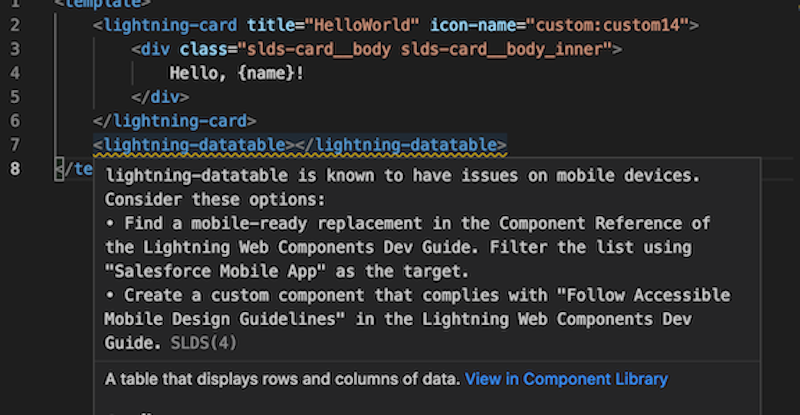
Resolve Warnings
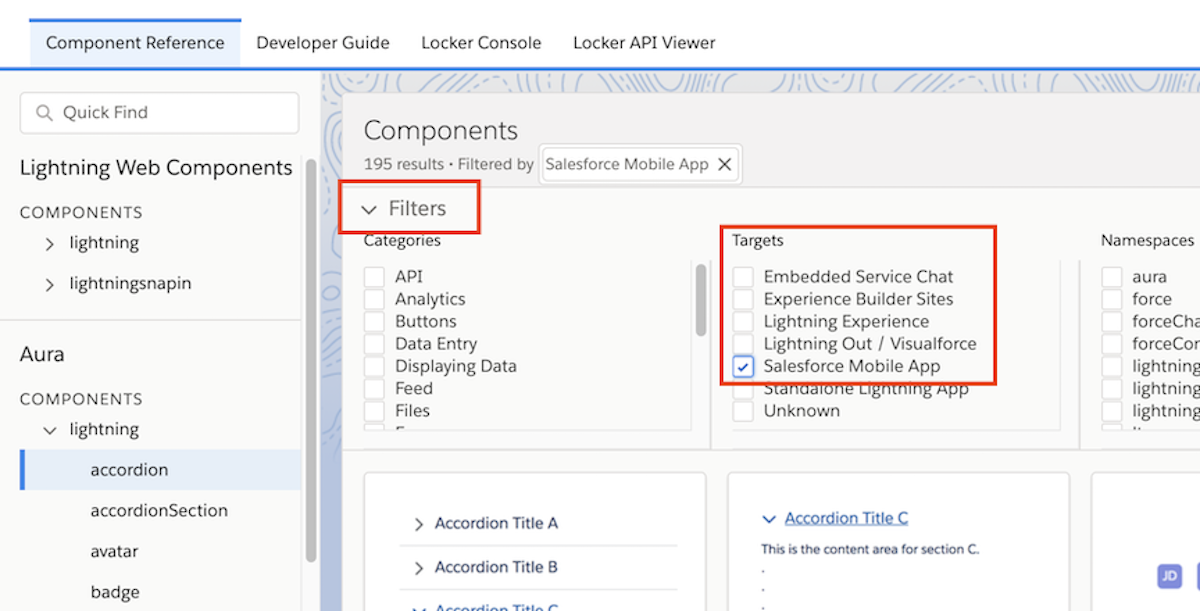
- Use only mobile-ready base components. To find these components:
- Open the Component Reference.
- Expand Filters.
- Under Targets, choose Salesforce Mobile App. The filtered
list shows only mobile-ready components.
- Update your existing Lightning web components to be mobile-ready. See:
-
If you’re creating your first mobile-ready component, start with Create Mobile-Ready Components.