


ISVforce Guide
 j
jNewer Version Available
Activate Bank Payments for AppExchange Checkout
To let customers pay for your solution with a bank transfer, request this payment method
in Stripe. After Stripe reviews and approves your request, you’re eligible to receive bank
payments. Depending on your location, you can accept payments through
credit cards or
the Automated Clearing House (ACH)
network.
- Go to the Stripe website.
- Log in to your Stripe account.
- Click Settings.
- Under Payments and Payouts, click Payment methods.
-
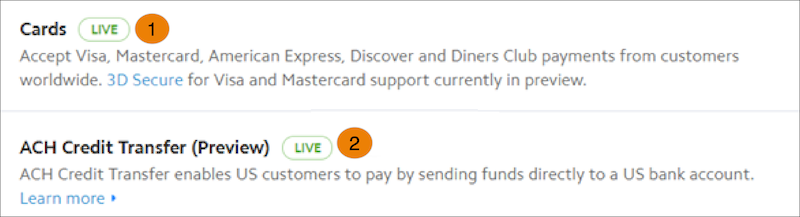
Request Cards (1)
or ACH Credit Transfer
(2)
for your account.
 Your activation request is sent to Stripe for processing. You receive an email when your request is approved.
 - If you requested ACH Credit Transfer, verify that the activation succeeded.