


Salesforce DX Developer Guide
 j
jNewer Version Available
How to Exclude Source When Syncing
The .forceignore file excludes files when running most of the project commands, such as project deploy start, project retrieve start, project convert source, and project delete source.
Structure of the .forceignore File
The .forceignore file structure mimics the .gitignore structure. Each line in .forceignore specifies a pattern that corresponds to one or more files. The files typically represent metadata components, but can be any files you want to exclude, such as LWC configuration JSON files or tests.
The project commands, when parsing the .forceignore file, use the same rules and patterns as the .gitignore file. A few common examples of these rules and patterns include:
- Always use the forward slash (/) as a directory separator, even on operating systems that use back slashes, such as Microsoft Windows.
- An asterisk (*) matches anything except a forward slash (/).
- Two consecutive asterisks (**) in patterns have special meaning, depending on where they’re located in the pathname. See for examples.
- For readability, use blank lines as separators in the .forceignore file.
There are many more rules and patterns. See the git documentation for details.
Determine the Exact Filename for a Metadata Component
As you build your .forceignore file, you sometimes need the exact name of the metadata components that you want to exclude. The easiest way to determine the name of a particular component is to look at the package directory that contains the source files, such as the default force-app directory.
For example, profile metadata components live in the main/default/profiles directory. Let’s say that the directory contains the source file NotUsedProfile.profile-meta.xml. To specify that the project commands exclude this component, add this entry to your .forceignore:
1**/NotUsedProfile.profile-meta.xmlAnother way to determine the exact name of a metadata component is to look at the output of the project commands if you’re also using source tracking. For example, if you have either local or remote changes, run the project deploy preview or project retrieve preview command to display the full pathname of the changed components. This output displays the filename of the Dreamhouse permission set and the Settings custom tab in the Path column of the Will Deploy section:
1sf project deploy preview
2
3Will Deploy [2] files.
4 Type          Fullname   Path
5 ───────────── ────────── ───────────────────────────────────────────────────────────────────────
6 PermissionSet dreamhouse force-app/main/default/permissionsets/dreamhouse.permissionset-meta.xml
7 CustomTab     Settings   force-app/main/default/tabs/Settings.tab-meta.xml
Other Files That the Source Commands Ignore
The source commands ignore these files even if they aren’t included in your .forceignore file:
- Any source file or directory that begins with a “dot”, such as .DS_Store or .sf
- Any file that ends in .dup
- package2-descriptor.json
- package2-manifest.json
Exclude Remote Changes Not Yet Synced with Your Local Source
Sometimes, you make a change directly in an org but you don’t want to pull that change into your local DX project. To exclude remote metadata changes, add an entry to .forceignore that represents the metadata source file that would be created if you did retrieve it.
For example, if you have a permission set named Dreamhouse, add this entry to .forceignore:
1**/Dreamhouse.permissionset-meta.xmlExclude MetadataWithContent Types
Metadata components that include content, such as ApexClass or EmailTemplate, extend the MetadataWithContent type. These components have two source files: one for the content itself, such as the Apex code or email template, and the accompanying metadata file. For example, the source files for the HelloWorld Apex class are HelloWorld.cls and HelloWorld.cls-meta.xml.
1# Explicilty list the HelloWorld source files to be excluded
2helloWorld/main/default/classes/HelloWorld.cls
3helloWorld/main/default/classes/HelloWorld.cls-meta.xml
4
5# Exclude the HelloWorld Apex class using an asterisk
6helloWorld/main/default/classes/HelloWorld.cls*
Exclude Bundles and File Groups
Use two consecutive asterisks (**) to ignore files spread across multiple directories with just one .forceignore entry.
For example, to exclude all resource files related to a Lightning web component named myLwcComponent, add this entry to exclude the entire component bundle:
1**/lwc/myLwcComponentTo exclude all Apex classes:
1**/classesMetadata with Special Characters
If a metadata name has special characters (such as forward slashes, backslashes, or quotation marks), we encode the file name on the local file system for all operating systems. For example, if you retrieve a custom profile called Custom: Marketing Profile, the colon is encoded in the resulting file name.
Custom%3A Marketing Profile.profile-meta.xml
If you reference a file name with special characters in .forceignore, use the encoded file name.
Where to Put .forceignore
Be sure the paths that you specify in .forceignore are relative to the directory containing the .forceignore file. For the .forceignore file to work its magic, you must put it in the proper location, depending on which command you’re running.
- Add the .forceignore file to the root of your project for the project source tracking commands.
- Add the file to the metadata retrieve directory (with package.xml) for project convert mdapi.
Multiple .forceignore Files in a Single Project
You typically have only one .forceignore file in your Salesforce DX project, usually in the project’s root directory. However, it’s possible to have more, so it’s important to know which .forceignore file the project commands use when deploying or retrieving a particular source file.
When the project commands are determining whether to exclude a source file, they traverse up the directory tree from where the source file lives, looking for a .forceignore file. When they find one, they refer to it to determine whether to exclude the source file, and then stop. They don’t continue looking for another .forceignore file.
Let’s look at an example. Imagine you have a .forceignore file in the root directory of your project, and it doesn’t exclude any Apex classes. In addition to the standard force-app package directory, you’ve configured a second package directory called second-package, which has its own .forceignore file at its root. This .forceignore file excludes Apex classes that start with Paged. The second-package package directory has an Apex class called PagedResult in its main/default/classes subdirectory. Here’s what it looks like in VS Code.
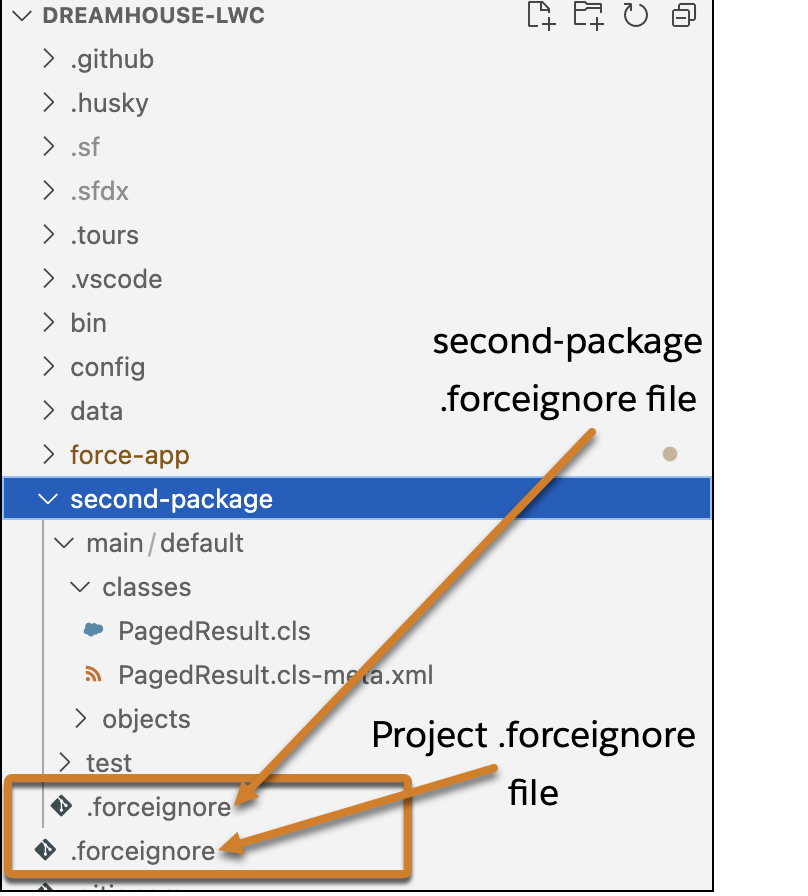
Let’s say you run this command in the project to deploy all Apex classes in all package directories.
1sf project deploy start --metadata ApexClassBecause the PagedResult Apex class lives in the second-package package directory, the deploy command refers to the .forceignore in that directory, and excludes the source files associated with the Apex class. The command doesn’t refer to the project .forceignore file.
Let’s now assume that the force-app directory contains a PagedNewResult Apex class. The deploy command refers to the project .forceignore file and thus doesn’t exclude the associated source files. Or in other words, the command deploys the files associated with the PagedNewResult Apex class.
Sample Syntax
Here are some options for indicating which source to exclude. In this example, all paths are relative to the project root directory.
1# Specify a relative path to a directory from the project root
2helloWorld/main/default/classes
3
4# Specify a wildcard directory - any directory named “classes” is excluded
5**classes
6
7# Specify file extensions
8**.cls*
9**.pdf
10
11# Specify a specific file
12helloWorld/main/default/HelloWorld.cls*
List the Files and Directories Currently Being Ignored
Use the project list ignored command to list the files and directories in your project that the project commands are currently ignoring. The project list ignored command refers to the .forceignore file to determine the list of ignored files.
To list all the files in all package directories that are ignored, run the command without any flags. Use the --source-dir flag to limit the check to a specific file or directory. If you specify a directory, the command checks all subdirectories recursively.
This example checks if a particular file is ignored.
1sf project list ignored --source-dir package.xmlThis example gets a list of all ignored files in a specific directory.
1sf project list ignored --source-dir force-app/main/defaultSample output if the command finds ignored files:
1Found the following ignored files:
2force-app/main/default/aura/.eslintrc.json
3force-app/main/default/lwc/.eslintrc.json
4force-app/main/default/lwc/jsconfig.json
Sample output if the file isn’t ignored:
1No ignored files found in paths:
2README.md