


Custom Address Fields Developer Guide
 j
jNewer Version Available
Add a Geocode to a Custom Address Field
The method to get geocodes differs between standard and custom address fields. To give
your users precise geographical information, add geocode information to a custom address field
with Apex, Visualforce, and a map API.
| Available in: both Salesforce Classic (not available in all orgs) and Lightning Experience |
| Available in: all editions |
| User Permissions Needed | |
|---|---|
| To modify user interface settings: | Customize Application |
-
Create an Apex class that retrieves latitude and longitude from your preferred map API.
This example calls the Google Map API as defined in the String variable endpoint.
1public class GeoCodeExample { 2 @future(callout=true) 3 public static void parseJSONResponse() { 4 double lat; 5 double lng; 6 String city = null; 7 String street = null; 8 String stateCode = null; 9 String countryCode = null; 10 11 Account record = [SELECT Mailing_Address__c FROM Account WHERE Id = 'Account ID']; 12 Address customAddress = record.Mailing_Address__c; 13 14 //Remove white spaces from address components 15 if(customAddress.getCity() != null){ 16 city = customAddress.getCity().deleteWhitespace(); 17 } 18 if(customAddress.getStreet() != null){ 19 street = customAddress.getStreet().deleteWhitespace(); 20 } 21 if(customAddress.getStateCode() != null){ 22 stateCode = customAddress.getStateCode(); 23 } 24 if(customAddress.getCountryCode() != null){ 25 countryCode = customAddress.getCountryCode(); 26 } 27 28 //concatenate strings 29 String address = street+city+stateCode+countryCode; 30 31 String key='API key'; 32 Http httpProtocol = new Http(); 33 // Create HTTP request to send. 34 HttpRequest request = new HttpRequest(); 35 // Set the endpoint URL. 36 // USING GOOGLE MAP API 37 String endpoint = 'https://maps.googleapis.com/maps/api/geocode/json?address='+address+'&key='+key; 38 request.setEndPoint(endpoint); 39 // Set the HTTP verb to GET. 40 request.setMethod('GET'); 41 // Send the HTTP request and get the response. 42 // The response is in JSON format. 43 HttpResponse response = httpProtocol.send(request); 44 45 // Parse JSON response to get all the totalPrice field values. 46 JSONParser parser = JSON.createParser(response.getBody()); 47 48 while (parser.nextToken() != null) { 49 if ((parser.getCurrentToken() == JSONToken.FIELD_NAME) && 50 (parser.getText() == 'lat')) { 51 parser.nextToken(); 52 // Get latitude 53 lat = parser.getDoubleValue(); 54 55 parser.nextToken(); 56 parser.nextToken(); 57 //Get longitude 58 lng = parser.getDoubleValue(); 59 } 60 } 61 // Update lat long of account record 62 record.Mailing_Address__Latitude__s=lat; 63 record.Mailing_Address__Longitude__s=lng; 64 update record; 65 } 66} -
Create a Visualforce page that triggers the geocode service from the map API.
1<apex:page id="pg" controller="GeoCodeExample"> 2<apex:form > 3 <apex:pageBlock id="pb"> 4 <apex:pageBlockButtons > 5 <apex:commandButton value="Get GeoCode For Custom Address Field" 6 action="{!parseJSONResponse}"/> 7 </apex:pageBlockButtons> 8 </apex:pageBlock> 9</apex:form> 10</apex:page> -
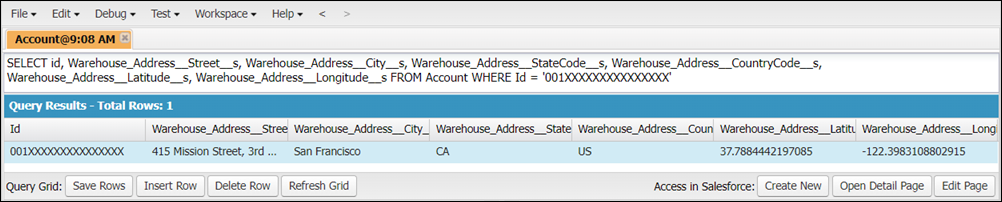
On the Visualforce page, click Get GeoCode For Custom Address
Field to trigger the code. To see the latitude and longitude values
populated, query the account information in Developer Console.
To automate the process of updating custom address fields with latitude and longitude, set up a trigger to invoke the Apex class.