


Mobile and Offline Developer Guide
 j
jTest Harness Drafts Tab
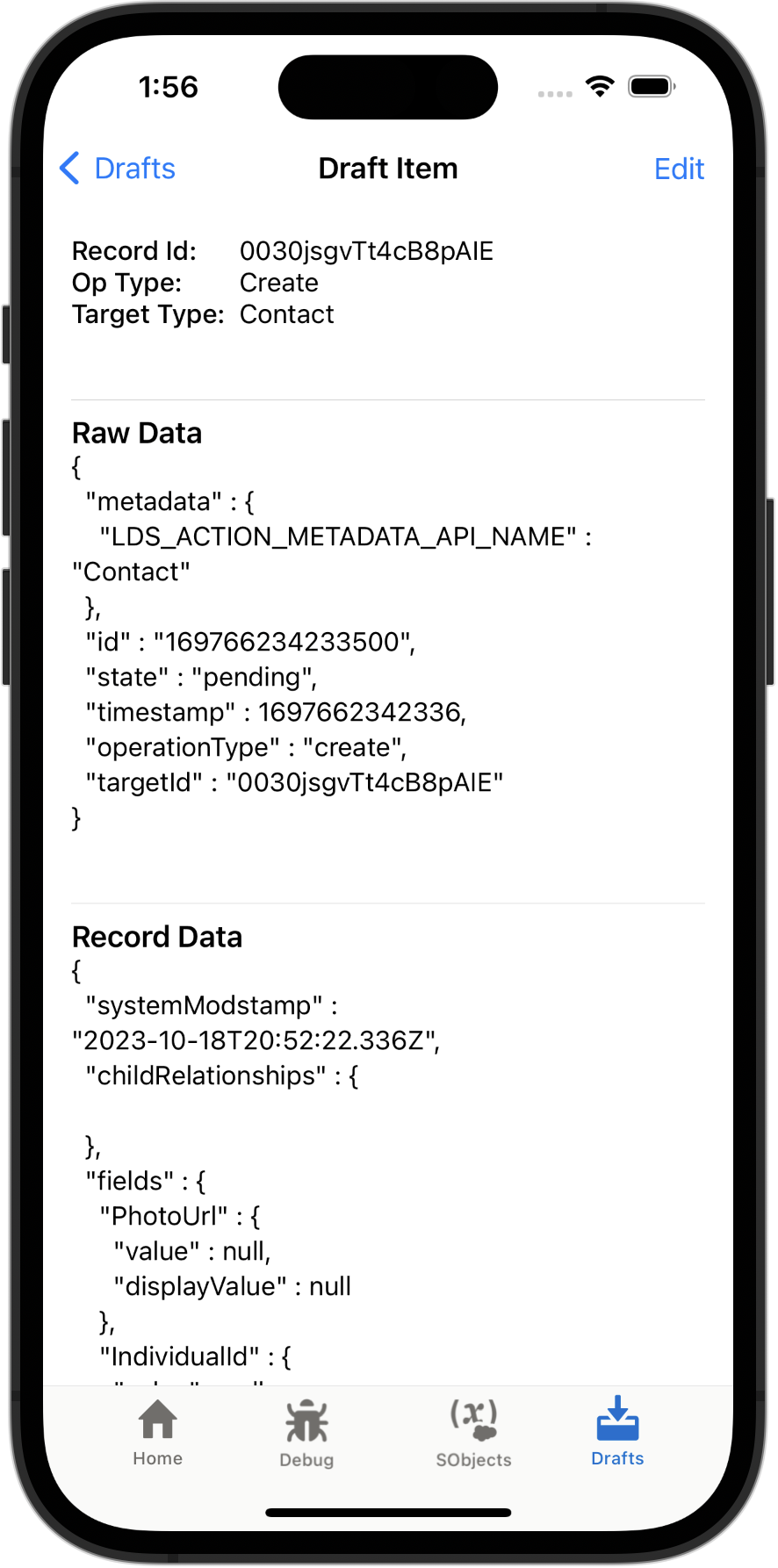
The Drafts tab displays the Draft Control card at the top, and then a list of the drafts currently in the Offline Queue. Tap a draft item to see the JSON data representation of the draft.
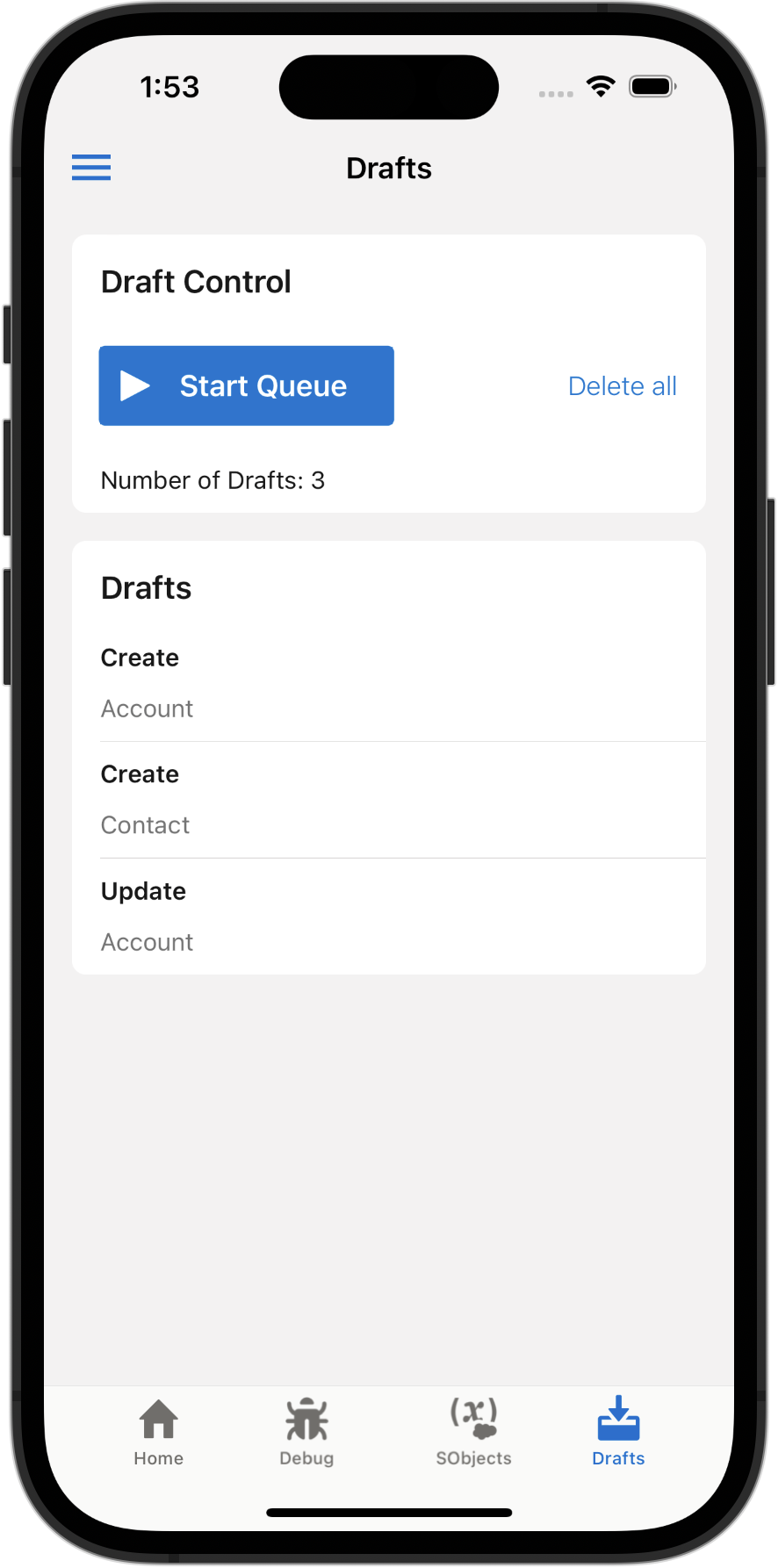
Draft Control. As a result, you can perform actions when online, such as creating or editing a record, and give you a chance to inspect the results before they’re uploaded to the Salesforce service. With the Draft Control card, you can only start and stop the queue and see how many drafts are waiting in the queue.
The Test Harness app starts with the Offline Queue in a paused state. Drafts that you create while the queue is paused wait in the Offline Queue until you tap Start Queue. When the queue is running, the button label changes to Stop Queue. If an error occurs while uploading a draft, the queue is paused automatically. Once the queue is empty, it returns to a paused state.
Draft records in the Offline Queue are listed in the order they were created. They are local-only data, until you start the Offline Queue to upload the draft records to the Salesforce service.
The Edit menu allows you to Copy the JSON representation of the draft into your clipboard. Copying can be useful for pasting into a code editor for detailed examination. You can also Delete the draft from the queue.