


Mobile SDK Development Guide
 j
jRunning the ContactExplorer Hybrid Sample
Let’s look at the ContactExplorer sample app, which is included in Mobile SDK. You can do this exercise on Mac OS or Windows, but you can fully validate the iOS target only on a Mac.
- A directory to contain the SalesforceMobileSDK-Shared cloned repo—your root directory, or any other easily accessible location.
- A directory for creating and developing Mobile SDK hybrid projects. Since Cordova projects can contain both iOS and Android targets, it’s a good idea to put them in a platform-neutral directory.
To begin, clone the shared repo, then create an app with forcehybrid.
- At a command prompt or Terminal window, cd to the directory where you plan to clone the shared repo.
- Run the following command.
1git clone https://github.com/forcedotcom/SalesforceMobileSDK-Shared.git - cd to the directory where you plan to develop your hybrid project.
- Run forcehybrid create with the following
values:
1Enter the target platform(s) separated by commas (ios, android): ios,android
2Enter your application type (hybrid_local or hybrid_remote, leave empty for hybrid_local): <press RETURN>
3Enter your application name: contactsApp
4Enter the package name for your app (com.mycompany.myapp): com.acmeapps.contactexplorer
5Enter your organization name (Acme, Inc.): AcmeApps.com
6Enter output directory for your app (leave empty for the current directory): <press RETURN>
Now that you have a generic hybrid project, you can add the contactexplorer sample code to it.
- Run the following commands, making sure to replace the placeholder in the
cp command with your local path.
1cd contactsApp
2cordova plugin add cordova-plugin-contacts
3cordova plugin add cordova-plugin-statusbar
4cp -RL <local path to SalesforceMobileSDK-Shared>/samples/contactexplorer/* www/
5cordova prepare
The forcedroid script and the ensuing commands create an iOS project and an Android project, both of which wrap the ContactExplorer sample app. Now we’re ready to run the app on one of these platforms. If you’re using an iOS device, you must configure a profile for the simulator, as described in the Xcode User Guide at developer.apple.com/library. Similarly, Android devices must be set up as described at developer.android.com/tools.
- cd to platforms/ios/.
- Run the following command: open contactsApp.xcworkspace
- In Xcode, click Run.
- In Android Studio, import or open the <your-hybrid-projects-directory>/contactsApp/platforms/android project.
- Click Run.
When you run the app, after an initial splash screen, you see the Salesforce login screen.
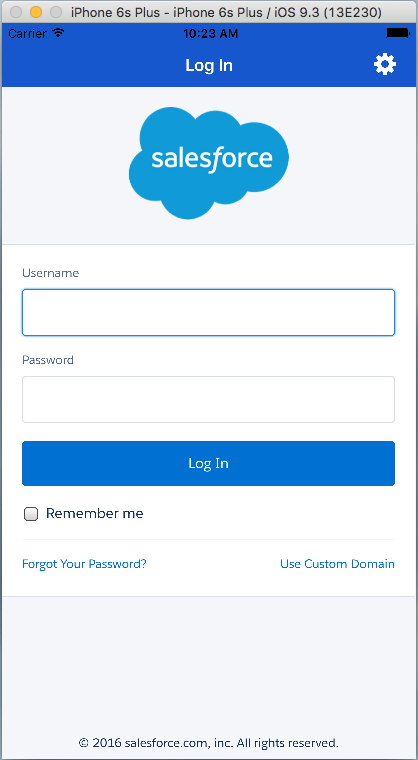
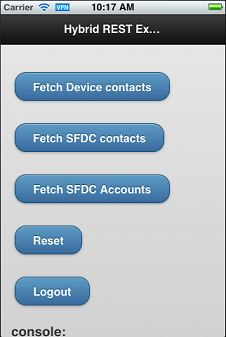
Log in with your Developer Edition org username and password. To allow the app to access your Salesforce data, tap Allow. Now that you’re in the app, you can retrieve lists of contacts and accounts. Tap Fetch SFDC contacts to retrieve Salesforce contact names or Fetch SFDC Accounts to retrieve account names from your DE organization.
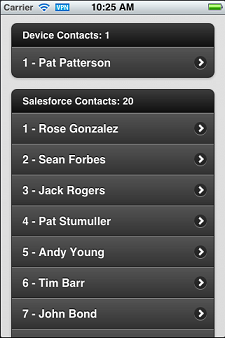
With each tap, the app appends rows to an infinite list. Scroll down to see the full list.
Let's take a closer look at how the app works.
To initiate a user session with force.js, you call force.login(). After the user logs in to an app running in the container, the network plug-in refreshes tokens as necessary when the app tries to access Salesforce resources. The following code, adapted from the ContactExplorer sample, demonstrates a typical force.login() implementation.
When the device notifies that it’s ready, you call the force.login() method to post the login screen.
1/* Do login */
2force.login(
3    function() {
4        console.log("Auth succeeded");
5        // Call your app’s entry point
6        // ...
7    },
8    function(error) {
9        console.log("Auth failed: " + error);
10    }
11);
After completing the login process, the sample app displays index.html (located in the www folder). When the page has completed loading and the mobile framework is ready, the jQuery(document).ready() function calls regLinkClickHandlers(). This function (in inline.js) sets up click handlers for the various functions in the sample app. For example, the #link_fetch_sfdc_contacts handler runs a query using the force object.
1$j('#link_fetch_sfdc_contacts').click(function() {
2    logToConsole("link_fetch_sfdc_contacts clicked");
3    force.query("SELECT Name FROM Contact LIMIT 25",
4        onSuccessSfdcContacts, onErrorSfdc);
5});
The force object is set up during the initial OAuth 2.0 interaction, and gives access to REST API in the context of the authenticated user. Here, we retrieve the names of all the contacts in the DE organization. onSuccessSfdcContacts() then renders the contacts as a list on the index.html page.
1$j('#link_fetch_sfdc_accounts').click(function() {
2    logToConsole("link_fetch_sfdc_accounts clicked");
3    force.query("SELECT Name FROM Account LIMIT 25",
4        onSuccessSfdcAccounts, onErrorSfdc);
5});
Similarly to the #link_fetch_sfdc_contacts handler, the #link_fetch_sfdc_accounts handler fetches Account records via REST API. The #link_reset and#link_logout handlers clear the displayed lists and log out the user, respectively.
Notice that the app can also retrieve contacts from the device—something that an equivalent web app would be unable to do. The following click handler retrieves device contact query by calling the Cordova contacts plug-in.
1$j('#link_fetch_device_contacts').click(function() {
2    logToConsole("link_fetch_device_contacts clicked");
3    var options      = new ContactFindOptions();
4    // empty search string returns all contacts
5    options.filter   = "";
6    options.multiple = true;
7    options.hasPhoneNumber = true;
8    var fields       =
9        [navigator.contacts.fieldType.displayName,
10            navigator.contacts.fieldType.name];
11    navigator.contacts.find(fields, onSuccessDevice,
12        onErrorDevice, options);
13});
This handler uses the ContactFindOptions and navigator.contacts objects from cordova-plugin-contacts to refine and execute a search. It calls navigator.contacts.find() to retrieve a list of contacts with phone numbers from the device. The onSuccessDevice() function (not shown here) renders the contact list into the index.html page.