


Mobile SDK Development Guide
 j
jIn-App Developer Support
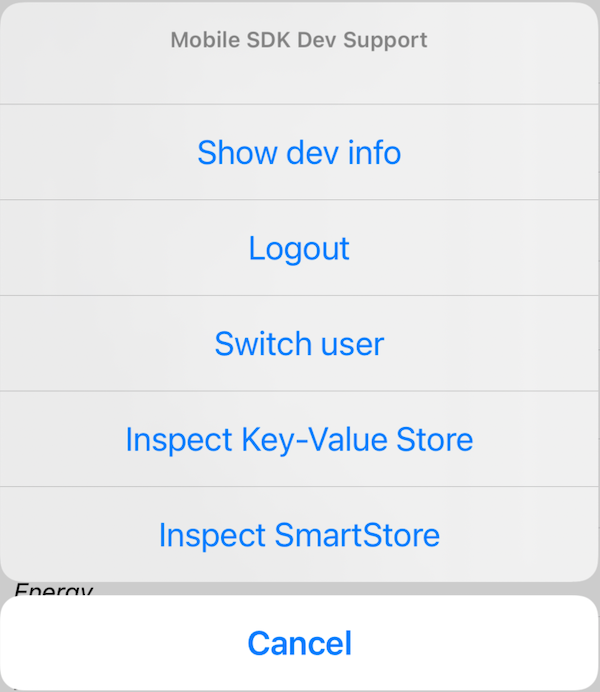
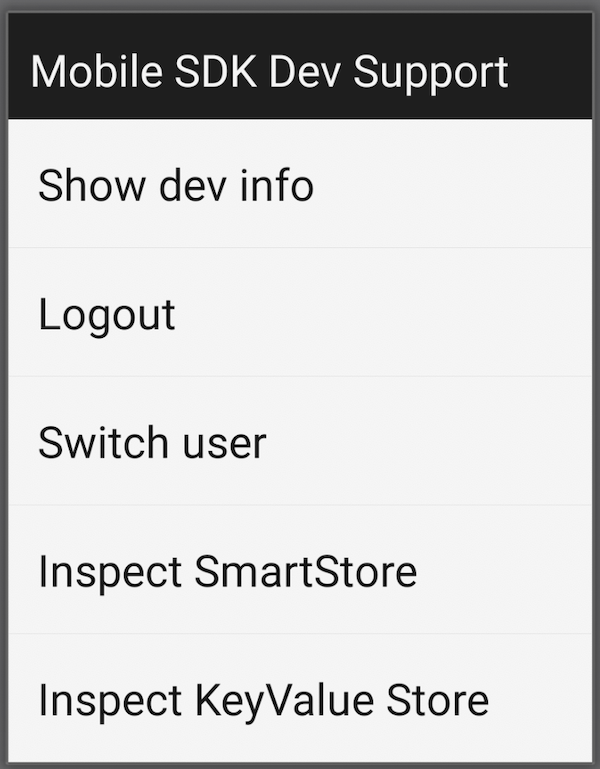
The Dev Support dialog box is the launchpad for all available support screens. The dialog box presents only the options that are pertinent to the type of app you’re running. During debugging, you can access the Dev Support through a keyboard shortcut or gesture.
By default, these tools are enabled in debug builds only. However, if necessary, you can use an SDK call to enable or disable the tools in production builds.
Launch the Dev Support Dialog Box
iOS
- Shake your physical device.
- From the iOS Simulator menu, select .
- When your app is running in the iOS Simulator, use the ^+Command+z keyboard shortcut.
Android
- When your app is running in the Android emulator, use the Command+m (Mac) or Ctrl+m (Windows) keyboard shortcut.
- In a system command shell, run: adb shell input keyevent 82
Enable Dev Support Tools in Production Builds
If you require the Developer Support tools in production builds, set the property that indicates Dev Support is enabled. This use case is unusual.
iOS
1// To enable
2[SalesforceSDKManager sharedManager].isDevSupportEnabled = YES;
3// To disable
4[SalesforceSDKManager sharedManager].isDevSupportEnabled = NO;
Android
1// To enable
2SalesforceSDKManager.getInstance().setDevSupportEnabled(true);
3// To disable
4SalesforceSDKManager.getInstance().setDevSupportEnabled(false);Support Options
The Dev Support dialog box presents options based on the app type. In every case you get:
- Show dev info—brings up the dev info screen.
- Logout—Logs out the current user. Useful when you’re getting started and have not yet had time to add a logout button or action into your UI.
- Switch user—Switch to a different user. Useful when you are getting started and have not yet had time to add a switch user button or action into your UI.
- Inspect Key-Value Store—Lets you inspect values stored in the encrypted key-value store.
- If your application uses SmartStore, you also see:
-
Inspect SmartStore—Displays the SmartStore inspector screen.
SmartStore inspector is useful during development because it decrypts the data for display purposes. This decryption applies only to the inspector display—data remains encrypted on disk.
- If your application is a React Native application, you also see:
- React native dev support—The React Native dev menu.
Dev Info Screen
- SDK version
- App type
- User agent
- Native browser for login enabled (indicates whether advanced authentication is configured)
- Identity Provider login enabled (indicates whether the app can use another app to provide login)
- Current user
- Authenticated users
- Boot config settings
- Managed (indicates whether the app is managed)
- Managed preferences (app settings pushed to the app by the MDM provider, if applicable)
For SmartStore apps, you get the following additional information:
- SQLCipher version
- SQLCipher compile options
- Names of user stores
- Names of global stores
SmartStore Inspector
The SmartStore Inspector screen is a legacy feature that lets user see a list of SmartStore soups and their indices, and run custom queries. In Mobile SDK 6.0, this screen adds a store picker that lets you choose which global or user store to inspect.
Extending the Dev Info Screen
1/**
2  * @return Array of name1, value1, name2, value2, etc.) to show in SFSDKDevInfoViewController
3  */
4- (NSArray*) getDevSupportInfos;1/**
2 * @return Dev info (list of name1, value1, name2, value2, etc.) to show in DevInfoActivity
3 */
4public List<String> getDevSupportInfos();