


Mobile SDK Development Guide
 j
jUsing iOS App Extensions with
About iOS App Extensions in Mobile SDK Apps
An iOS app extension is a separate target in your project. It lives in its own folder and is added to your app bundle as a separate binary unit. However, the app extension can access the same resources and libraries as your main app. Apple offers many extension types, as described in App Extensions articles at developer.apple.com.
- Project settings: When you add an app extension, Xcode creates an app extension build target. You configure the existing main target and the new extension target to join the same app group and keychain sharing group. Both apps must sign in to the same provisioning profile.
- Application code: At runtime, the two apps must use identical app group information, and the main app must convey user authentication status to the extension.
Project Settings
- In your Mobile SDK app, create an extension target as described in the Apple developer documentation. How you handle this step and the type of extension is between you and iOS.
- After you’ve created the target, select the top-level node of your Mobile SDK workspace in the Xcode Project Navigator. This step opens your project in the Project Editor.
- In both app and extension targets, sign in to the same developer team.
- Click General, and then specify a unique bundle
identifier for the app target. Here’s how it looks in Xcode 12.4:

- Repeat the bundle identifier step for the extension target. This identifier must also be unique.
- In your app configuration, select your Mobile SDK app target and then click Capabilities.
- Turn on App Groups and Keychain Sharing in your app target.
- Under App Groups, select or create an app group. Use a unique label that identifies your app, such as “group.myapp.shared”.
- Under Keychain Sharing, select or create a keychain
group. Use a unique label that identifies your app, such as “com.myapp.MyApp”.
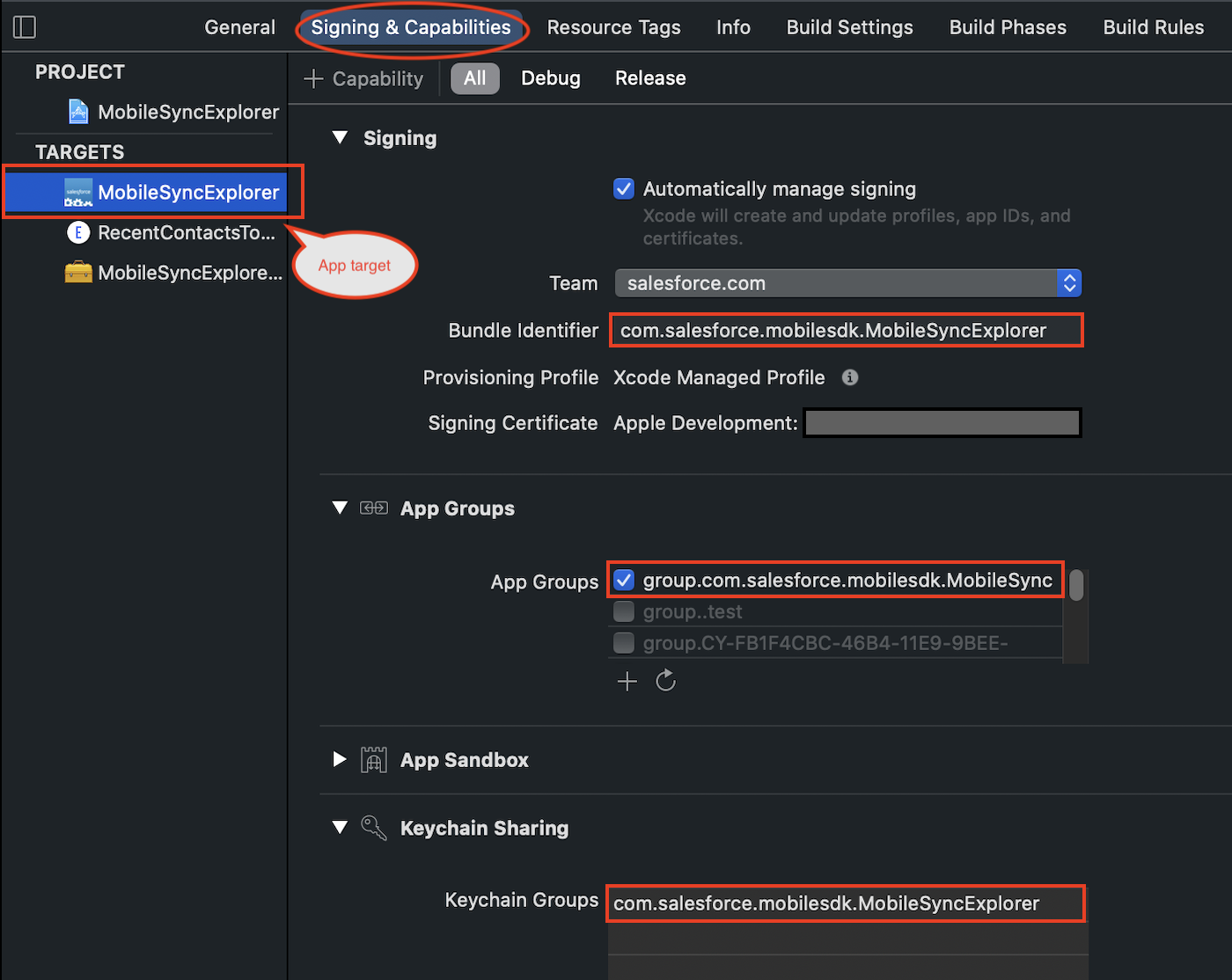
- Repeat the App Groups and Keychain Sharing steps for your extension target. The
two values in the extension target must exactly match the corresponding values
in the application target.

App Group Settings
When you incorporate an iOS app extension into a forceios app, you add code that tells Mobile SDK that you’re working in an app group. You add these lines in two places: the AppDelegate class in your main app, and the view controller or scene delegate class in your app extension.
Mobile SDK provides a utility class, SFSDKDatasharingHelper, that stores the necessary properties. Values you set for these properties in the main app and the app extension must be identical.
1@implementation NSUserDefaults (SFAdditions)
2
3+ (NSUserDefaults *)msdkUserDefaults {
4    NSUserDefaults *sharedDefaults = nil;
5    if ([SFSDKDatasharingHelper sharedInstance].appGroupEnabled) {
6        sharedDefaults = [[NSUserDefaults alloc]
7            initWithSuiteName:[SFSDKDatasharingHelper sharedInstance].appGroupName];
8    } else {
9        sharedDefaults = [NSUserDefaults standardUserDefaults];
10    }
11    return sharedDefaults;
12}
13
14@end
AppDelegate Code Changes
The following steps apply to the init method of your main app’s AppDelegate class.
- At the top of the init method, set appGroupName and appGroupEnabled on the SFSDKDatasharingHelper shared instance.
1... 2- (id)init 3{ 4 self = [super init]; 5 if (self) { 6 // Insert these two lines, using your app group name 7 [SFSDKDatasharingHelper sharedInstance].appGroupName = 8 @"<your app group name>"; 9 [SFSDKDatasharingHelper sharedInstance].appGroupEnabled = YES; 10... - After the user has successfully logged in, store a value reflecting the login
status in an object that the extension code can access. You can infer the status
by reading the currentUser property of the
SFUserAccountManager object. To safely
and consistently update the login status, set this property in the callback
method of the registerBlockForCurrentUserChangeNotifications call in the init method. The following example uses the
Mobile SDK NSUserDefaults (SFAdditions)
category to store the Boolean value under a key named userLoggedIn.
1[SFSDKAuthHelper registerBlockForCurrentUserChangeNotifications:^{
2    __strong typeof (weakSelf) strongSelf = weakSelf;
3    BOOL loggedIn = [SFUserAccountManager.sharedInstance currentUser] != nil;
4    [[NSUserDefaults msdkUserDefaults] setBool:loggedIn forKey:@"userLoggedIn"];
5    [strongSelf resetViewState:^{
6        [strongSelf setupRootViewController];
7    }];
8}];
App Extension Code Changes
At runtime, your iOS app extension operates as a second app, so you have to “bootstrap” it as well. You apply the same appGroupName and appGroupEnabled changes as you did in the main app’s AppDelegate class.
App extensions can’t perform authentication tasks such as user logins. However, before making calls to a Mobile SDK manager such as MobileSyncSDKManager, you must verify that a user has logged in. You do this verification by checking the value stored by the main app in the NSUserDefaults dictionary.
- In your app extension’s initialization entry point, set and enable the app
group.
1[SFSDKDatasharingHelper sharedInstance].appGroupName = @"<your app group name>"; 2[SFSDKDatasharingHelper sharedInstance].appGroupEnabled = YES; - Verify that the userLoggedIn value indicates success. Continue with other Mobile SDK calls only if userLoggedIn equals YES.
If the app determines that a user has successfully logged in, the app extension can apply that user’s shared credentials to Salesforce API calls.
Example
The following code is taken from the MobileSyncExplorer native sample app. This sample defines an app extension that displays a list of MRU Contact records.
- appGroupName
- The “app group” name, as defined in the project settings. This string is also hard-coded in the MobileSyncExplorerConfig class.
- appGroupsEnabled
- Boolean that indicates whether app groups are enabled.
- userLogInStatusKey
- The name of the key used to store the user login status in the group NSUserDefaults dictionary.
1- (void)resetUserloginStatus {
2    BOOL loggedIn = [SFUserAccountManager.sharedInstance currentUser] != nil;
3    [[NSUserDefaults msdkUserDefaults] setBool:loggedIn forKey:@"userLoggedIn"];
4    [SFSDKMobileSyncLogger log:[self class] level:SFLogLevelDebug format:@"%d userLoggedIn", [[NSUserDefaults msdkUserDefaults] boolForKey:@"userLoggedIn"] ];
5}1- (id)init
2{
3 self = [super init];
4 if (self) {
5 MobileSyncExplorerConfig *config = [MobileSyncExplorerConfig sharedInstance];
6 [SFSDKDatasharingHelper sharedInstance].appGroupName = config.appGroupName;
7 [SFSDKDatasharingHelper sharedInstance].appGroupEnabled = config.appGroupsEnabled;
8
9 [MobileSyncSDKManager initializeSDK];
10
11 //App Setup for any changes to the current authenticated user
12 __weak typeof (self) weakSelf = self;
13 [SFSDKAuthHelper registerBlockForCurrentUserChangeNotifications:^{
14 __strong typeof (weakSelf) strongSelf = weakSelf;
15 [strongSelf resetUserloginStatus];
16 [strongSelf resetViewState:^{
17 [strongSelf setupRootViewController];
18 }];
19 }];
20 }
21 return self;
22}The app extension is implemented in the RecentContactsTodayExtension/TodayViewController.m file. For a Today extension, the entry point to custom code is widgetPerformUpdateWithCompletionHandler:. The app extension reads the userLogInStatusKey value, which it queries through its custom userIsLoggedIn “getter” method. Notice that this getter method retrieves the app group information where the main app stored them—in the shared MobileSyncExplorerConfig object.
1- (void)widgetPerformUpdateWithCompletionHandler:(void (^)(NCUpdateResult))completionHandler {
2    MobileSyncExplorerConfig *config = [MobileSyncExplorerConfig sharedInstance];
3    [SFSDKDatasharingHelper sharedInstance].appGroupName = config.appGroupName;
4    [SFSDKDatasharingHelper sharedInstance].appGroupEnabled = config.appGroupsEnabled;
5
6    if ([self userIsLoggedIn] ) {
7        [SFLogger log:[self class] level:SFLogLevelError format:@"User has logged in"];
8        [MobileSyncSDKManager initializeSDK];
9        SFUserAccount *currentUser = [SFUserAccountManager sharedInstance].currentUser;
10        __weak typeof(self) weakSelf = self;
11        void (^completionBlock)(void) = ^{
12            [weakSelf refreshList];
13        };
14        if(currentUser) {
15            if (!self.dataMgr) {
16                self.dataMgr = [[SObjectDataManager alloc] initWithDataSpec:[ContactSObjectData dataSpec]];
17            }
18            [self.dataMgr lastModifiedRecords:kNumberOfRecords completion:completionBlock];
19        }
20    }
21    completionHandler(NCUpdateResultNewData);
22}
23
24- (BOOL)userIsLoggedIn {
25    MobileSyncExplorerConfig *config = [MobileSyncExplorerConfig sharedInstance];
26    return [[NSUserDefaults msdkUserDefaults] boolForKey:config.userLogInStatusKey];
27}