


Marketing Cloud API
 j
jUse the MobileConnect API
Subscribe Mobile Numbers to a Short Code
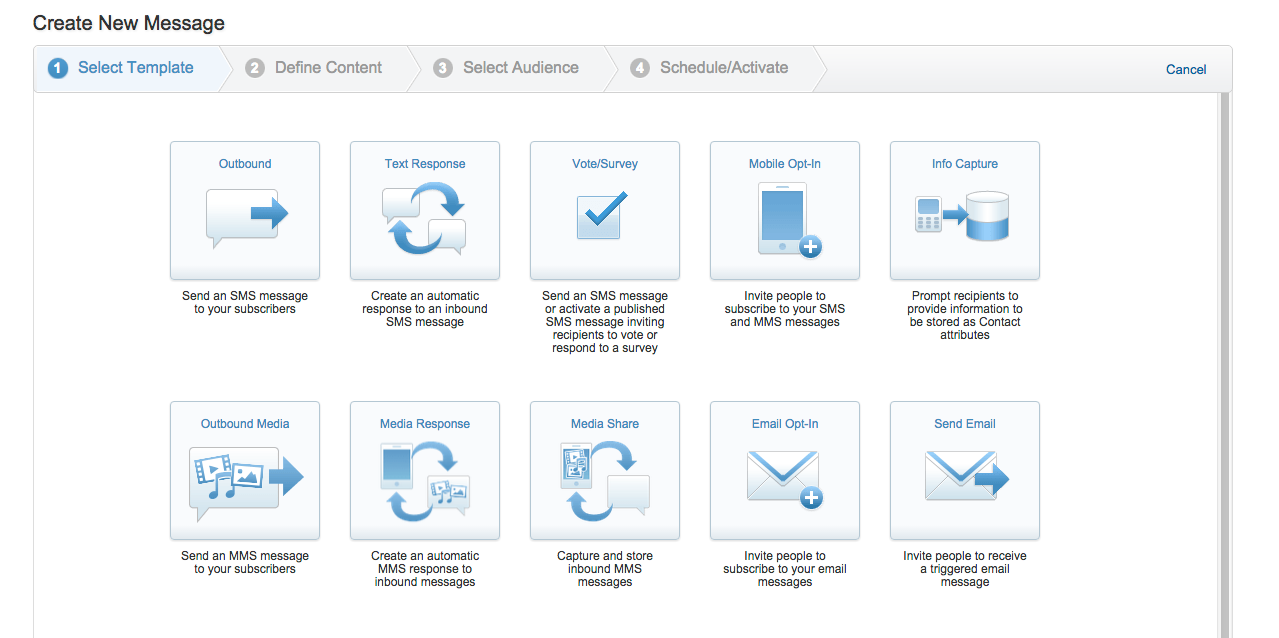
Delivery of an outbound SMS message through the MobileConnect application requires an active short code and keyword subscription. MobileConnect assists marketers and developers with the creation of message subscriptions through the SMS Opt-In template.
MobileConnect supports three variations of the SMS Opt-In:
-
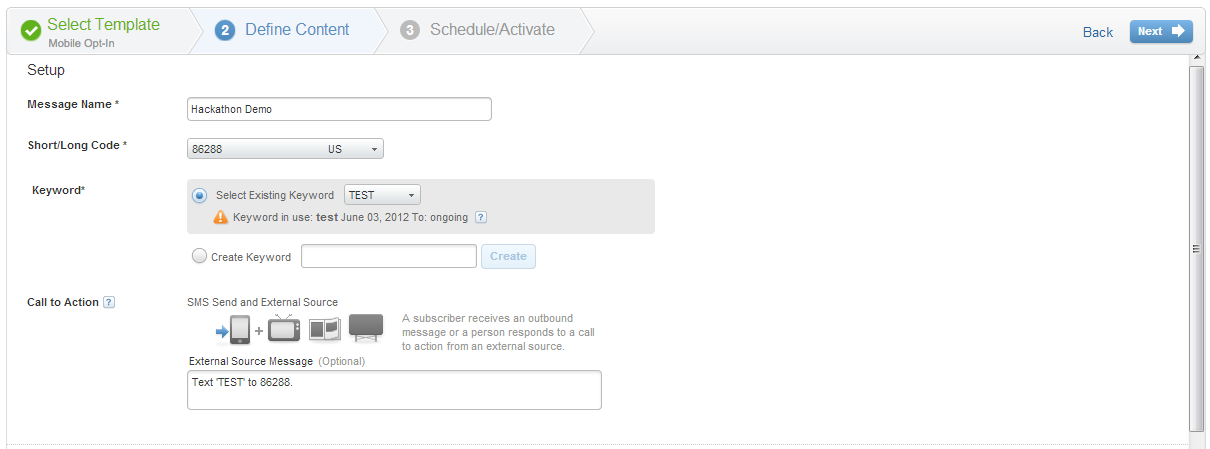
Single Opt-In: Contact texts JOIN (or another specified keyword) to your short code to subscribe to a specified keyword on that short code.
-
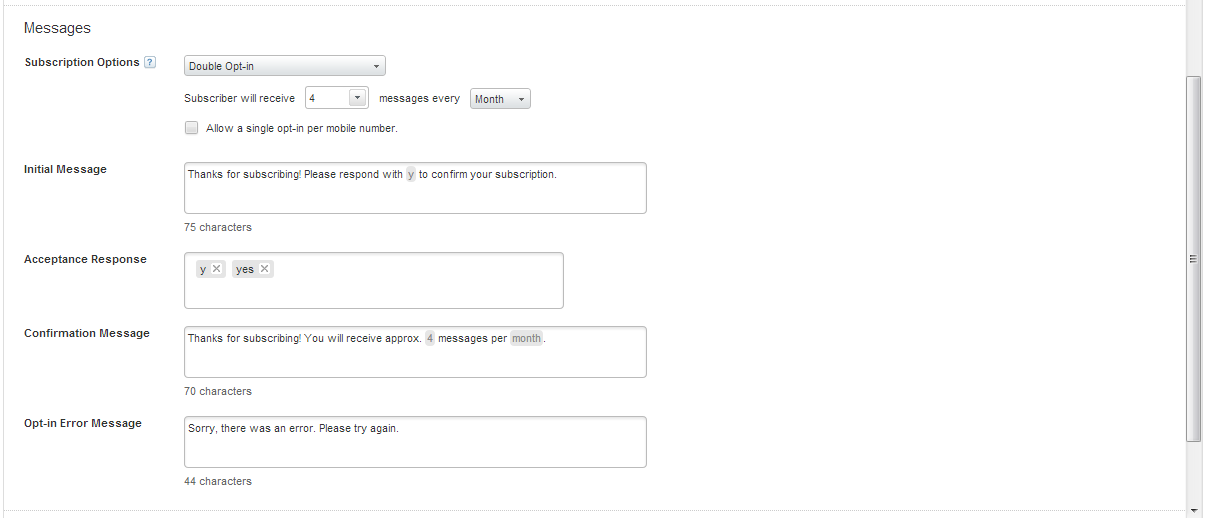
Double Opt-In: Contact texts JOIN (or another specified keyword) to your short code and receives a text message asking them to reply Y or YES to confirm their subscription. Upon replying Y or YES, MobileConnect subscribes the contact to the specified keyword on that short code.
-
Double Opt-In with Age Confirmation: Contact texts JOIN (or another specified keyword) to your short code, the contact reply to the initial confirmation messag,e and confirm with their birth date before subscribing to the specified keyword on that short code.
Example QueueMO API Request
POST https://YOUR_SUBDOMAIN.rest.marketingcloudapis.com/sms/v1/queueMO
Content-Type: application/json
Authorization: Bearer YOUR_OAUTH_ACCESS_TOKEN
{
  "mobileNumbers": [
    "15555551212"
  ],
  "shortCode": "Code",
  "messageText": "KEYWORD"
}
Key:
-
mobileNumbersincludes the mobile number to subscribe -
shortCodeincludes the SMS short code used in the SMS Opt-In template -
messageTextcontains the keyword used in the SMS Opt-In template
Confirm Subscription Status in MobileConnect
Once you create an SMS Opt-In message, ensure that MobileConnect creates the subscriptions correctly.
- Navigate to the MobileConnect overview screen.
- Open the Contacts application.
- Click Manage under Contacts.
- Search for the specific mobile number.
- Click the mobile number.
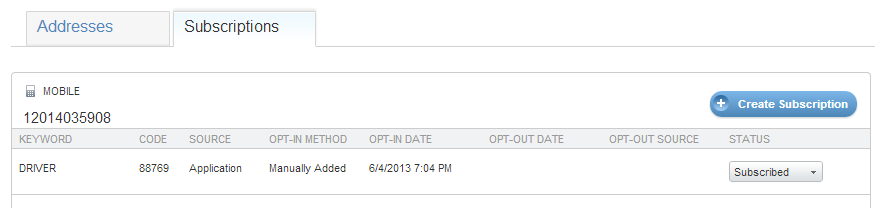
- Click Subscriptions.
- Confirm the subscription status of Subscribed. MobileConnect will only deliver outbound SMS messages to mobile numbers that maintain a Subscribed status for the specified short code. Mobile numbers with an In Progress status did not fully complete the Double Opt-in process and will not receive SMS messages.
Trigger SMS Messages from a Mobile App
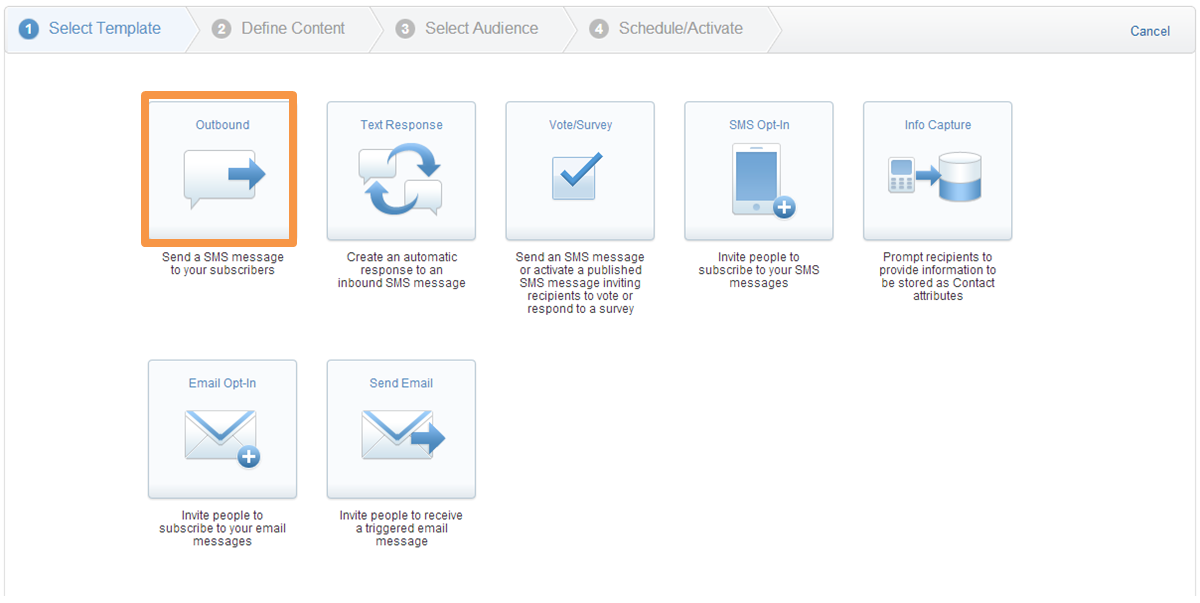
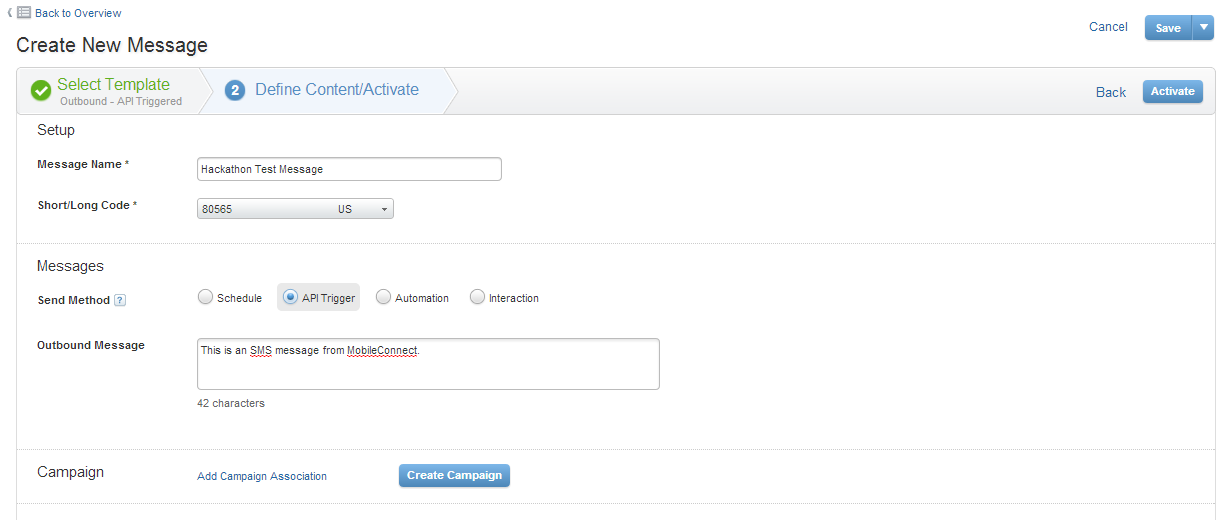
Once you build a mobile app and subscribe contacts to your short code and keyword, you can deliver SMS messages. Use the MobileConnect Outbound message template to define the content for each message. Follow these steps to create your message:
- Name the message.
- Select the short code to be used for delivery. Use the same code on which contacts subscribed to a specific keyword.
- Select the API Trigger send method.
- Define message content. Both the MessageContact and MessageList APIs allow for override of defined message content.
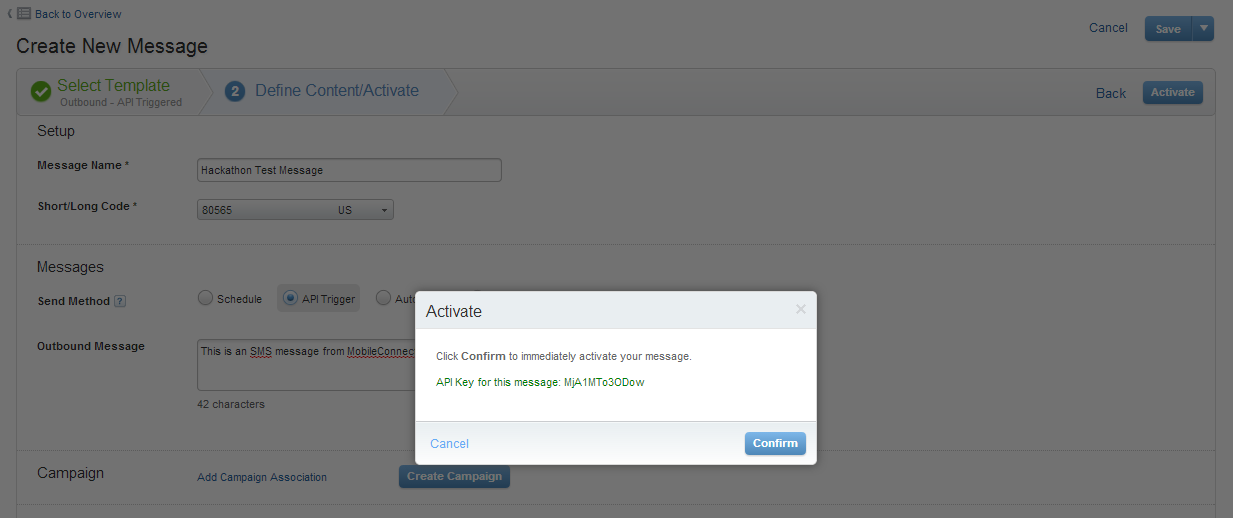
- Activate your message. Both the messageContact and messageList request bodies use the API key received during this step.
Example messageContact API Request
POST https://YOUR_SUBDOMAIN.rest.marketingcloudapis.com/sms/v1/messageContact/MzA6Nzg6MA/send
Content-Type: application/json
Authorization: Bearer YOUR_OAUTH_ACCESS_TOKEN
{
  "mobileNumbers": [
    "13175551212"
  ],
  "Subscribe": false,
  "Resubscribe": false,
  "Override": true,
  "messageText": "Welcome to Code@"
}
If you wish to ensure that the contact exists for the specified mobile number and that the mobile number subscribed to the specified keyword for your API message, set the Subscribe and Resubscribe values to true, as shown in the example below.
POST https://YOUR_SUBDOMAIN.rest.marketingcloudapis.com/sms/v1/messageContact/MzA6Nzg6MA/send
Content-Type: application/json
Authorization: Bearer YOUR_OAUTH_ACCESS_TOKEN
{
    "mobileNumbers": [
    "13175551212"
    ],
    "Subscribe": true,
    "Resubscribe": true,
    "Override": true,
    "messageText": "Welcome to Code@",
}
Key:
-
Overrideallows for the override of message content defined within the MobileConnect UI -
messageTextdefines message content if Override = true
Deliver On-Demand SMS Content with Text Response
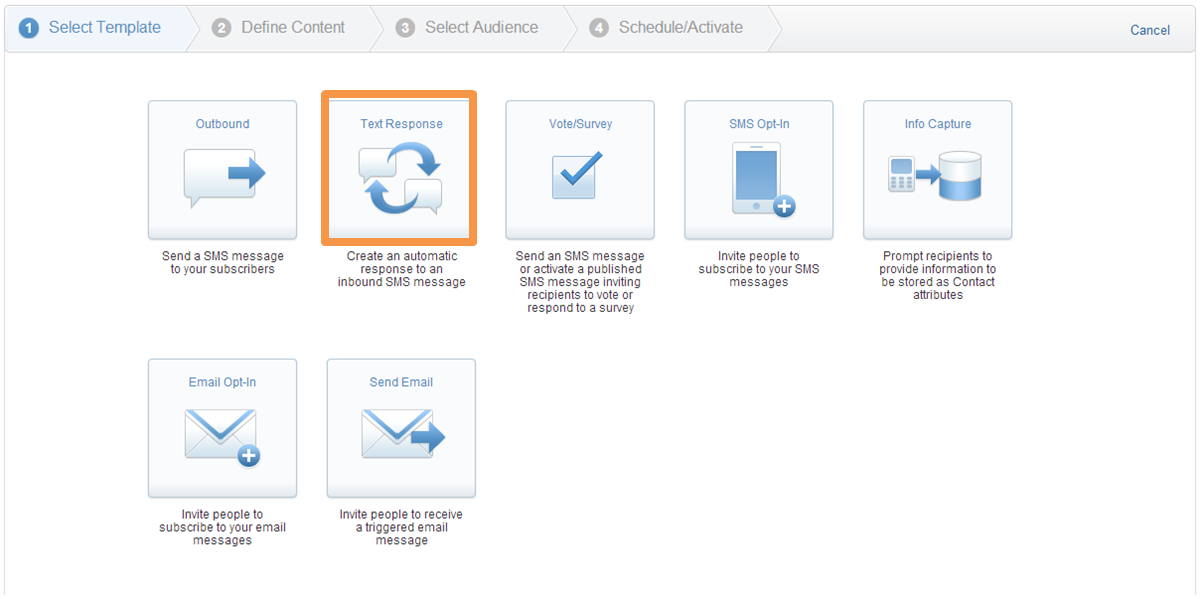
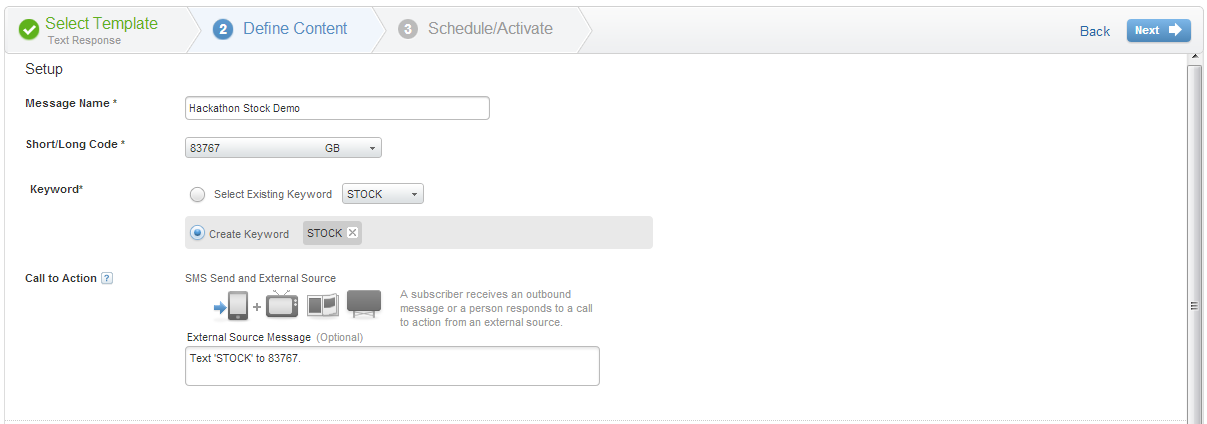
SMS allows for two conversations initiated by consumers. Use the MobileConnect Text Response template to create content sent to consumers in response to an SMS message to your short code. For example: “Text STOCK to (your short code) to get a real-time quote of Brand ABC stock price.”
Example Message Content for STOCK Use Case
%%[
Set @mobile = v([MOBILE_NUMBER])
Set @mobile1 = Substring(@mobile,2,10)
Set @keyword = v([MSG(0).VERB])
set @noun = lowercase([MSG(0).NOUN(0)])
set @url = Concat("http://finance.example.com/d/quotes.csv?s=CRM&f=snd1l1yr",@mobile1,"&alert_keyword=",@keyword)
set @msg = [MSG(0)]Set @message = HttpGet(@url)]%%
example.com Stock is: %%=ProperCase(@message)=%% Thanks for Responding!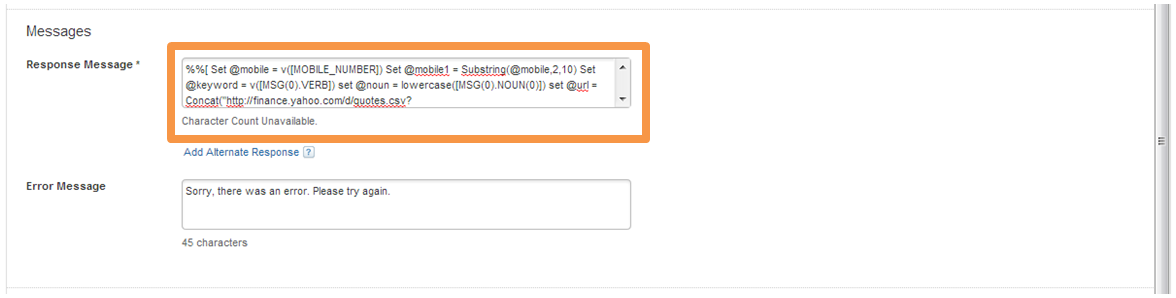
Most Common MobileConnect REST APIs
messageContact
Send an SMS message to up to 250 MobileConnect subscribers. Use cases include appointment reminders, account alerts, itinerary updates, and other direct communications.
MessageList
Send an SMS message to an identified MobileConnect List. Use cases include daily promotions overview, app update available notifications, and other broad communications.
queueMO
Replicate an inbound SMS message from a mobile device. Use as part of a Double Opt-in process via web form or mobile app.
Visit the SMS REST API reference page to learn about all of the REST APIs supported by MobileConnect.