


Embedded Service Chat SDK for Android Developer Guide
 j
jOrg Setup for Chat in Lightning Experience with a Guided Flow
These instructions walk you through a basic chat setup in Lightning Experience. To learn more about chat, check out the Web Chat Basics Trailhead module.
-
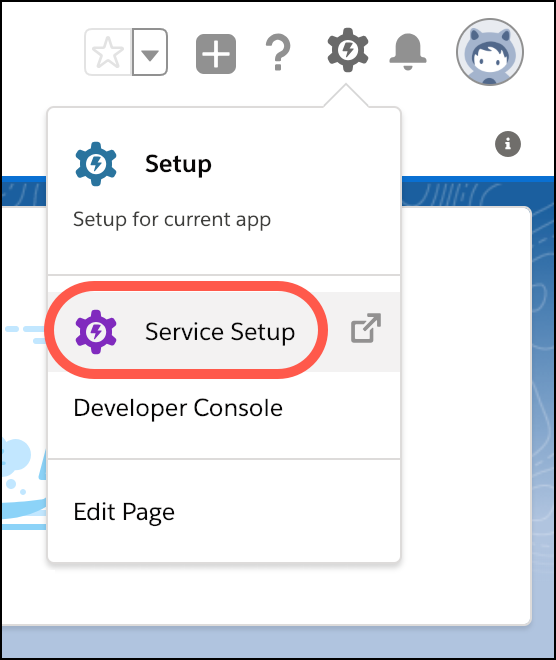
Click the Setup gear icon and select Service
Setup.
-
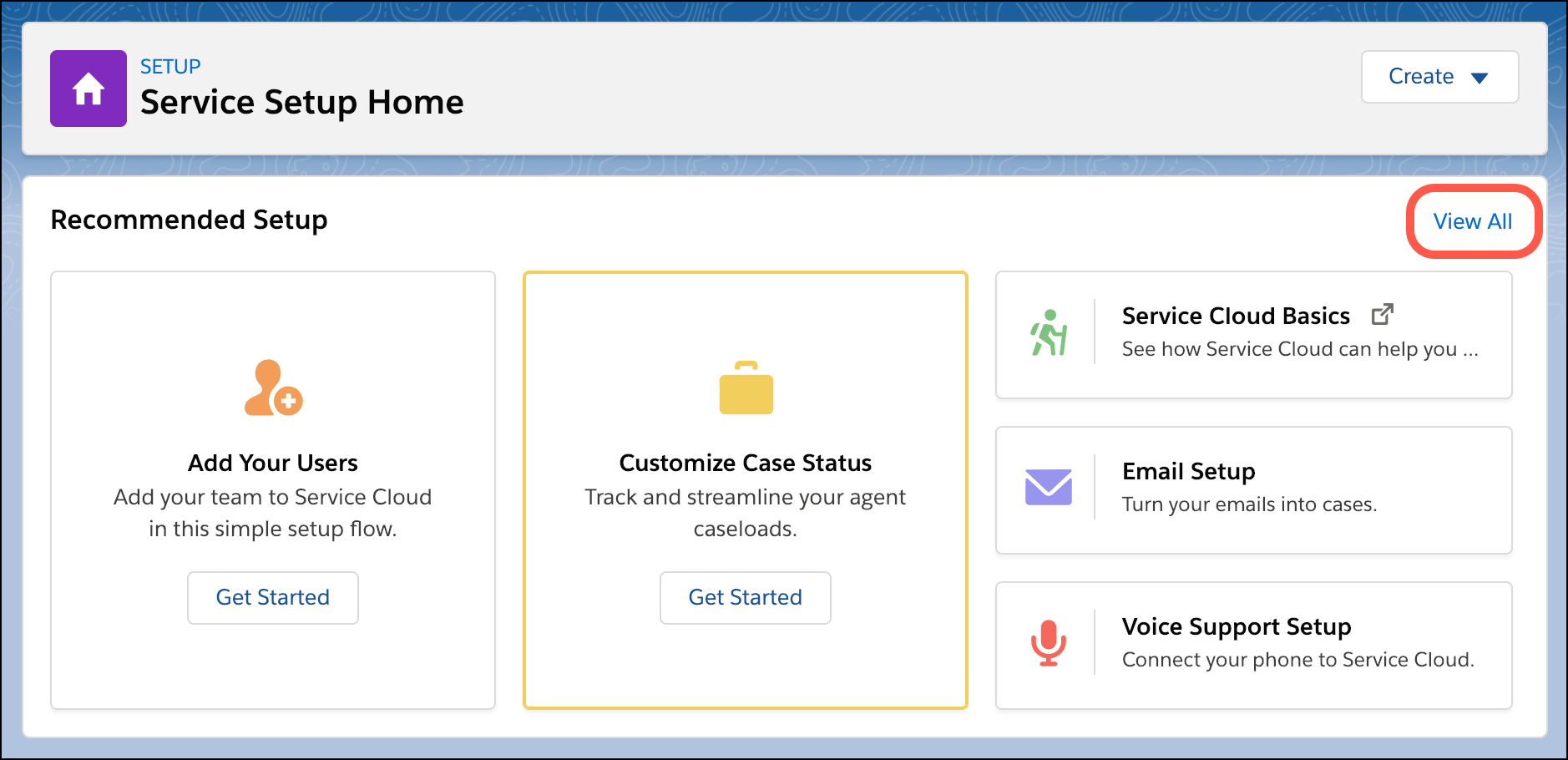
Under Recommended Setup, click View All.
-
In the search box, enter Chat, and select
Chat with Customers.
- After you read the overview page, click Start.
-
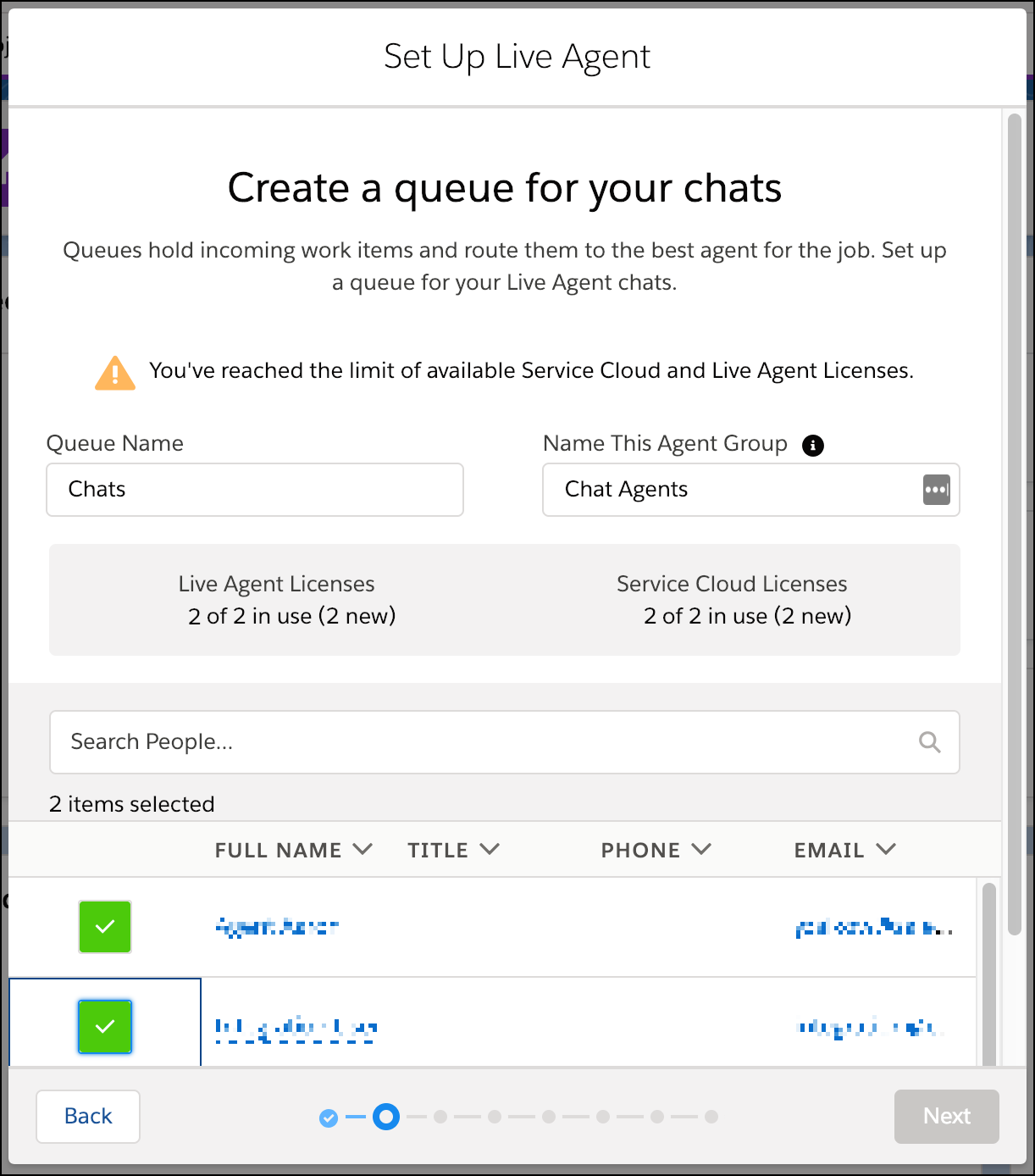
Enter the name of your queue (for example, Chats) and
agent group name (for example, Chat Agents). Then select
the members for this group and click Next.
-
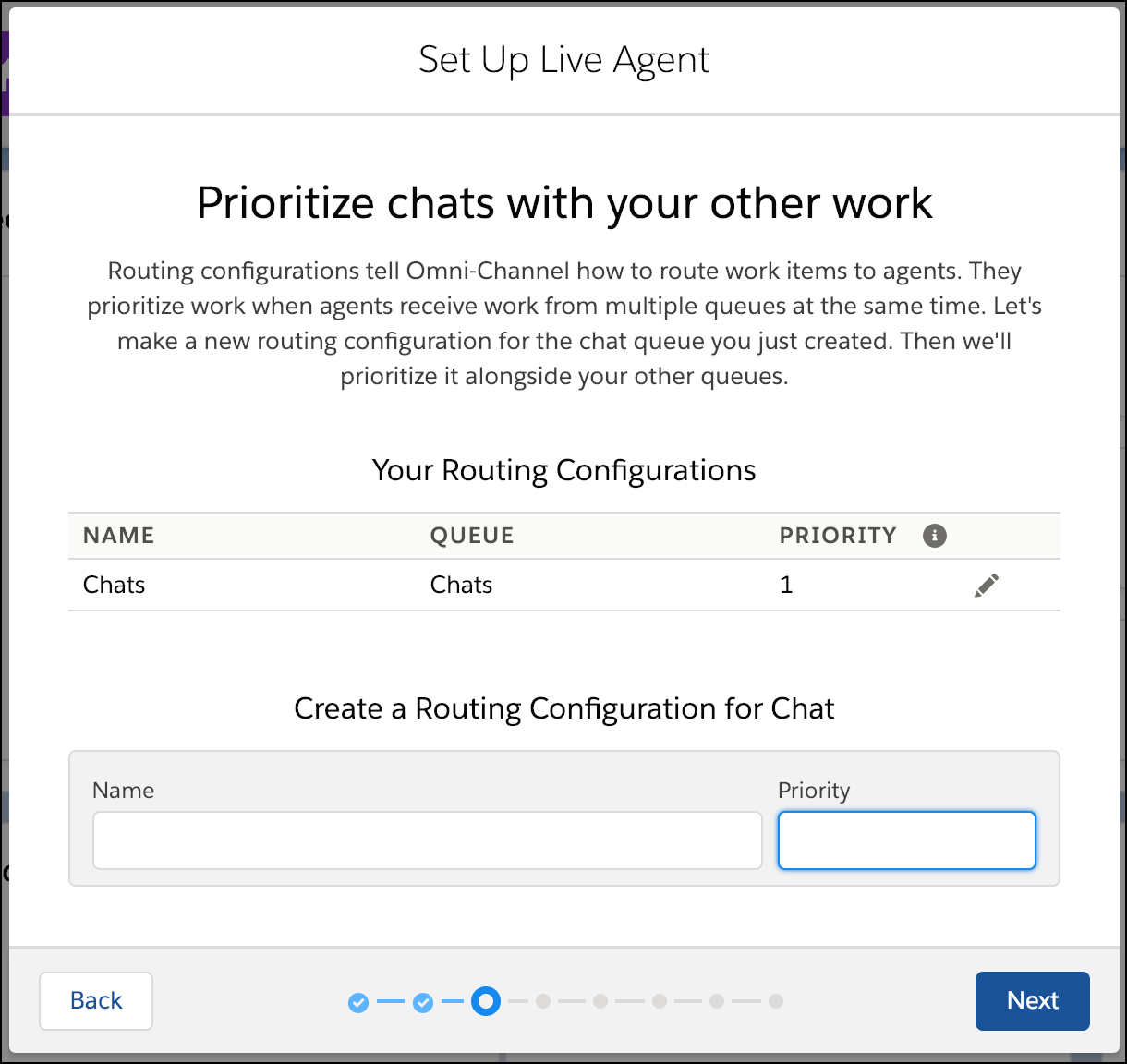
If you're asked to prioritize chats with your other work, enter the routing
configuration name (for example, Chats) and give it a
priority (for example, 1).
-
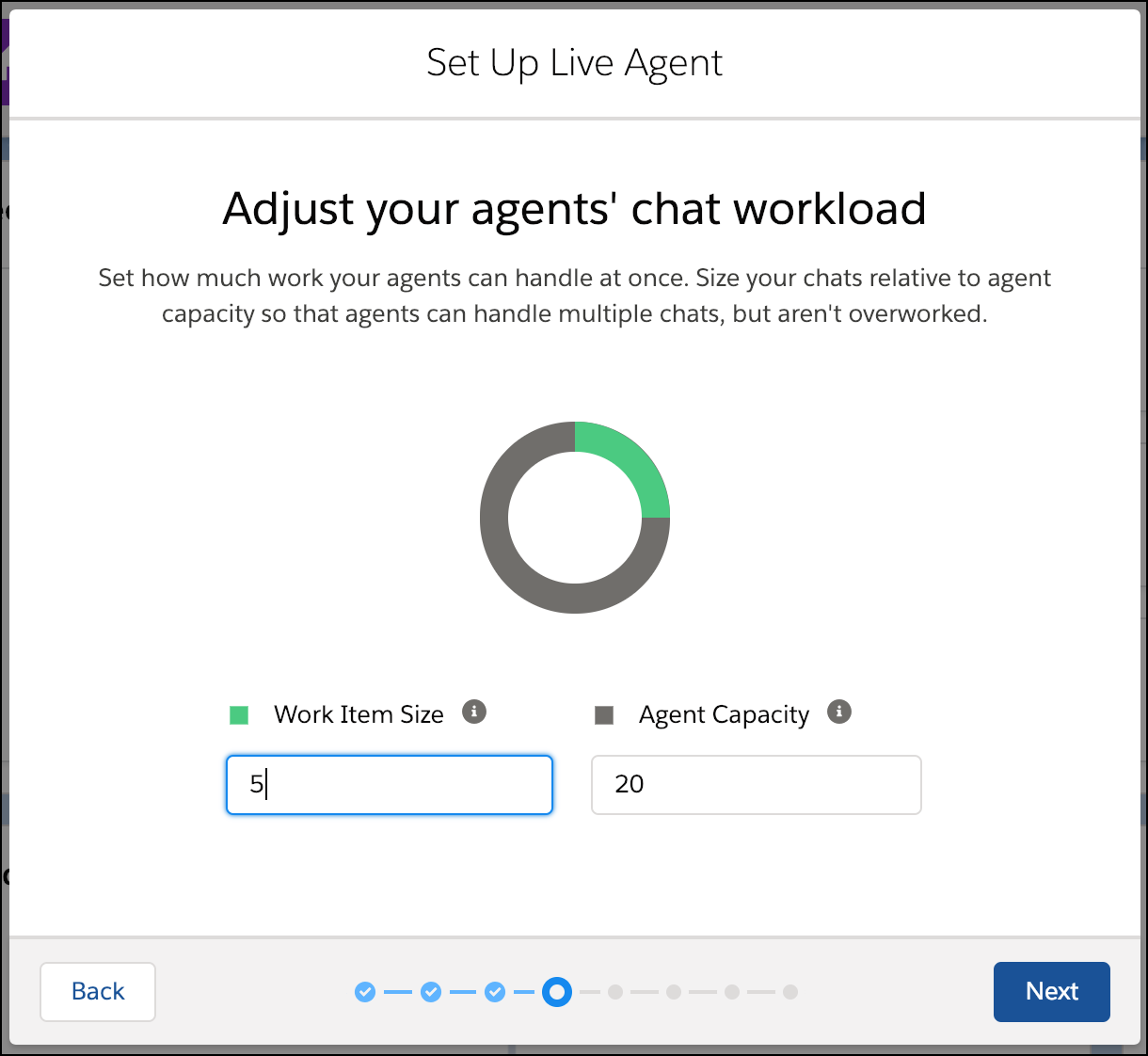
(Optional) Adjust the work item size and agent capacity.
-
For the website URL, enter either:
- The URL of your site.
- https://, followed by the last part of your site’s URL: https://*.my.site.com, https://*.salesforce-sites.com, or https://*.force.com.
Then create or select a site.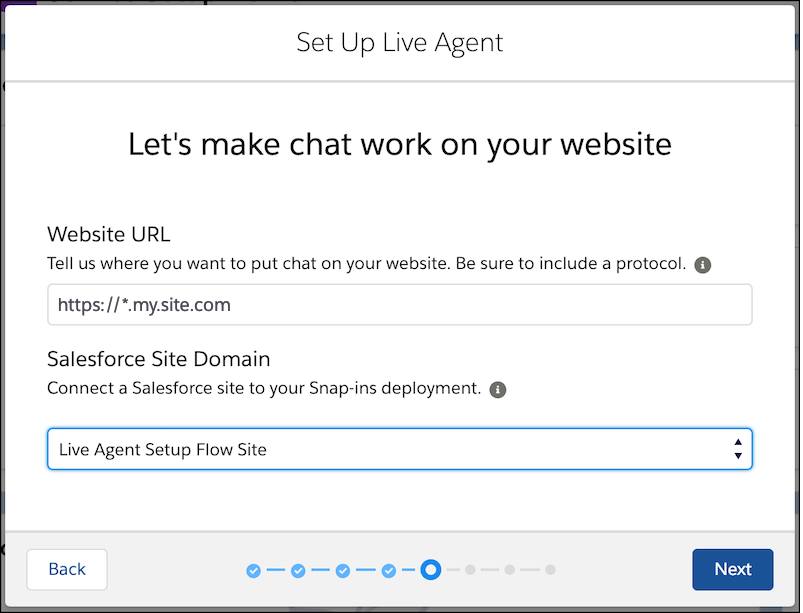
-
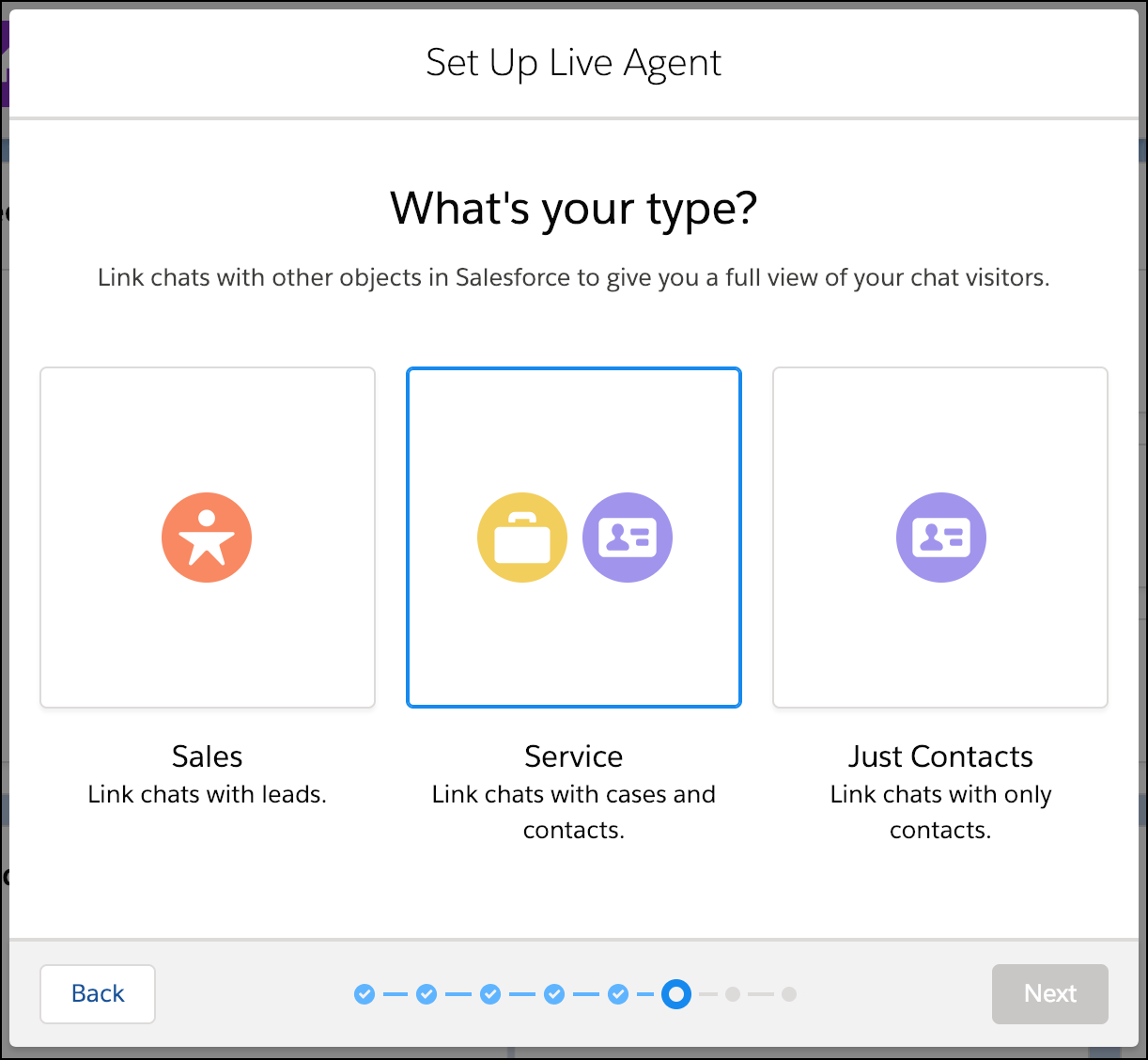
For the type of chat, select Service.
-
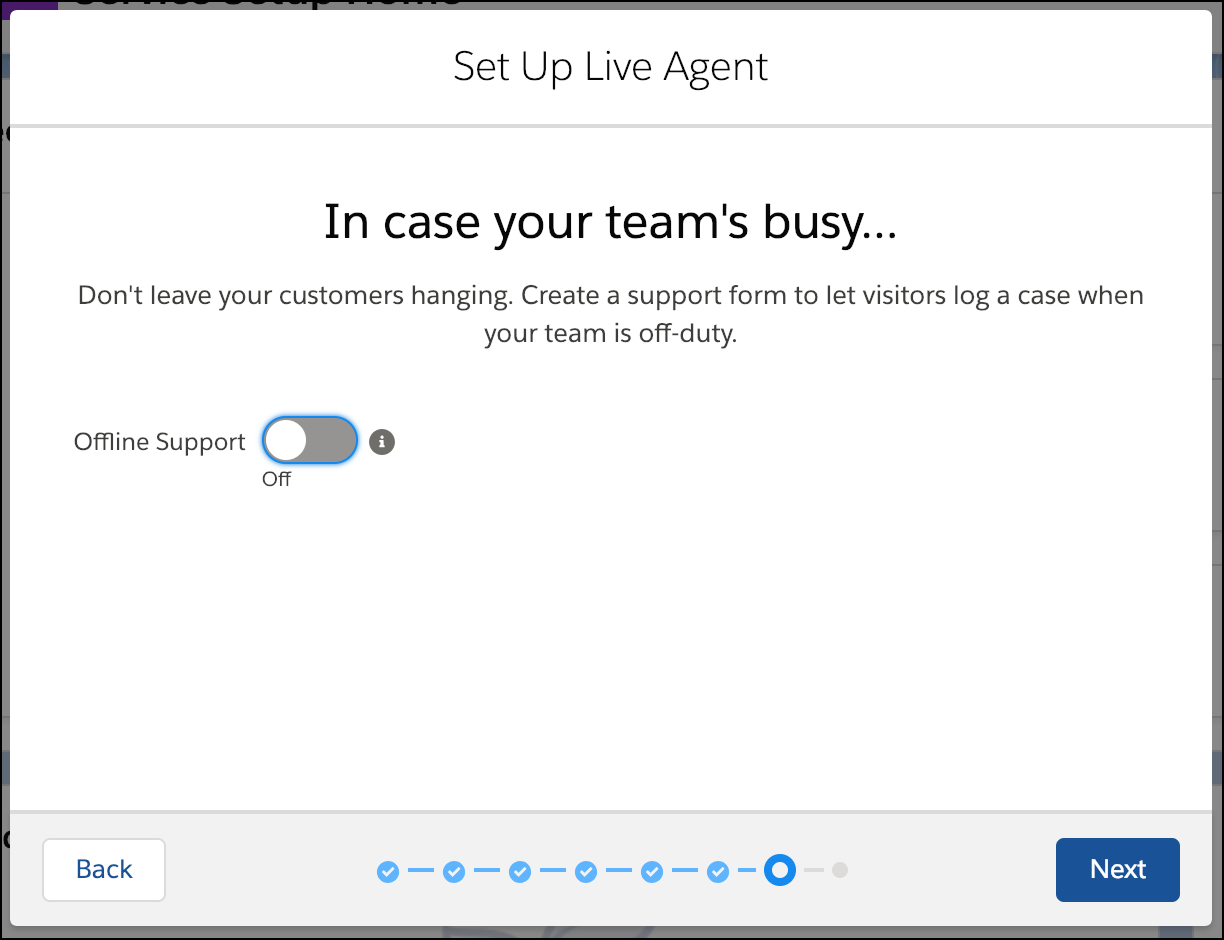
Choose whether you want to provide offline support for customers.
-
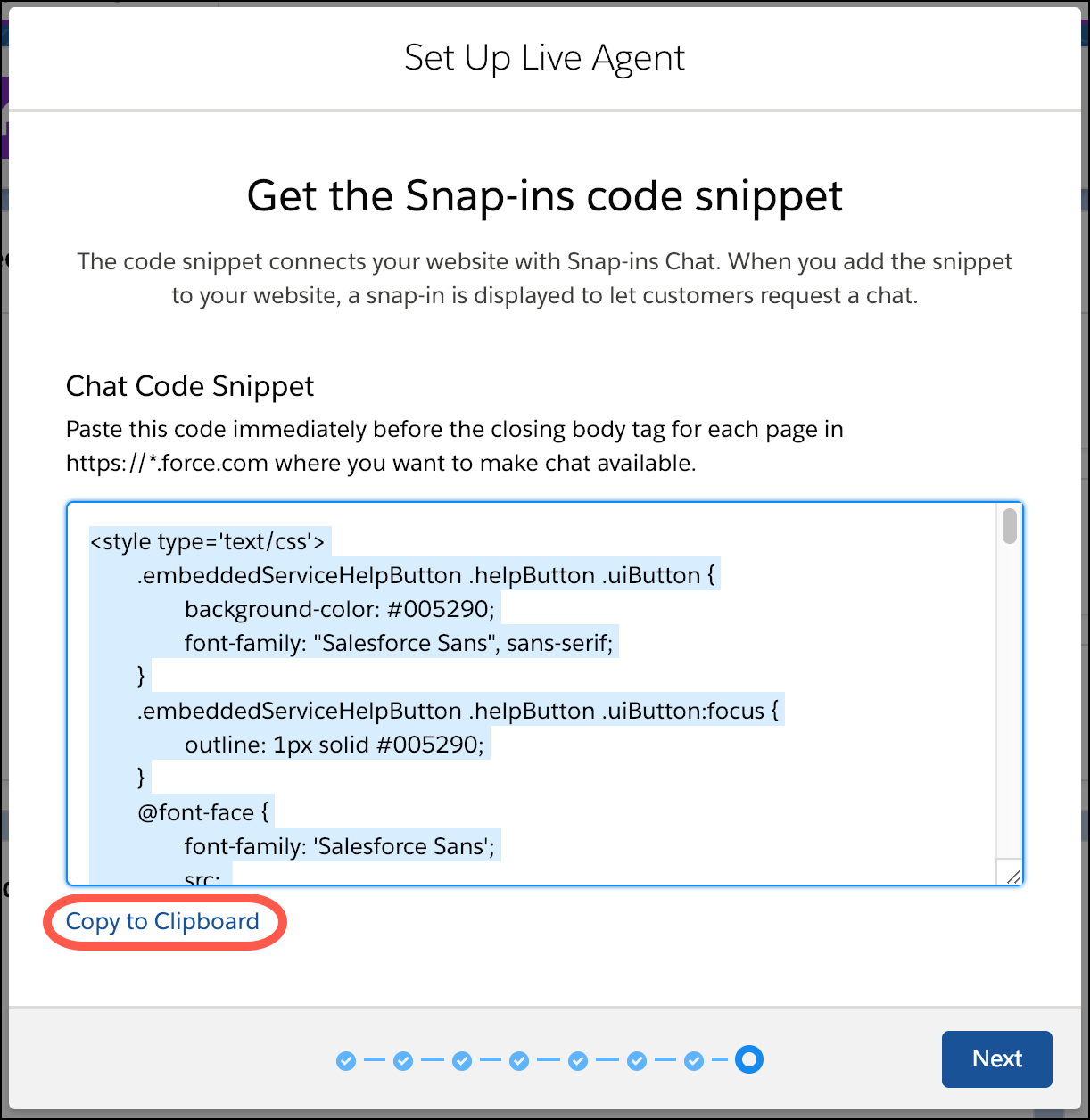
Copy the code snippet by clicking Copy to Clipboard, and
paste it into a text editor. You must extract a few pieces of information from
this code snippet.
-
In the text editor, copy the following configuration information from the
embedded_svc.init function.
-
(1) Chat Endpoint Hostname—This value is the hostname of the baseLiveAgentURL property. When copying the hostname, be sure not to include the protocol or the path. For instance, if the value for baseLiveAgentURL is https://MyDomainName.my.salesforce-scrt.com/chat, then the hostname is MyDomainName.my.salesforce-scrt.com.
-
(2) Org ID—If you don’t already know this value, it’s the fourth argument in the embedded_svc.init function call.
-
(3) Deployment ID—This value can be found in the deploymentId property.
-
(4) Button ID—This value can be found in the buttonId property.
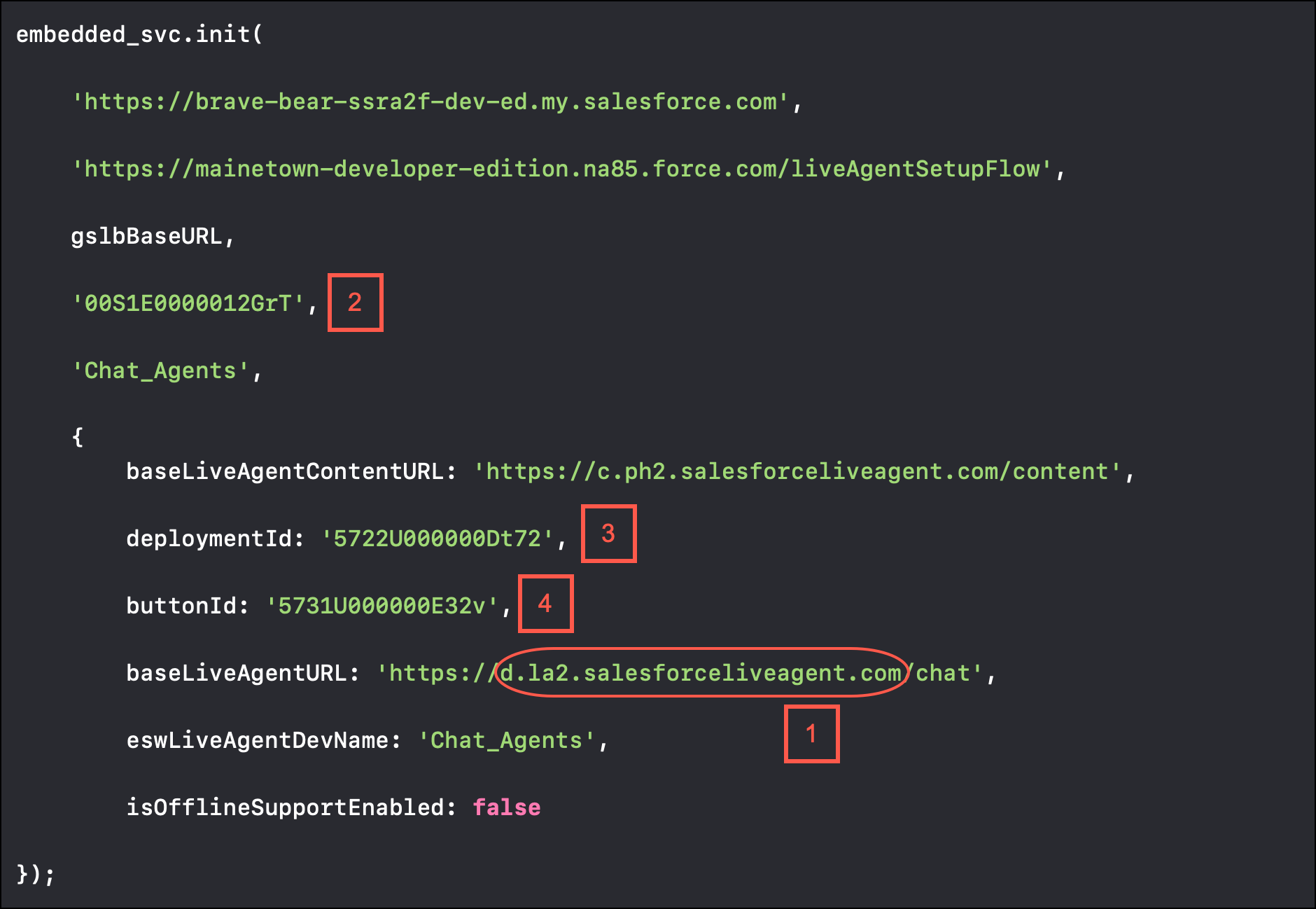 Give these four settings to your developer.
 -
-
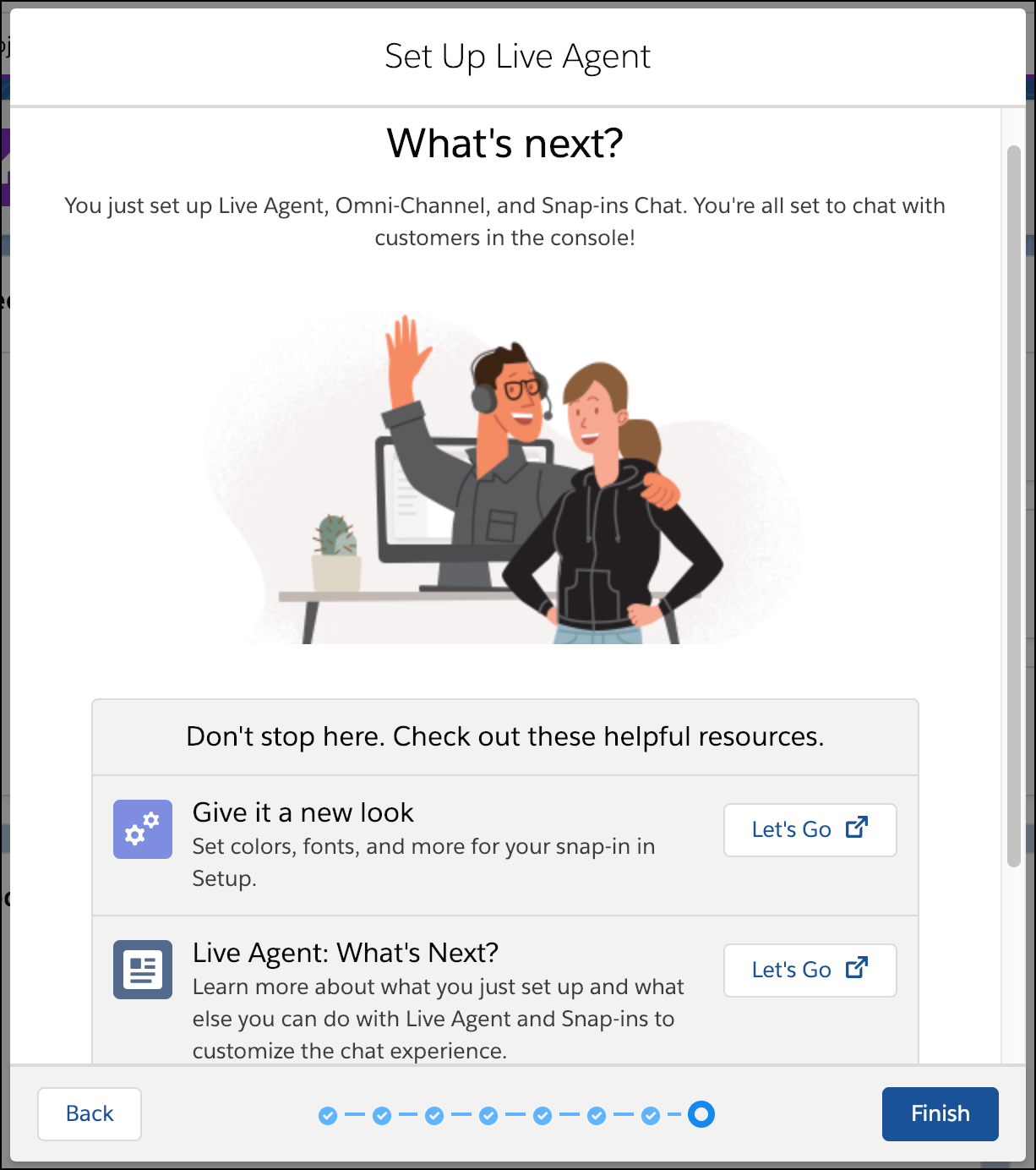
Go back to the guided setup flow and click Finish.
- (Optional) If you want to build a chatbot to complement your chat experience, see Einstein Bots in Salesforce Help. In broad strokes, you must enable Einstein Bots, deploy the bot to your channel, and activate the bot. If you want to learn about building a more robust bot, see the Einstein Bots Developer Cookbook.