Salesforce ナレッジ開発者ガイド
 j
j
No Results
Search Tips:
- Please consider misspellings
- Try different search keywords
ページネーションを Visualforce 記事リストに追加する
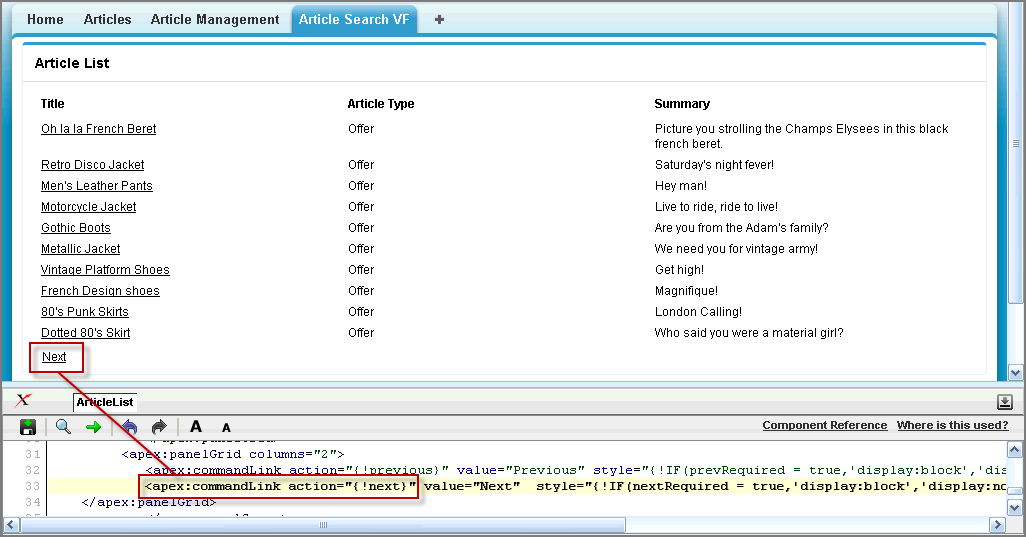
[Visualforce Article Search (Visualforce 記事検索)] タブに、ページ間を移動するための [次へ] および [前へ] リンクを追加します。
- [Visualforce Article Search (Visualforce 記事検索)] タブの下部にあるフッターで、[ArticleList] をクリックして Visualforce 開発モードのページエディタを表示します。
- Visualforce 開発モードのページエディタで既存のマークアップをすべて削除し、「Visualforce 記事リストページネーションのコードサンプル」に表示されているマークアップに置き換えます。
- [保存] (
 ) をクリックします。
新しい Visualforce コードは、Apex クラスおよびメソッドを参照しているため、後でエラーメッセージが表示されて、想定されるクラスまたはメソッドを宣言するように求められます。これらの項目を 1 つずつ宣言する代わりに、適切なコントローラを作成します。
- [設定] から、 をクリックします。
- [新規] をクリックします。
- Visualforce ページネーションコントローラのコードサンプルの内容をコピーして貼り付けます。
- [保存] をクリックします。
- ステップ 1 ~ 3 を繰り返します。
Visualforce 記事リストページネーションのコードサンプル
このコードサンプルは、最初に保存した Visualforce ページに基づいていますが、ページネーションを有効にする機能強化が含まれています。太字の行については、コードサンプルの後に説明があります。
1swfobject.registerObject("clippy.codeblock-0", "9");<apex:page sidebar="false" title="Article List" controller="vfListPaginationController">
2 <style>
3  td{
4  vertical-align : top;
5  text-align: left;
6  }
7 </style>
8 <apex:form >
9  <apex:pageBlock title="Article List" >
10   <apex:panelGroup id="theSearchResults" >
11   <apex:panelGrid width="100%">
12    <table width="99%">
13     <tr>
14      <th width="33%">Title</th>
15      <th width="33%">Article Type</th>
16      <th width="33%">Summary</th>
17     </tr>
18    </table>
19    <knowledge:articleList articleVar="article" pageNumber="{!currentPageNumber}" hasMoreVar="false" pageSize="10">
20    <table  width="99%">
21     <tr>
22      <td width="33%">
23      <apex:outputLink target="_blank" value="{!URLFOR($Action.KnowledgeArticle.View, article.id,['popup' = 'true'])}">{!article.title}</apex:outputLink>
24      </td>
25      <td width="33%"><apex:outputText >{!article.articleTypeLabel}</apex:outputText></td>
26      <td width="33%"><apex:outputText >{!article.abstract}</apex:outputText></td>
27     </tr>
28    </table>
29    </knowledge:articleList>
30     </apex:panelGrid>
31     <apex:panelGrid columns="2">
32   <apex:commandLink action="{!previous}" value="Previous" style="{!IF(prevRequired = true,'display:block','display:none')}" reRender="theSearchResults"/>
33   <apex:commandLink action="{!next}" value="Next"  style="{!IF(nextRequired = true,'display:block','display:none')}" reRender="theSearchResults"/>
34    </apex:panelGrid>
35   </apex:panelGroup>
36  </apex:pageBlock>
37 </apex:form>
38</apex:page>
コード controller="vfListPaginationController" は、Visualforce ページで使用されるコントローラを参照し、pageNumber="{!currentPageNumber}" は、記事リストのページネーションを設定します。currentPageNumber 変数は、ユーザが [次へ] または [前へ] リンクをクリックするたびに更新されます。
次のコードフラグメントでは、コントローラ内の previous メソッドをコールします。rerender 属性は、ページ全体ではなく記事リストのみを更新します。
1<apex:commandLink action="{!previous}" value="Previous" style="{!IF(prevRequired = true,'display:block','display:none')}" reRender="theSearchResults"/>Visualforce ページネーションコントローラのコードサンプル
太字の行については、コードサンプルの後に説明があります。
1swfobject.registerObject("clippy.codeblock-2", "9");public with sharing class vfListPaginationController {
2
3 //Page Size
4 private Static Final Integer PAGE_NUMBER = 10;
5
6 public vfListPaginationController() {
7 String qryString = 'SELECT Id, title, UrlName, LastPublishedDate,LastModifiedById FROM KnowledgeArticleVersion WHERE (PublishStatus = \'online\' and Language = \'en_US\')';
8  List<KnowledgeArticleVersion> articleList= Database.query(qryString);
9  maxSize = articleList.size() ;
10 }
11
12 //Keeps track of current page & max size of article list
13 Integer currentPage = 1;
14 Integer maxSize = 1;
15
16 // Returns whether we need to see previous button or not
17 public boolean getPrevRequired() {
18  return currentPage > 1;
19 }
20
21 // Returns whether we need to see next button or not
22 public boolean getNextRequired() {
23  return currentPage * PAGE_NUMBER < maxSize;
24 }
25
26 //Returns current page number
27 public Decimal getCurrentPageNumber() {
28  return this.currentPage;
29 }
30
31 //action for next click
32 public PageReference next() {
33  if(maxSize > this.currentPage * PAGE_NUMBER) {
34   this.currentPage = this.currentPage + 1;
35  }
36  return null;
37 }
38
39 //action for previous click
40 public PageReference previous() {
41  if(this.currentPage > 1)
42   this.currentPage = this.currentPage - 1;
43  return null;
44 }
45
46
47}
次のコードフラグメントは、記事情報を取得してリストに表示する SOQL 句です。WHERE 句では、公開記事のみが記事リストに表示されるように指定しています。
1SELECT Id, title, UrlName, LastPublishedDate,LastModifiedById FROM KnowledgeArticleVersion WHERE (PublishStatus = \'online\' and Language = \'en_US\')これまでの作業を確認する
作業内容を保存すると、[Visualforce Article Search (Visualforce 記事検索)] ページが更新されて、[次へ] リンクがリストの下部に表示されます。[次へ] をクリックすると、ページに [前へ] リンクが表示されます。