


Export the Transaction Log (TLog)
Export transaction logs, also known as TLogs, from the Point of Sale app to transfer point-of-service information to external systems. You can use TLog exports to obtain the message set that contains transaction details. Review the available options to customize your TLog exports.
Supported Transactions
The TLog export supports these store transactions.
- In-store order
- Endless aisle order
- Return transaction
- Exchange transaction
Even Exchange, Exchange (customer pays), and Exchange (customer gets refund) transactions require more than one export file. Two files are exported for each scenario, New Sale and Return of Old Transaction.
Note
Export Options
Point of Sale offers these TLog export options.
- Real time export
- Batch export
- Webhook integration
Use Real Time Export
If using both SPI order export and TLog export, omit this step, as the Real Time Export toggle needs to be disabled. SPI order export is, by default, a real time export and the TLog export needs to be scheduled. If you aren’t using both, continue reading.
Important
With Real Time Export, the TLog export occurs automatically after each transaction is captured in the Point of Sale platform using SFTP.
Follow these steps to enable Real Time Export.
-
In the CMS, go to Store Management | Store Settings | OMS.
-
Turn on Real Time Export.

-
To configure the SFTP endpoint, refer to Order Export Configuration. Even though real time is enabled, it is strongly recommended to configure the Use Batch Export daily at the end of the day.
For supported file format, refer to Transaction Log Format.
Use Batch Export
The batch export functionality performs the TLog export periodically via SFTP. Each export consists of the transactions that occurred since the last export job. The transaction can be sent according to the Transaction Log Format. To enable batch export, refer to Order Export Configuration.
Use Webhook Integration
The webhook integration sends a Point of Sale CustomerOrder object as JSON to an external endpoint via HTTP POST. This event occurs synchronously at the end of order processing. Webhooks are triggered for these order lifecycle events.
- New order creation
- Partial or full order return
- Order cancellation
For a list of events Point of Sale can stream, refer to Point of Sale Data Exports.
Tip
To configure the Webhook endpoint CMS Store Settings:
-
In the CMS, go to Store Management | Advanced | Store Settings.
-
Configure the Real Time Order Export endpoint (OrderPostProcessingConfigJSON).
-
Configure the Real Time Returns Export endpoint (OrderReturnPostProcessingConfigJSON).

SFTP Configuration
The real time and batch exports are performed via SFTP with a single transaction per file.
Transaction Log Format
These file formats are supported via SFTP:
| Single transaction per file | Multiple transactions per file | Additional Information | |
|---|---|---|---|
| POSLog (XML) | Yes | No | Support for POSLog v6.0 |
Order & Item Level Attributes
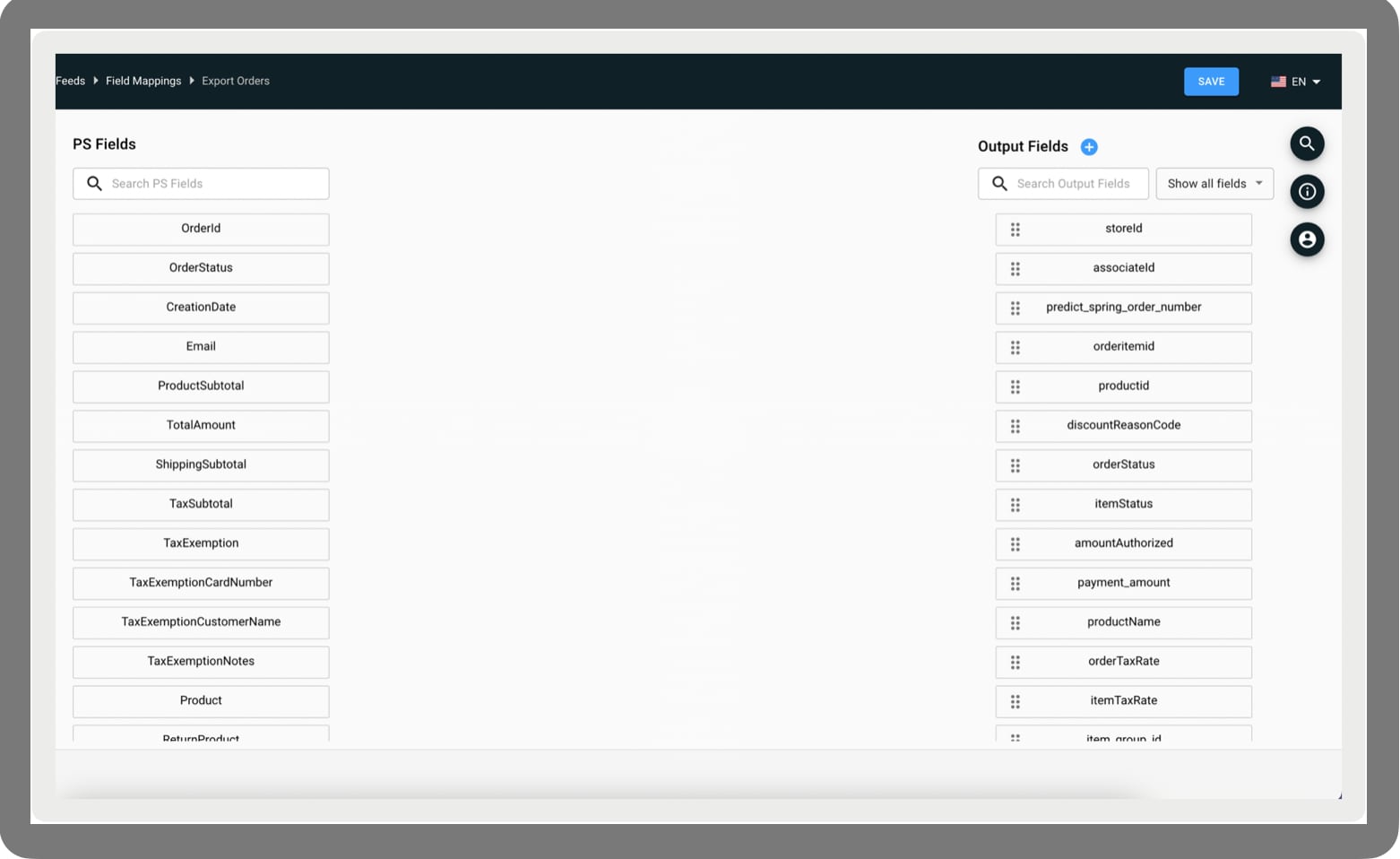
For CSV and TSV TLog exports, field mappings must be configured. Otherwise, the order export job fails. By using field mappings, also customize the order and attributes at the item level in the CMS, including defining attribute names, setting attribute order, and applying data transformations as necessary.
-
In CMS, go to Feeds | Field Mappings | Export Orders.
-
Map the fields. As a guide, use Define Export Orders Field Mappings in Salesforce Help.
-
Save your changes.
Transaction File
A transaction can have multiple lines if it contains multiple products or tender types. For example, Order PS00021916 with two items, 100000 and 100582, purchased with two credit cards, Visa and MasterCard. In this case, the transaction has four lines in total.

Order Export Configuration
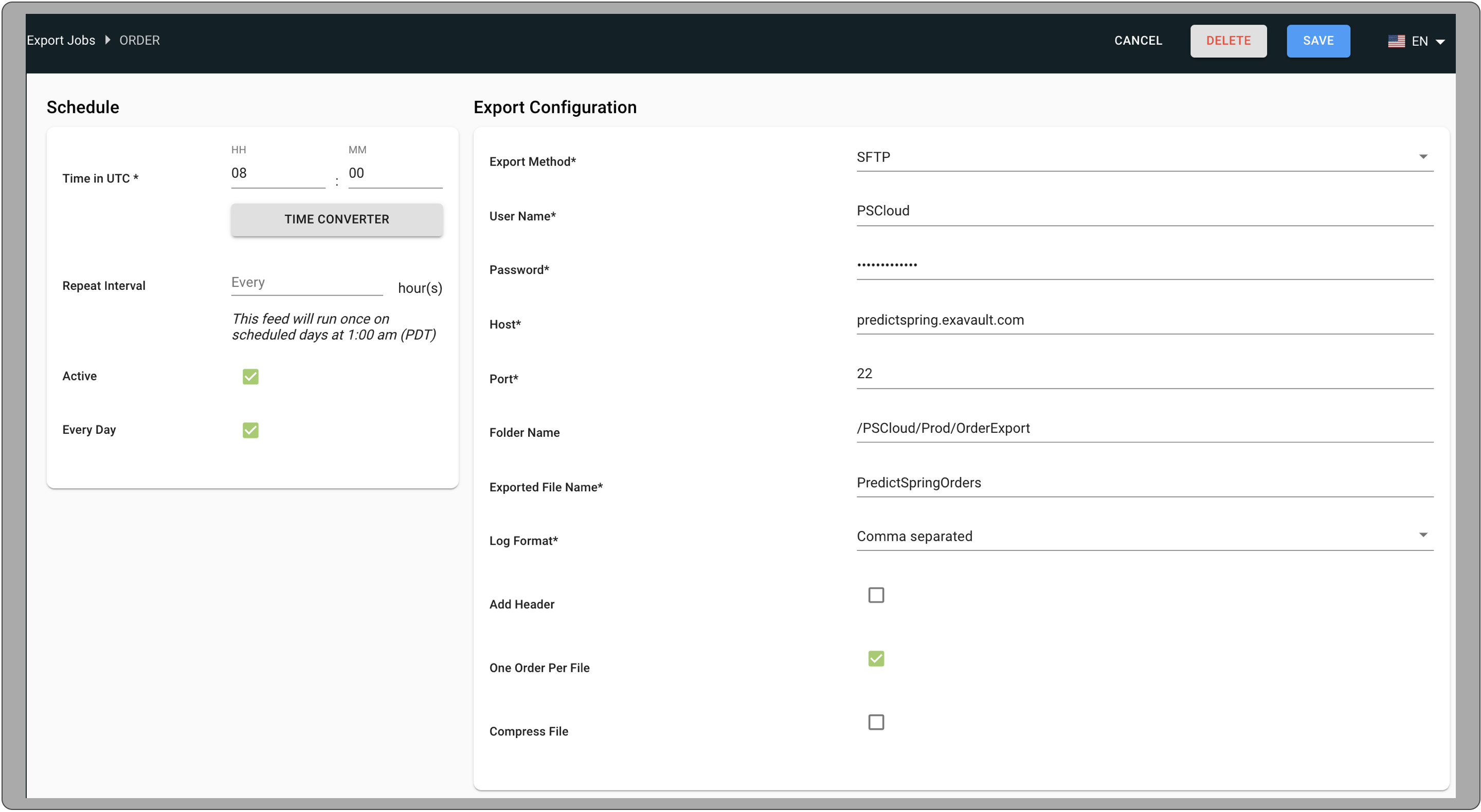
A TLog export performed using SFTP is configured in CMS’s order export job. This configuration is required for both real time and batch exports using SFTP. This configuration allows you to select the listed following TLog attributes.
- TLog file format (POSLog or CSV or RetailNext)
- Brand’s SFTP destination
- In the case of batch export, it is a batch interval.
- One transaction per file or more (not applicable for POSLog as it can send one transaction per file).
The max limit for running batch export is 1,000 per batch. To determine how frequently export jobs need to run, use calculate the total number of orders daily divided by 1,000.
Note
Configure SFTP for the first time
-
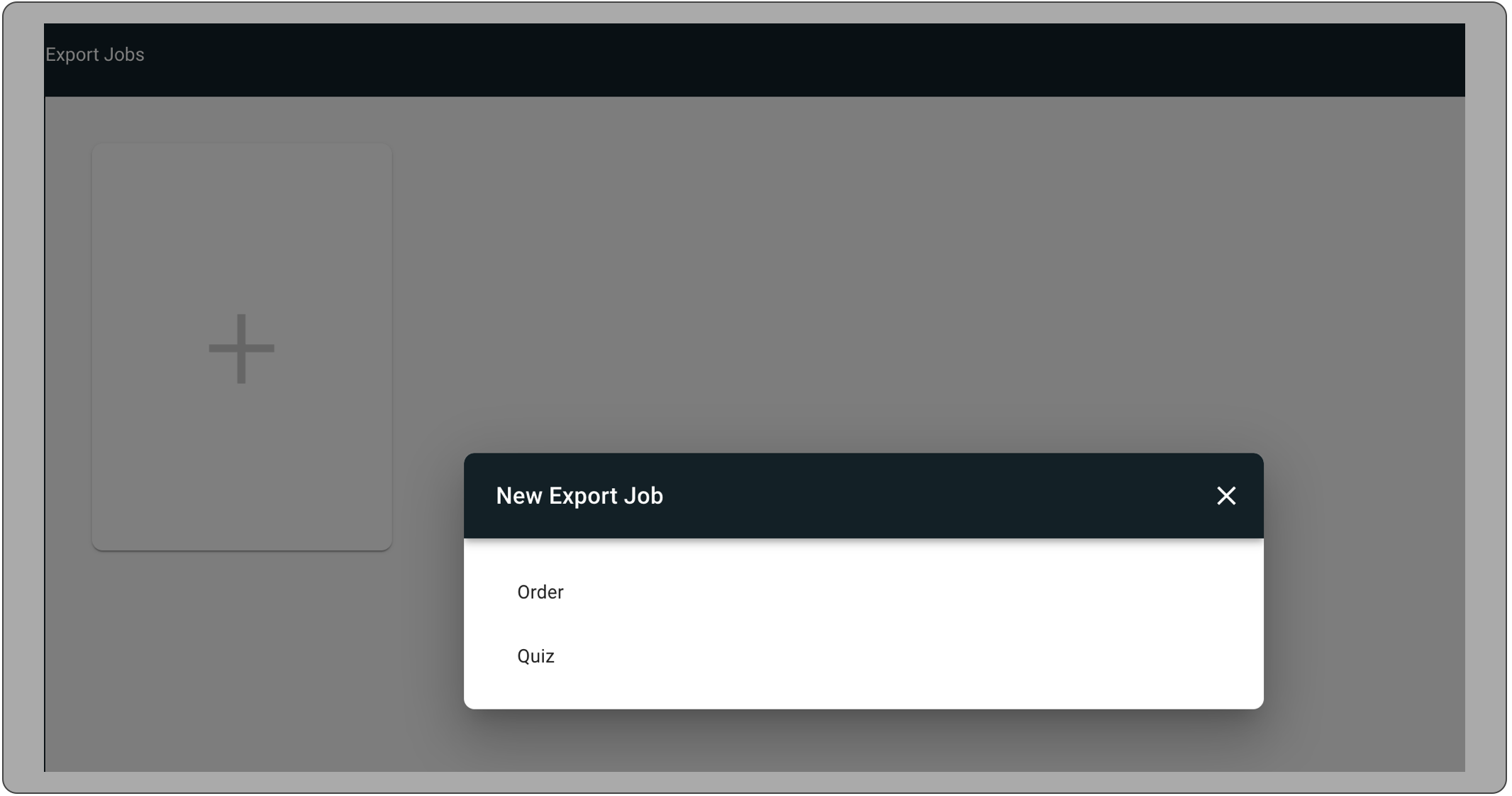
Go to Feeds | Export Jobs.
-
Click the Plus icon.
-
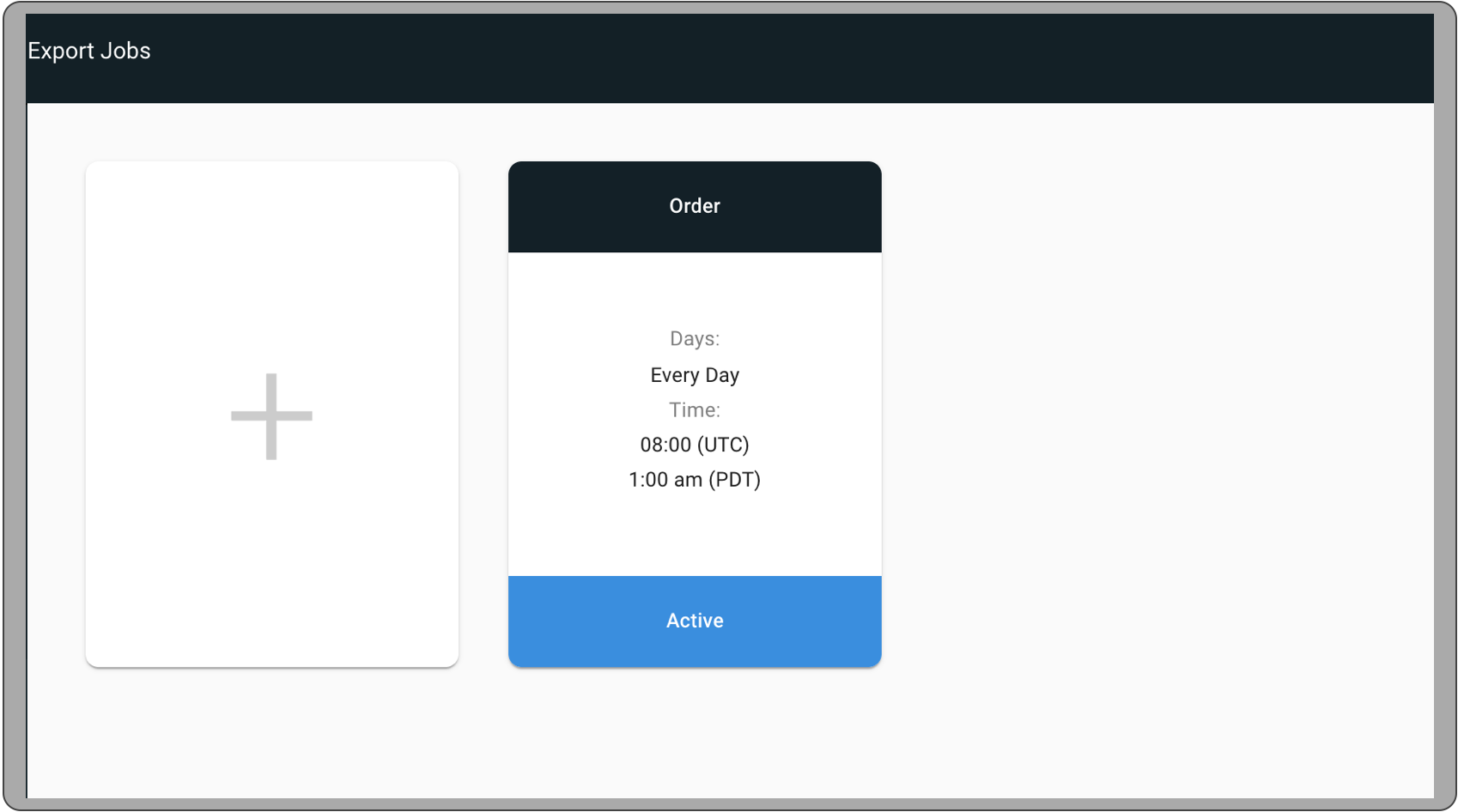
Click Order.
Edit an existing SFTP configuration
-
Go to Feeds | Export Jobs.
-
Hover over the Order card and click the Edit icon.
For more information on configuring feed schedules, see Schedule Feed Runs in Salesforce Help.
Note
PS NRF POSLog/TLog (XML)
NRF PosLog/TLog Overview
Point of Sale can export sale, return, and exchange transactions according to the NRF schema. The output is one XML file per transaction that brands can consume and ingest in their systems.
PosLog/TLog Sectional Details
Identifying information
-
Order ID - Whenever an item leaves the store, a new order ID is generated for sales or exchanges. Note that sales and exchanges have different order numbers in Adyen. For uneven exchanges (where the customer pays more), there’s no refund reference in Adyen. Instead, the additional amount paid by the customer is recorded as a second Adyen transaction.
-
Transaction ID - An order can have multiple transactions. In the case of exchanges, a single transaction ID spans across two orders.
-
Receipt ID - POS generates a receipt ID for each transaction (Sale, Return, or Exchange). The receipt ID is generally printed on receipts only in fiscal countries and is present in POS Log export for reporting purposes in fiscal countries, such as Spain.
As part of the 8.9.1 build, TLogs include the transaction start (transactionStartDate) and end time (transactionDate). The recording time starts from when the cart is first created (when the first item is added to the cart) to when the order/transaction is completed (sales, returns, or exchange).
Note
Locate file details
-
The file begins with the store ID, order number, and associate ID.
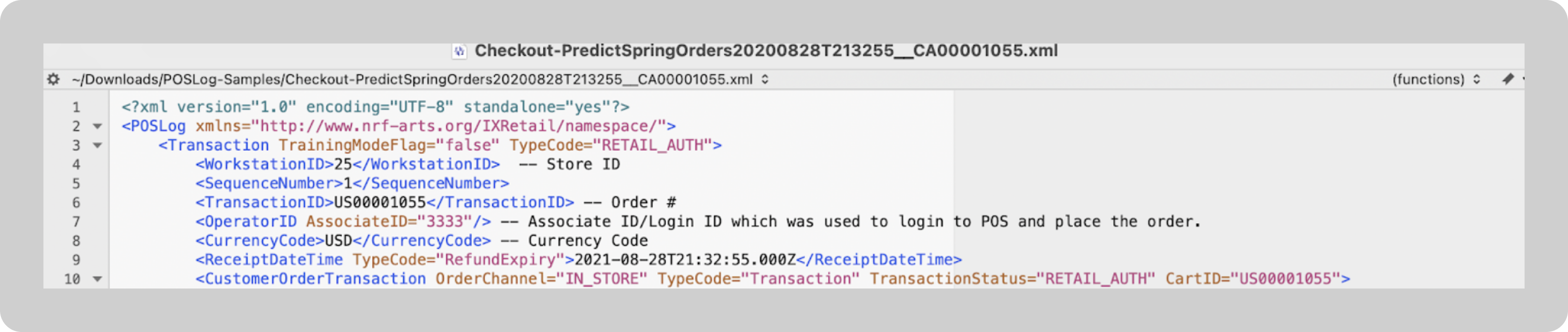
-
The end of the file includes the order date, order update date, and till ID.

-
The
<LineItem>tag includes the line item, product details, and sales attribution.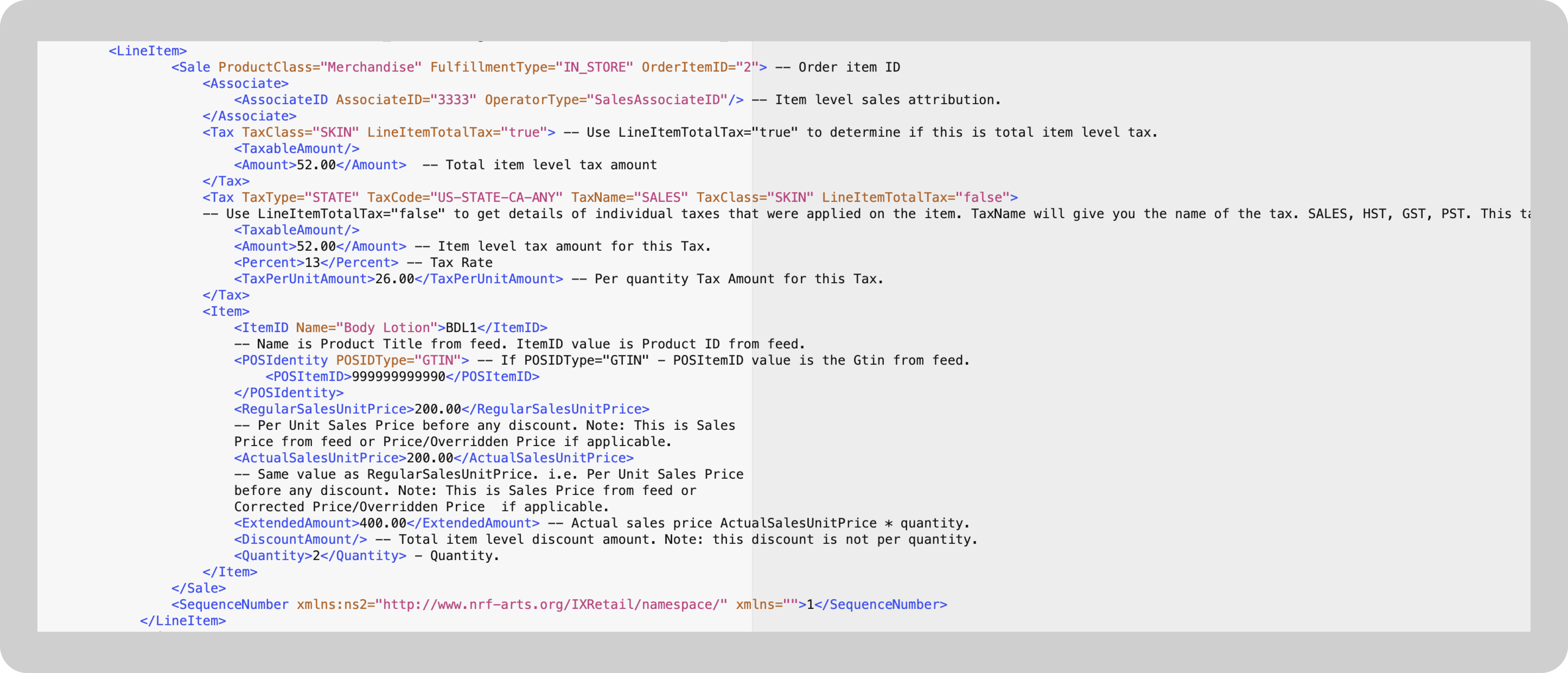
-
The
<LineItem>tag also includes the tender, order level taxes, and delivery details, but with different types to distinguish the line items.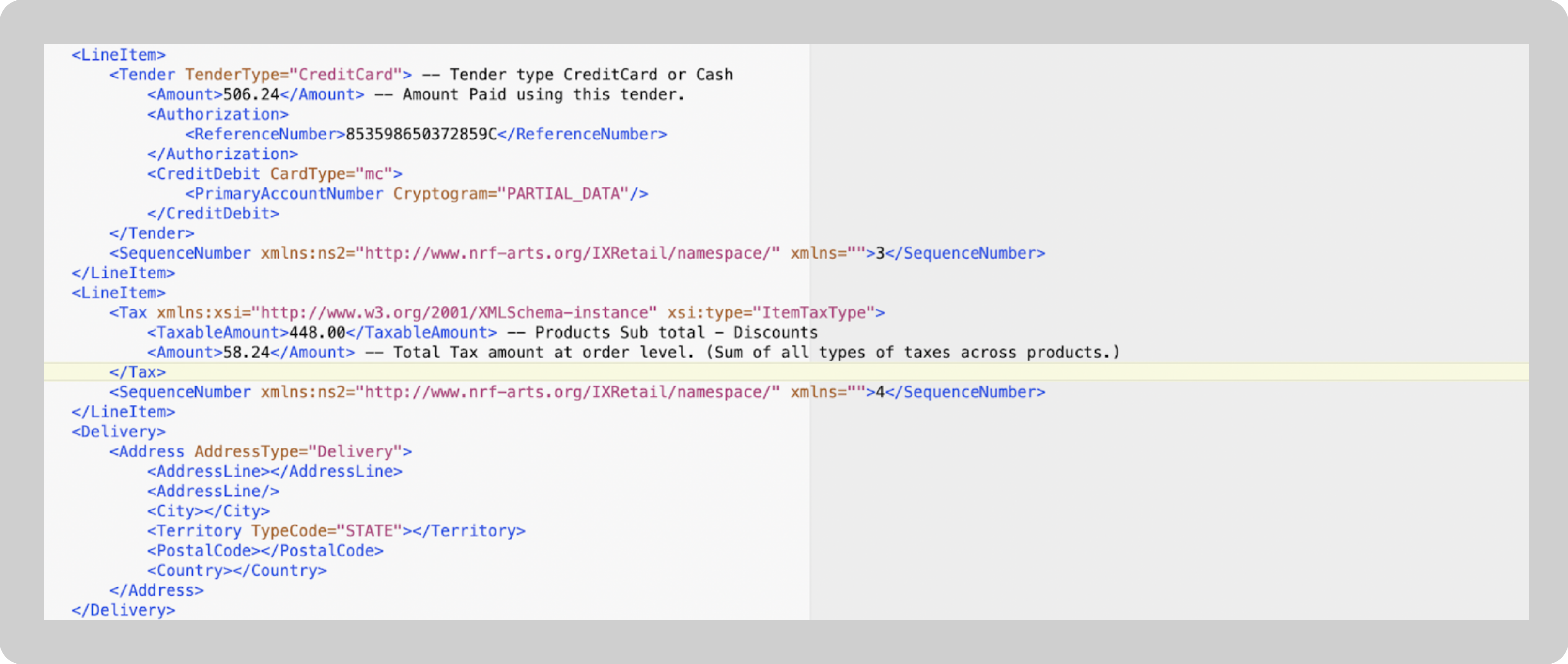
-
The
<Customer>tag includes the customer information.
-
The
<TaxExemption>tag (nested under the<Tax>tag) includes the reported tax exemptions.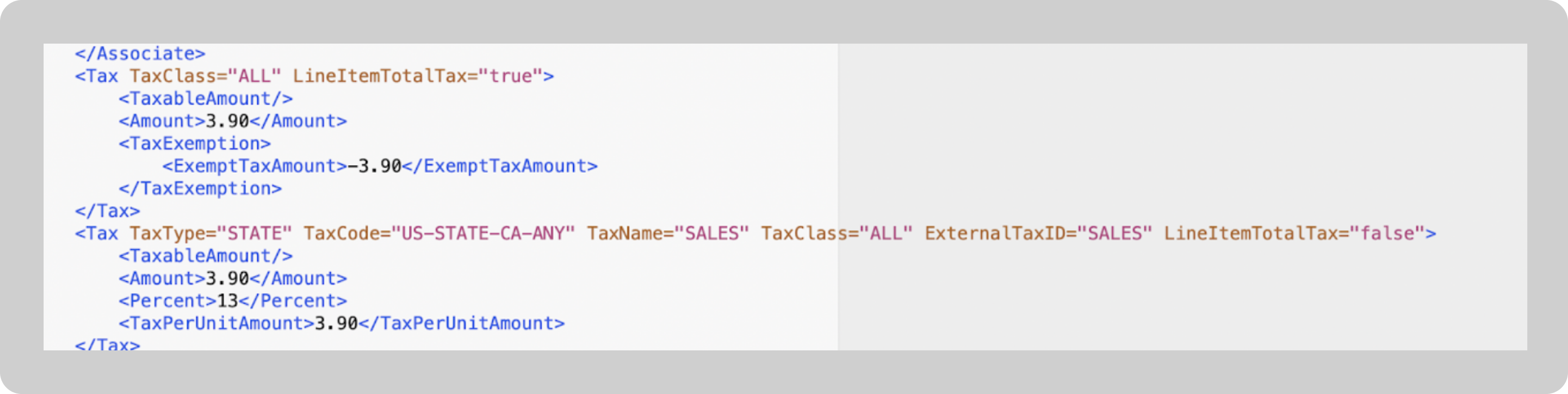
TLogs and receipts don’t record jurisdiction or registration number.
Note
-
The
IsExchangefield on the<CustomerOrderTransaction>tag specifies whether the transaction is for an item returned along with the purchase of another item.
-
The
orderActivityLogspecifies all information about the history of an order, including the original transaction type files.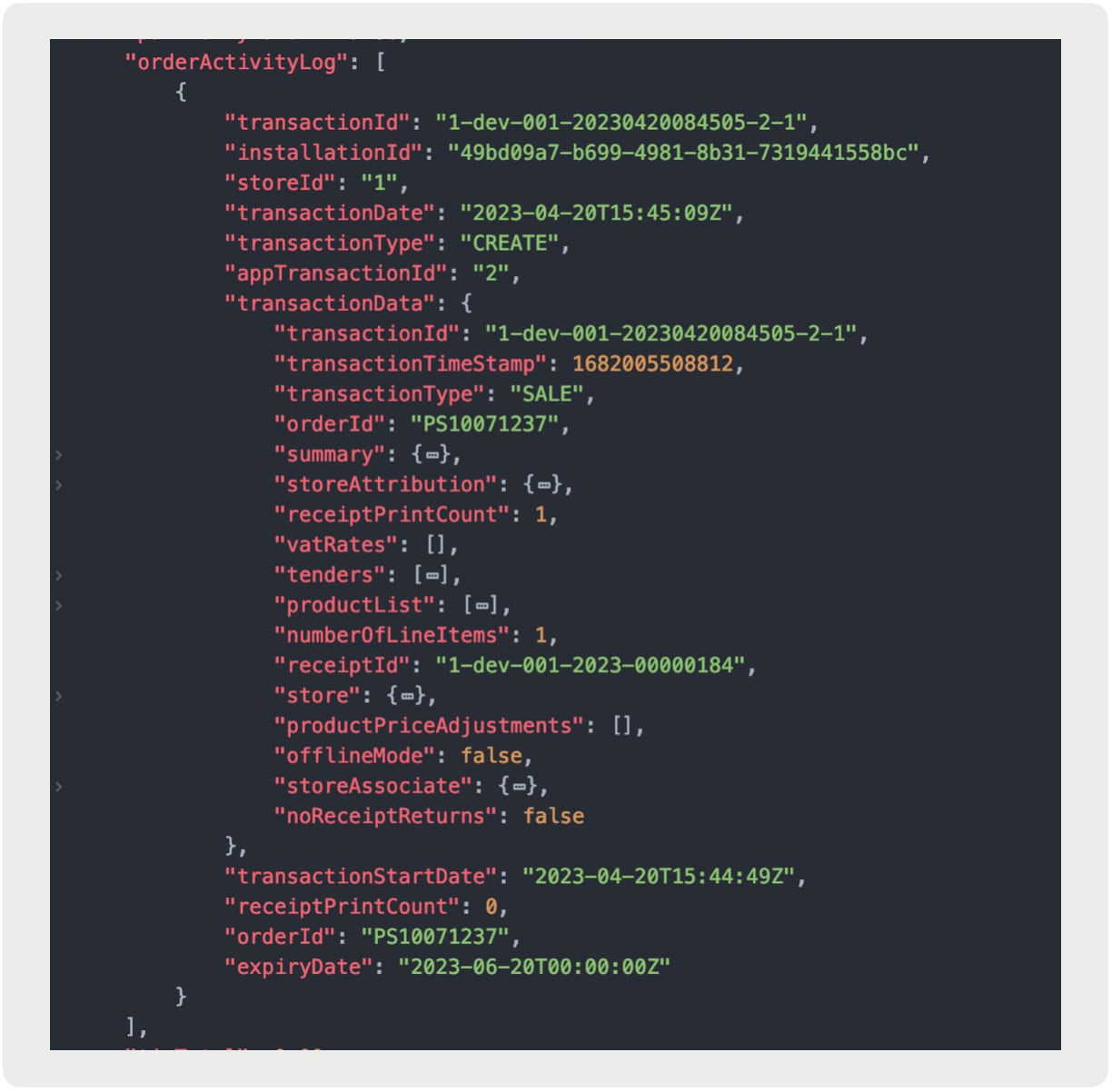
-
For exchanges, the
orderActivityLogfor the new order (that is, PS00000002) contains the following return information:-
returnProductList- Returned products -
returnProductList.productTax- Return item’s tax -
returnProductPriceAdjustments- Promotions/Discount/PriceOverride of returned items -
refundPaymentDetails- Refunded payment, available only if the customer gets a refund during the exchange.Tip
-
For more information, see TLog Export FAQs in Salesforce Help.
:::
-
-
Format of
requestIdwithTENDER_REFERENCE_:- Store and Forward (SAF) refers to orders with payments taken when the Adyen terminal operates in offline mode or experiences difficulties interacting with their platform. During SAF payments, Adyen does not generate the typical
requestID(PSP reference) since the terminal is offline. Instead, the Point of Sale app usesTENDER_REFERENCE_<AlternateRequestID>as the request ID and includes it in TLogs. - The
AlternateRequestIDis generated by the Adyen terminal and serves as a means to track and reconcile payments, accessible through the Adyen Portal. - Subsequently, Point of Sale updates the
requestID(PSP reference) field fromTENDER_REFERENCE_<AlternateRequestID>to the actual PSP reference. This update occurs when Adyen initiates a callback after the SAF payment has been successfully synchronized with the Adyen platform. At that point, TLogs are sent out. - Point of Sale re-exports the order once the backend receives the Adyen callback with the actual
requestID(PSP reference). Because this can result in two identical payloads for a single order, configure your system for updates or ignore the second callback.
- Store and Forward (SAF) refers to orders with payments taken when the Adyen terminal operates in offline mode or experiences difficulties interacting with their platform. During SAF payments, Adyen does not generate the typical
-
Custom string attributes, mapped in the product feed and configured in the CMS under the
tLogCustomProductAttributessetting, are included in the order JSON. Custom string attributes must use camel case (for example,customString1). These attributes appear in the following product arrays:productListorderProductListreturnProductListorderactivity.transactionData.returnProductListorderactivity.transactionData.productList
Example Files
- CheckoutOrder.xml
- CheckoutPromotion.xml
- ExchangeChargeMore.xml
- ExchangeEven.xml
- ExchangeRefundDue.xml
- FullReturn.xml
- PartialReturn.xml
- PriceOverride.xml
- TransactionDiscount.xml
 j
j