What if you could act on Salesforce records and run business logic without having to log into Lightning Experience? For example, in the context of a hotel management application, you could use an agent with tools that load upcoming reservations, analyze popular events around the hotel’s location and then create personalized marketing campaigns around those events without having to leave the chat interface of the agent. Now, you can do so with Headless 360 using agentic tools like Claude Desktop or Claude Code to interact with the Salesforce Platform through the Model Context Protocol (MCP).
In this post, we’ll explore the benefits of working with MCP servers, then we’ll focus specifically on how to configure Claude for MCP, and finally, we’ll share some sample use cases.
What are Salesforce Hosted MCP Servers?
The Model Context Protocol (MCP) is an open standard that lets agentic tools like Postman or AI agents like Claude interact with external tools and data sources from various vendors. In the context of Salesforce, it means that you can run SOQL queries, modify records, and execute actions directly from a third-party agent. In other words, you don’t have to log into Salesforce and you’re no longer limited to using Agentforce to interact with your data from agents.
In order to perform operations on Salesforce with agents, you use MCP servers that expose tools and prompts. You can configure and host your own Salesforce MCP Server or use the Salesforce Hosted MCP Servers that are now generally available. We’ll only focus on the latter in this post since this approach saves you from the burden of hosting, securing, and maintaining the server.
Standard Salesforce Hosted MCP Servers
In addition to the Salesforce DX MCP Server used for development purposes, Salesforce offers a number of standard hosted MCP servers out of the box for daily operations. These allow agents to access our Headless 360 portfolio ranging from the Salesforce Platform, Data 360, Tableau, and MuleSoft. You can also connect directly to the Slack hosted MCP server.
Custom Salesforce Hosted MCP Servers
If the standard hosted MCP servers do not fit your needs, you can also create custom hosted MCP servers. This option gives you granular control over the tools and prompts that the server exposes, and lets you add custom tools and prompts.
You can build custom MCP tools from the following types:
- Apex Action: Expose invocable Apex Actions (
@InvocableMethodannotated Apex methods) as MCP tools - Lightning Flows: Expose autolaunched flows as MCP tools
- Apex REST: Expose custom Apex REST endpoints as MCP tools.
- AuraEnabled: Expose
@AuraEnabled(see docs) annotated Apex methods as MCP tools
You can also create custom MCP prompts from Flex prompt templates built with Prompt Builder. Using MCP prompts in an agent lets you call those parametrized prompt templates as commands. For example, if you expose a “Generate Personalized Schedule” prompt template, you can run the following command in Claude (you don’t have to type the full tool name, autocomplete provides the prompt description).

Now that we’ve seen the benefits of working with the Salesforce Hosted MCP Servers, let’s look at how to configure Claude to leverage them.
Configure Claude to work with Salesforce Hosted MCP Servers
Configuring Claude to connect with the hosted MCP servers is a three-step process:
- Activate Salesforce Hosted MCP Servers
- Create an external client app
- Connect Claude to the Salesforce Hosted MCP Servers
Note: Claude is available in different surfaces. In this post, we’ll cover Claude Code (the CLI experience) and Claude Desktop (the desktop app).
As part of the setup, you’ll need to set up an external client app (ECA) so that Claude can authenticate via OAuth 2.0 with Salesforce to use the hosted MCP servers. An ECA tells Salesforce which external applications are allowed to connect to your org and what they’re allowed to do. Standard Salesforce user access permissions apply in addition to the app-level access checks.
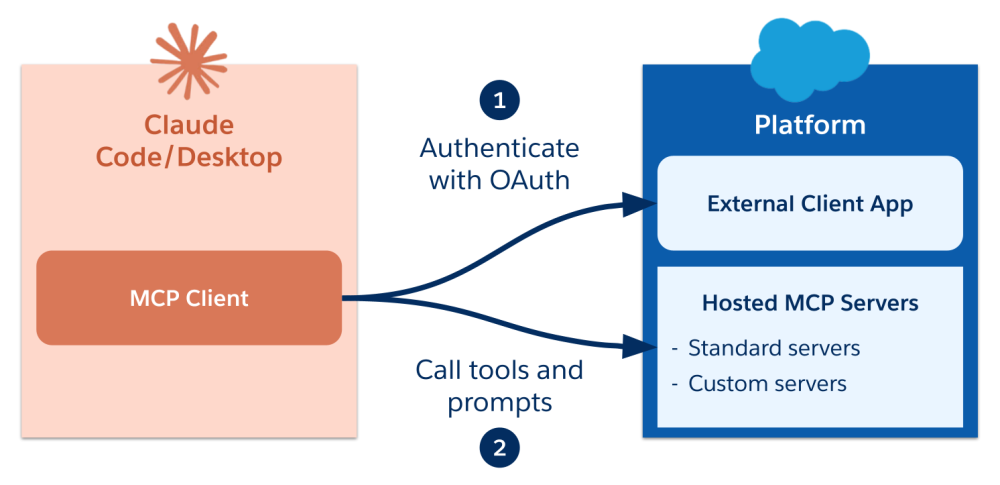
Step 1: Activate Salesforce Hosted MCP Servers
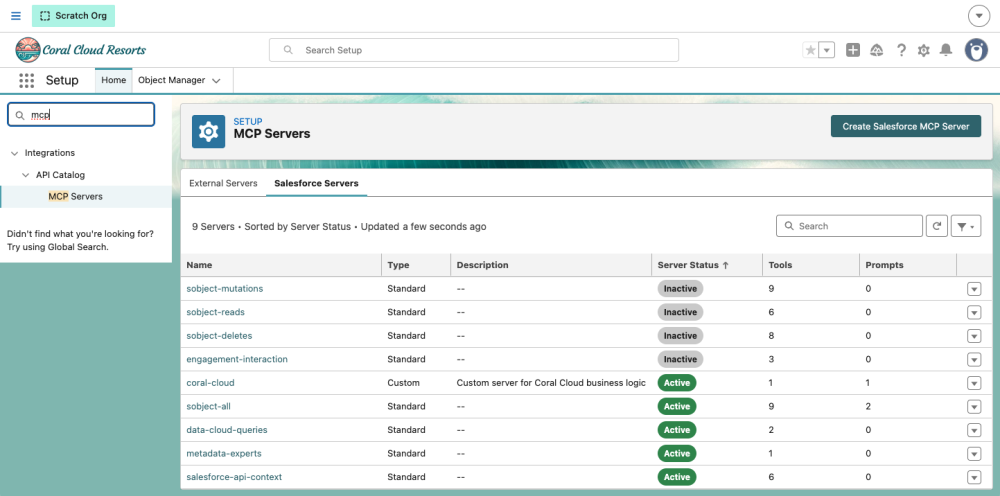
The standard Salesforce Hosted MCP Servers are inactive by default. Follow these steps to activate them:
- In Setup, search for MCP Servers.
- Click the Salesforce Servers tab.
- Repeat the following steps for each server that you want to activate:
- Click on the server name.
- Click Activate.
- Copy the server’s API Name without the
platform. suffix and the Server URL. We’ll need those in the next step.
Step 2: Create an external client app
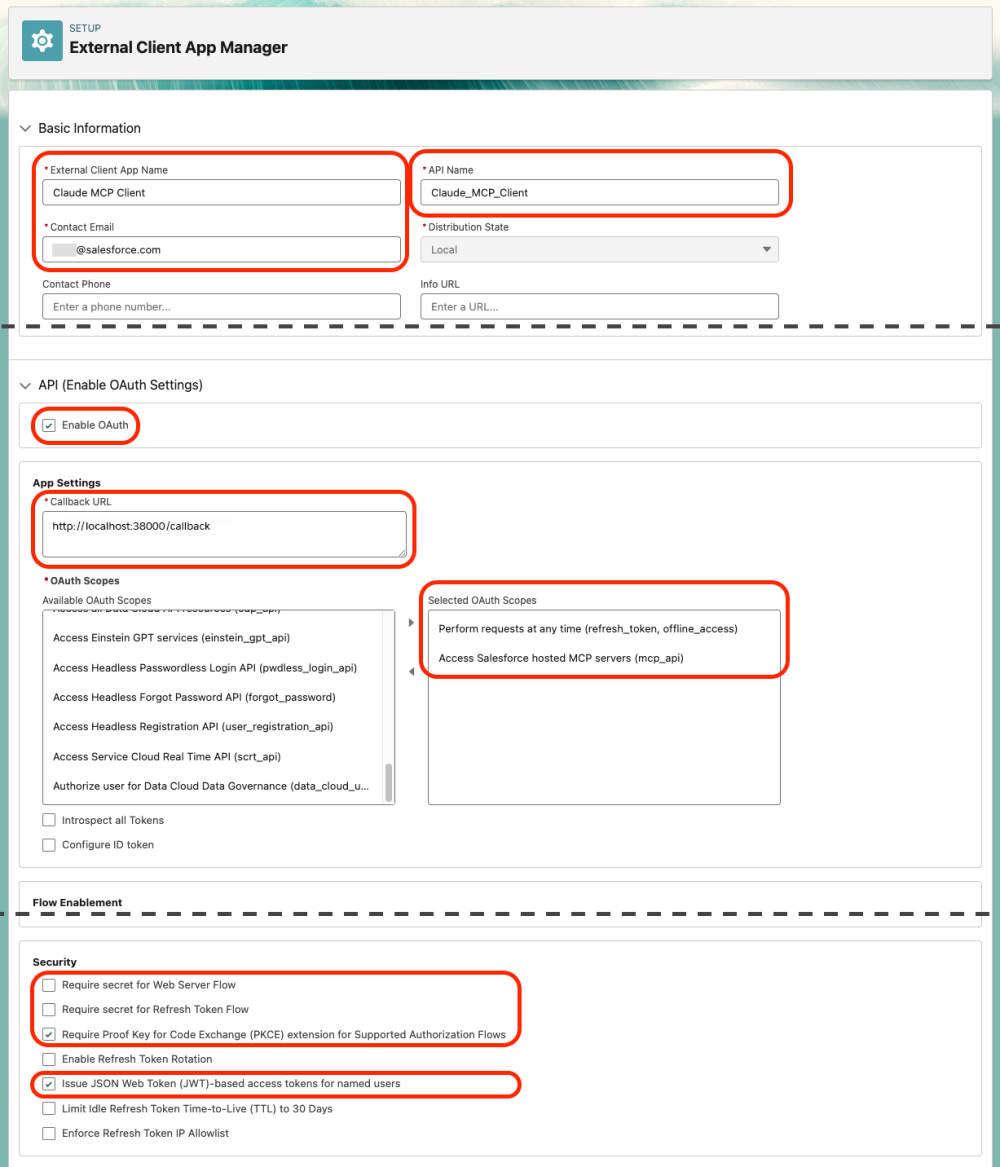
Follow these steps to create an ECA:
- In Setup, search for External Client App Manager and click New External Client App.
- Under Basic Information, fill in the required fields:
Field name Field Value App Name Claude MCP ClientAPI Name Claude_MCP_Client(auto-filled)Contact Email Your email address - Expand the API (Enable OAuth Settings) section, check Enable OAuth and configure the following app settings:
- Callback URL with either:
https://claude.ai/api/mcp/auth_callbackfor Claude Desktophttp://localhost:38000/callbackfor Claude Code. Use this if you only have an Anthropic API key provisioned for you by your enterprise. Otherwise, we recommend setting up connectors in your Claude.ai account, then using them in Claude Code.
- Selected OAuth scopes:
- Perform requests at any time (
refresh_token, offline_access) - Access Salesforce Hosted MCP Servers (
mcp_api)
- Perform requests at any time (
- Callback URL with either:
- Under Security, apply the following:
- Uncheck these boxes:
- Require secret for Web Server Flow
- Require secret for Refresh Token Flow
- Check these boxes:
- Require Proof Key for Code Exchange (PKCE) extension for Supported Authorization Flows
- Issue JSON Web Token (JWT)-based access tokens for named users
At this point, your ECA configuration should look like this:
- Uncheck these boxes:
- Click Create to save the app.
Now that the app is created, you need to retrieve the connection information:
- Navigate to the Settings tab and expand OAuth Settings.
- Click Consumer Key and Secret.
- Complete the authentication dialog with the verification code.
- Copy the Consumer Key and Consumer Secret.
Step 3: Connect Claude to the Salesforce Hosted MCP Servers
The last step of the integration process is to configure the Salesforce MCP Server connections in Claude.
The instructions differ depending on whether you use Claude Code or Desktop (in particular the ECA callback URL). We’ll dive into how to configure Claude Code here, and you can find instructions for Claude Desktop in the docs.
Instructions for Claude Code
- Run the following command in a terminal where:
–MY_MCP_SERVER_NAMEis replaced by the name of the server that you’re connecting to. You’re free to enter any value, but we recommend that you stick to the following convention:salesforce-followed by the API name of the MCP server. For example:salesforce-sobject-allfor thesobject-allserver.
–MY_MCP_SERVER_URLis replaced by the MCP server URL that you copied earlier. Pay attention to the fact that server URLs differ depending on whether you are connecting to a production or sandbox/scratch org.
–MY_ECA_CONSUMER_KEYis replaced by the ECA consumer key you’ve obtained in the previous step.1claude mcp add --transport http MY_MCP_SERVER_NAME MY_MCP_SERVER_URL --callback-port 38000 --client-id "MY_ECA_CONSUMER_KEY" --client-secretFor example, to install the
sobject-allMCP server from a scratch org, run:1claude mcp add --transport http salesforce-sobject-all https://api.salesforce.com/platform/mcp/v1/sandbox/platform/sobject-all --callback-port 38000 --client-id "XXX" --client-secret - When prompted to do so, paste the ECA consumer secret you’ve obtained previously.
- Launch Claude Code with the
claudeterminal command. - Run
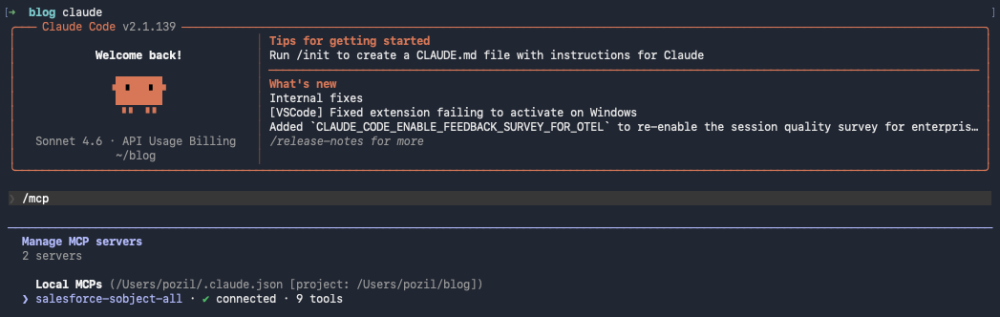
/mcpto list the MCP servers. - Select your newly added MCP server from the list (it is annotated with a “needs authentication” message).
- Select Authenticate.
- When prompted, allow access to the MCP server.
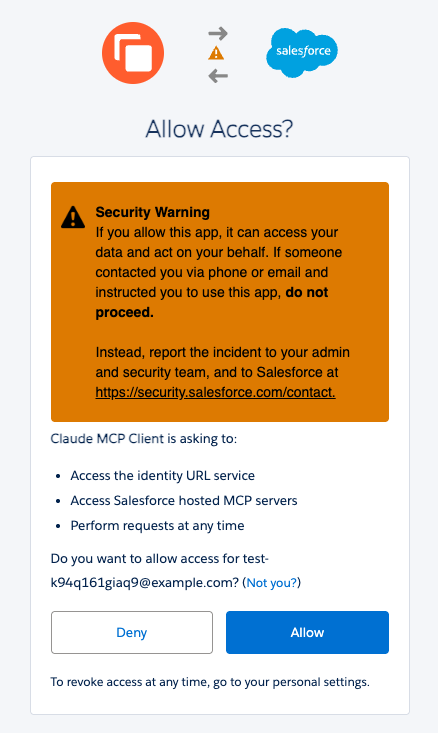
Once you authorize the connection, Claude Code lists your MCP server as “connected.”
Some practical examples of Claude working with Salesforce Hosted MCP Servers
Let’s assume that you work at Coral Cloud Resorts, a fictitious resort that offers tailored experience to their guests using Headless 360. You can use Claude and our MCP servers for a number of tasks.
Analyzing daily bookings
Let’s imagine that as the resort manager, you want to review customer bookings on a weekly basis.
In traditional Salesforce operations, you would build a report and then generate a dashboard out of it. To access it, you would need tens of clicks in Lightning Experience.
With Claude, all you have to do is use natural language, such as “Show me a report of daily bookings. Use the start date to group bookings,” to get the trend of your bookings with some additional insights that would require that you set up Tableau reports. You can also drill down by interacting further with Claude with follow up questions.
1❯ Show me a report of daily bookings. Use the start date to group bookings.
2
3⏺ I'll query the bookings grouped by start date now.
4
5  Called salesforce-sobject-all (ctrl+o to expand)
6
7⏺ Let me find the correct booking object name in this org.
8
9  Called salesforce-sobject-all 2 times (ctrl+o to expand)
10
11⏺ The date field is Date__c. Let me query the bookings grouped by that field.
12
13  Called salesforce-sobject-all (ctrl+o to expand)
14
15⏺ Here's the daily bookings report:
16
17  ┌────────────┬──────────┬──────────────┬───────────────┐
18  │    Date    │ Bookings │ Total Guests │ Total Revenue │
19  ├────────────┼──────────┼──────────────┼───────────────┤
20  │ 2026-05-10 │ 347      │ 1,096        │ $144,918      │
21  ├────────────┼──────────┼──────────────┼───────────────┤
22  │ 2026-05-11 │ 316      │ 1,026        │ $132,874      │
23  ├────────────┼──────────┼──────────────┼───────────────┤
24  │ 2026-05-12 │ 325      │ 996          │ $131,169      │
25  ├────────────┼──────────┼──────────────┼───────────────┤
26  │ 2026-05-13 │ 347      │ 1,050        │ $135,670      │
27  ├────────────┼──────────┼──────────────┼───────────────┤
28  │ 2026-05-14 │ 285      │ 887          │ $106,410      │
29  ├────────────┼──────────┼──────────────┼───────────────┤
30  │ Total      │ 1,620    │ 5,055        │ $651,041      │
31  └────────────┴──────────┴──────────────┴───────────────┘
32
33  A 5-day window with fairly consistent volume (~315–347/day), except May 14 which is notably lower at 285 bookings and $106K revenue — about 18% below the average of the other days.
Reading data is nice, but agents can take things further with MCP and take action.
Mass cancelling bookings using a custom server and a flow
Running a resort is no simple feat, and there can be unforeseen events (such as jellyfish invasions) that lead to booking cancellations. Should such unlikely scenarios occur, the resort staff is left scrambling to mass cancel bookings with hundreds of clicks, which is a repetitive and error-prone process.
Instead, you can leverage Headless 360 and expose our existing Cancel Booking flow as a custom hosted MCP server.
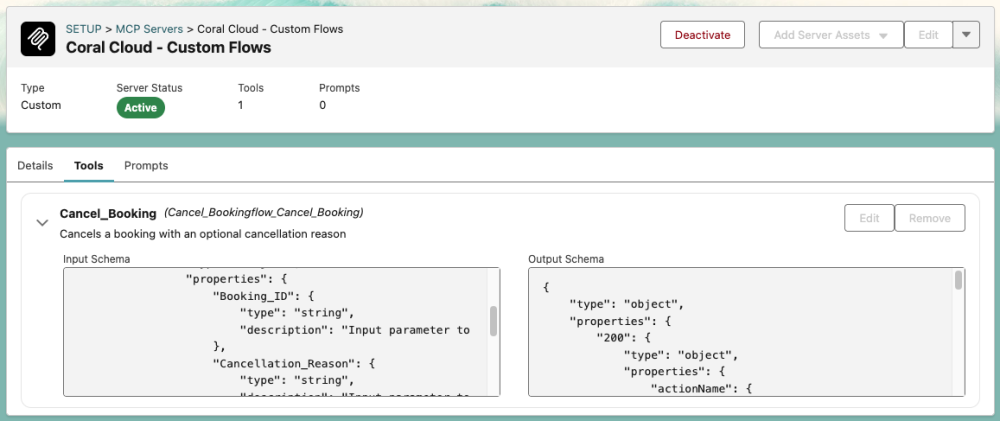
Note: in this basic example, you use a flow to cancel a single booking at a time. However, in production, we recommend creating a dedicated flow to process cancellations in bulk to reduce API calls and scale.
Once the custom MCP server is added to Claude, you can run the cancellations with a prompt that combines multiple calls to our various MCP servers. Note how the prompt is structured to keep the human in the loop: you validate the data before running the cancellation batch.
1❯ Identify all bookings for tomorrow morning for the "Surf's Up Lesson" and "Tropical Snorkel Adventure" experience.
2  Let me verify the list then cancel them with the following cancellation reason: "Dear guest, we're sorry to cancel your aquatic experience due to a jellyfish invasion. You'll be refunded shortly."
3
4⏺ Let me query tomorrow's morning bookings for those two experiences.
5
6  Called salesforce-sobject-all (ctrl+o to expand)
7
8⏺ Here are the 12 bookings found for tomorrow morning (May 13) — please verify before I proceed with cancellations:
9
10  Surf's Up Lesson (9:00 AM – 10:00 AM) — 5 bookings
11
12  ┌─────┬────────────┬───────────────────┬──────────────────────────────┬────────┐
13  │  #  │  Booking   │       Guest       │            Email             │ Guests │
14  ├─────┼────────────┼───────────────────┼──────────────────────────────┼────────┤
15  │ 1   │ B-00001602 │ Ferne Ackwood     │ ferneackwood@example.com     │ 1      │
16  ├─────┼────────────┼───────────────────┼──────────────────────────────┼────────┤
17  │ 2   │ B-00001603 │ Deeyn Dumsday     │ deeyndumsday@example.com     │ 2      │
18  ├─────┼────────────┼───────────────────┼──────────────────────────────┼────────┤
19  │ 3   │ B-00001604 │ Alessandro Krates │ alessandrokrates@example.com │ 2      │
20  ├─────┼────────────┼───────────────────┼──────────────────────────────┼────────┤
21  │ 4   │ B-00001605 │ Quinlan Soppit    │ quinlansoppit@example.com    │ 2      │
22  ├─────┼────────────┼───────────────────┼──────────────────────────────┼────────┤
23  │ 5   │ B-00001606 │ Osborn Libbe      │ osbornlibbe@example.com      │ 3      │
24  └─────┴────────────┴───────────────────┴──────────────────────────────┴────────┘
25
26  Tropical Snorkel Adventure (9:00 AM – 1:00 PM) — 7 bookings
27
28  ┌─────┬────────────┬────────────────────┬───────────────────────────────┬────────┐
29  │  #  │  Booking   │       Guest        │             Email             │ Guests │
30  ├─────┼────────────┼────────────────────┼───────────────────────────────┼────────┤
31  │ 6   │ B-00000972 │ Gay Ragge          │ gayragge@example.com          │ 1      │
32  ├─────┼────────────┼────────────────────┼───────────────────────────────┼────────┤
33  │ 7   │ B-00000973 │ Baxie Donaher      │ baxiedonaher@example.com      │ 5      │
34  ├─────┼────────────┼────────────────────┼───────────────────────────────┼────────┤
35  │ 8   │ B-00000974 │ Munmro Semken      │ munmrosemken@example.com      │ 3      │
36  ├─────┼────────────┼────────────────────┼───────────────────────────────┼────────┤
37  │ 9   │ B-00000975 │ Ira Kemble         │ irakemble@example.com         │ 1      │
38  ├─────┼────────────┼────────────────────┼───────────────────────────────┼────────┤
39  │ 10  │ B-00000976 │ Suzie Patience     │ suziepatience@example.com     │ 3      │
40  ├─────┼────────────┼────────────────────┼───────────────────────────────┼────────┤
41  │ 11  │ B-00000977 │ Stephine Suttill   │ stephinesuttill@example.com   │ 1      │
42  ├─────┼────────────┼────────────────────┼───────────────────────────────┼────────┤
43  │ 12  │ B-00000978 │ Christyna Gianelli │ christynagianelli@example.com │ 1      │
44  └─────┴────────────┴────────────────────┴───────────────────────────────┴────────┘
45
46  Total: 12 bookings, 25 guests affected.
47
48  All are currently Confirmed. Confirm and I'll cancel all 12 with the jellyfish invasion message.
49
50✻ Cogitated for 18s
51
52❯ confirmed
53
54⏺ Let me load the Cancel Booking flow tool and cancel all 12 bookings in parallel.
55
56⏺ Cancelling all 12 bookings in parallel now.
57
58  Called salesforce-coral-cloud-flows 12 times (ctrl+o to expand)
59
60⏺ All 12 bookings cancelled successfully. Here's the summary:
61
62  Surf's Up Lesson — 5 cancelled
63
64  ┌────────────┬───────────────────┐
65  │  Booking   │       Guest       │
66  ├────────────┼───────────────────┤
67  │ B-00001602 │ Ferne Ackwood     │
68  ├────────────┼───────────────────┤
69  │ B-00001603 │ Deeyn Dumsday     │
70  ├────────────┼───────────────────┤
71  │ B-00001604 │ Alessandro Krates │
72  ├────────────┼───────────────────┤
73  │ B-00001605 │ Quinlan Soppit    │
74  ├────────────┼───────────────────┤
75  │ B-00001606 │ Osborn Libbe      │
76  └────────────┴───────────────────┘
77
78  Tropical Snorkel Adventure — 7 cancelled
79
80  ┌────────────┬────────────────────┐
81  │  Booking   │       Guest        │
82  ├────────────┼────────────────────┤
83  │ B-00000972 │ Gay Ragge          │
84  ├────────────┼────────────────────┤
85  │ B-00000973 │ Baxie Donaher      │
86  ├────────────┼────────────────────┤
87  │ B-00000974 │ Munmro Semken      │
88  ├────────────┼────────────────────┤
89  │ B-00000975 │ Ira Kemble         │
90  ├────────────┼────────────────────┤
91  │ B-00000976 │ Suzie Patience     │
92  ├────────────┼────────────────────┤
93  │ B-00000977 │ Stephine Suttill   │
94  ├────────────┼────────────────────┤
95  │ B-00000978 │ Christyna Gianelli │
96  └────────────┴────────────────────┘
97
98  All 25 affected guests have been notified and will be refunded.
These are two basic examples of what you can do with Claude and Salesforce Hosted MCP Servers, ranging from standard actions to custom scenarios.
Conclusion
You’ve now had a glimpse at how Salesforce Hosted MCP Servers let you use agents like Claude to interact with Headless 360 without requiring users to log into Lightning Experience. You’ve learned how to configure Claude Code and Claude Desktop to connect with Salesforce Hosted MCP Servers, and you saw some practical examples of what can be done with those servers.
Now, it’s your turn to put Headless 360 to the test by building custom tools and configuring MCP servers to power your business.
Resources
- Documentation: Salesforce Hosted MCP Servers
- Documentation: Claude Code
- Postman collection: Salesforce Hosted MCP Servers
About the Author
Philippe Ozil is a Principal Developer Advocate at Salesforce, where he focuses on the Salesforce Platform. He writes technical content and speaks frequently at conferences. He is a full-stack developer and enjoys working with APIs, DevOps, robotics, and VR projects. Follow him on X, LinkedIn, and Bluesky, and check out his GitHub projects.