If you’ve explored the Salesforce Interactions SDK, you likely understand how to configure a website connector, initialize the SDK, and trigger sendEvent(). However, implementing this in a production environment often leads to a common scenario: events are being dispatched, but where is the data actually landing — and why is it not appearing as expected?
This post is designed to bridge the gap between basic setup and a production-ready deployment. We will trace the end-to-end journey of an event — from your sitemap code, through the SDK’s internal transformation layer, and into Data 360’s schema, data streams, and data model objects (DMOs). By the end, you will understand not just how to dispatch events, but how they’re structured, partitioned, validated, and mapped as they evolve into actionable data.
How the Data 360 module transforms your events
When you invoke SalesforceInteractions.sendEvent() (see docs), your data undergoes a significant evolution before reaching Data 360. Between sending an event and the final destination sits the Data 360 module of the Salesforce Interactions SDK. This is a transformation layer within the SDK that converts your hierarchical interaction events into the flattened schema required by Data 360.
Key insight: A single event dispatched from your sitemap can actually trigger multiple Data 360 events under the hood.
To illustrate this, consider a standard sendEvent() call designed to capture a specific button interaction along with the user’s identity.
1SalesforceInteractions.sendEvent({
2    interaction: {
3        eventType: 'userEngagement',
4        name: 'button_click'
5    },
6    user: {
7        attributes: {
8            eventType: 'contactPointEmail',
9            email: 'joe.smith@domain.com'
10        }
11    }
12})
We designed the Data 360 module to split this into two separate events before sending them to Data 360.
1// Event 1: Profile data
2{
3    "eventType": "contactPointEmail",
4    "email": "joe.smith@domain.com",
5    "category": "Profile",
6    // ... auto-populated fields
7}
8
9// Event 2: Engagement data
10{
11    "eventType": "userEngagement",
12    "interactionName": "button_click",
13    "category": "Engagement",
14    // ... auto-populated fields
15}
The eventType defined within the interaction block determines which engagement schema — and ultimately which DMO — captures behavioral data. Conversely, the eventType specified under user.attributes dictates the destination for identity data within the profile schema. This mechanism allows a single user interaction to simultaneously refresh a customer’s engagement timeline and update their contact details, routing data to distinct segments of your data model.
The end-to-end data flow
Understanding the full pipeline makes debugging significantly easier. Here’s how data flows from your website to your data model:
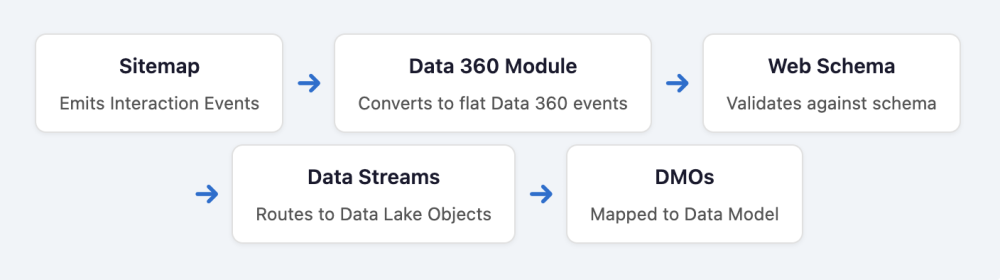
Every stage of the pipeline presents unique failure modes. If your data isn’t appearing as expected, consider these common troubleshooting areas:
- Schema validation: Verify that your event payload contains all of the schema fields flagged as
required, otherwise Data 360 will reject the event. Any field in your event that is not defined in the schema will be ignored within the target schema. Pay close attention to data types and ensure that you are using the exact field names. - Data stream coverage: Confirm that your data stream is configured to include the specific event type you’re dispatching. Remember, if you introduce new schema objects after deployment, you must manually update the stream to incorporate them.
- DMO mapping: Ensure that the
eventTypefield from your behavioral data stream is correctly mapped to the Engagement Type field on your target DMO. For a generic event type data point, theeventTypefield in the Browse section on the left should be used instead of theeventTypefield in the “All Event Data” when mapping to the Website Engagement DMO. We recommend leveraging Data Explorer to view the variouseventTypefields in the Behavioural Events DLO to make an informed decision on which DMO they should map to.
Setting the right level of debugging is important to not only give you full visibility over failures, but to also help troubleshoot the end-to-end data flow. You can set a numerical logging level while also specifying your own custom messages from your site’s code.
1// Example: Enable debug messages
2SalesforceInteractions.setLoggingLevel("debug");
3
4// Same as above, using the numeric value
5SalesforceInteractions.setLoggingLevel(4);
6
7//Output your own custom messages
8SalesforceInteractions.log.debug("here")
Standard vs. custom interaction names: Choose carefully
The Interactions SDK utilizes a suite of standard interaction names, such as View Catalog Object, Add To Cart, and Purchase. These are far more than mere labels; they serve as triggers for pre-configured transformation logic residing within the Data 360 module.
When employing a standard interaction name, the resulting eventType in the Data 360 event is automatically assigned and cannot be modified. For instance, any event containing name: View Catalog Object will invariably generate eventType: catalog during the Data 360 translation process, effectively overriding any custom eventType you might have specified within the interaction block.
1// Both of these produce eventType: "catalog" in the Data 360 event
2{
3    interaction: {
4        name: "View Catalog Object",
5        catalogObject: {
6            type: "Product",
7            id: "product-xyz"
8        }
9    }
10}
11
12{
13    interaction: {
14        name: "View Catalog Object",
15        catalogObject: {
16            type: "Article",
17            id: "article-abc"
18        }
19    }
20}
This distinction is critical because all events sharing a common eventType are constrained to a single DMO mapping. If your website users are engaging with diverse entities, such as insurance policies versus knowledge articles, relying on the standard View Catalog Object interaction for both will force them into the same DMO. This overlap complicates the creation of object-specific engagement models and dilutes your data granularity.
To circumvent this, you should consider custom interaction names and event types.
1// Product engagement → maps to Product Browse Engagement DMO
2{
3    interaction: {
4        name: "View",
5        eventType: "productEngagement",
6        catalogObject: {
7            type: "Product",
8            id: "product-xyz"
9        }
10    }
11}
12
13// Article engagement → maps to Article Engagement DMO
14{
15    interaction: {
16        name: "Download",
17        eventType: "articleEngagement",
18        catalogObject: {
19            type: "Article",
20            id: "article-abc"
21        }
22    }
23}
If your implementation aligns with standard patterns, then leverage the standard schema, for example, catalog interactions, cart activity, or identity updates. This approach simplifies your architecture by utilizing out-of-the-box DMO mappings via Data Kit packages. You should only implement custom event types when your specific business logic diverges from these supported interaction models.
Key insight: We have the SDK automatically assign a pageView flag to every dispatched event. A page view event (pageView: 1) is triggered when a pageConfig matches during initial page load, driven by the isMatch logic within your sitemap’s pageTypes array. Conversely, an interaction-only event (pageView: 0 or absent) is dispatched via sendEvent() through an interaction object, typically following a user action such as a click or form submission. Mastering this distinction is critical to ensuring the integrity of your engagement analytics.
How nested event payloads translate to flat Data 360 rows
Data 360 events are flat, but the SDK payloads you send are nested. When the Data 360 module ingests an event, it walks the nested structures and flattens them into a single row of columns on the target DMO. Understanding these flattening rules is critical to getting your schema and data stream to line up.
Looking at a standard interaction first:
1// Product engagement → maps to Product Browse Engagement DMO
2{
3    interaction: {
4        name: "View Catalog Object",
5        catalogObject: {
6            type: "Product",
7            id: "product-xyz",
8            attributes: {
9                name: "Product name",
10                description: "Product description",
11                inventory: 5,
12                price: 123.45
13            }
14        }
15    }
16}
For this sample of a standard event payload sent by the SDK, the Data 360 event that lands in your Behavioural Events data stream DLO will look like this:
| Behavioural Events DLO Field Name | Value |
| eventType | catalog |
| catalog.interactionName | View Catalog Object |
| catalog.type | Product |
| catalog.id | product-xyz |
| catalog.attributeName | Product name |
| catalog.attributeDescription | Product description |
| catalog.attributeInventory | 5 |
| catalog.attributePrice | 123.45 |
When using custom properties at the interaction level, these are added directly to the payload. For custom objects nested under interaction, these are flattened using lowerCamelCase.
For example:
1// Custom interaction
2{
3    interaction: {
4        name: "Special Form Click",
5        customProperty: "value"
6    }
7}
They will land in the Behavioural Events data stream DLO like this:
| Behavioural Events DLO Field Name | Value |
| interactionName | Special Form Click |
| customProperty | value |
For custom objects nested under interaction, these are flattened using lowerCamelCase. For example:
1// Custom interaction
2{
3    interaction: {
4        name: "Special Form Click",
5        customProperties: {
6            anotherCustomProperties: {
7                customField: "value"
8            }
9        }
10    }
11}
These will land in the Behavioural Events data stream DLO like this:
| Behavioural Events DLO Field Name | Value |
| interactionName | Special Form Click |
| customPropertiesAnotherCustomPropertiesCustomField | value |
Web schema: What must match, and what’s flexible
Your web schema is a JSON document uploaded to Data 360 that defines the allowed event structure. The Interactions SDK will silently drop any event that doesn’t conform to it. Understanding what’s strictly enforced versus what’s flexible saves hours of debugging.
The following elements are strictly bound to your schema keys:
eventType,category, andinteractionName- Field names utilized within
interaction,catalogObjects, anduser.identitie - Note that these identifiers must provide an exact match to those defined in your uploaded schema
Conversely, these elements remain flexible or free-form:
pageConfig.name(the page type name employed during sitemap matching)- Values populated within
interaction.attributefields - Custom payload strings, page name identifiers, and any derived values calculated via JavaScript
Key insight: Consider schema keys as the column names in a database. While the column headers must align with your schema perfectly, the specific values you use to populate them remain highly flexible.
Critical naming conventions
- Adhere to strict lowerCamelCase for all field names (e.g., use
pageUrlrather thanpage_urlorPageUrl) - Underscores in column or field names are unsupported and will cause data ingestion to fail
- Avoid consecutive uppercase characters (e.g., prefer
urlPathoverURLPath)
Three essential data streams
Upon deploying data streams via your website connector, the resulting architecture is partitioned into three distinct categories, each serving a specialized role in your data ecosystem.
1. Identity stream
Automatically generated for the identity event type, this stream captures the deviceId — a unique identifier assigned by the SDK to every anonymous visitor.
This deviceId persists within the same browser typically via Local Storage or a first-party cookie. On every subsequent visit from the same browser, the same deviceId is issued. It does not, however, persist across browsers or different domains. For example, if a user visits the website in Chrome and then Safari, or on a different device, they get a different deviceId.
To ensure proper ingestion, map this to the Individual DMO using the key relationship: deviceId → Individual Id. This mapping is how Data 360 instantiates a new Individual record for every unique website visitor. The table below shows how these fields should be mapped from the identity data stream.
| DLO Field (from Interactions SDK) | Maps to DMO | DMO Field |
| deviceId | Individual | Individual Id |
| deviceId | Party | |
| firstName | First Name | |
| lastName | Last Name | |
| isAnonymous | isAnonymous | |
| dateTime | Created Date |
2. Contact point / party identification streams
These streams manage profile-level events, including contactPointEmail, contactPointPhone, and partyIdentification. They function as the critical nexus for identity resolution, bridging the gap between an anonymous deviceId and a verified customer identity. For instance, when a user authenticates and you dispatch a partyIdentification event containing their CRM ID, this data populates the Party Identification DMO, enabling Identity Resolution rulesets to unify disparate records.
Each stream maps to a different Profile-category DMO, and each has a specific field mapping that you need to get right before Identity Resolution rulesets will fire. The table below shows generic mappings.
| Data Stream | DLO Field (from Web SDK) | Maps to DMO | DMO Field |
| contactPointEmail | deviceId | Contact Point Email | Party |
| deviceId | Contact Point Email Id | ||
| Email Address | |||
| dateTime | Created Date | ||
| contactPointPhone | deviceId | Contact Point Phone | Party |
| deviceId | Device | ||
| deviceId | Contact Point Id | ||
| phoneNumber | Phone Number | ||
| phoneNumber | Formatted E164 Phone Number | ||
| dateTime | Created Date | ||
| partyIdentification | deviceId | Party Identification | Party |
| deviceId | Party Identification Id | ||
| IDName (a constant, like “Web ID”) | Identification Name | ||
| IDType | Party Identification Type | ||
| userId (your known customer unique identifier like a CRM/loyalty ID) | Identification Number | ||
| dateTime | Created Date |
The deviceId → Party mapping on the Contact Point DMOs is there because the SDK’s deviceId is what unifies the Contact Point record with the Individual DMO record (which itself has deviceId → Individual Id). They share the deviceId value as the join key. Party Identification DMO keeps deviceId as the anchor. Note the convention: deviceId goes into the Party field, and the known customer identifier (Lead ID, Contact ID, loyalty number) goes into Identification Number. The literal string “Web ID” (or similar) goes into Identification Name, so IR rulesets can target this identification type by name.
Why all three matter for Identity Resolution
Each of these streams feeds a different identity rule:
- The email and phone streams give IR fuzzy-match anchors
- The partyIdentification stream gives IR an exact-match anchor — when a user logs in or submits an authenticated form and you fire a partyIdentification event with their CRM ID for example, this is the deterministic bridge that says: “this anonymous
deviceIdis definitely this Lead/Contact.”
3. Behavioral events stream
This consolidated stream acts as a universal receiver for all engagement event types, including page views, product interactions, cart activity, and successful purchases. Because this stream is shared across multiple event types, the eventType field becomes the essential discriminator. It is the primary attribute used to route specific interaction models to their respective destination DMOs during the mapping phase.
Consent within the behavioral events stream
Before any meaningful tracking happens, the SDK needs a recorded consent decision for the visitor. Consent events are captured as a standard engagement event type and land in the Behavioral Events stream alongside every other engagement event.
Within that stream, consent data appears as three prefixed fields:
consentLog.provider: The system that captured the consent decision (e.g. “Salesforce Interactions” when captured by the SDK directly)consentLog.purpose: What the visitor has consented to (e.g., tracking, personalization, targeting)consentLog.status: The decision itself (opt-in, opt-out)
If your website connector is deployed and you’re seeing no data at all in Data Explorer, check consent first. Without a recorded opt-in for the relevant purpose, the SDK will suppress downstream event tracking — which looks identical to a broken sitemap or schema. Always validate that consent is firing before you start debugging anything else.
Key configuration when deploying all data streams
- Refresh mode: You must consistently utilize Partial for web data streams. Incremental mode is unsuitable here as it clears or overwrites values not explicitly present in the event payload, which invariably leads to significant data loss.
- Data space: Designate the specific data space intended to receive the ingestion. Note that these streams can be extended to additional data spaces post-deployment without incurring redundant ingestion costs.
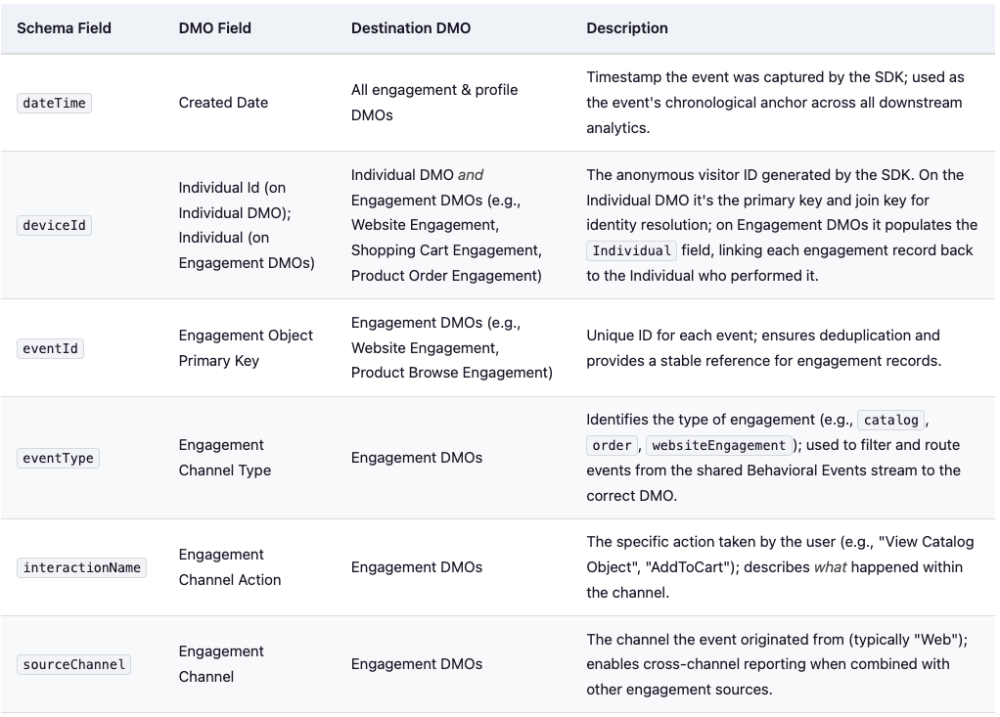
Common field mappings
Standard field mappings often serve as a significant bottleneck during implementation. To help you avoid common pitfalls, here is a quick reference guide to ensure that your data correctly reaches its intended destination:
From Interactions SDK event to DLO
Grasping the end-to-end flow of your website events is fundamental for both debugging and schema design. This section provides a comprehensive reference for the lifecycle of each standard event type: from sending an event, through the Interactions SDK schema validation layer, and into the data stream that ultimately routes data to its target data lake object (DLO).
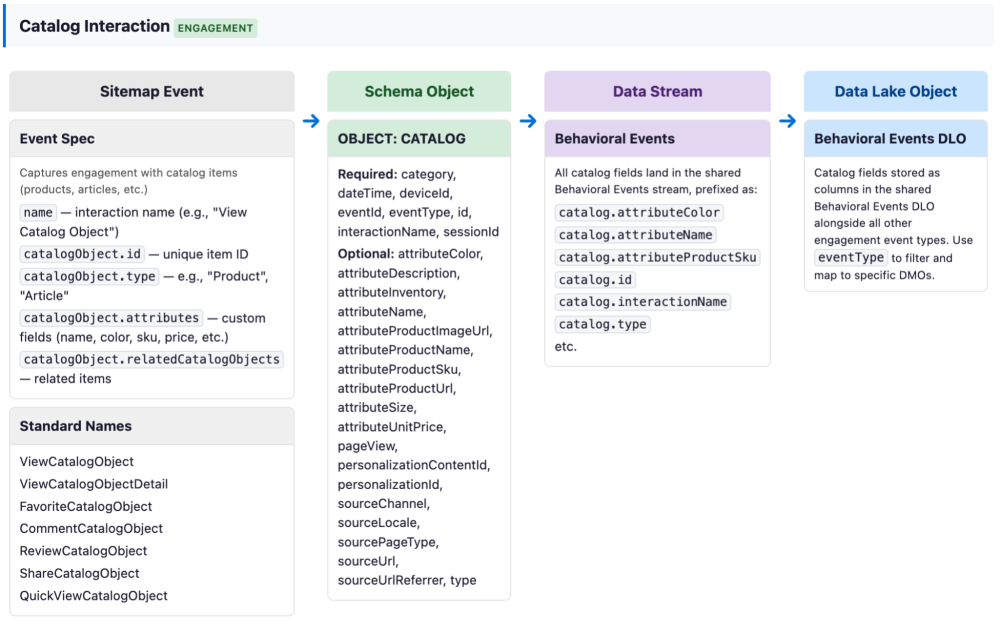
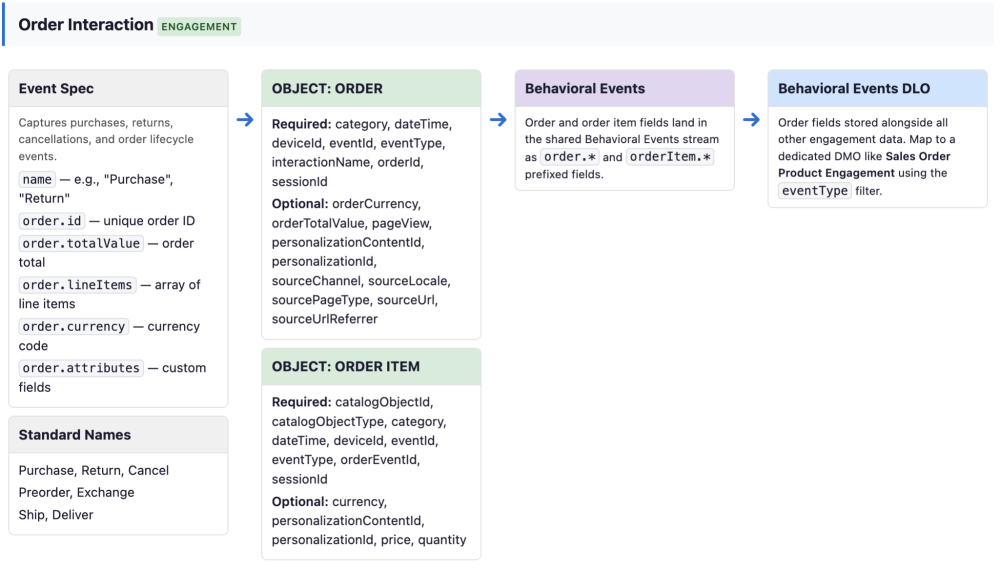
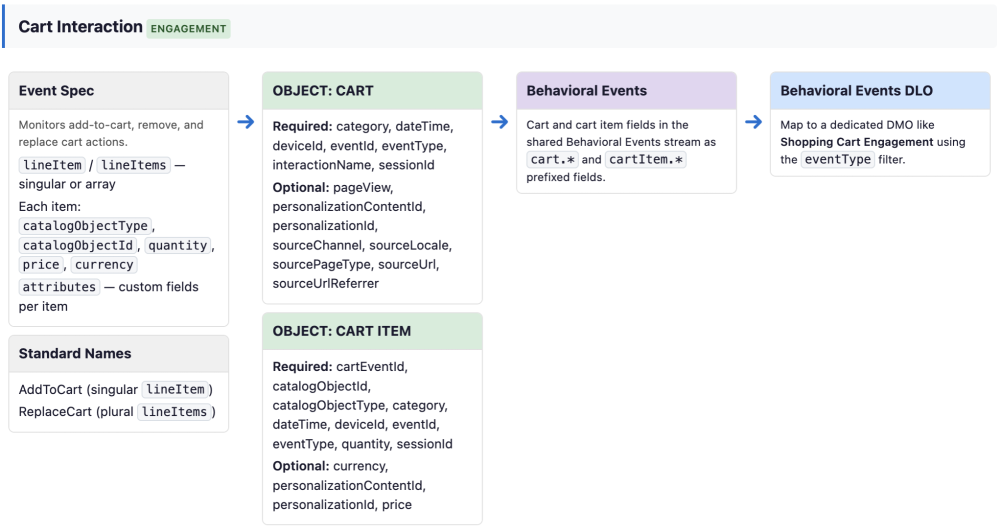
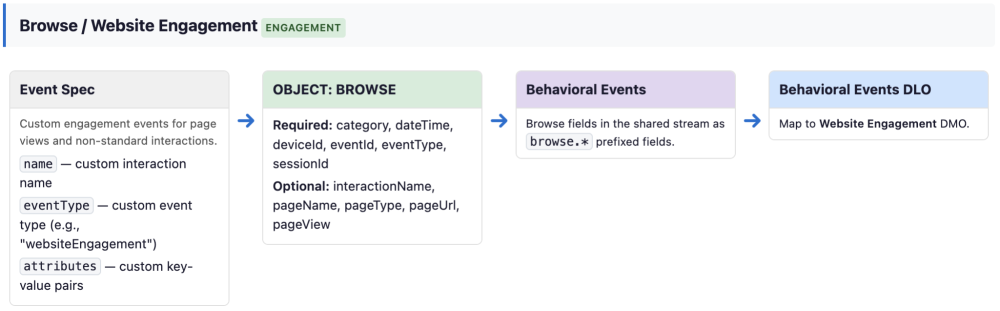
Architectural mapping: Schema objects to data streams
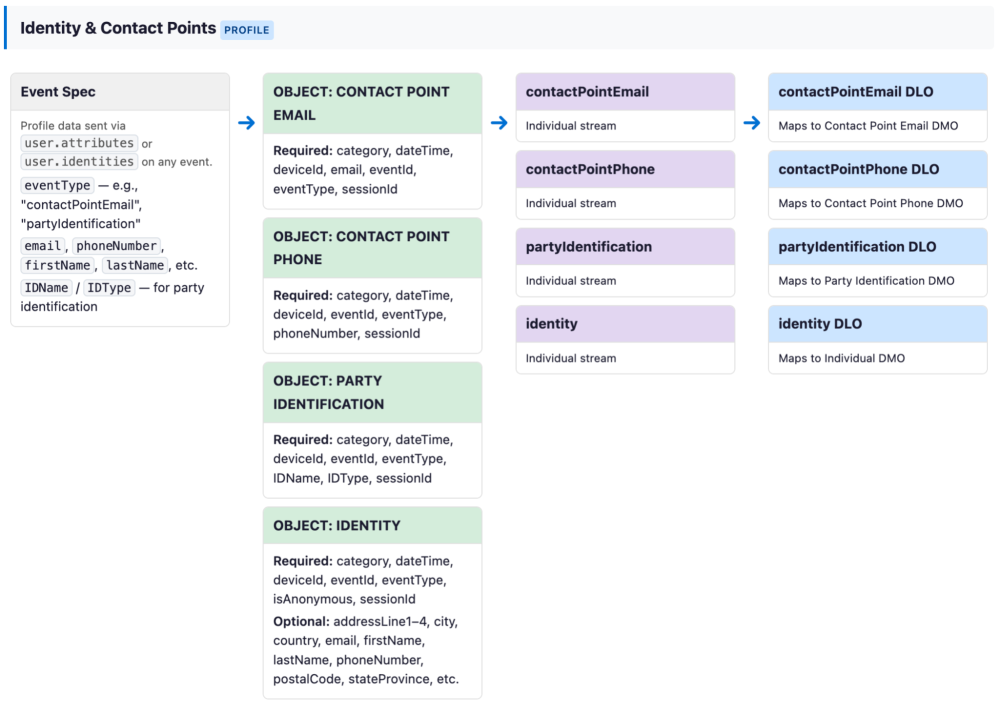
- Each Profile schema definition instantiates its own dedicated individual data stream, adhering to CamelCase naming conventions (e.g.,
contactPointEmailorcontactPointPhone) - All Engagement schema definitions are consolidated into a universal Behavioral Events data stream, with fields utilizing an object-prefixed notation (e.g.,
catalog.attributeColor)
The following screenshot shows the architectural mapping for the Catalog interaction.
This screenshot shows the architectural mapping for the Order interaction.
This screenshot shows the architectural mapping for the Cart interaction.
This screenshot shows the architectural mapping for the Website Engagement interaction.
And finally, this screenshot shows the architectural mapping for the Identity & Contact Point interactions.
Key insight: There are significant architectural advantages to leveraging standard, out-of-the-box DMOs for your mapping strategy. For instance, when capturing purchase transactions, line items, and product data, utilizing the Sales Order, Sales Order Product, and Goods Product DMOs ensures that Salesforce Personalization can natively recognize and process your data.
The Interactions SDK automatically injects several auto-populated fields into every event payload, including category, dateTime, deviceId, eventId, eventType, and sessionId. While these must be present in every schema object, they are handled entirely by the SDK — no manual configuration within your sitemap is required. The eventType field serves as the critical nexus; it binds your sitemap event to a specific schema definition and acts as the primary discriminator for routing data from the Behavioral Events stream to the appropriate destination DMO.
Deployment models: Sitemap-driven vs. Tag Manager-driven
Determining your event dispatch strategy hinges on a fundamental architectural choice: will you manage event capture natively within the sitemap, or leverage your Tag Management System? While both models are fully supported, they operate through distinct mechanisms and should not be implemented concurrently.
Option 1: Sitemap-driven architecture
In this model, the sitemap serves as the central orchestrator for all tracking logic. You define interaction objects within your pageTypes array to capture page-load events, while utilizing global.listeners or explicit sendEvent() calls for behavioral interactions like clicks and form submissions. Because the sitemap is bundled into the CDN (Content Delivery Network) script generated by your website connector, your Tag Management System (TMS) simply injects a single <script> tag — eliminating the need for custom JavaScript within the TMS itself.
This approach is ideal for maintaining a single source of truth for tracking logic. Furthermore, it is a strict requirement if your implementation includes Salesforce Personalization, as personalization experiences rely on the full sitemap context — including page types and content zones — to render correctly.
Option 2: Tag Manager-driven architecture
Conversely, the TMS-led model utilizes a lean sitemap containing only init() and initSitemap(), shifting the responsibility for event dispatching to your TMS tags. Your TMS injects the CDN script and triggers page-level events via Page View triggers and behavioral data via Click or Form triggers. This provides greater flexibility for analytics teams who prefer working within a TMS and allows you to avoid managing JavaScript sitemaps directly within Data 360.
Dispatching events from a TMS
When dispatching events from a TMS, you must explicitly set "pageView": 1 in the payload for page-load events, or omit it for interaction-only events. To ensure a successful implementation, adhere to these critical technical requirements:
- Initialization sequence: The
SalesforceInteractions.sendEvent()method is only accessible afterinit()has resolved andinitSitemap()has been invoked. Ensure that yoursendEventcalls reside within the.then()callback ofinit(). - Race condition prevention: When utilizing a TMS, always wrap your
sendEventcalls in a safety check, such asif (SalesforceInteractions), to prevent execution errors if the SDK has not finished loading.
1// Standard initialization pattern for TMS-based sendEvent calls
2SalesforceInteractions.init({ ... }).then(() => {
3    SalesforceInteractions.initSitemap(sitemapConfig);
4    // Additional sendEvent calls from TMS are safe here
5});
The TMS-led approach may suit your organization if you manage a large number of brands or complex digital properties. Rather than maintaining different JavaScript sitemaps within Data 360 for each unique site, you can have just one lean sitemap for each site, with interactions managed via your Tag Management System. This can reduce the overhead of custom JavaScript maintenance within the Data 360 platform.
It is best practice to leverage even a lean sitemap rather than trying to bypass this and do everything manually in a TMS. The CDN script that Data Cloud generates per tenant (see example) already bundles the base SDK, the Data 360 module, and the sitemap, which can perform the initialization code above. This allows the sitemap to manage background operations like device ID persistence and consent orchestration.
In practice, this architecture allows your TMS to orchestrate event capture just as it does for any other vendor. If you have an existing “form completed” trigger that currently dispatches data to your analytics and marketing pixels, you simply append a new logic block for Data 360.
1// Example: TMS fires this snippet when a form-completion event triggers
2SalesforceInteractions.sendEvent({
3    interaction: {
4        name: "Completed Form",
5        attributes: {
6            type: "Home Loan",
7            id: "HomeLoanProduct-1",
8            income: dataLayer.loanForm.income,
9            loanAmount: dataLayer.loanForm.loanAmount
10        }
11    },
12    user: {
13        attributes: {
14            id: "1234"
15        }
16    }
17})
The personalization caveat: State vs. events
A critical distinction often overlooked by implementation teams is that the sitemap performs a dual role: it dispatches events while simultaneously establishing the global page state.
When you define pageTypes within a sitemap, you are doing more than specifying event triggers. You are initializing the contextual state of the page, identifying the current page type (e.g., a “Product Detail Page”), the specific anchor item (e.g., the product SKU), and the content zones eligible for personalization. This state is the foundational telemetry that Salesforce Personalization utilizes to execute logic such as:=
- “Inject a product recommendations carousel on all PDP pages”: This requires explicit knowledge of the current page type
- “Surface recommendations related to the item currently being viewed”: This requires an active anchor item ID
Invoking sendEvent() in isolation, whether via a TMS or native application code, successfully transmits data to the Data 360 backend, but fails to set this local page state. While your events will reach Data 360, refresh customer profiles, and align with your DMO mappings, the personalization engine will lack the necessary context to identify the user’s current location or focal item. This architectural gap makes it significantly more complex to deploy context-aware, real-time personalized experiences.
The deciding question:
If your Interactions SDK implementation is focused exclusively on data collection (triggering behavioral events), a TMS or application-led strategy is perfectly sufficient. However, if you intend to leverage Salesforce Personalization (either now or in a future phase) to render on-page experiences, the sitemap is required to maintain page state. This means your sitemap must define pageTypes, content zones, and anchor items, even if you supplement the architecture with additional sendEvent() calls from your TMS.
Even in a pure TMS-driven data collection scenario, remember that the SDK still manages several background operations: consent orchestration, device ID persistence, and initial identity resolution. While these do not require explicit sitemap configuration, they are dependent on a properly initialized base SDK.
Lastly, never implement both approaches for the same set of interactions. If a sitemap triggers a sendEvent on page load and your TMS dispatches a parallel event for the same action, your data streams will suffer from duplication. Select a single architectural source of truth: either (a) centralize all tracking within the sitemap, or (b) utilize a lean sitemap and manage all event dispatching via your TMS.
Performance considerations
A frequent point of inquiry regarding the Interactions SDK is its potential impact on page performance. The SDK payload is approximately 100KB (minified), and its impact on page load is typically measured in mere milliseconds. By utilizing a Tag Manager to handle site-specific logic rather than loading it directly from Salesforce, the total script footprint remains highly optimized. We recommend running Lighthouse audits in Google Chrome on Interactions SDK deployments to demonstrate the negligible impact on overall performance scores.
Website connector strategy
For most standard deployments, we recommend maintaining a 1:1 relationship between your website connectors and your domains. While the SDK technically permits a single connector to service multiple sites — typically by implementing conditional sitemap branching based on window.location — this architecture introduces unnecessary complexity and operational risk into your pipeline.
When managing multiple brands or digital properties, your architectural strategy should hinge on your data governance requirements. If your goal is to enable cross-brand analytics and unified personalization, you should route these connectors into a single data space. Conversely, if your priority is strict data isolation and simplified governance, separate data spaces are the better path. Remember, you can deploy multiple connectors to feed a single data space, allowing you to maintain discrete sitemaps and schemas while still achieving a unified 360-degree view of your customer.
Building your schema iteratively
Rather than attempting to define your entire schema upfront, we recommend adopting a progressive implementation strategy to minimize operational risk. Deconstruct your web connector schema into discrete files, one for each specific event type. We recommend starting with a foundational behavioral event type, such as standard website engagement for tracking page views. Incorporating this event in your schema will mean that when you deploy the data stream and finalize the DMO mapping, you can verify that events are successfully ingested by validating the payload within Data Explorer.
We also strongly recommend an iterative approach: append the next event type and repeat the validation process. This approach allows you to validate each segment of the pipeline before introducing further architectural complexity. Furthermore, it leverages Data 360’s automated mapping engine: schema fields utilizing masterLabel values that provide an exact match to DMO field labels will be auto-mapped, significantly reducing manual configuration effort.
Conclusion
Our Interactions SDK appears deceptively simple on the surface — init(), sendEvent(), and you’re done. However, the internal transformation layer, schema validation, data stream routing, and DMO mapping that occur behind the scenes are the critical junctures where implementations either succeed or fail. Mastering this full pipeline — and being deliberate about your event types, schema keys, and stream configuration — is the difference between simply “events are firing” and ensuring that “data is powering real-time personalization.”
Some personalization examples include an abandoned cart: trigger an email or SMS journey in Marketing Cloud when an AddToCart event isn’t followed by a Purchase within a defined window. Or on-site article recommendations: use the anchor item from View Catalog Object events to render a “related articles” carousel via Salesforce Personalization.
Wrapping up, we recommend that you construct your sitemap first, then test it thoroughly while monitoring the console logs. Once you validate the events within Data Explorer, build your schema to mirror the actual data payloads you observe. By adopting this progressive implementation strategy, the architectural pieces will fall into place.
Resources
- Documentation: Salesforce Data 360 Web SDK Developer Documentation
- Integration guide: Salesforce Data 360 Web and Mobile SDK
- Documentation: Translation of SDK Events to Web Connector Schemas
- Blog post: Using Data Cloud Web SDK to Capture Engagement on Your Website
About the author
Chris Charalambous is a Distinguished AI & Data Architect for the Salesforce Data 360 & Agentforce Solutions team, helping customers design scalable solutions and better understand how Data 360 and Agentforce can impact their business. His background includes software engineering, data engineering, mobile messaging, marketing automation, and data platforms. Follow Chris on LinkedIn.
Acknowledgements: A special thank you to Sergey Agadzhanov, Matija Vrzan, Ryan Lock, and Felix Agung for their invaluable contributions and technical review of this article.