


Report Type
Return metadata about a report type.
Syntax
URI: /services/data/vXX.X/analytics/reportTypes/type
Formats: JSON
HTTP methods
| Method | Description |
|---|---|
GET | Return metadata about a report type |
GET Request Body
A notification object with desired changes.
| Property | Type | Description |
|---|---|---|
reportMetadata | Report metadata | Unique identifiers for groupings and summaries. |
reportTypeMetadata | Report type metadata | Fields in each section of a report type plus filter information for those fields. |
reportExtendedMetadata | Report extended metadata | Additional information about summaries and groupings. |
Report extended metadata
| Property | Type | Description |
|---|---|---|
aggregateColumnInfo | Aggregate column information | Includes all report summaries such as, Record Count, Sum, Average, Max, Min, and custom summary formulas. Contains values for each summary listed in the report metadata aggregates. |
detailColumnInfo | Detail column information | Two properties for each field that has detailed data identified by its unique API name. The detailed data fields are also listed in the report metadata. |
groupingColumnInfo | Grouping column information | Map of each row or column grouping to its metadata. Contains values for each grouping identified in the groupingsDown and groupingsAcross list. |
historicalColumnInfo | Historical column information | Provides additional information on columns that exist only in historical trending reports. (This property is applicable only to historical trending reports.) |
Aggregate column information
| Property | Type | Description |
|---|---|---|
label | String | Display name for record count, or the summarized or custom summary formula field. |
dataType | String | Data type of the summarized or custom summary formula field. |
acrossGroupingContext | String | Column grouping in the report where the custom summary formula is displayed. As this example shows in the JSON response and in the custom summary formula editor of the matrix report, the custom summary formula is set at the grand summary level for the columns. |
downGroupingContext | String | Row grouping in the report where the custom summary formula is displayed. In this example, the custom summary formula for a summary report is displayed at the first grouping level. This example is shown in both the JSON response and in the custom summary formula editor of the summary report. |
Example acrossGroupingContext for a matrix report:
1{
2   "reportExtendedMetadata" : {
3      "aggregateColumnInfo" : {
4         "FORMULA1" : {
5            "label" : "Stalled Oppty Avg",
6            "dataType" : "Percent",
7            "acrossGroupingContext" : "GRAND_SUMMARY",
8            "downGroupingContext" : "GRAND_SUMMARY"
9         },
10      }
11   }
12}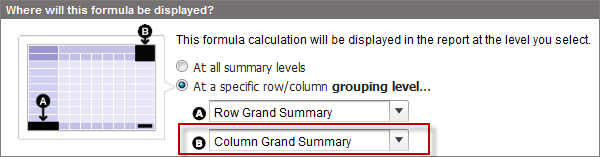
Example downGroupingContext for a summary report:
1{
2   "reportExtendedMetadata" : {
3      "aggregateColumnInfo" : {
4...},
5         "FORMULA1" : {
6            "label" : "Average Won",
7            "dataType" : "Number",
8            "acrossGroupingContext" : null,
9            "downGroupingContext" : "TYPE"
10         },
11      }
12   }
13}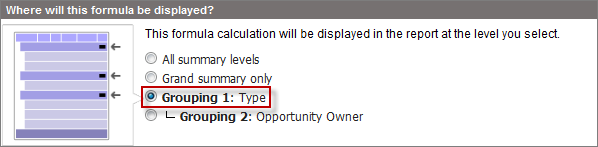
Detail column information
| Property | Type | Description |
|---|---|---|
label | String | The localized display name of a standard field, the ID of a custom field, or the API name of a bucket field that has detailed data. |
dataType | String | The data type of the field that has detailed data. Possible values are: string, boolean, combobox, currency, date, datetime, double, email, html, id, int, multipicklist, number, percent, phone, picklist, reference, text, textarea, time, or url. |
entityColumnName | String | Describes the relationship between an sObject and a report field by returning the sObject and sObject field name that a report field maps to. The value returned is formatted as sObject.sObject field. The property is part of an object that describes a report field, such as an object in the columns[] array of a report type object from reportTypeMetadata. For example, on the LAST_UPDATE_BY column, the value of entityColumnName is “User.Name”, which tells us that it’s mapped to the Name field on the User sObject. For a standard report column that uses a lookup field, entityColumnName returns the related object and field. For example, the LAST_UPDATE_BY column returns "User.Name". For a custom lookup field, entityColumnName can return the object that contains the field and the field’s API name instead of the related object’s field. For example, a custom lookup-to-User field on a custom object can return "MyCustomObject.MyCustomField". Row-level formulas aren’t directly mapped to sObject fields like report fields, but they still have an entityColumnName property. For row-level formulas, the value of entityColumnName is CDF1. |
filterValues | String array | All filter values for a field, if the field data type is of picklist, multi-select picklist, boolean, or checkbox. For example, checkbox fields always have a value of True or False. For fields of other data types, the filter value is an empty array because their values can’t be determined. Filter values have two properties: name (unique API name for a filter value, of type string) and label (display name of a filter value, of type string). |
filterable | Boolean | False means that the field is of a type that can’t be filtered. For example, fields of the type Encrypted Text can’t be filtered. |
isLookup | Boolean | Specifies whether a field is a lookup (true) or not (false). |
label | String | Display name of a field. |
uniqueCountable | Boolean | Specifies whether a field supports unique count (true) or not (false) |
Example entityColumnName:
1"reportTypeMetadata" : {
2    "categories" : [ {
3      "columns" : {
4        "LAST_UPDATE_BY" : {
5          "allowedInCustomDetailFormula" : true,
6          "bucketable" : true,
7          "dataType" : "string",
8          "entityColumnName" : "User.Name",
9          "fieldToFieldFilterable" : false,
10          "filterValues" : [ ],
11          "filterable" : true,
12          "inactiveFilterValues" : [ ],
13          "isCustom" : false,
14          "isLookup" : true,
15          "label" : "Last Modified By",
16          "maxLength" : null,
17          "uniqueCountable" : true
18        }
19      }
20    } ]
21  }
Grouping column information
| Property | Type | Description |
|---|---|---|
label | String | Display name of the field or bucket field used for grouping. |
dataType | String | Data type of the field used for grouping. Possible values are: string, boolean, combobox, currency, date, datetime, double, email, html, id, int, multipicklist, number, percent, phone, picklist, reference, text, textarea, time, or url. |
groupingLevel | Integer | Level of the grouping. Value can be 0, 1, or 2 (first, second, or third row level grouping in summary reports), or 0 or 1 (first or second row or column level grouping in a matrix report). |
Historical column information
| Property | Type | Description |
|---|---|---|
baseField | String | Indicates the base column for the historical data. Example: For the historical column Opportunity__hd.Amount__hst.N_DAYS_AGO:1, which represents the historical Amount column from one day ago in an Opportunity report, the base column is Opportunity.Amount. |
historicalColumn | String | The specific historical column name. Example: The historical column for Opportunity__hd.Amount__hst.N_DAYS_AGO:1 is Opportunity__hd.Amount__hst. |
historicalSnapshotDate | String | The snapshot date for this historical column. Example: For the historical column Opportunity__hd.Amount__hst.N_DAYS_AGO:1, the snapshot date is N_DAYS_AGO:1, which is one day ago. |
| isHistoricalChange | Boolean | True if the column represents change between two historical columns. |
Report metadata
| Property | Type | Description |
|---|---|---|
aggregates | Array of strings | Unique identities for summary or custom summary formula fields in the report. |
allowedInCustomDetailFormula | Boolean | Specifies whether a field can be referenced in a row-level formula (true) or not (false). |
buckets | Bucket field | Describes a bucket field. |
chart | Chart[] | Details about the chart used in a report. |
crossFilters | Cross filter[] | Cross filters applied to the report. |
customDetailFormula | Custom Detail Formula[] | An array of objects that describes row-level formulas. |
customSummaryFormula | Custom summary formula | Describes a custom summary formulas. |
currency | String | Report currency, such as USD, EUR, GBP, for an organization that has Multi-Currency enabled. Value is null if the organization does not have Multi-Currency enabled. |
dashboardSetting | Name/value pair | Allows saving of dashboard settings to allow for reports with row limit filters on dashboards. Can be configured on a report for Top-N reports. The Name and Value fields in dashboardSetting are used as Grouping and Aggregate in dashboard components. |
detailColumns | Array of strings | Unique API names for the fields that have detailed data. |
developerName | String | Report API name. |
division | String | Determines the division of records to include in the report. For example, West Coast and East Coast. Available only if your organization uses divisions to segment data and you have the “Affected by Divisions” permission. If you do not have the “Affected by Divisions” permission, your reports include records in all divisions. |
folderId | String | ID of the folder that contains the report. When the report is in the My Personal Custom Reports folder, folderId = userId. When the report is in the Unfiled Public Reports folder, folderId = orgId. |
groupingsAcross | Groupings across[] | Unique identities for each column grouping in a report. The identity is an empty array for reports in summary format as it can’t have column groupings, BucketField_(ID) for bucket fields, or the ID of a custom field when the custom field is used for a column grouping. |
groupingsDown | Groupings down[] | Unique identities for each row grouping in a report. The identity is BucketField_(ID) for bucket fields, or the ID of a custom field when the custom field is used for grouping. |
hasDetailRows | Boolean | Indicates whether to include detailed data with the summary data. |
hasRecordCount | Boolean | Indicates whether the report shows the record count. |
historicalSnapshotDates | Array of strings | List of historical snapshot dates. |
id | String | Unique report ID. |
name | String | Display name of the report. |
presentationOptions | Report presentation options | Display options in the Lightning Report Builder. |
reportBooleanFilter | String | Logic to parse custom field filters. Value is null when filter logic is not specified. |
reportFilters | Filter details[] | List of each custom filter in the report along with the field name, filter operator, and filter value. |
reportFormat | String | Format of the report. Possible values are TABULAR, SUMMARY, MATRIX, or MULTI_BLOCK. The MULTI_BLOCK property is available in API version 43.0 and later. |
reportType | Report type | Unique API name and display name for the report type. type (string) is the unique identifier of the report type. label (string) is the display name of the report type. |
scope | String | Defines the scope of the data on which you run the report. For example, you can run the report against all opportunities, opportunities you own, or opportunities your team owns. Valid values depend on the report type. |
showGrandTotal | Boolean | Indicates whether the report shows the grand total. |
showSubtotals | Boolean | Indicates whether the report shows subtotals, such as column or row totals. |
sortBy | Array of strings | API name of the field on which the report is sorted and the direction of the sort (asc or desc). |
standardDateFilter | Array of strings | Standard date filters available in reports. Each standard date filter contains the following properties: column (API name of the date field on which you filter the report data), durationValue (the range for which you want to run the report; the value is a date literal or ‘CUSTOM.’), startDate (start date), and endDate (end date). |
standardFilters | Array of strings | List of filters that show up in the report by default. The filters vary by report type. For example, standard filters for reports on the Opportunity object are Show, Opportunity Status, and Probability. This list appears as name-value string pairs. |
supportsRoleHierarchy | Boolean | Indicates whether the report type supports role hierarchy filtering (true) or not (false). |
topRows | Top rows | Describes a row limit filter applied to the report. |
userOrHierarchyFilterId | String | Unique user or role ID of the user or role used by the report’s role hierarchy filter. If specified, a role hierarchy filter is applied to the report. If unspecified, no role hierarchy filter is applied to the report. |
Example aggregates identities:
- a!Amount represents the average for the Amount column.
- s!Amount represents the sum of the Amount column.
- m!Amount represents the minimum value of the Amount column.
- x!Amount represents the maximum value of the Amount column.
- s!<customfieldID> represents the sum of a custom field column. For custom fields and custom report types, the identity is a combination of the summary type and the field ID.
- u!{column_name} represents a unique count of values for the specified {column_name}. For example,
u!_AccountName_returns the number of unique account name values in theAccountNamefield.
Example reportBooleanFilter. This is an example of a report filtered to show opportunities for accounts that are either of customer or partner type OR their annual revenue exceeds 100K AND they are medium or large sized businesses. The filters are processed by the logic, “(1 OR 2) AND 3.”
1{
2...
3        "reportBooleanFilter": "(1 OR 2) AND 3",
4        "reportFilters": [
5            {
6                "value": "Analyst,Integrator,Press,Other",
7                "column": "TYPE",
8                "operator": "notEqual"
9            },
10            {
11                "value": "100,000",
12                "column": "SALES",
13                "operator": "greaterThan"
14            },
15            {
16                "value": "Small",
17                "column": "Size",
18                "operator": "notEqual"
19            }
20        ]
21    }
22}
Example sortBy:
1"sortBy":[{"sortColumn":"Account_ID","sortOrder":"asc"}]Chart
| Property | Type | Description |
|---|---|---|
chartType | String | Type of chart. |
groupings | String | Report grouping. |
hasLegend | Boolean | Indicates whether the report has a legend. |
showChartValues | Boolean | Indicates whether the report shows chart values. |
summaries | Array of strings | Unique identities for summary or custom summary formula fields in the report. |
summaryAxisLocations | String | Specifies the axis that shows the summary values. Valid values are X and Y. |
title | String | Name of the chart. |
Example summaries identities:
- a!Amount represents the average for the Amount column.
- s!Amount represents the sum of the Amount column.
- m!Amount represents the minimum value of the Amount column.
- x!Amount represents the maximum value of the Amount column.
- s!<customfieldID> represents the sum of a custom field column. For custom fields and custom report types, the identity is a combination of the summary type and the field ID.
Groupings down
| Property | Type | Description |
|---|---|---|
name | String | API name of the field used as a row grouping. |
sortOrder | String | Order in which data is sorted within a row grouping. Value can be asc for ascending order or desc for descending order. |
dateGranularity | String | Interval set on a date field that’s used as a row grouping. Value can be Day, Calendar Week, Calendar Month, Calendar Quarter, Calendar Year, Fiscal Quarter, Fiscal Year, Calendar Month in Year, or Calendar Day in Month. |
sortAggregate | String | Summary field that’s used to sort data within a grouping in a report that’s in summary format. Applies if you have the Aggregate Sort feature enabled as part of its pilot program. The value is null when data within a grouping is not sorted by a summary field. In this example, data grouped by Account Owner is sorted by the sum of Annual Revenue. |
Example sortAggregate:
1{
2    "aggregates": ["s!SALES","RowCount"],
3    "groupingsDown": [
4        {
5            "name": "USERS.NAME",
6            "sortOrder": "Desc",
7            "dateGranularity": "None",
8            "sortAggregate": "s!SALES"
9        }
10    ]
11}
Report presentation options
| Property | Type | Description |
|---|---|---|
hasStackedSummaries | Boolean | Indicates whether stacked summaries are enabled in the report. |
historicalColumns | Historical column presentation options | Presentation options of the historical column. |
Example historicalColumns presentation options:
1"presentationOptions" : {
2  "historicalColumns" : {
3    "Opportunity__hd.CloseDate__hst" : {
4      "decreaseIsPositive" : false,
5      "showChanges" : false
6    },
7    "Opportunity__hd.Amount__hst" : {
8      "decreaseIsPositive" : false,
9      "showChanges" : true
10    }
11  }
12}
Historical column presentation options
| Property | Type | Description |
|---|---|---|
decreaseIsPositive | Boolean | Indicates whether a negative change (decrease in value) is displayed in green instead of red in Lightning Report Builder. |
showChanges | Boolean | Indicates whether to display a change column for a given historical column. |
Groupings across
| Property | Type | Description |
|---|---|---|
name | String | API name of the field used as a column grouping. |
sortOrder | String | Order in which data is sorted within a column grouping. Value can be asc for ascending order or desc for descending order. |
dateGranularity | String | Interval set on a date field used as a column grouping. Value can be Day, Calendar Week, Calendar Month, Calendar Quarter, Calendar Year, Fiscal Quarter, Fiscal Year, Calendar Month in Year, or Calendar Day in Month. |
Filter details
| Property | Type | Description |
|---|---|---|
column | String | Unique API name for the field that’s being filtered. |
filterType | String | Describes the type of value used to filter report data. Valid values are fieldToField (filters report data by comparing values of one field with the values of a second field), fieldValue (filters report data by comparing values of a field with a defined value), or null (if null, the filterType defaults to fieldValue). |
isRunPageEditable | Boolean | Indicates if this is an editable filter in the user interface. |
operator | String | Unique API name for the condition used to filter a field such as “greater than” or “not equal to.” Filter conditions depend on the data type of the field. Valid values are equals, notEqual, lessThan, greaterThan, lessOrEqual, greaterOrEqual, contains, notContain, startsWith, includes, excludes, or within (DISTANCE criteria only). |
value | String | Value by which a field is filtered. For example, the field Age can be filtered by a numeric value. For datetime fields, if you make a POST request and specify a calendar date without including a time, then a default time gets included. The time defaults to midnight minus the difference between your timezone and Greenwich Mean Time (GMT). For example, if you specify 8/8/2015 and your timezone is Pacific Standard Time (GMT-700), then the API returns 2015-08-08T07:00:00Z. |
Example filterType. In this example, the first filter is a field-to-field filter that compares the Amount field with Projected Amount field. The second filter is a field filter that returns records for which a row-level formula returns more than 0.
1"reportFilters" : [ {
2      "column" : "AMOUNT",
3      "filterType" : "fieldToField",
4      "isRunPageEditable" : true,
5      "operator" : "notEqual",
6      "value" : "PROJECTED_AMOUNT"
7    }, {
8      "column" : "CDF1",
9      "filterType" : "fieldValue",
10      "isRunPageEditable" : true,
11      "operator" : "greaterThan",
12      "value" : "0"
13} ]
Bucket field
| Property | Type | Description |
|---|---|---|
bucketType | BucketType | The type of bucket. Possible values are number, percent, and picklist |
developerName | String | API name of the bucket. |
label | String | User-facing name of the bucket. |
nullTreatedAsZero | Boolean | Specifies whether null values are converted to zero (true) or not (false). |
otherBucketLabel | String | Name of the fields grouped as “Other” (in buckets of BucketType PICKLIST). |
sourceColumnName | String | Name of the bucketed field. |
values | Array of BucketTypeValues | Describes the values included in the bucket field.. |
Bucket field value
| Property | Type | Description |
|---|---|---|
label | String | The user-facing name of the bucket. |
sourceDimensionValues | String | A list of the values from the source field included in this bucket category (in buckets of type PICKLIST and buckets of type TEXT). |
rangeUpperBound | Double | The greatest range limit under which values are included in this bucket category (in buckets of type NUMBER). |
Cross filter
| Property | Type | Description |
|---|---|---|
criteria | Array of Filter details[] | Information about how to filter the relatedEntity. Use to relate the primary entity with a subset of the relatedEntity. |
includesObject | Boolean | Specifies whether objects returned have a relationship with the relatedEntity (true) or not (false). |
primaryEntityField | String | The name of the object on which the cross filter is evaluated. |
| relatedEntity | String | The name of the object that the primaryEntityField is evaluated against. (The right-hand side of the cross filter). |
| relatedEntityJoinField | String | The name of the field used to join the primaryEntityField and relatedEntity. |
Custom Detail Formula
| Property | Type | Description |
|---|---|---|
decimalPlaces | Integer | Formats the value returned by the row-level formula. It is required for numeric return values, invalid for non-numeric return values. |
description | String | User-defined description of the row-level formula. |
formula | String | Specifies the formula expression to be evaluated. All report type fields, except bucketed fields and historical tracking fields can be referenced. |
formulaType | String | Specifies the return type of the formula. Valid values include date, datetime, number, or text. |
label | String | Specifies a name for the row-level formula. |
Custom summary formula
| Property | Type | Description |
|---|---|---|
label | String | The user-facing name of the custom summary formula. |
description | String | The user-facing description of the custom summary formula. |
formulaType | String | The format of the numbers in the custom summary formula. Possible values are number, currency, and percent. |
decimalPlaces | Integer | The number of decimal places to include in numbers. |
downGroup | String | The name of a row grouping when the downGroupType is CUSTOM. Null otherwise. |
downGroupType | String | Where to display the aggregate of the custom summary formula. Possible values are all, custom, and grand_total. |
acrossGroup | String | The name of a column grouping when the accrossGroupType is CUSTOM. Null otherwise. |
acrossGroupType | String | Where to display the aggregate of the custom summary formula. Possible values are all, custom, and grand_total. |
formula | String | The operations performed on values in the custom summary formula. |
Top rows
| Property | Type | Description |
|---|---|---|
rowLimit | Integer | The number of rows returned in the report. |
direction | String | The sort order of the report rows. |
Report type metadata
| Property | Type | Description |
|---|---|---|
categories | Categories[] | Returns all row-level formulas in a report as an object identical to the other categories objects. For row-level formulas, these properties are always false: allowedInCustomDetailFormula, Bucketable, Filterable, isCustom, and isLookup. For row-level formulas, these properties are always null: filterValues and inactiveFilterValues. |
dataTypeFilterOperatorMap | Filter operator reference | Lists all the possible field data types that can be used to filter the report. Each data type, such as phone, percent, currency, or picklist has two properties: name (string), a unique API name for each field type’s filter criteria—use this API name in the metadata to define filter criteria for a report; and label (string), the display name for each filter criteria available to fields of a particular data type. For example, multipicklist fields can have for filter criteria, “equals,” “not equal to,” “includes,” and “excludes.” Bucket fields are considered to be of string data type. |
dateGranularityInfos | dateGranularityInfos[] | An array of objects each of which specifies a measure of time used to group date fields (day, week, month, fiscal quarter, and more). |
divisionInfo | Division info[] | Default division and list of all possible record-level divisions that can be used in a report. |
objects | Objects info[] | List of objects included in report type. Available in API version 54.0 and later. |
scopeInfo | Scope info[] | Scope of the data on which you run the report. For example, you can run the report against all opportunities, opportunities you own, or opportunities your team owns. Valid values depend on the report type. |
standardDateFilterDurationGroups | Standard date filter duration groups[] | List of standard date filters available in reports. |
standardFilterInfos | Array of strings | List of filters that show up in the report by default. The filters vary by report type. For example, standard filters for reports on the Opportunity object are Show, Opportunity Status, and Probability. This list appears as name-value string pairs. |
supportsJoinedFormat | Boolean | Specifies whether a report type is compatible with joined reports (true) or not (false). |
Categories
| Property | Type | Description |
|---|---|---|
label | String | Display name of a section in the report type under which fields are organized. For example, in an Accounts with Contacts custom report type, Account General is the display name of the section that has fields on general account information. |
columns | Column map | Information for all fields in the report type organized under a particular section’s unique API name. |
Column map
| Property | Type | Description |
|---|---|---|
allowedInCustomDetailFormula | Boolean | Specifies whether a field is whether a field is can be referenced in a row-level formula (true) or not (false). |
bucketable | Boolean | Specifies whether a field can be used as the basis for a bucket column (true) or not (false). |
dataType | String | Data type of the field. |
entityColumnName | String | Describes the relationship between an sObject and a report field by returning the sObject and sObject field name that a report field maps to. The value returned is formatted as sObject.sObject field. The property is part of an object that describes a report field, such as an object in the columns[] array of a report type object from reportTypeMetadata. For example, on the LAST_UPDATE_BY column, the value of entityColumnName is “User.Name”, which tells us that it’s mapped to the Name field on the User sObject. For a standard report column that uses a lookup field, entityColumnName returns the related object and field. For example, the LAST_UPDATE_BY column returns "User.Name". For a custom lookup field, entityColumnName can return the object that contains the field and the field’s API name instead of the related object’s field. For example, a custom lookup-to-User field on a custom object can return "MyCustomObject.MyCustomField". Row-level formulas aren’t directly mapped to sObject fields like report fields, but they still have an entityColumnName property. For row-level formulas, the value of entityColumnName is CDF1. |
fieldToFieldFilterable | Boolean | Specifies whether a field can be referenced in a field-to-field filter (true) or not (false). |
filterValues | String array | All filter values for a field, if the field data type is of picklist, multi-select picklist, boolean, or checkbox. For example, checkbox fields always have a value of True or False. For fields of other data types, the filter value is an empty array because their values can’t be determined. Filter values have two properties: name (unique API name for a filter value, of type string) and label (display name of a filter value, of type string). |
filterable | Boolean | False means that the field is of a type that can’t be filtered. For example, fields of the type Encrypted Text can’t be filtered. |
isCustom | Boolean | Specifies whether a column is a custom (true) or standard (false) field. |
isLookup | Boolean | Specifies whether a field is a lookup (true) or not (false). |
label | String | Display name of a field. |
maxLength | Integer | Indicates the maximum permited number of characters for the value of a column field. If there is no limit, use null. |
uniqueCountable | Boolean | Specifies whether a field supports unique count (true) or not (false) |
Example entityColumnName:
1"reportTypeMetadata" : {
2    "categories" : [ {
3      "columns" : {
4        "LAST_UPDATE_BY" : {
5          "allowedInCustomDetailFormula" : true,
6          "bucketable" : true,
7          "dataType" : "string",
8          "entityColumnName" : "User.Name",
9          "fieldToFieldFilterable" : false,
10          "filterValues" : [ ],
11          "filterable" : true,
12          "inactiveFilterValues" : [ ],
13          "isCustom" : false,
14          "isLookup" : true,
15          "label" : "Last Modified By",
16          "maxLength" : null,
17          "uniqueCountable" : true
18        }
19      }
20    } ]
21  }
dateGranularityInfos
| Property | Type | Description |
|---|---|---|
label | String | The name of the time measure as it appears in the application. |
value | String | API name of the time measure. |
Division Info
| Property | Type | Description |
|---|---|---|
defaultValue | String | Users are assigned a default division that applies to their newly created accounts, leads, and custom objects that are enabled for divisions. |
values | String | All division values. Division values have two properties: label (display name of a division) and name (unique API name of a division). |
Objects Info
| Property | Type | Description |
|---|---|---|
apiName | String | API name of the object. |
joinType | String | Present for custom report types. Indicates how the object is joined. Valid values are ROOT (primary object), INNER (inner join), or OUTER (outer join). |
label | String | Display name of the object. |
Scope Info
| Property | Type | Description |
|---|---|---|
defaultValue | String | Default scope of the data on which you run the report. |
values | Array of strings | All scope values. Valid values depend on the report type. Scope values have the following properties: allowsDivision (allows you to segment the report by this scope), label (display name of the scope), and value (value of the scope). |
Standard date filter duration groups
| Property | Type | Description |
|---|---|---|
label | String | Display name of the standard date filter grouping. Valid values are Calendar Year, Calendar Quarter, Calendar Month, Calendar Week, Fiscal Year, Fiscal Quarter, Day and custom value based on a user-defined date range. |
standardDateFilterDurations | Standard date filter durations[] | Details about each possible relative date filter defined under the standard date filter grouping. |
Standard date filter durations
| Property | Type | Description |
|---|---|---|
endDate | String | End date of a date filter. |
label | String | Display name of a date filter. Valid date filters are relative date filters—like Current FY and Current FQ—and custom date filters. |
startDate | String | Start date of a date filter. |
value | String | API name of a date filter. Valid date filters are relative date filters—like THIS_FISCAL_YEAR and NEXT_FISCAL_QUARTER—and custom date filters. |
 j
j