


Customizing Case Feed with Visualforce
 j
j
No Results
Search Tips:
- Please consider misspellings
- Try different search keywords
Newer Version Available
Creating Custom Console Components That Interact with Case Feed
| Available in: Enterprise, Performance, Unlimited, and Developer Editions |
Custom console components let you extend the functionality of the Salesforce console, and you can create those components so they interact with any actions you’ve added to the Case Feed publisher. For example, you could develop a component that generates customized, pre-written text, adds that text to a new post in the Case Feed portal action, and submits the post to the portal, all with one click.
These events can be published through the publish method on the Sfdc.canvas.publisher object in the Publisher JavaScript API to allow console components to interact with Case Feed publisher actions.
publisher.selectAction
Code Sample
This code snippet selects the email action and puts it in focus.
Sfdc.canvas.publisher.publish({name:"publisher.selectAction",payload:{actionName:"Case.Email"}});
publisher.setActionInputValues
Code Sample
This code snippet populates the fields on an email message with predefined values, and sets the status of the associated case to Closed.
1swfobject.registerObject("clippy.codeblock-0", "9");Sfdc.canvas.publisher.publish({name:"publisher.setActionInputValues",payload:{actionName:"Case.Email",parentFields: {Status:{value:"Closed"}, emailFields: {to:{value:"customer@company.com"},cc:{value:"customer2@company.com"},bcc:{value:"supervisor@support.com"},
2subject:{value:"Your Issue Has Been Resolved"},body:{value:"Thank you for working with our support department. We've resolved your issue and have closed this ticket, but please feel free to contact us at any time if you encounter this problem again or need other assistance."}}}});
invokeAction
Code Sample
This code snippet triggers the submit function on the email action, sending an email message and generating a related feed item.
Sfdc.canvas.publisher.publish({name:"publisher.invokeAction",payload:{actionName:"Case.Email"}});
customActionMessage
Code Sample
This code snippet passes the Hello world event to the action my_custom_action.
Sfdc.canvas.publisher.publish({name:"publisher.customActionMessage",payload:{actionName:"my_custom_action",message:"Hello world"}}This code snippet is what my_custom_action uses to listen to the Hello world event.
Sfdc.canvas.publisher.subscribe([{name : 'publisher.customActionMessage', onData : function(e) {alert(e.message);}}]);Use Case
Universal Cable serves millions of phone and cable customers throughout the United States, with 4000 support agents in call centers of varying sizes around the country. Universal wanted to make it easy for agents to access the company’s extensive collection of articles in Salesforce Knowledge and share them with customers through email to help keep support costs in check.
- Displays a list of Knowledge articles, from most recently published to oldest.
- Lets agents view an article by clicking its title.
- Lets agents add the full, formatted text of an article to a message in the Case Feed email action by clicking the Email button in the console component.
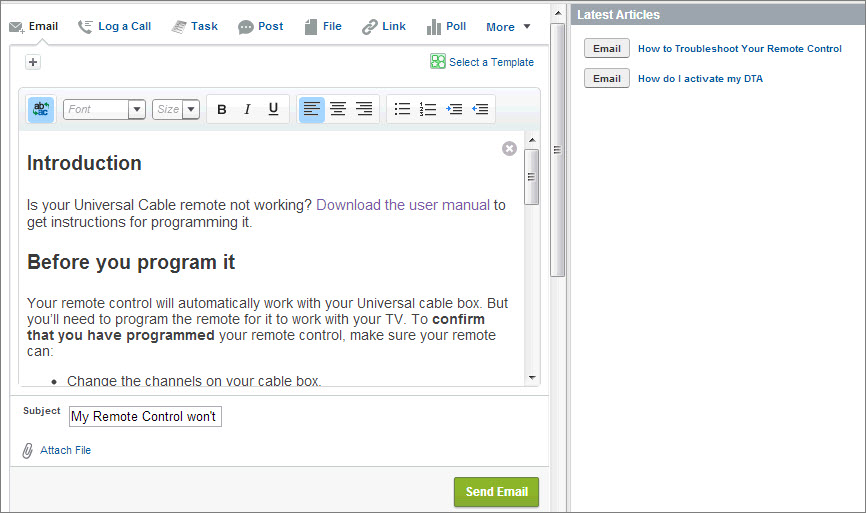
Code Sample
This code sample shows an Apex class containing a custom controller used by the Visualforce page below.
1swfobject.registerObject("clippy.codeblock-1", "9");public with sharing class KBController {
2   public List<FAQ__kav> articles {get; set;}
3
4    public KBController() {
5       articles = [select knowledgearticleid, id, title, content__c from FAQ__kav where
6      publishstatus = 'Online' and language='en_US' order by lastpublisheddate];
7   }
8}
This code sample shows the Visualforce page that’s used as the custom console component in the use case above.
1swfobject.registerObject("clippy.codeblock-2", "9");<apex:page sidebar="false" controller="KBController">
2   <script type='text/javascript' src='/canvas/sdk/js/publisher.js'/>
3   <style>
4      .sampleTitle { background-color: #99A3AC;color:#FFFFFF;font-size:1.1em;font-weight:
5      bold;padding:3px 6px 3px 6px; }
6      .sampleHeader { }
7      .sampleArticleList { min-width: 250px; padding: 8px 0 5px 0;}
8      .sampleUl { padding: 0; margin: 0; list-style: none;}
9      .sampleLi { display: block; position: relative; margin: 0;}
10      .sampleRow { min-height: 16px; padding: 4px 10px;}
11      .emailBtn { margin: 1px 1px 1px 3px; padding: 3px 8px; color: #333;
12         border: 1px solid #b5b5b5; border-bottom-color: #7f7f7f; background: #e8e8e9;
13         font-weight: bold; font-size: .9em; -moz-border-radius: 3px;
14         -webkit-border-radius: 3px; order-radius: 3px; }
15      .emailBtn:active { background-position: right -60px; border-color: #585858;
16         border-bottom-color: #939393; }
17      .sampleArticle { padding-left: 4px; padding-bottom: 2px; font-weight: bold;
18         font-size: 1em; color: #222; }
19      .sampleLink { color: #015ba7; text-decoration: none; font-weight: bold;
20         font-size: .9em; }
21   </style>
22   <script>
23      function emailArticle(content) {
24         Sfdc.canvas.publisher.publish({name: 'publisher.selectAction',
25         payload: { actionName: 'Case.Email'}});
26         Sfdc.canvas.publisher.publish({name: 'publisher.setActionInputValues',
27         payload: {
28            actionName: 'Case.Email',
29            emailFields: { body: { value:content, format:'richtext', insert: true}}
30         }});
31     }
32   </script>
33   <div style="margin-left:-10px;margin-right:-10px;">
34      <div class="sampleTitle">Latest Articles</div>
35      <div class="sampleHeader" style=""></div>
36      <div class="sampleArticleList">
37         <apex:repeat value="{!articles}" var="article">
38            <ul class="sampleUl">
39               <li class="sampleLi">
40                  <div class="sampleRow">
41                  <div style="display:none;" id="content_{!article.id}">
42                     <apex:outputText value="{!article.content__c}" escape="false"/>
43                  </div>
44                     <input type="button" title="Email" value="Email" class="emailBtn"
45                        onclick="emailArticle(document.getElementById('content_{!article.id}').innerHTML);"/>
46                           <span class="sampleArticle">
47                               <a href="/{!article.knowledgearticleid}" title="{!article.title}" class="sampleLink">
48                                  {!article.title}</a>
49                           </span>
50                  </div>
51               </li>
52            </ul>
53         </apex:repeat>
54      </div>
55   </div>
56</apex:page>