


Publisher APIs in Salesforce Classic
The Salesforce Classic Publisher JavaScript API lets your Visualforce pages and components interact with actions you’ve added to a record page in a Salesforce Classic app for objects that are feed-enabled. The Publisher API works in Salesforce Classic apps with standard navigation and console navigation. For example, you could develop a component that generates customized, pre-written text, adds that text to a new post in the Case Feed portal action, and submits the post to the portal, all with one click.
| Required Editions |
|---|
| Available in: Salesforce Classic (not available in all orgs) |
| Available in: Enterprise, Performance, Unlimited, and Developer Editions |
Use the publish method on the Sfdc.canvas.publisher object to allow console components to interact with quick actions.
Starting with API version 43.0 of the Salesforce Classic JavaScript Publisher API, the methods used in Visualforce components work in Lightning Experience. You can use Visualforce pages in Lightning Experience through custom quick actions, or by adding it to the page in the Lightning App Builder. Just point to the 43.0 version of the Publisher API script in your Visualforce pages.
1<script src="/canvas/sdk/js/43.0/publisher.js" type="text/javascript"></script>If you use the JavaScript Publisher API methods in custom code in a Lightning app, the targeted quick actions must be visible on the page. If you target an action that isn’t visible on the page, it fails.
Tip
publisher.selectAction
| Description | Payload Values | Available Versions |
|---|---|---|
| Selects the specified action and puts it in focus. | actionName—The action to select. Supported values are:
| Available in API versions 29.0 and later. |
- Code Sample
This code snippet selects the email action and puts it in focus.
Sfdc.canvas.publisher.publish({name:"publisher.selectAction",payload:{actionName:"Case.Email"}});
publisher.setActionInputValues
| Description | Payload Values | Available Versions |
|---|---|---|
| Specifies which fields on the action should be populated with specific values, and what those values are. | actionName—The action on which fields should be populated.The available field values depend on which action you specify.
| Available in API versions 29.0 and later. |
- Code Sample
This code snippet populates the fields on an email message with predefined values, and sets the status of the associated case to Closed.
1Sfdc.canvas.publisher.publish({name:"publisher.setActionInputValues",
2    payload:{actionName:"Case.Email",parentFields: {Status:{value:"Closed"}},
3    emailFields: {to:{value:"customer@company.com"},cc:{value:"customer2@company.com"},
4    bcc:{value:"supervisor@company.com"},
5subject:{value:"Your Issue Has Been Resolved"},
6    body:{value:"Thank you for working with our support department.
7        We've resolved your issue and have closed this ticket, but
8        please feel free to contact us at any time if you encounter this
9        problem again or need other assistance."}}}});
This code snippet inserts the phrase “Hello World” in the body of the Post action at the current cursor position.
1Sfdc.canvas.publisher.publish({name:"publisher.setActionInputValues", payload:{actionName:"FeedItem.TextPost", targetFields:{body:{value:"Hello World", insertType:"cursor"}}}});
publisher.invokeAction
| Description | Payload Values | Available Versions |
|---|---|---|
| Triggers the submit function (such as sending an email or posting a portal comment) on the specified action. | actionName—The action on which to trigger the submit function. Supported actions are:
| Available in API versions 29.0 and later. |
- Code Sample
This code snippet triggers the submit function on the email action, sending an email message and generating a related feed item.
Sfdc.canvas.publisher.publish({name:"publisher.invokeAction", payload:{actionName:"Case.Email"}});
publisher.customActionMessage
| Description | Payload Values | Available Versions |
|---|---|---|
| Passes a custom event to a custom action. Supported for Visualforce-based custom actions only. | actionName—The Visualforce custom action to pass the event to.message–The event to pass to the custom action. | Available in API versions 29.0 and later. |
- Code Sample
This code snippet passes the Hello world event to the action my_custom_action.
Sfdc.canvas.publisher.publish({name:"publisher.customActionMessage", payload:{actionName:"my_custom_action", message:"Hello world"}});This code snippet is what my_custom_action uses to listen to the Hello world event.
Sfdc.canvas.publisher.subscribe([{name : "publisher.customActionMessage", onData : function(e) {alert(e.message);}}]);
publisher.refresh
Refreshes the current record page. This method has no arguments.
Use Case and Sample Code
Example
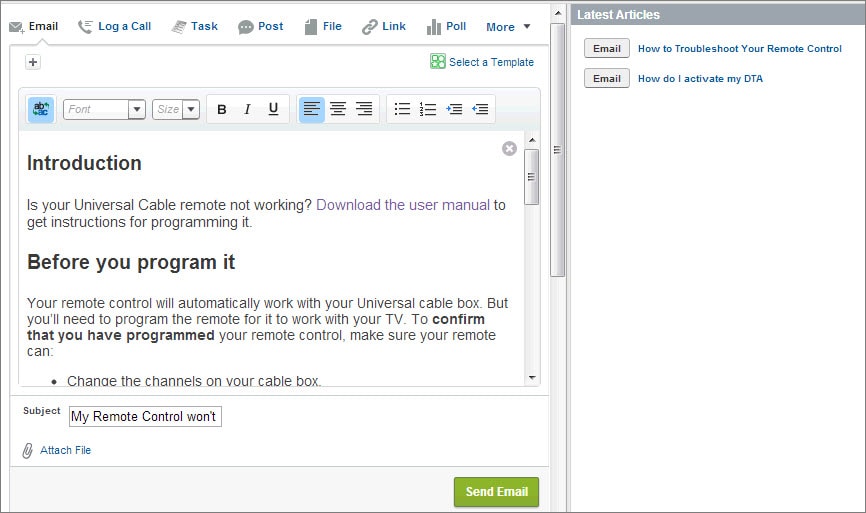
Universal Cable serves millions of phone and cable customers throughout the United States, with 4000 support agents in call centers of varying sizes around the country. Universal wanted to make it easy for agents to access the company’s extensive collection of articles in Salesforce Knowledge and share them with customers through email to help keep support costs in check.
Universal used the events on publish to create a custom console component that:
- Displays a list of Knowledge articles, from most recently published to oldest.
- Lets agents view an article by clicking its title.
- Lets agents add the full, formatted text of an article to a message in the Case Feed email action by clicking the Email button in the console component.
This code sample shows an Apex class containing a custom controller used by the Visualforce page below.
1public with sharing class KBController {
2   public List<FAQ__kav> articles {get; set;}
3
4    public KBController() {
5       articles = [select knowledgearticleid, id, title, content__c from FAQ__kav where
6      publishstatus = 'Online' and language='en_US' order by lastpublisheddate];
7   }
8}
This code sample shows the Visualforce page that’s used as the custom console component in the use case above.
1<apex:page sidebar="false" controller="KBController">
2 <script type='text/javascript' src='/canvas/sdk/js/publisher.js'/>
3 <style>
4 .sampleTitle { background-color: #99A3AC;color:#FFFFFF;font-size:1.1em;
5 font-weight: bold;padding:3px 6px 3px 6px; }
6 .sampleHeader { }
7 .sampleArticleList { min-width: 250px; padding: 8px 0 5px 0;}
8 .sampleUl { padding: 0; margin: 0; list-style: none;}
9 .sampleLi { display: block; position: relative; margin: 0;}
10 .sampleRow { min-height: 16px; padding: 4px 10px;}
11 .emailBtn { margin: 1px 1px 1px 3px; padding: 3px 8px; color: #333;
12 border: 1px solid #b5b5b5; border-bottom-color: #7f7f7f; background: #e8e8e9;
13 font-weight: bold; font-size: .9em; -moz-border-radius: 3px;
14 -webkit-border-radius: 3px; order-radius: 3px; }
15 .emailBtn:active { background-position: right -60px; border-color: #585858;
16 border-bottom-color: #939393; }
17 .sampleArticle { padding-left: 4px; padding-bottom: 2px; font-weight: bold;
18 font-size: 1em; color: #222; }
19 .sampleLink { color: #015ba7; text-decoration: none; font-weight: bold;
20 font-size: .9em; }
21 </style>
22 <script>
23 function emailArticle(content) {
24 Sfdc.canvas.publisher.publish({name: 'publisher.selectAction',
25 payload: { actionName: 'Case.Email'}});
26 Sfdc.canvas.publisher.publish({name: 'publisher.setActionInputValues',
27 payload: {
28 actionName: 'Case.Email',
29 emailFields: { body: { value:content, format:'richtext', insert: true}}
30 }});
31 }
32 </script>
33 <div style="margin-left:-10px;margin-right:-10px;">
34 <div class="sampleTitle">Latest Articles</div>
35 <div class="sampleHeader" style=""></div>
36 <div class="sampleArticleList">
37 <apex:repeat value="{!articles}" var="article">
38 <ul class="sampleUl">
39 <li class="sampleLi">
40 <div class="sampleRow">
41 <div style="display:none;" id="content_{!article.id}">
42 <apex:outputText value="{!article.content__c}" escape="false"/>
43 </div>
44 <input type="button" title="Email" value="Email" class="emailBtn"
45 onclick="emailArticle(document.getElementById
46 ('content_{!article.id}').innerHTML);"/>
47 <span class="sampleArticle">
48 <a href="/{!article.knowledgearticleid}"
49 title="{!article.title}" class="sampleLink">
50 {!article.title}</a>
51 </span>
52 </div>
53 </li>
54 </ul>
55 </apex:repeat>
56 </div>
57 </div>
58</apex:page> j
j