


Force.com Platform Fundamentals
 j
j
No Results
Search Tips:
- Please consider misspellings
- Try different search keywords
Look at What We've Done
- Click the Job Applications tab, and select a job application record.
- Click Edit, and change Status to Rejected.
- Click Save.
The Send Rejection Letter task automatically appears in the Open Activities related list on the Job Application detail page, as shown in the following screenshot.
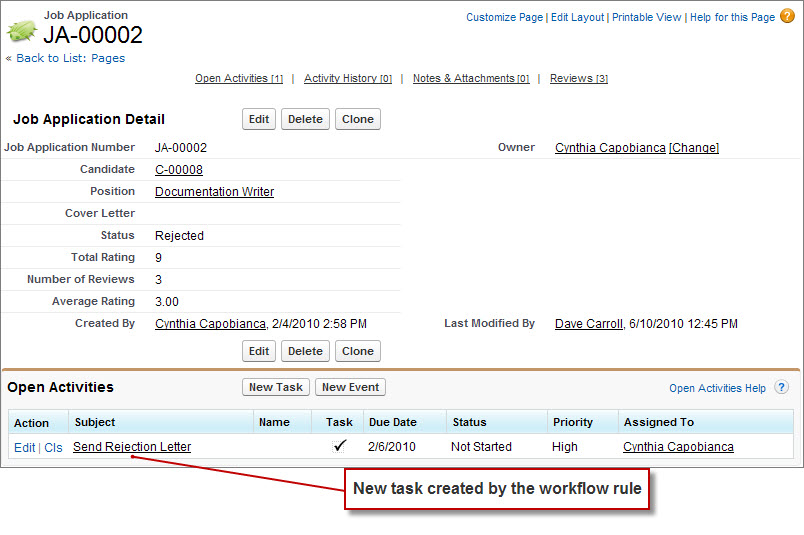
Pretty neat, don't you think? Not only that, but if you check in the recruiter's email inbox, he should have received an automatically-generated email notification that looks like the following:
1Jane Smith has assigned you a new task:
2Subject: Send Rejection Letter
3Job Application: JA-00002
4Due Date: 8/29/2013
5Priority: High
6
7For more details, click the following link:
8https://na1.salesforce.com/00Tx04123s5k1
The link in the email message takes the recruiter directly to the task detail page, where he or she can locate the contact information of the candidate and update the task status after the task is completed. The task also shows up in the My Tasks area on the recruiter's Home tab, and a reminder message will pop up in another day if the recruiter hasn't yet changed the task's status to “Completed.” Suddenly, our Recruiting app has become a lot more interactive and powerful!