ISVforce Guide
 j
j
No Results
Search Tips:
- Please consider misspellings
- Try different search keywords
Newer Version Available
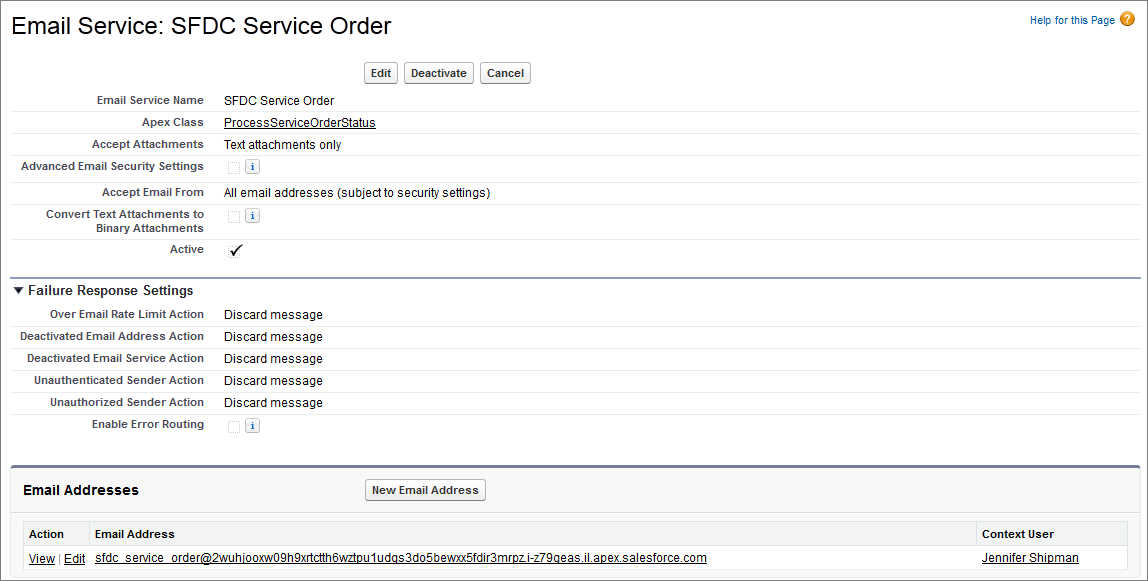
Configure the Channel Order App: Define a New Email Service
The first step in configuring the Channel Order App is
defining a new Email Service.
- From Setup, click .
- On the Email Service Information page, enter the following:
- Email Service Name: SFDC Service Order
- Apex Class: ProcessServiceOrderStatus
- Accept Attachments: Text attachments only
- Active (selected)
Click Save and New Email Address.

- On the Email Address Information page, enter the following:
- Email Address: SFDC_Service_Order (auto-populated)
- Active (selected)
- Context User: select a Salesforce admin user
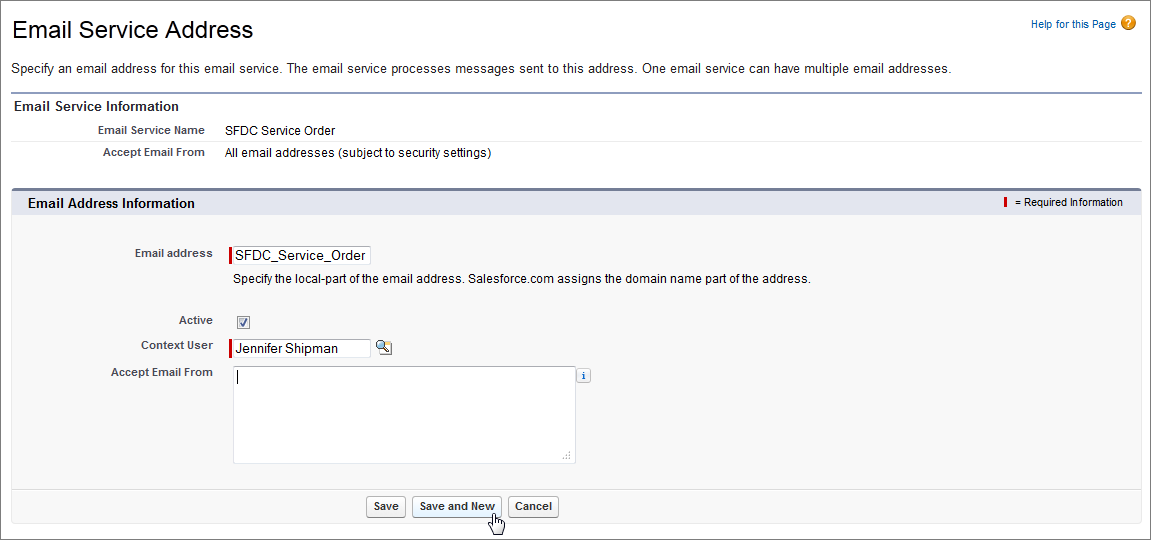
- Click Save or Save and
New.