


Salesforce1 App Developer Guide
 j
j
No Results
Search Tips:
- Please consider misspellings
- Try different search keywords
Test Out Calling the Action from the API
Now we’ll test out the code that calls the action
and adds a delivery record in the Salesforce1 app.
- From your mobile device, tap
 to access the publisher.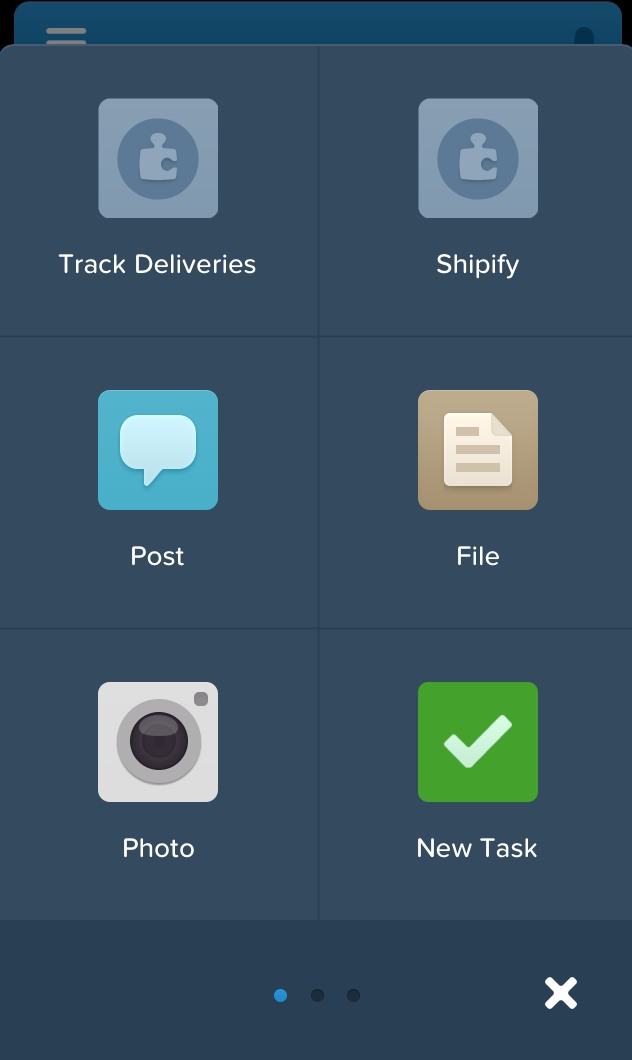
- Tap Shipify.A list of all open invoices along with the customer information appears.
- Tap one of the invoices. A screen appears that shows the
total amount of the invoice and a Ship It button.
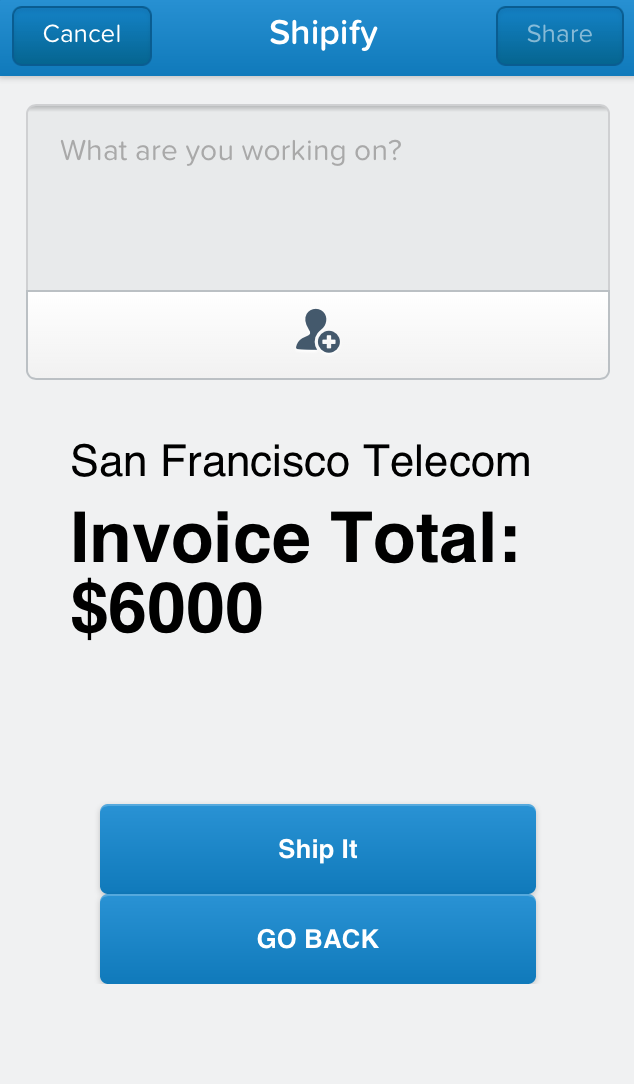
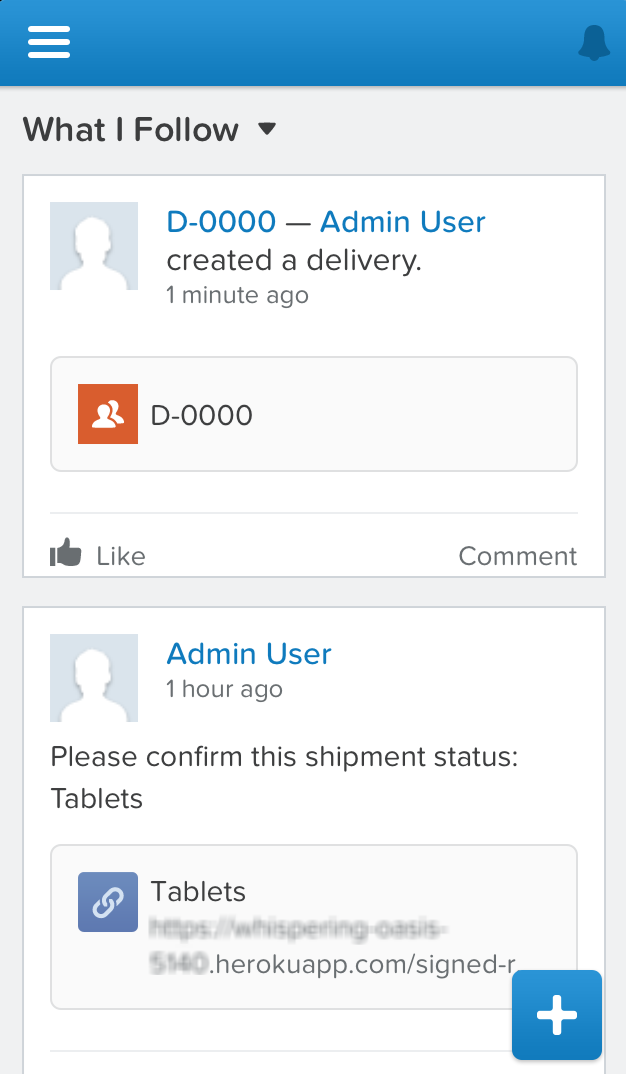
- Tap Ship It.This kicks off order processing in the Shipify Web application. Shipify sets the invoice status to Closed and creates a feed item for the account. But now, a delivery record is also created for the invoice. After the order is shipped, you’ll see a confirmation screen.
- Tap Cancel.In the feed, you’ll see the new delivery record
- To see the closed invoice, tap
 and then tap Accounts.
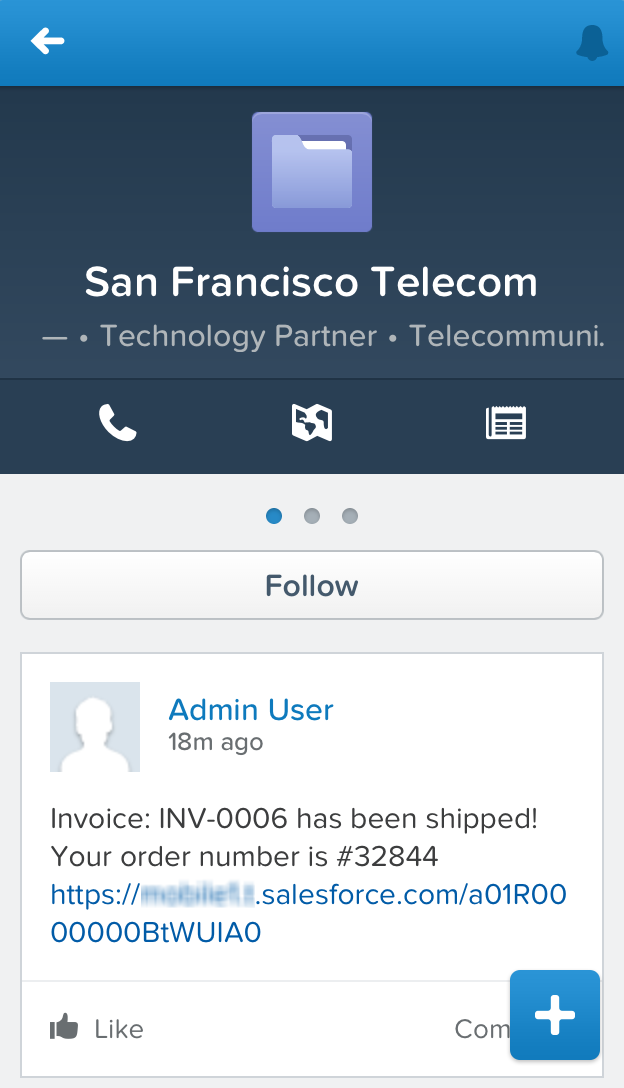
 - Tap the account for the shipped order and swipe to the
first indicator page. You’ll see a feed item that lets the
user know the order has been shipped.
Voila! You’ve now gone through the process of updating the Shipify Web application to make a REST API call to invoke the action that you created.