


Salesforce1 App Developer Guide
 j
j
No Results
Search Tips:
- Please consider misspellings
- Try different search keywords
Test Out the Object-Specific Action
When you create an action, assign it to a page layout, and customize its action layout, as we did, the changes are reflected in Salesforce1 immediately.
- Open the Salesforce1 app on your mobile device.
- Tap
 to access the navigation menu.
 - In the Recent section, tap Accounts.
- Tap Barbary Coast Wireless.
- Tap
 .Our Create a Case action is the first action in the publisher.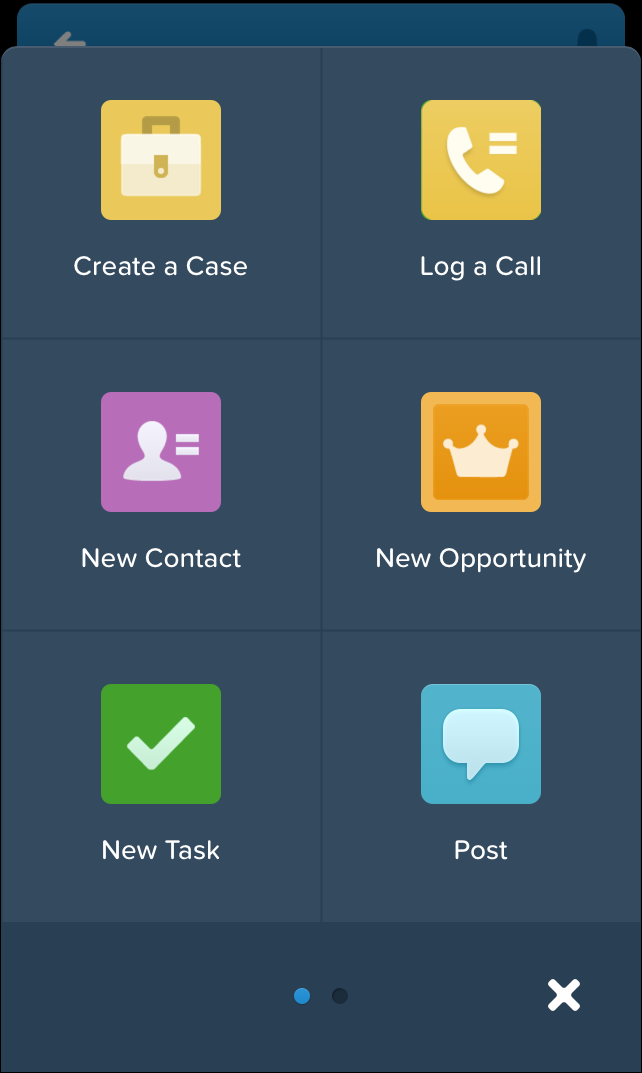
- Tap the Create a Case action.
- Tap the Contact Name field.
- Tap Lloyd Benjamin to assign him to the case.
- Leave its status as New.
- Assign the case a low priority.
- Tap Product, and select the first one on the list.
- Enter a subject and description.
- Tap Submit.
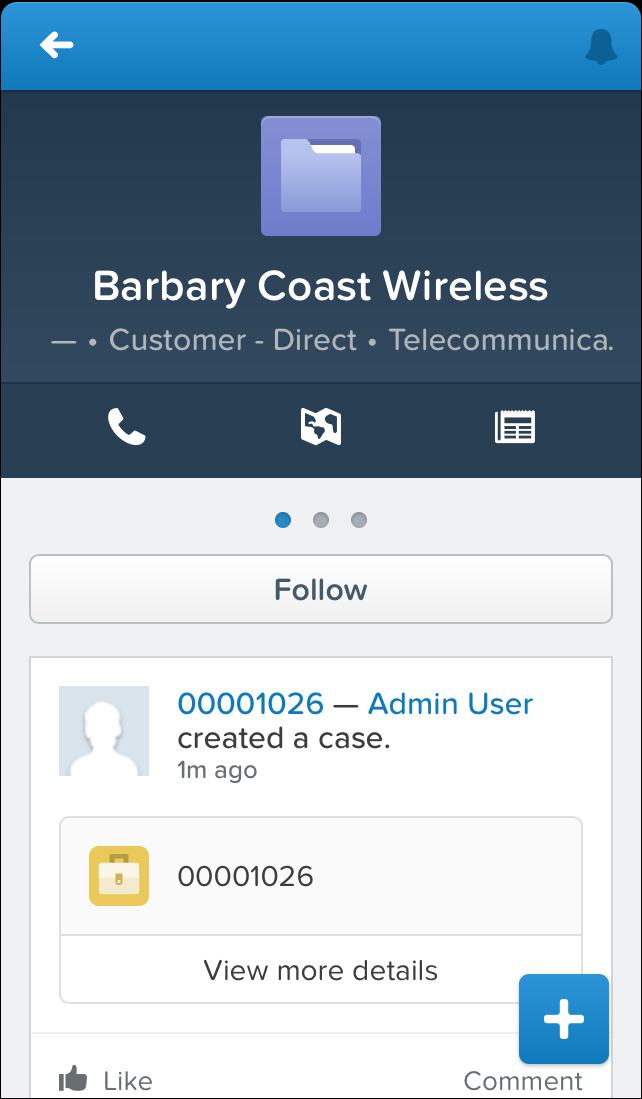
OK, we’re back on the account record detail page. Swipe right to get to the feed page, and you should see a new feed item for the case you just created.
Nice work!