


Lightning Components Developer’s Guide
 j
j
No Results
Search Tips:
- Please consider misspellings
- Try different search keywords
Newer Version Available
Create an Expense Object
Create an expense object to store your expense records
and data for the app.
- From Setup, click .
- Click New Custom Object.
- Fill in the custom object definition.
- For the Label, enter Expense.
- For the Plural Label, enter Expenses
- Click Save to finish creating your
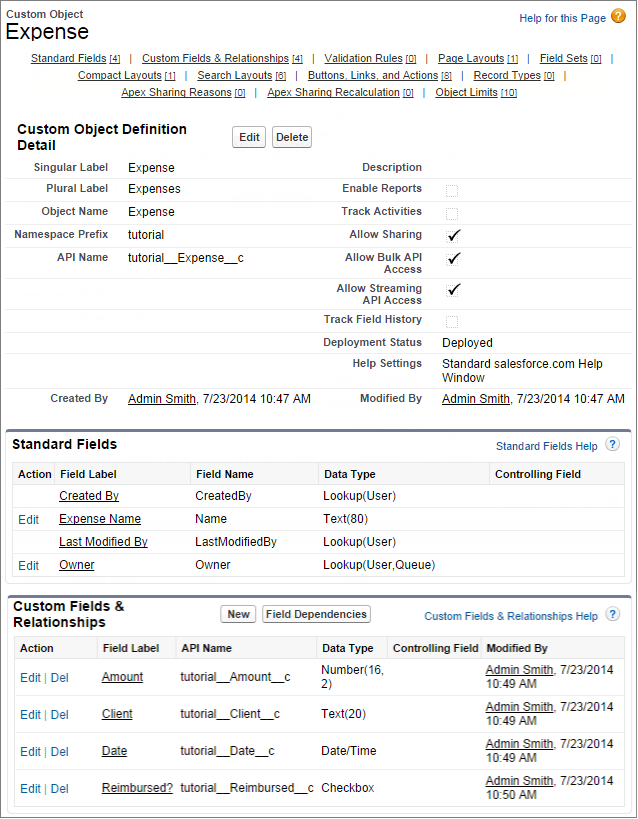
new object. The Expense detail page is displayed.Check that the API Name for your object is namespace__Expense__c, where namespace corresponds to your registered namespace prefix.
- On the Expense detail page, add the following custom fields.
Field Type Field Label Number(16, 2) Amount Text (20) Client Date/Time Date Checkbox Reimbursed? When you finish creating the custom object, your Expense definition detail page should look similar to this.
- Create a custom object tab to display your expense records.
- From Setup, click .
- In the Custom Object Tabs related list, click New to launch the New Custom Tab wizard.
- For the Object, select Expense.
- For the Tab Style, click the lookup icon and select the Credit Card icon.
- Accept the remaining defaults and click Next.
- Click Next and Save to finish creating the tab.You should now see a tab for your Expenses at the top of the screen.
- Create a few expense records.
- Click the Expenses tab and click New.
- Enter the values for these fields and repeat for the
second record.
Expense Name Amount Client Date Reimbursed? Lunch 20 4/1/2014 12:00 PM Unchecked Dinner 40.80 ABC Co. 4/2/2014 7:00 PM Checked