


Lightning Components Developer’s Guide
 j
jNewer Version Available
Create an Expense Object
Create an expense object to store your expense records
and data for the app.
You’ll need to create this object if you’re following the tutorial at Create a Standalone Lightning App.
- From Setup, click .
- Click New Custom Object.
-
Fill in the custom object definition.
- For the Label, enter Expense.
- For the Plural Label, enter Expenses
-
Click Save to finish creating your
new object. The Expense detail page is displayed.
-
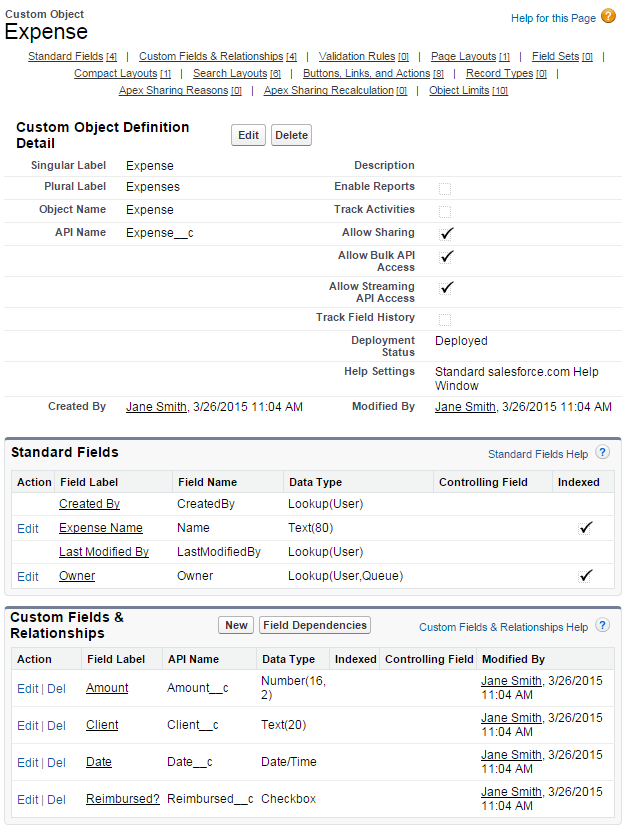
On the Expense detail page, add the following custom fields.
Field Type Field Label Number(16, 2) Amount Text (20) Client Date/Time Date Checkbox Reimbursed? When you finish creating the custom object, your Expense definition detail page should look similar to this.
-
Create a custom object tab to display your expense records.
- From Setup, click .
-
In the Custom Object Tabs related list, click New to launch the New Custom Tab wizard.
- For the Object, select Expense.
- For the Tab Style, click the lookup icon and select the Credit Card icon.
- Accept the remaining defaults and click Next.
-
Click Next and Save to finish creating the tab.You should now see a tab for your Expenses at the top of the screen.
-
Create a few expense records.
- Click the Expenses tab and click New.
-
Enter the values for these fields and repeat for the
second record.
Expense Name Amount Client Date Reimbursed? Lunch 21 4/1/2015 12:00 PM Unchecked Dinner 70 ABC Co. 3/30/2015 7:00 PM Checked