AJAX Toolkit Developer's Guide
 j
jNewer Version Available
Sample Visualforce Page Using the AJAX Toolkit
This example demonstrates using the AJAX Toolkit in a Visualforce page.
To add JavaScript to an Visualforce page, use the following procedure:
- Create the Visualforce page. For more information on this, see the Visualforce Developer's Guide.
- Cut and paste the following sample code into your Visualforce page.
The JavaScript code queries your organization and returns every account ID, account name, and industry type, if any:
1swfobject.registerObject("clippy.codeblock-0", "9");
2
3
4
5
6
7
8
9
10
11
12
13
14
15
16
17<apex:page >
18    <script type="text/javascript">
19    var __sfdcSessionId = '{!GETSESSIONID()}';
20    </script>
21    <script src="../../soap/ajax/34.0/connection.js"
22          type="text/javascript"></script>
23    <script type="text/javascript">     window.onload = setupPage;
24    function setupPage() {
25      //function contains all code to execute after page is rendered
26
27      var state = { //state that you need when the callback is called
28          output : document.getElementById("output"),
29          startTime : new Date().getTime()};
30
31      var callback = {
32          //call layoutResult if the request is successful
33          onSuccess: layoutResults,
34
35          //call queryFailed if the api request fails
36          onFailure: queryFailed,
37          source: state};
38
39      sforce.connection.query(
40          "Select Id, Name, Industry From Account order by Industry",
41           callback);
42  }
43
44  function queryFailed(error, source) {
45    source.output.innerHTML = "An error has occurred: " + error;
46  }
47
48  /**
49  * This method will be called when the toolkit receives a successful
50  * response from the server.
51  * @queryResult - result that server returned
52  * @source - state passed into the query method call.
53  */
54  function layoutResults(queryResult, source) {
55    if (queryResult.size > 0) {
56      var output = "";
57
58      //get the records array
59      var records = queryResult.getArray('records');
60
61      //loop through the records and construct html string
62      for (var i = 0; i < records.length; i++) {
63        var account = records[i];
64
65        output += account.Id + " " + account.Name +
66            " [Industry - " + account.Industry + "]<br>";
67      }
68
69    //render the generated html string
70    source.output.innerHTML = output;
71    }
72  }
73  </script>
74
75    <div id="output"> </div>
76
77</apex:page>
78
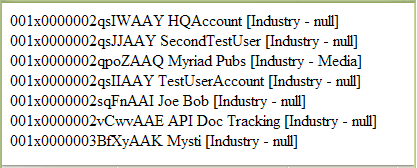
After creating and navigating to the aboveVisualforce page, you should see text similar to this image: