


Force.com Platform Fundamentals
 j
jNewer Version Available
Try It Out: Create Approval Actions
Now that we've finished defining our approval process steps, we're nearly done. All that remains is to specify the approval actions that should occur whenever a record is initially submitted, or when it's finally approved or rejected.
Just like workflow actions, approval actions allow you to create and assign tasks, update fields, and send email updates and outbound messages. They can be associated with the approval process as a whole or with individual approval steps.
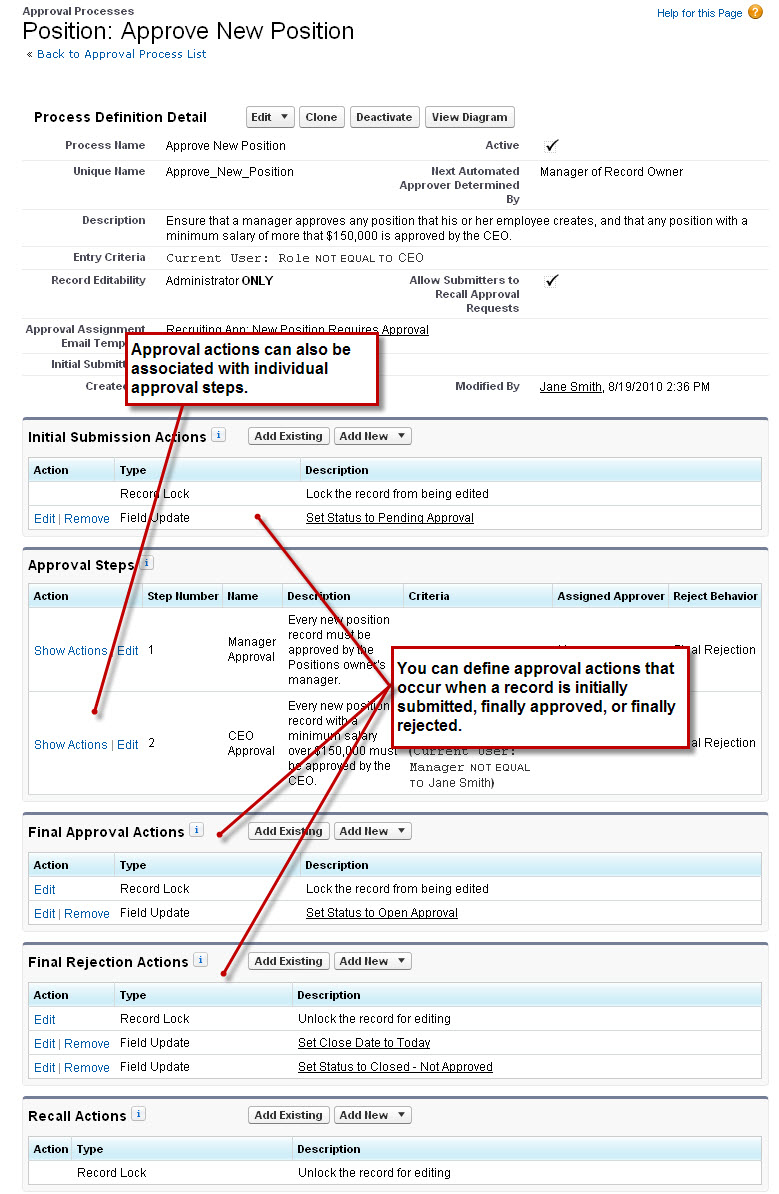
Because defining an approval action is almost identical to the way we created workflow actions, we'll quickly step through the process of updating the Status field to Pending Approval when a position is initially submitted and then leave our other approval actions as exercises.
- If you're not on the approval process detail page already, from Setup, click , and then click Approve New Position.
- In the Initial Submission Actions related list, click Add New, and select Field Update.
Does the New Field Update Action page look familiar? That's because we've seen it before—all approval tasks, field updates, email alerts, and outbound messages use the same editing interface as workflow actions. In fact, every workflow and approval action that you create can be used interchangeably on both workflow and approval processes.
- In the Name field, enter Set Status to Pending Approval.
- In the Description field, enter While a position is in an approval process, its status should be set to Pending Approval.
- In the Field to Update drop-down list, select Status.
- In the Picklist Options area, select A specific value and choose Pending Approval from the list.
- Click Save.
Now, to finish up the rest of the approval process, define the remaining approval actions on your own according to the values in the following table.
| Category | Type | Values |
|---|---|---|
| Final Approval Actions | Field Update | Name: Set Status to Open Approved Field to Update: Status A specific value: Open - Approved |
| Final Rejection Actions | Field Update | Name: Set Status to Closed - Not Approved Field to Update: Status A specific value: Closed - Not Approved |
| Final Rejection Actions | Field Update | Name: Set Close Date to Today Field to Update: Close Date Use a formula to set the new value: TODAY() |