


Force.com Platform Fundamentals
 j
jNewer Version Available
Look At What We've Done
As we've seen, approval processes are inherently complex and take a bit of work to set up. You have to walk through multiple screens and set several parameters, making it difficult to visualize and understand the approval process holistically.
Fortunately, the Force.com platform has a Process Visualizer that renders each approval process as a flowchart. The flowchart contains all of the critical details for each approval process, including the steps necessary for a record to be approved, the designated approvers for each step, the criteria used to trigger the approval process, and the actions that take place when a record is approved, rejected, recalled, or first submitted for approval.
To access the Process Visualizer, click the View Diagram button at the top of any approval process detail page.
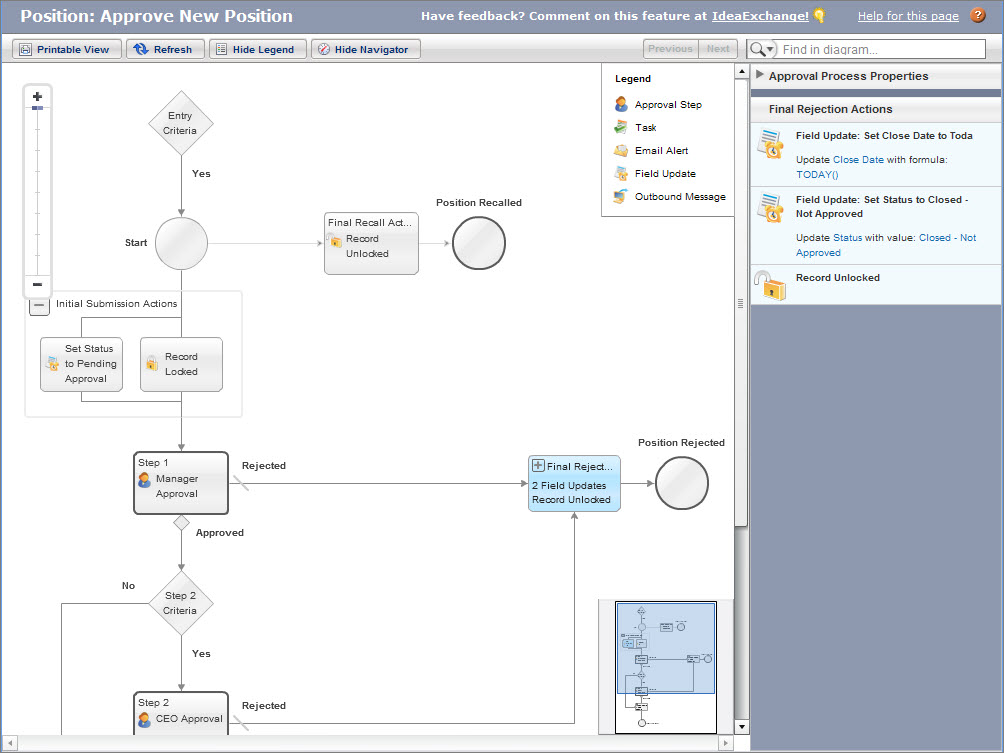
Now let's test our approval process:
- From Setup, click and edit the user record for your Recruiting Manager to fill in the Manager field so the approval chain is properly set up. Set Phil Katz’s manager to Amy Lojack (the Product Manager).
- Log in to your app as Phil Katz, and create a new position.
Notice that after clicking Save, the detail page displays a Submit for Approval button in the new Approval History related list.

- Click Submit for Approval and then click OK.
Clicking the Submit for Approval button causes several things to happen. First, the record is locked from editing, as shown by the lock icon at the top of the page. Additionally, two new entries appear in the Approval History related list showing who submitted the record and the current approval assignment. Finally, the manager of the position owner receives an email reporting that there's a new position to approve.
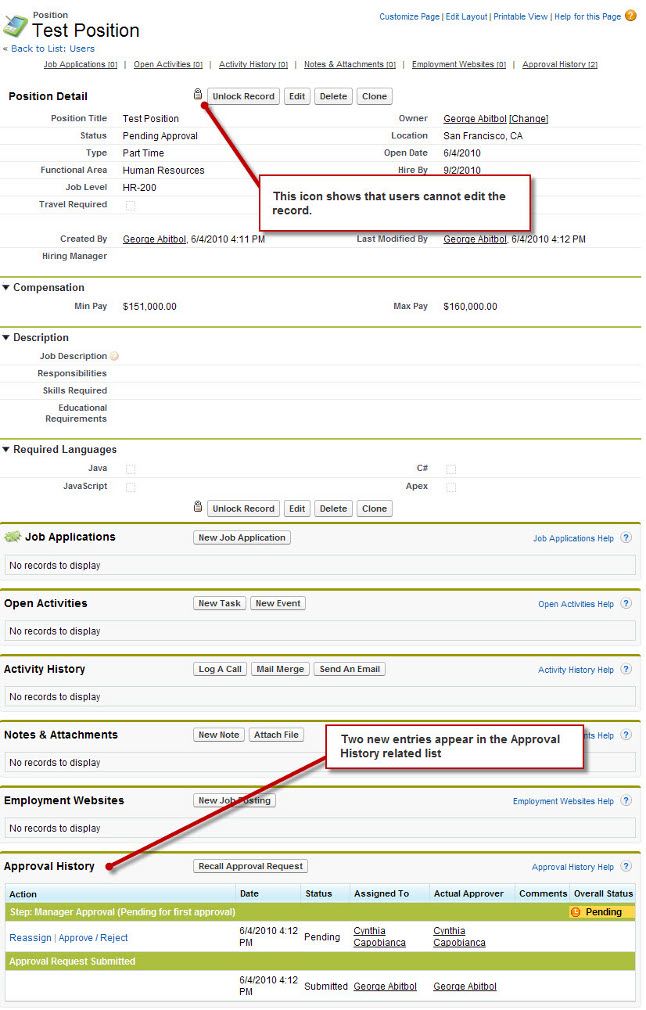
- Log in as Amy Lojack, the direct manager who is responsible for approving the request.
- Click Approve/Reject in the Approval History related list on the record, enter any optional comments, and then click Approve.
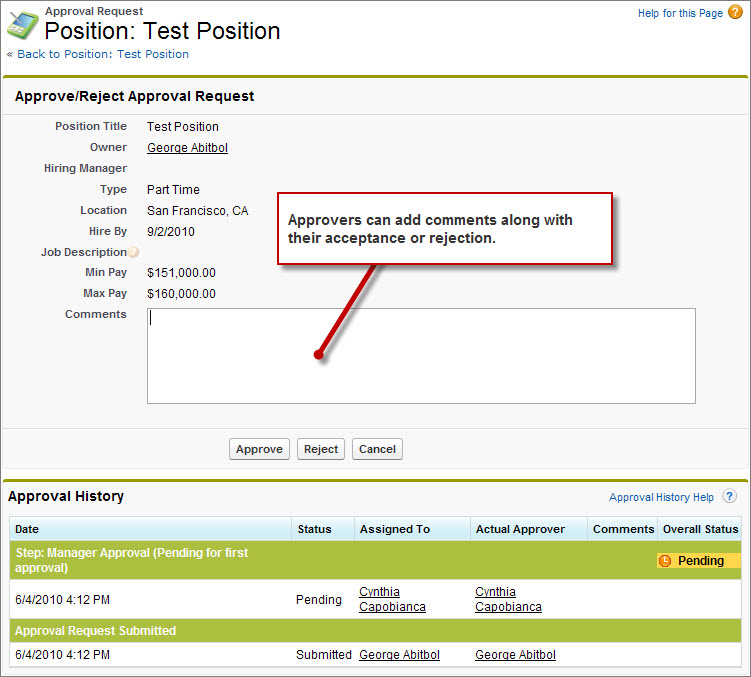
If the approver accepts the record, it progresses to the next step of the approval process (if its Min Pay field is greater than $150,000 and the CEO still hasn't approved it), or else the position's Status field is set to Open - Approved. The record details remain locked to protect them from being changed, but recruiters can still associate the position with job applications, tasks, or other activities. If the record is rejected, its status is set to Closed - Not Approved, the Close Date field is set to today's date, and the record is unlocked in case it just needs a simple edit before it reenters the approval process. With just a few minutes of work, we've built an effective business process that will make all of Universal Containers' users more effective.