Salesforce1 Mobile App Admin Guide
 j
jSalesforce1 Mobile App Offline Access
| Available in: All editions except Database.com |
Offline access is enabled the first time a user in your organization installs one of the Salesforce1 downloadable apps. You can manage this setting in Setup, from .
With offline access turned on, the app automatically caches a user’s most recently accessed records for the objects listed in the Recent section of the Salesforce1 navigation menu, and a user’s recent dashboards. Recently accessed records are determined by a user’s activities in both the mobile app and the full Salesforce site. In addition, the app caches much of the data that a user accesses during a Salesforce1 session.
Cached data is encrypted and stored in a secure, persistent data store.
This table lists the data and Salesforce1 elements that are available offline.
| Salesforce1 Element | Available for Offline Use |
|---|---|
| Navigation Menu | Yes |
| Global Search | Previous searches only |
| Notifications | Previously viewed only |
| Feeds, Groups, and People | Previously viewed only |
| Salesforce Today | Main page and mobile event records if previously view |
| Salesforce Events | Previously viewed only |
| Recent Objects | Yes (top five) |
| Other Objects | No |
| Record Details | Yes (30 most recent records) |
| Related Records | Previously viewed only |
| List Views | Previously viewed only |
| Tasks | Only tasks from the first page of the My Tasks list (up to 10 tasks), and only if the list was previously viewed or after the user manually updates the cache |
| Dashboards | Yes (top five) |
| Approvals (submit, approve, or reject) | No |
| Visualforce pages | No |
| Canvas Apps | No |
| Lightning Pages | No |
| Settings | Yes |
Cached data is refreshed when a user switches to Salesforce1. If a user switches to another app, the user’s cached data is automatically refreshed if the existing data store is over one hour old.
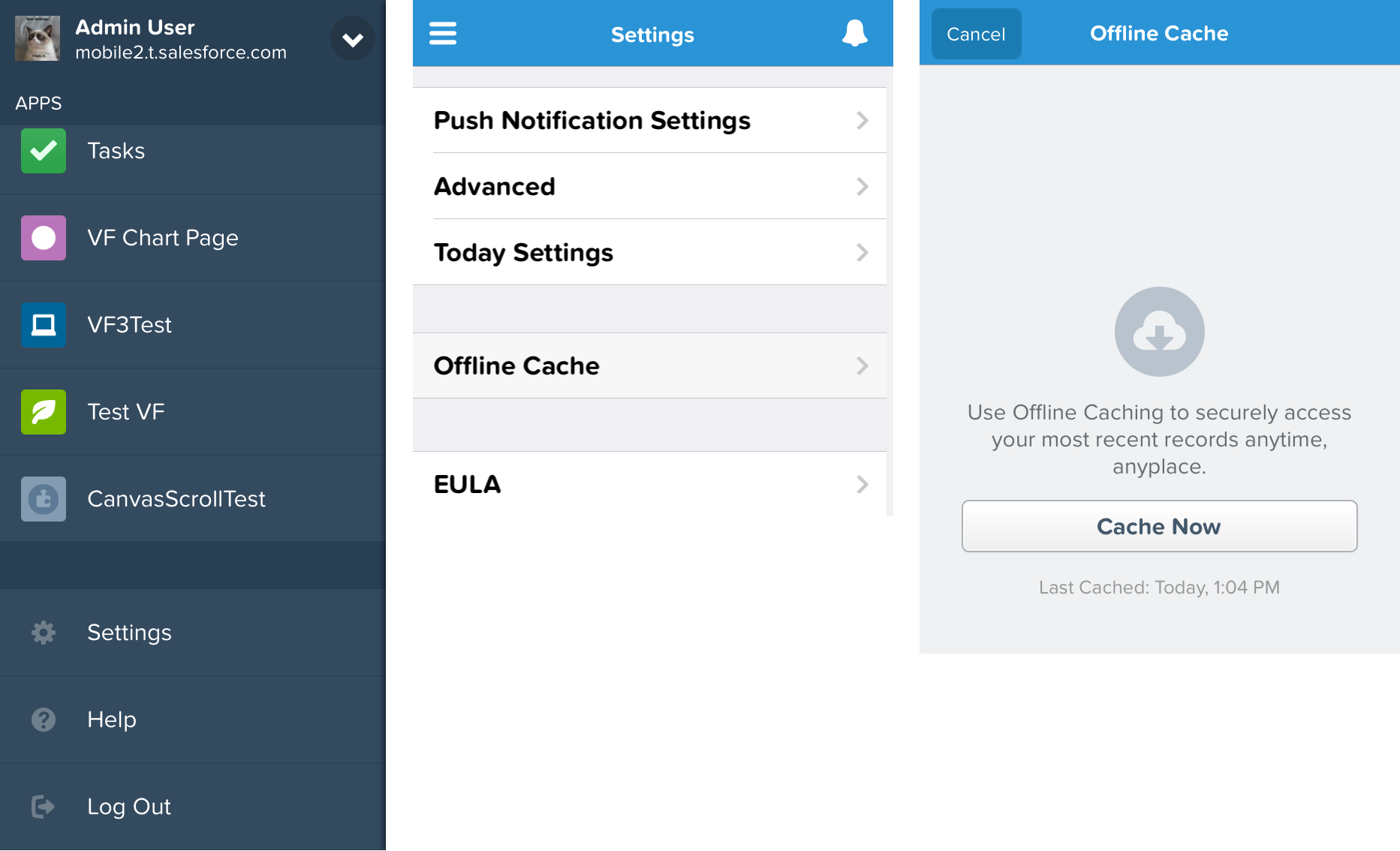
Users can manually cache their data at any time—for example, before switching into airplane mode or entering an area with no service. From the Salesforce1 navigation menu, select .