Salesforce1 Mobile App Developer Guide
 j
jWhen to Use the Navigation Menu or the Action Bar
- Navigation menu
-
The navigation menu appears when you tap
 . This menu
is available in the global context. For example, if users log in and are viewing items in the
feed, they can tap and open the navigation menu, and it displays menu items. Typically, these
menu items lead to more complex business processes that don’t take place in the context
of any particular object.
. This menu
is available in the global context. For example, if users log in and are viewing items in the
feed, they can tap and open the navigation menu, and it displays menu items. Typically, these
menu items lead to more complex business processes that don’t take place in the context
of any particular object. Menu items in the navigation menu should bring users to a fully functional page or app. So if you have a page or app that contains many fields through which the user would need to scroll and perform a more complex process, you’ll want to make your page or app available from the navigation menu.
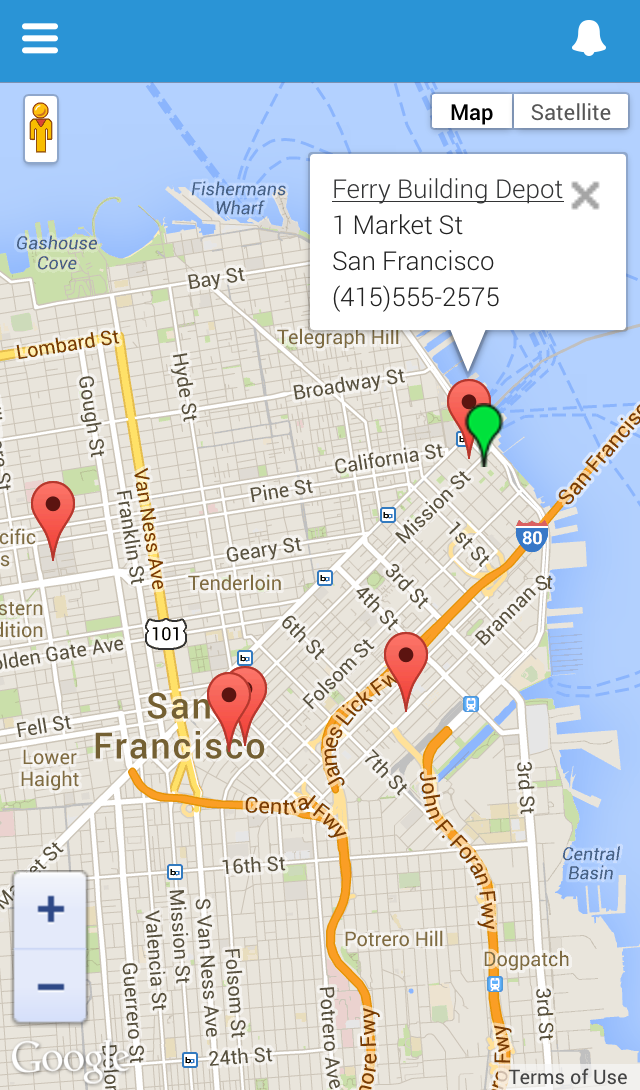
An example from this book is the Find Warehouses Visualforce page that we made available from the navigation menu in Extending Salesforce1 with Visualforce Pages. When the mobile technician taps the menu item, a page appears that contains a Google map and displays any nearby warehouses. The functionality of this page is global—not in the context of any particular object in our schema.
- Action Bar
-
The action bar and its action menu appear on all pages that support actions The action bar is for accessing custom functionality that displays small amounts of data and allows users to perform short, quick actions. If you have functionality that occurs in the context of an object, you’ll want to add it as an action in the action bar.
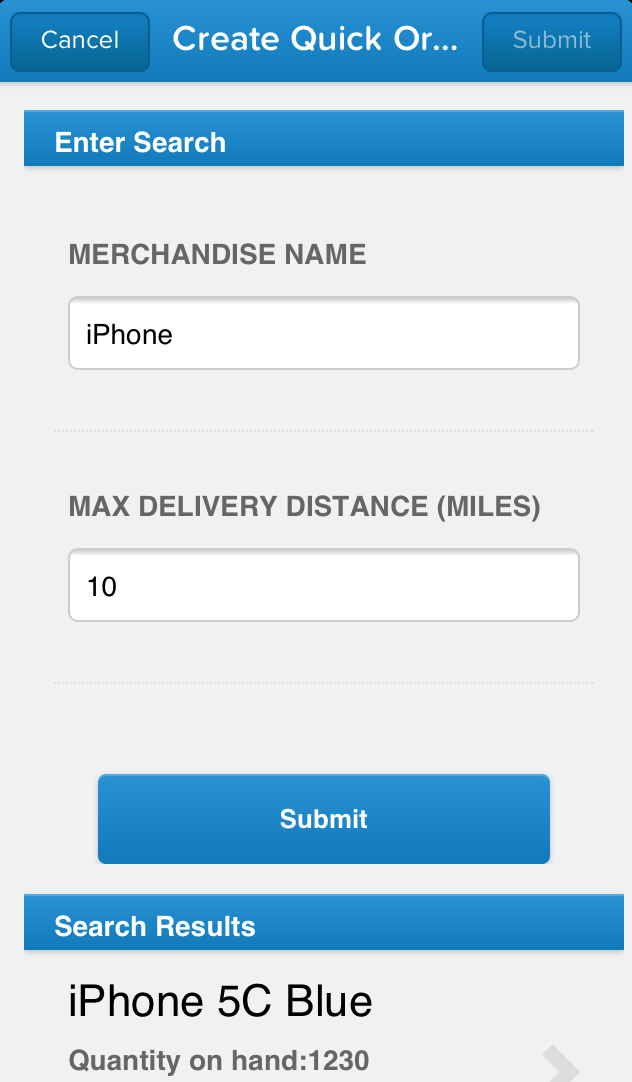
An example from this book is the Create Quick Order action, available from the action bar within a customer account. While the mobile technicians are servicing a customer account, they can tap the action and then enter in just the merchandise name and distance to find warehouses with a part in stock. Then the technicians enter the quantity and a customer order is created. The functionality of this Visualforce page occurs within the context of a customer account. The user interaction with the page is quick, and it’s a simple process to search and create an order because the action contains only a few fields.