Force.com IDE Developer Guide
 j
jApex Test Results View
- Select (
 ).
). - Select the Test tab.
- Add tests to your run configuration.
- To add a test class or test method, click one of the Search buttons. To select a method, first select the class that contains that method.
- To create a run of test suites:
- Select Use suites.
- Select one or more test suites.
- Click Apply.
- To execute the selected test run configuration, click Run.

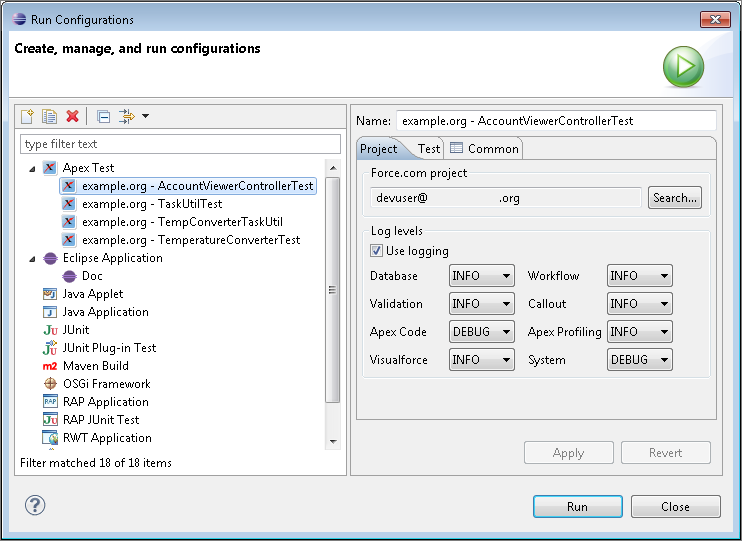
To set log levels for an Apex test run, use your run configuration’s Project tab. Logging settings in your project’s properties apply only when you’re deploying code.
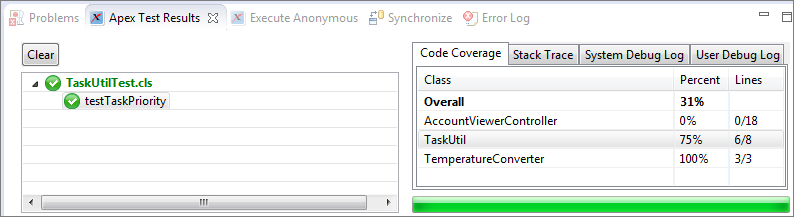
After a test run, the Apex Test Runner view displays results. The left pane displays test results for each class and method in the test run. The right pane displays code coverage, the stack trace, system debug logs, and user debug logs. Make sure that your code has better coverage than the code in this sample org!
To view code coverage highlighting, double-click a class name in the Apex Test Results pane’s Code Coverage list. Lines that aren’t covered by your unit tests are highlighted. Unlike the Developer Console, which color-codes both covered and uncovered lines, the Force.com IDE highlights only the lines of code that still need coverage.

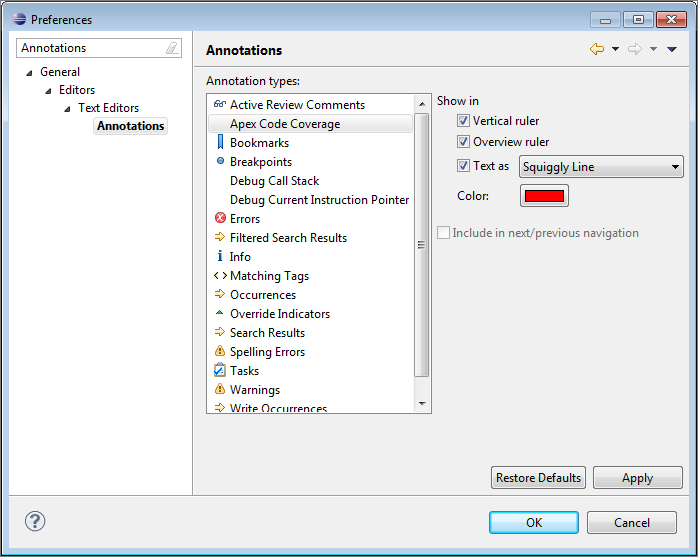
To change the color for your uncovered code or to replace the highlighting with squiggly underlining, select . Enter Annotations in the filter text box, then select . Make your desired changes, and then click Apply.