


ISVforce Guide
 j
jNewer Version Available
Enable the Channel Order App for Non-Admin Users
To make the Channel Order App accessible to users without
admin permissions, modify the custom profile for those users.
You must have admin access to modify profiles.
- From Setup, enter Profiles in the Quick Find box, then select Profiles and find the custom profile you want to modify.
- Click the profile name. On the Profile Detail page, click Edit.
-
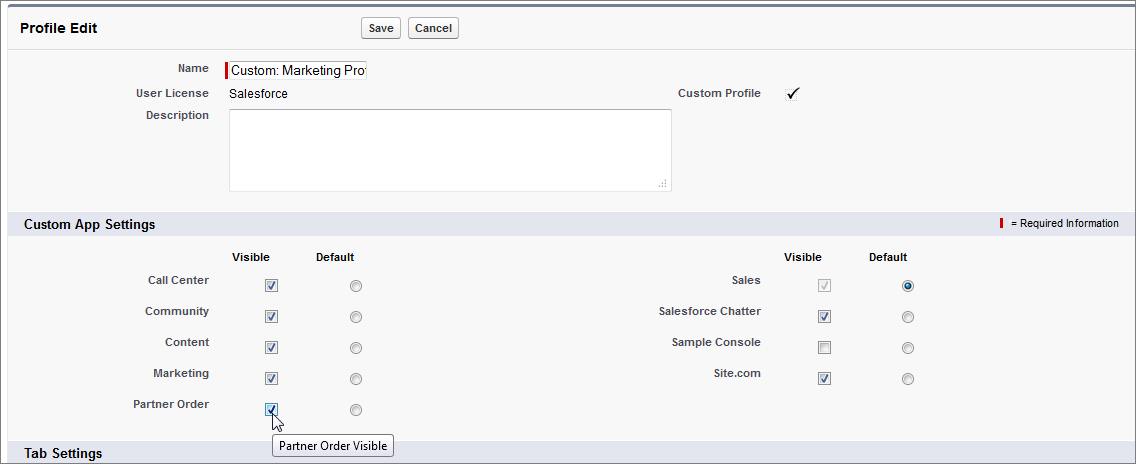
Under Custom App Settings, find Partner Order and select
the checkbox in the Visible column.
-
Under Custom Tab Settings, set the Partner Order custom
tabs as follows:
- Orders: Default On
- Partner Contract Terms: Default On
- Partner Product Catalog: Default On
- Service Order Credentials: Tab Hidden
- Service Order Detail: Tab Hidden
- Service Orders: Tab Hidden

-
Under Custom Object Permissions, set the following access
options:
- Customers: Read, Create, and Edit
- Partner Contract Terms: Read
- Partner Product Catalog: Read
- Service Orders: Read, Create, and Edit
- Service Order Detail: Read, Create, and Edit
- Click Save.
- Back on the Profile Detail page, scroll down to Enable Apex Class Access and click Edit.
-
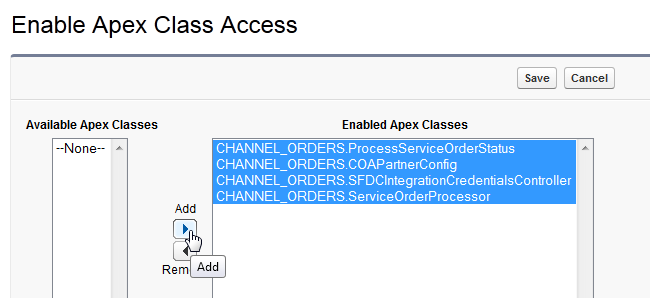
On the Enable Apex Class Access page, select all the classes
under Available Apex Classes that begin with “CHANNEL_ORDERS”
and click Add to move them to Enabled Apex
Classes. Click Save.
- On the Profile Detail page, scroll to Enable Visualforce Page Access and click Edit.
- On the Enable Visualforce Page Access page, select all the pages under Available Visualforce Pages that begin with “CHANNEL_ORDERS” and click Add to move them to Enabled Visualforce Pages. Click Save.
-
Back on the Profile Detail page, scroll to the Field-Level
Security: Custom Field-Level Security section and complete the steps
below for each of the following items:
- Customer
- Partner Contract Terms
- Partner Product Catalog
- Service Order
- Service Order Details
-
Click View to open the field
list.

- Click Edit.
-
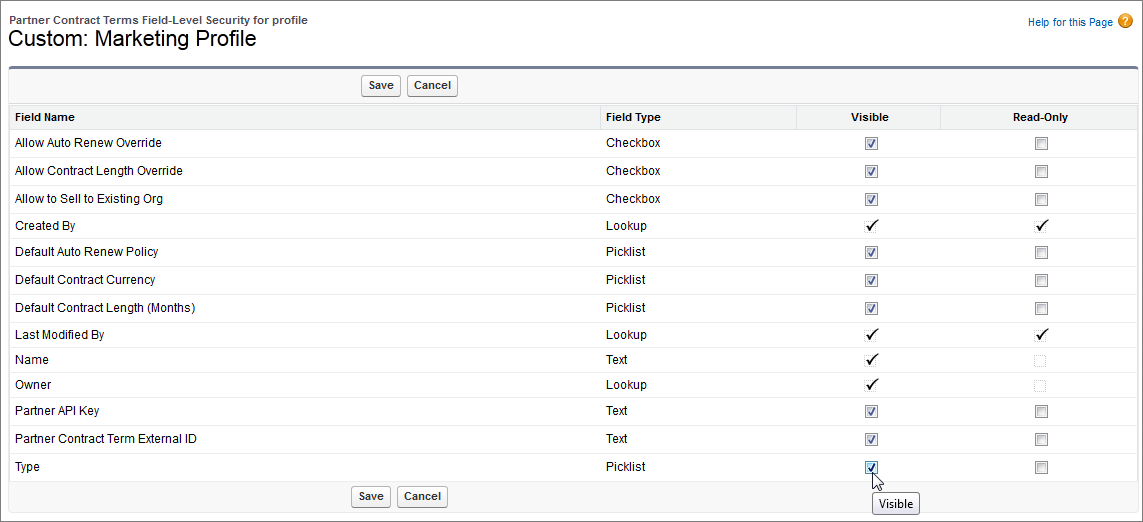
Select all checkboxes in the Visible column. Leave the
Read-Only column as is.
- Click Save.
- Click Back to Profile. (Repeat for the next object.)
After these steps are complete, users with the profile should be able to access the Channel Order App.