Force.com Platform Fundamentals
 j
jLook at What We've Done
To truly appreciate what we've just built with a few clicks, let's take a look at what we've done.
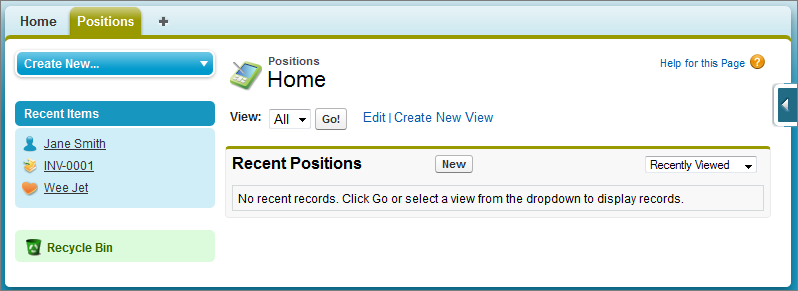
- First, click the Positions tab to display the Positions tab home page, as shown in the following screenshot. Although the list is empty because we haven't yet created any records, you can see how this page will become the gateway to viewing, creating, editing, and deleting all of the positions that we create in our Recruiting app. It looks just like the tab home page of any other standard object.
- Now, check out the contents of the Create New... drop-down list in the left sidebar. As promised, our custom object has been seamlessly incorporated into the platform with the other standard objects like Event and Task. An end user need never know that the Positions tab was created with a custom object, because it shows up alongside the standard objects as well.
- Select Position from the Create New... drop-down list, or click New in the Positions tab home page. Voilà—it's the Position edit page! Sadly, though, our position still doesn't have much room for data. At this point, all we have is a field for Position Title (the record identifier) and Owner, a default field that appears on every object to identify the user who created the object.
- Click Cancel. It doesn't do much to create a position record with hardly any interesting data. We need more fields! And sure enough, that's what we'll get to next. First, though, we'll revisit our Position custom object and orient ourselves to what else is available through a custom object detail page in the Setup area.
- Notice the arrow icon (
 ) on the right
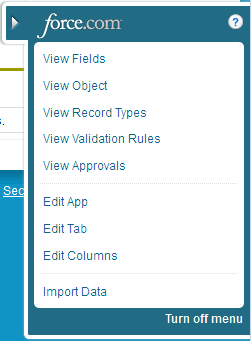
side of the page. Click it to open the Force.com quick access menu. When you're building apps, the quick access menu
makes it easy to switch between object records and setup pages. This
menu appears from the list pages and record detail page for any object,
so you can easily jump to the setup pages for an object and its tabs,
fields, and more. You'll get a chance to try out the quick access
menu in a little while.
) on the right
side of the page. Click it to open the Force.com quick access menu. When you're building apps, the quick access menu
makes it easy to switch between object records and setup pages. This
menu appears from the list pages and record detail page for any object,
so you can easily jump to the setup pages for an object and its tabs,
fields, and more. You'll get a chance to try out the quick access
menu in a little while.