


Force.com Platform Fundamentals
 j
jGet Familiar with the Setup Area
Since we’re going to spend most of our time working in the Setup area of the platform, let’s first become familiar with what it is and how to navigate to it.
The Setup area is a place to build and customize applications and to administer and monitor
organizations and users, all in one. We perform almost every task we need
to create our app in the Setup area, so most of the “Try It Out” sections of
the book are going to start with an instruction like “From Setup, enter
Apps in the Quick Find box, then select
Apps.” This is a short way of saying:
- Depending on your organization settings, you’ll access the Setup area in one of two
ways. Look at the header at the top of the page.
If you see Setup in the header, click it.

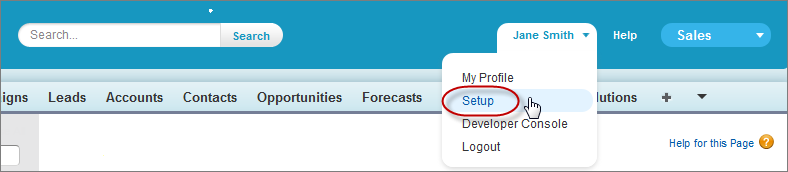
If you don’t see Setup in the header, click your name, then select Setup.
- Once you’re in the Setup area, you’ll see a menu on the left side of the page. From that menu, enter Apps in the Quick Find box, then select Apps.
The text that you enter and the page name that you click (in this example, Apps) will change depending on the task you’re performing.
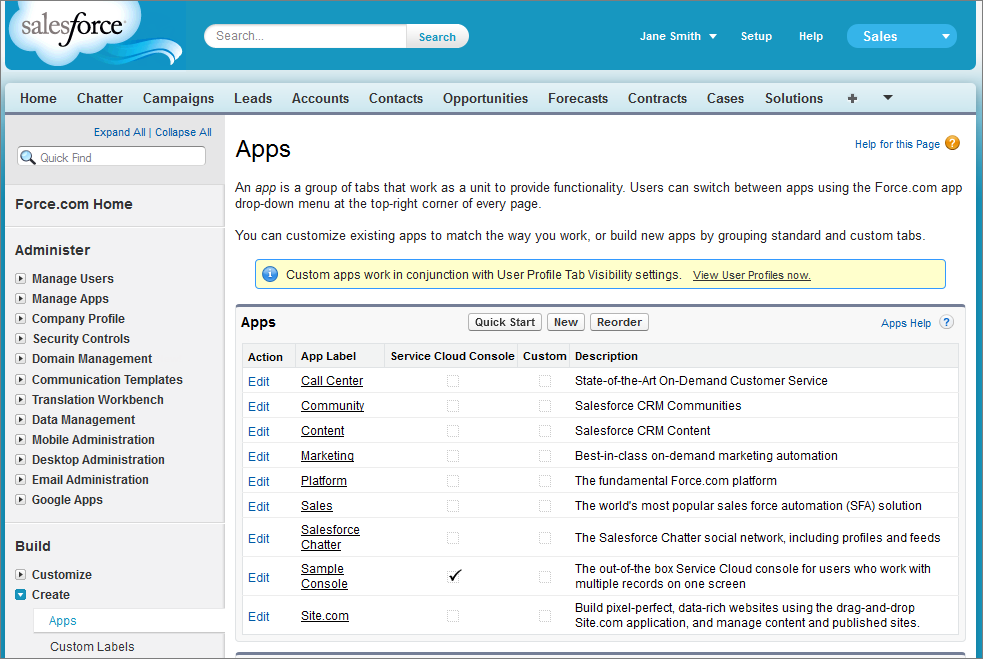
The navigational sidebar includes expandable lists of all the tools that are available in the
Setup area. The tools include options for setting up, maintaining, and customizing your
organization and for building, extending, and managing apps.
Now that we know what we’re looking at, let’s start creating our simple app.