


Force.com Platform Fundamentals
 j
jTry It Out: Create a Process and Define “Send Rejection Letter” Criteria
Let’s start by creating our process and configuring what triggers the process to execute actions.
- From Setup, enter Process Builder in the Quick Find box, then select Process Builder.
- Click New.
- Name the process Recruiter Tasks.
- Press TAB to autofill the API name and then click Save.
- Click Add Object and choose Job Application for the Object type. You can type in the Object field to filter the list of objects. For example, type Job to see objects that start with job.
- Let’s choose to start the process when a record is created or edited to ensure that the process evaluates our criteria any time the record changes. We’ll make an additional selection when we define our criteria that also makes sure that if our criteria is already true, the process won’t execute actions again if some unrelated change is made to the Job Application object. We’ll explain that option when we get there.
- Click Save.
- Click Add Criteria.
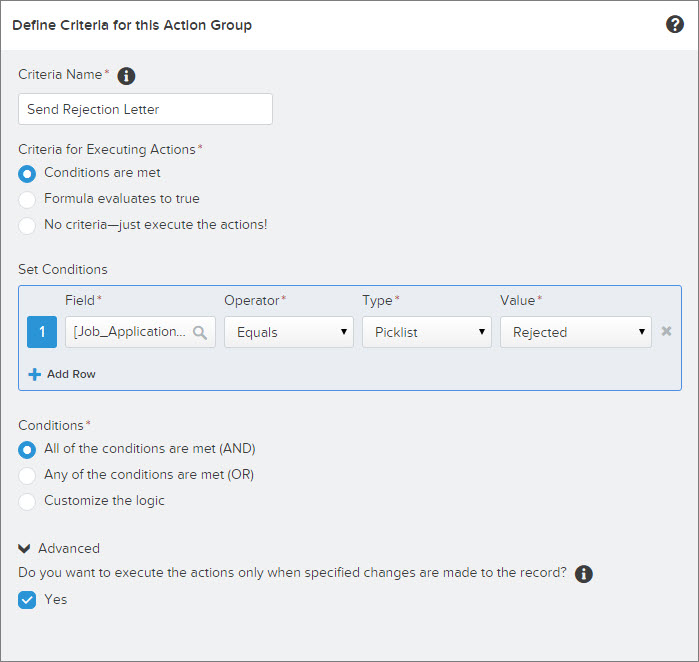
- Enter Send Rejection Letter for the criteria name.
- For the criteria for executing actions, leave the selection as Conditions are met.
- In the Set Conditions area, click in the Field area to select a field on the Job Application object.
- Select Status and then click Choose.
- Leave the operator and type as Equals and Picklist.
- For the value, select Rejected.
Now let’s make sure that our process doesn’t execute unwanted actions if an unrelated change is made to the record. For example, let’s say a user changes the status field on a job application record. The process evaluates it and creates a Send Rejection Letter action for the recruiter. Good. That’s what we want our process to do. Now let’s say a user subsequently changes the Cover Letter field on the job application record. Because the record changed, the process evaluates it again and because the status field is still set to Rejected, it creates yet another Send Rejection Letter task for the recruiter. That’s not good.
There’s an easy way to avoid this. The process can also check whether the record already met criteria before the last change was made to the record. If the criteria was already met the last time the record was saved, the process doesn’t execute actions. By selecting this option, the process only executes actions if the record changes from not meeting our specific criteria to meeting criteria.
- Click Advanced at the bottom of the side panel, and select
Yes where you’re asked Do you want to execute the
actions only when specified changes are made to the record?. It’s that easy!
- Click Save.
At this point, we've just defined our “Send Rejection Letter” criteria. Now let’s define the action that should execute when those criteria are true.